
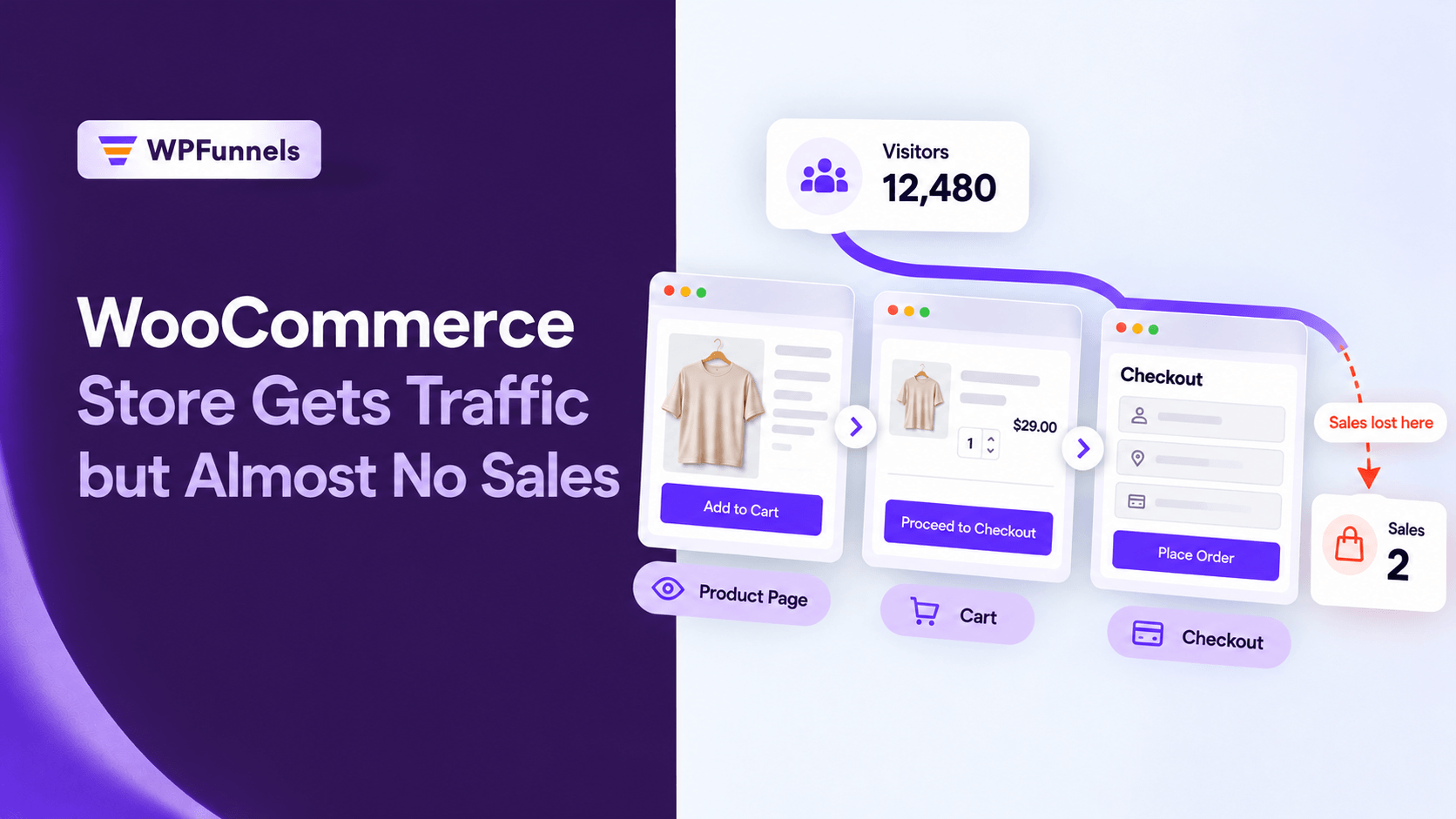

As a store owner, you’d naturally think that getting more visitors would help you make more sales, right?
Yeah, that might work in some cases. That’s okay.
But in your case, that’s already proven wrong…!!!
And I know during this crisis moment you find a lot of advice, like running more ads, working on SEO, and so on.
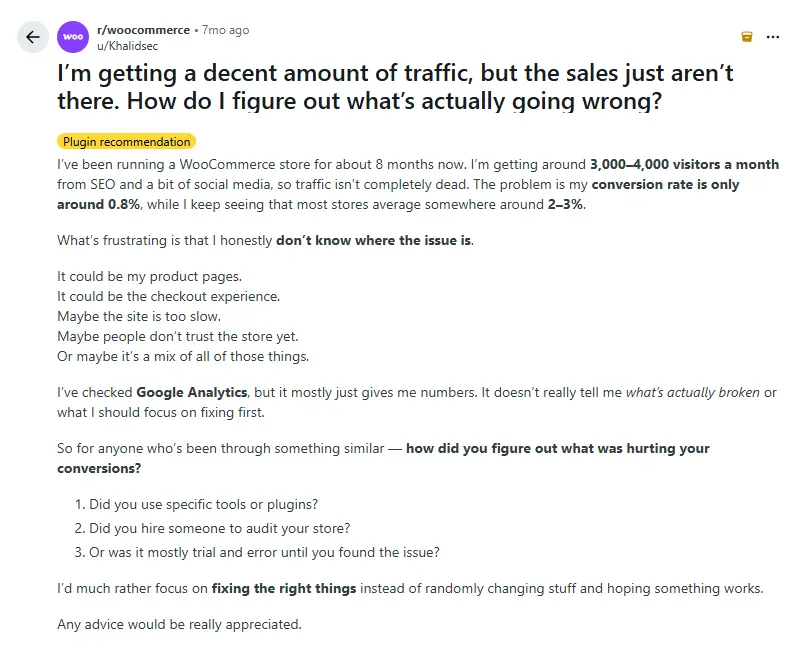
If that is where you are, you’re not doing anything wrong by being stuck. One owner on r/woocommerce put it better than any guide
What’s frustrating is that I honestly don’t know where the issue is.”
So, what do you do? If that is your question, then let me tell you:
You need to find out where exactly you are losing those sales.
Here is my view, and the rest of this page is how to act on it.
I would look at the checkout before the product pages, because the checkout is where people decide to pay.
TL;DR: Where to Look First When Your WooCommerce Store Gets Traffic but No Sales
- Find out whether visitors are reaching checkout at all before you change anything. That one split tells you which half of the store to fix.
- Walk your own checkout on a phone, as a stranger, and write down every moment you hesitate.
- The biggest checkout leaks are costs that appear late, forced accounts and too many fields, and WooCommerce settings fix most of them without a plugin.
- Errors that wipe the form, no sense of how many steps are left, a coupon box that sends buyers hunting, and typing a full address on a phone are the next four to check.
- If you only have an hour, there is an order that gets the most done in it, set out near the end of this page.
Why is my WooCommerce store getting traffic but no sales?
A WooCommerce store with traffic and no sales usually has a leak between the product page and the paid order. It’s not necessarily a traffic problem.
Visitors either never add to cart, or they add to cart and leave at checkout. In this situation, you need to find out which of the two is happening before making any fixes, increasing your ad budget, or redesigning your store.
But how do you find out where the problem is?
You might be getting twenty ideas to try: better photos, faster hosting, more reviews, or a new theme. You try a few things, nothing changes, and you’re back where you started, only more tired.
That’s exactly why you need to identify the problem first.
One owner on r/woocommerce put it plainly: “I’d much rather focus on fixing the right things instead of randomly changing stuff and hoping something works.”
So, where would I look first? The checkout.
Why? Because by the time the buyers reach checkout, and they have already decided they want the product. Yet, many still leave without completing their purchase.
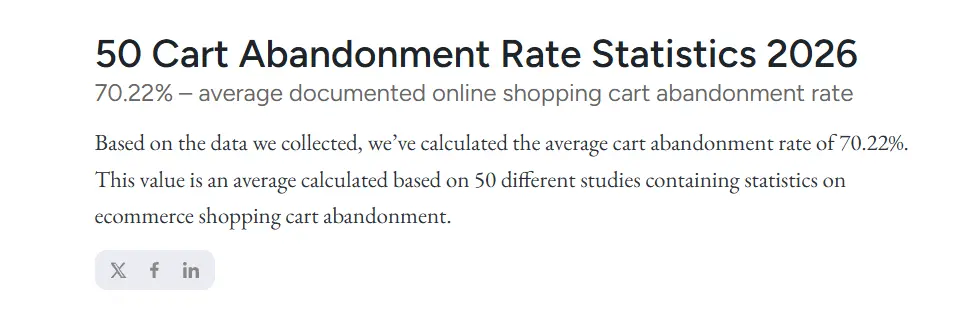
Baymard Institute’s running average puts documented online cart abandonment at 70.22% across 50 studies.
That is an industry benchmark, not a figure for your store, but it shows how common it is for buyers to leave even after adding products to their carts.
We wrote a longer piece on why buying more visitors rarely fixes this, if you want the reasoning behind it: more traffic won’t fix your WooCommerce revenue problem.
How do I know if the problem is my product pages or my checkout?
Compare two numbers in your WooCommerce store: how many visitors add a product to the cart, and how many of those who start checkout place an order.
- If few people add to cart, look at product pages first.
- If plenty add to cart but few finish, the WooCommerce checkout is where the sale dies.
You can see this split in Google Analytics 4 if your store sends the standard ecommerce events: view_item, add_to_cart, begin_checkout, and purchase.
A funnel exploration built on those four steps shows where the drop is steepest.
Run it separately for phone and desktop, because a checkout that works on a laptop can still fail on a phone. Contentsquare’s 2026 benchmark, drawn from 99 billion sessions, found mobile is 69.9% of traffic, yet desktop converts 74% higher than mobile.
If you do not have GA4 e-commerce tracking set up, you can still get a rough answer.
Count the abandoned or pending orders in WooCommerce over a month against the completed ones, and ask yourself one honest question: do people tell you they wanted to buy and something stopped them?
How do I test my own WooCommerce checkout like a buyer?
Take your phone, open your WooCommerce store in a private browser window, and try buying your cheapest product just like a new customer would. Don’t log in.
As you go through the checkout, note every field you have to fill in, anything that surprises you, and any moment when you hesitate.
Then try it again on a different phone or browser. These notes will help you figure out what needs fixing.
I’d never skip this step because it costs nothing, and you might notice things you’ve been missing. When you’re logged in as an admin and testing on a desktop, your saved details can fill in the form for you. But a new customer browsing on their phone might have a completely different experience.
As you go through the checkout, write down these four things:
- How many fields do you need to fill in? Count each box once.
- When do you first see the full price, including shipping and tax?
- Does anything ask you to log in or create an account?
- Does anything go wrong, like an error message, a field clearing itself, or a slow payment step?
Once you’ve checked everything, place a real order using a real card, then refund it and check whether the confirmation email arrives.
Your checkout might look fine, but if the payment fails or the confirmation email never arrives, you could have a problem without even knowing it.
Why do buyers leave when shipping and tax show up at checkout?
Buyers may leave when shipping, tax, or extra fees show up late because the price they agreed to in their head just changed.
According to Digital Commerce 360’s 2025 Ecommerce Conversion Report, 30.1% of shoppers abandoned a cart because shipping costs made the total higher than expected, while 26.6% left because their order didn’t qualify for free shipping.
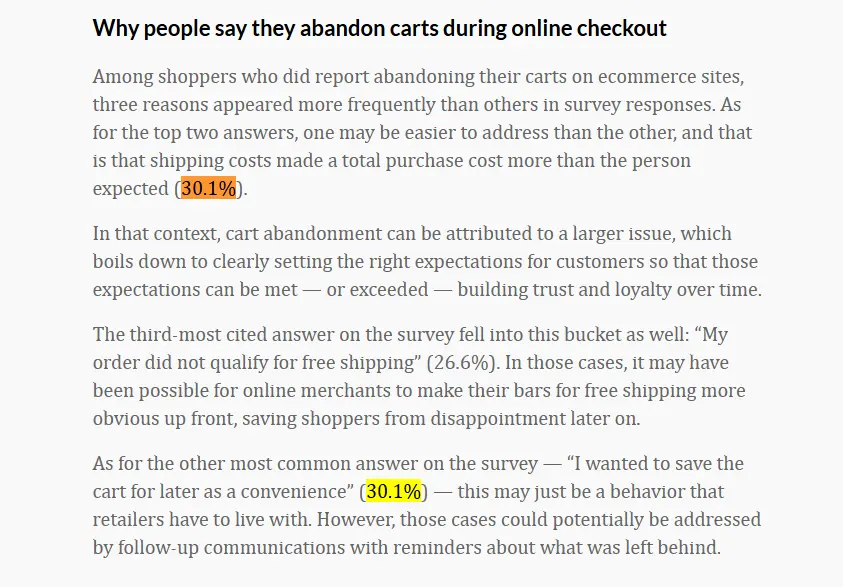
The same survey found that only 8.4% of shoppers said they’d never abandoned a cart. So, leaving a cart behind is pretty common.
Make sure buyers can see a shipping estimate on the cart page, before they reach checkout. Also, check that your shipping zones cover the countries you actually sell to. Otherwise, a buyer might reach checkout only to find that no shipping option is available.
If you offer free shipping above a certain order value, mention that on the cart page too. That way, buyers can see how much more they need to spend to qualify, instead of finding out too late.
Should I make customers create an account to buy?
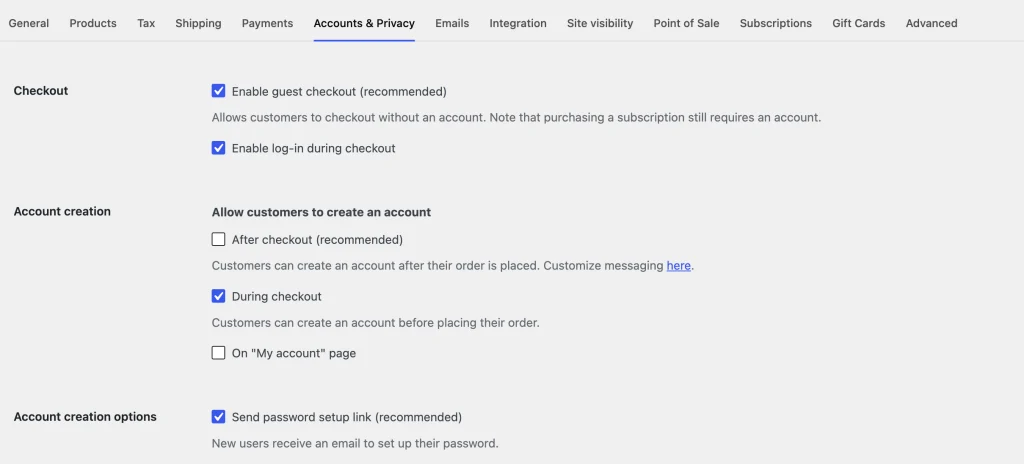
No. Let customers check out as guests, and offer them the option to create an account after they’ve paid.
WooCommerce has settings for both.
Just enable guest checkout and allow account creation after checkout. That way, you still get the buyer’s email with the order without asking them to create a password first.
One well-known example comes from Jared Spool, who shared how a large retailer replaced its Register button with a Continue button and added a line explaining that customers didn’t need an account.
“The number of customers purchasing went up by 45%”, and the retailer saw an extra $300 million in the first year.
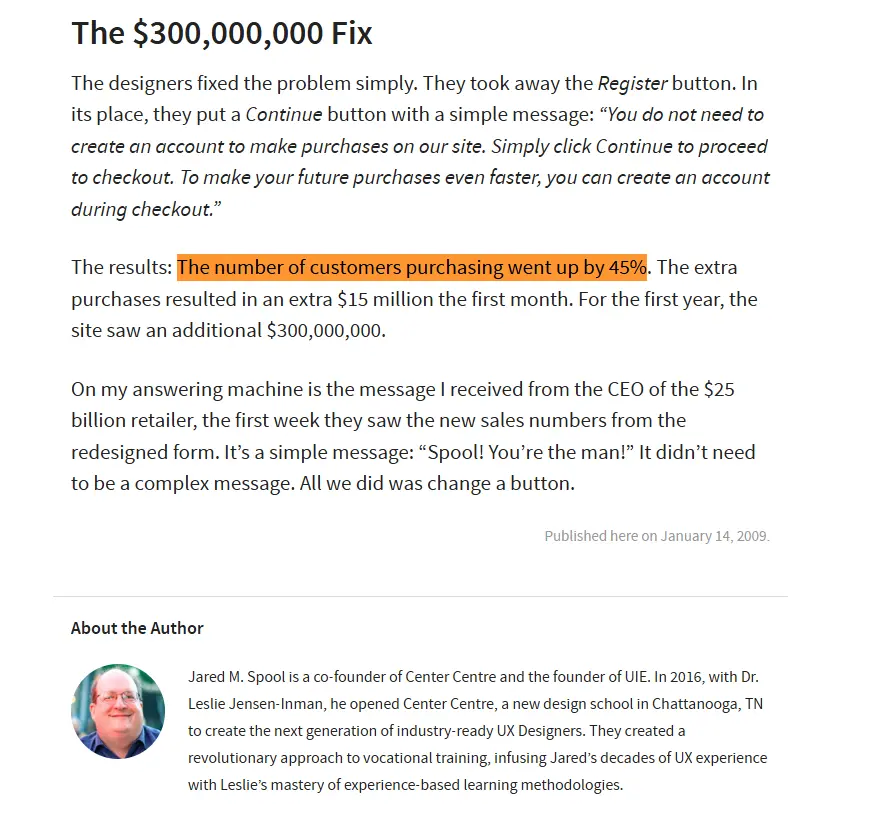
Before the change, the site was getting about 160,000 password reset requests a day, and 75% of those people never finished their purchase.
That store was far bigger than yours, so treat the dollar figure as a story, not a forecast.
But the lesson still applies to your store. Asking buyers to create a password is one more thing to do at the exact moment you want them to focus on just one thing: completing their purchase.
In WooCommerce, go to WooCommerce > Settings > Accounts and Privacy. Turn on “Enable guest checkout”, then under account creation, turn on “After checkout” so buyers can create an account once their order is placed (WooCommerce docs).
The main exception is subscriptions, where WooCommerce notes that customers still need an account to buy.
Which WooCommerce checkout fields can I remove without a plugin?
WooCommerce lets you hide or make three fields optional without a plugin: Company, Address line 2, and Phone.
If you’re using the Checkout Block, you can manage these fields through the Address Fields settings in the editor.
If you’re using the older shortcode checkout, go to Appearance > Customize > WooCommerce > Checkout. For fields beyond these three, you’ll need a field editor.
Think about it this way. Every field you add to checkout gives the buyer one more thing to fill in.
Nielsen Norman Group puts it simply: “Every time you cut a field or question from a form, you increase its conversion rate”.
Their guideline is to remove fields that can be worked out another way, collected later, or left out entirely.
Baymard’s checkout research puts the average US checkout at 14.88 form fields, against 7 to 8 for an ideal flow.
A WooCommerce developer also shared their experience on Reddit.
They reported that removing a newsletter signup checkbox from checkout led to a 12% increase in conversions.
While that’s one person’s experience, it shows why it’s worth looking at what you’re asking buyers to do before they complete their purchase.
Which checkout you have decides where the setting lives.
The Checkout Block is the default for new WooCommerce installs.
Select the Checkout Fields block in the site editor and use Address Fields to toggle Company, Address Line 2 and Phone, and to set whether address and phone are required (WooCommerce docs).
If your store still uses the shortcode checkout, the same three fields can be set to optional, required or hidden under Appearance > Customize > WooCommerce > Checkout (WooCommerce docs).
Ask one question of every field that is left: do I use this answer to ship or support the order? If you do not, it is a candidate to remove.
Why do buyers give up after one checkout error?
Buyers give up after an error when the form clears what they already typed, or when the error message doesn’t tell them what to fix.
Having to retype an entire address on a phone can feel like starting all over again.
Checking each field as the buyer types, instead of waiting until they press the checkout button, makes these errors much easier to fix.
The problem isn’t always the error itself. It’s how much work the buyer has to do to recover from it.
For example, they might mistype a postcode and then have to find the one field marked in red at the top of a long form. Or they might lose their card details when the page reloads. At that point, they may decide to come back later instead of completing the purchase.
Luke Wroblewski tested this with the usability firm Etre on 22 users. Compared with checking only after submit, inline validation gave a 22% increase in success rates, 22% fewer errors, and 42% faster completion times.
It was a small study on a registration form, not a checkout, but the same idea applies: let buyers know about a mistake while they can still see and fix the field.
You can test this yourself during your phone walkthrough. Leave a required field empty, enter a wrong postcode, use a card number that will be declined, and see what happens to the rest of the form.
Do the details disappear? Is the error message unclear?
Write down anything that goes wrong. Depending on what you find, the fix might be in your theme, payment plugin, or checkout setup.
Do buyers need to see how many steps are left on a WooCommerce checkout?
If you’re using a multi-step WooCommerce checkout, yes…
When buyers don’t know how many steps are left, they may assume the checkout will take longer than expected and leave. A simple step indicator shows them how close they are to completing their purchase.
On a single-page checkout, it matters less because the whole form is visible at once.
Part of what makes a checkout feel long is not knowing when it will end. A step indicator doesn’t make the checkout shorter, but it helps buyers see how much they have left to do.
The WooCommerce Checkout Block has a setting called “Show form step numbers” in its sidebar (WooCommerce docs). If you’re using a plugin to split your checkout into multiple steps, check that it shows buyers where they are and that each step has a clear name explaining what they need to do.
Does the coupon field send buyers off to hunt for a code?
It can. When buyers see an empty coupon box, they might think there’s a discount code they’re missing out on.
So, they leave checkout to look for one and sometimes never come back. If you rarely offer discount codes, remove the coupon field.
If you do run promotions, keep it collapsed behind a small link so it doesn’t distract buyers from completing their purchase.
This is more about attention than friction. The buyer was ready to pay, but then the checkout suggested they might be paying more than they needed to.
That’s not the message you want to send at the final step.
WooCommerce gives you both options. On the Checkout Block, you can remove the Coupon Form block from the totals section.
If you send coupon codes by email, buyers who have one can still look for the coupon field when they need it. Keeping it out of the way helps avoid distracting everyone else.
Does typing the full address make buyers quit on a phone?
It adds more work at the worst possible moment. Typing a street, city, postcode, and country on a small keyboard takes time, and every typo creates another chance for an error.
Address autocomplete can fill in the address after just a few letters. A checkout that asks for the shipping address first and copies it to the billing address can also save buyers from typing everything twice.
Two small changes can help here.
- First, ask for the shipping address once and offer a “same address for billing” option, so buyers don’t have to enter the same details twice.
- Second, use address autocomplete to suggest the full address as buyers type and fill in the fields for them.
Google’s own checkout guide for developers explains that autocomplete can reduce address entry errors and cut the number of keystrokes and the time customers need to place an order.
In WPFunnels, a checkout that asks for the shipping address first with a “same address for billing” option. WPFunnels can also connect Google address autocomplete through the Google Maps API on a WPFunnels checkout.
What should I fix first if I only have an hour?
If you only have an hour, start by buying something from your own WooCommerce store on your phone.
Spend the first 15 minutes going through checkout like a new customer, then fix what you can through WooCommerce’s built-in settings. Turn on guest checkout, show shipping on the cart page, and hide Company, Address line 2, and Phone if you don’t need them. Leave plugins for later.
This order makes sense because you’re starting with free changes that you can easily undo.
You don’t need to touch your products, payment gateway, or theme to make these fixes. And if something doesn’t work as expected, you can change it back in a minute.
| Minutes | What to do | Where |
|---|---|---|
| 0 to 15 | Buy your cheapest product on a phone, logged out, and note every hesitation | Your own store, private window |
| 15 to 25 | Turn on guest checkout and account creation after checkout | WooCommerce > Settings > Accounts and Privacy |
| 25 to 40 | Make sure shipping shows on the cart page and covers every country you sell to | WooCommerce > Settings > Shipping |
| 40 to 50 | Hide or make optional Company, Address line 2 and Phone | Checkout Block Address Fields, or Appearance > Customize > WooCommerce > Checkout |
| 50 to 60 | Buy again on the phone and count the fields | Your own store |
Do I need a plugin, or can I fix my WooCommerce checkout in settings?
You can fix some of the biggest WooCommerce checkout issues through the built-in settings. These include enabling guest checkout, showing shipping on the cart page, and hiding the Company, Address line 2, and Phone fields if you don’t need them.
A plugin becomes useful when you want to change other checkout fields, split checkout into multiple steps, or replace the default checkout across your store.
I’d always start with the built-in settings because they’re free and don’t add another plugin that could conflict with your existing setup.
Once you’ve made those changes, go back to the notes from your phone walkthrough and see what’s still left to fix.
If you need to remove more fields, create a cleaner checkout layout, or use a different checkout across your store, that’s where a checkout plugin can help.
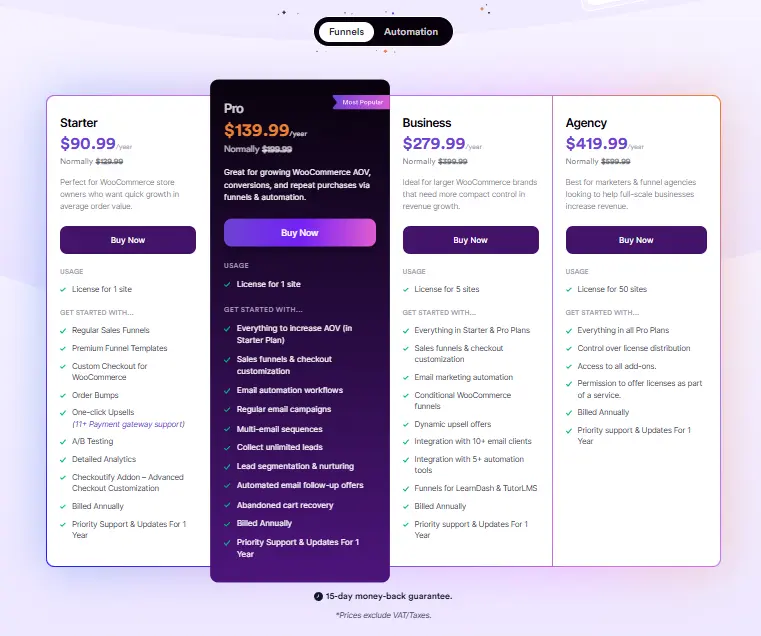
One option is WPFunnels, a visual sales funnel builder for WordPress and WooCommerce, built for store owners and creators who sell online. Here’s what you can do with WPFunnels Freeand what requires a paid plan.
| What you want | WPFunnels Free | WPFunnels paid plans |
|---|---|---|
| Replace the default WooCommerce checkout across the store | Yes, up to 3 storewide checkouts | Yes |
| Funnels with a checkout step | Up to 3 funnels | More funnels |
| Order bump at checkout | 1 per funnel | Multiple order bumps |
| One-click upsell after checkout | 1 per funnel | More upsells and downsells |
| Edit checkout fields beyond WooCommerce’s three | No | Yes, built-in checkout field editor |
| Multi-step checkout | No | Yes |
| Different checkout by cart contents | No | Yes, on plans that include the Global Funnels addon |
Free limits are from the WordPress listing. Paid features are from the checkout field editor page and the global funnels page. Check the pricing page for current plans.
Will changing my checkout break the store that already sells?
Changing WooCommerce settings won’t break your store. You can turn guest checkout on, show shipping on the cart page, and hide or make the three optional fields optional.
If something doesn’t work as expected, you can switch these settings back in a minute. A checkout plugin is a bigger change, so test it on a staging copy or during a quiet hour, and place a real order before you leave it live.
It’s reasonable to feel nervous about this. You built a store that sells, and a checkout that stops working costs more than one that’s a little too long.
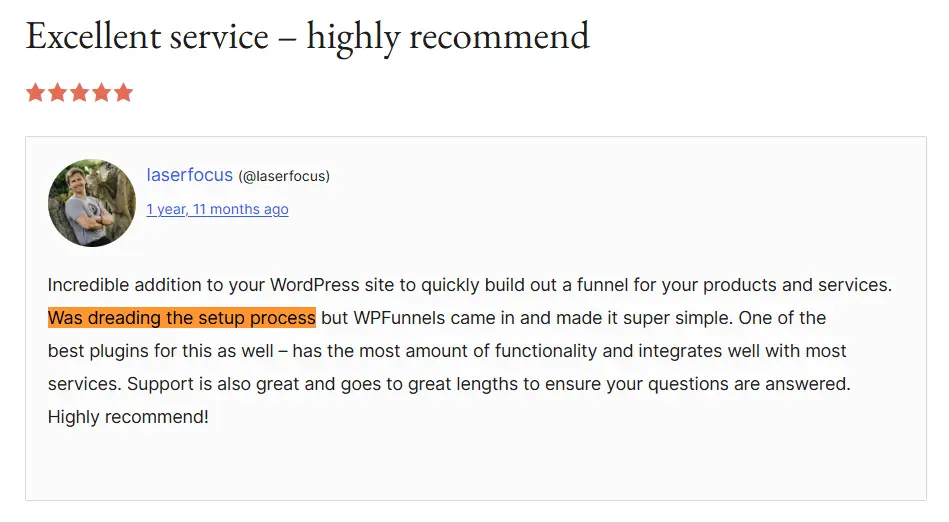
One WPFunnels user described the feeling before setup in three words: “Was dreading the setup process”
A storewide checkout in WPFunnels replaces only the checkout step. Your products, cart, payment gateways, and theme are not part of that change.
Before you switch it on for real buyers, place a test order on your phone, check the confirmation email, and look at the order in WooCommerce.
Should I spend more on ads before I fix the checkout?
If your WooCommerce store already gets steady traffic, fix the checkout first. Every visitor you pay for goes through the same checkout, so if something is stopping buyers from completing their purchase, you’re spending more money to bring people into a store that still has the same problem.
If your store is new and barely gets any visitors, though, traffic comes first. You need visitors before you can learn where your checkout is losing potential buyers.
Paid traffic isn’t getting cheaper. WordStream’s 2026 benchmarks, based on more than 13,000 US search campaigns, put the average Google Ads cost per click at $5.42, more than twice the $2.32 it was ten years ago.
At that price, every buyer you lose at checkout means you’ve paid to bring someone to your store without getting the sale.
Grow the value of the traffic you already have before paying for more of it.
That’s the one thing I’d take away from this page. It doesn’t mean ads are a bad idea. It means the order matters: fix the checkout first, work on increasing order value next, and then invest in more traffic.
Final Thoughts
I know how frustrating it can be to see people visiting your WooCommerce store but hardly anyone buying. And when you don’t know where the problem is, trying another plugin, changing your design, or spending more on ads can feel like the only thing left to do.
But before you do any of that, take a little time to go through your checkout as a buyer. See where you hesitate, what feels confusing, and what might make someone leave without completing their purchase. Start with the small fixes you can make in WooCommerce settings, then see what’s still getting in the way.
You don’t have to fix everything at once. Start with what you find, fix the problems you can, and test again. Once you understand where buyers are dropping off, you’ll have a much clearer idea of what to work on next instead of guessing.
Frequently Asked Questions
What is a normal conversion rate for a WooCommerce store?
There is no single normal rate, because it changes with the product, price and traffic source. Compare your WooCommerce store with itself over time and by device instead. What matters for a store with traffic and few sales is the step where visitors stop, not how one average compares with another store’s.
Industry averages exist. IRP Commerce, which tracks UK online retailers, reported an average conversion rate of 1.97% for September 2026 (IRP Commerce). But averages mix very different shops, from cheap accessories to furniture, and they hide the one thing you need to know: where your own buyers leave.
Can I see who abandoned my WooCommerce checkout?
WooCommerce on its own shows pending and failed orders, which tells you about payment problems, but it does not list buyers who left before paying. To see abandoned checkouts, you need GA4 ecommerce tracking for the drop-off step, or an abandoned cart plugin that captures the email once a buyer types it.
Start with the drop-off step, since it tells you where to look. Recovery emails help after that, but they work best on a checkout that is not still losing buyers for the same reason.
Does a one-page checkout convert better than a multi-step checkout in WooCommerce?
Neither wins by default. A one-page WooCommerce checkout shows everything at once, which suits short forms and few products. A multi-step checkout feels lighter per screen and suits longer forms, as long as it shows how many steps are left. Test the one you have on a phone before switching.
What matters more than the layout is the number of fields and whether costs appear early. A short multi-step checkout beats a long single page, and the reverse is also true.
Should I add trust badges to my WooCommerce checkout?
Add trust signals that answer a real worry, not decorative badges. A buyer about to type card details wants to know the payment is safe, the product can come back, and someone will answer. Show the payment methods buyers recognise, a clear returns policy and a way to contact you, close to the payment step.
The right signal is the one your buyers ask about. If support questions keep asking about returns or delivery times, put that answer next to the pay button.
Do I need WPFunnels to fix my WooCommerce checkout?
No. Guest checkout, shipping on the cart page, and the Company, Address line 2 and Phone fields are all WooCommerce settings. WPFunnels helps when you want a storewide checkout of your own, a field editor for other fields, or an order bump at checkout, and the Free version covers the storewide checkout.
Fix the settings first, then decide. If the phone walkthrough still shows problems the settings cannot solve, that is the point where a WooCommerce checkout plugin is worth installing.