
As a WooCommerce store owner, great products aren’t enough. You also need to promote them consistently on social media.
But the process gets repetitive. You publish a product, then copy the link, download the image, write a caption, and post on different platforms.
In fact, businesses spend 6–10 hours per week per platform managing their posts manually. (according to Hubspot)
This slows your growth. That’s why smart store owners automate social posting, so products get shared automatically without daily copy-paste.
In this tutorial, you’ll see how it works using the Bit Social plugin, which helps you automate posts and generate captions with AI without extra effort.
So let’s get started,
Common Social Media Challenges for WooCommerce Store Owners
Social media can drive huge growth for your business. However, manually posting every product across different platforms is very tough.
Let’s look at the common challenges you face when sharing WooCommerce products on social media.
1. Forgetting New Product Launches
Launching a new product is exciting, but promoting it on every social platform isn’t.
For WooCommerce stores active on multiple channels, that can mean 40+ hours a month lost to repetitive social media posting.
When you’re busy handling inventory and orders, it’s easy to miss a launch, and that means missed engagement, traffic, and sales.
2. Manually Copy-Pasting Captions for Every Platform
One of the biggest annoyances for WooCommerce owners is writing the same caption again and again, just with slight tweaks for different platforms.
This not only eats time but also increases the chance of errors or inconsistent messaging.
As you have seen above, studies show that brands that post consistently achieve significantly higher engagement than those that post irregularly.
3. Missing Upsell and Subscription Promotions
Many WooCommerce stores rely on product upsells or subscription offers, but these often slip through the cracks because they aren’t part of a regular posting habit.
You might run a great upsell or a subscription renewal campaign one week, then forget all about it the next.
This inconsistency means potential revenue opportunities get left on the table, and your audience never gets reminded of added value.
4. Inconsistent Product Listing Visibility
Not every product gets the attention it deserves. Sometimes your bestsellers get buried under new arrivals because there’s no easy way to share or rotate products across social media automatically.
This means some products lack visibility, which can hurt your engagement and sales.
5. Wasting Time on Scheduling and Reposting
Manually planning posts for sales, flash deals, or seasonal promotions is time-consuming.
By the time you create and schedule everything, the optimal posting time may already be missed, and your audience might miss key updates.
Bit Social: The Smartest Social Media Auto Poster & Scheduler Plugin
Bit Social is an effective social media autoposter plugin built specifically for WordPress users.
It allows you to automatically post WordPress content and WooCommerce products to social media directly from your dashboard
Unlike many social media scheduling tools that rely on monthly subscriptions or external dashboards, Bit Social lets you manage everything inside WordPress.
It offers unlimited auto-posting, smart scheduling, WooCommerce integration, and AI-powered captions with smart tags for dynamic posts.
Use Cases of Auto Posting WooCommerce Products to Social Media with Bit Social
In this section, you’ll look at a few real-world use cases of auto-posting WooCommerce products to your social media with Bit Social.
1. Automatically Share New Products
Whenever you add a new product in WooCommerce, it can be posted automatically to your connected social accounts.
Using smart tags like {product_name}, {price}, or {sale_end_date}, your posts are personalized without manual editing.
2. Schedule Posts in Advance
Plan your product promotions, flash sales, or seasonal campaigns ahead of time.
Social media automation tools also allow you to schedule posts for the best time, ensuring consistent posting even when you’re busy.
3. Write Platform-Optimized Captions Automatically
Different platforms need different tones and lengths.
Auto posting can generate platform-specific captions, a casual, punchy caption for Instagram, a professional style for LinkedIn, or a concise version for Twitter, all automatically.
Step-by-step: How to Auto Post WooCommerce Products to Social Media
Auto Posting with Bit Social is quick and easy. Just follow the steps given below.
Step 01: Install & Activate the Plugin
First, Install and Activate Bit Social. Go to your WordPress Dashboard → Plugins → Add New, search for “Bit Social – Auto Post Scheduler,” then click Install and Activate to get started.
Step 02: Connect Your Social Accounts
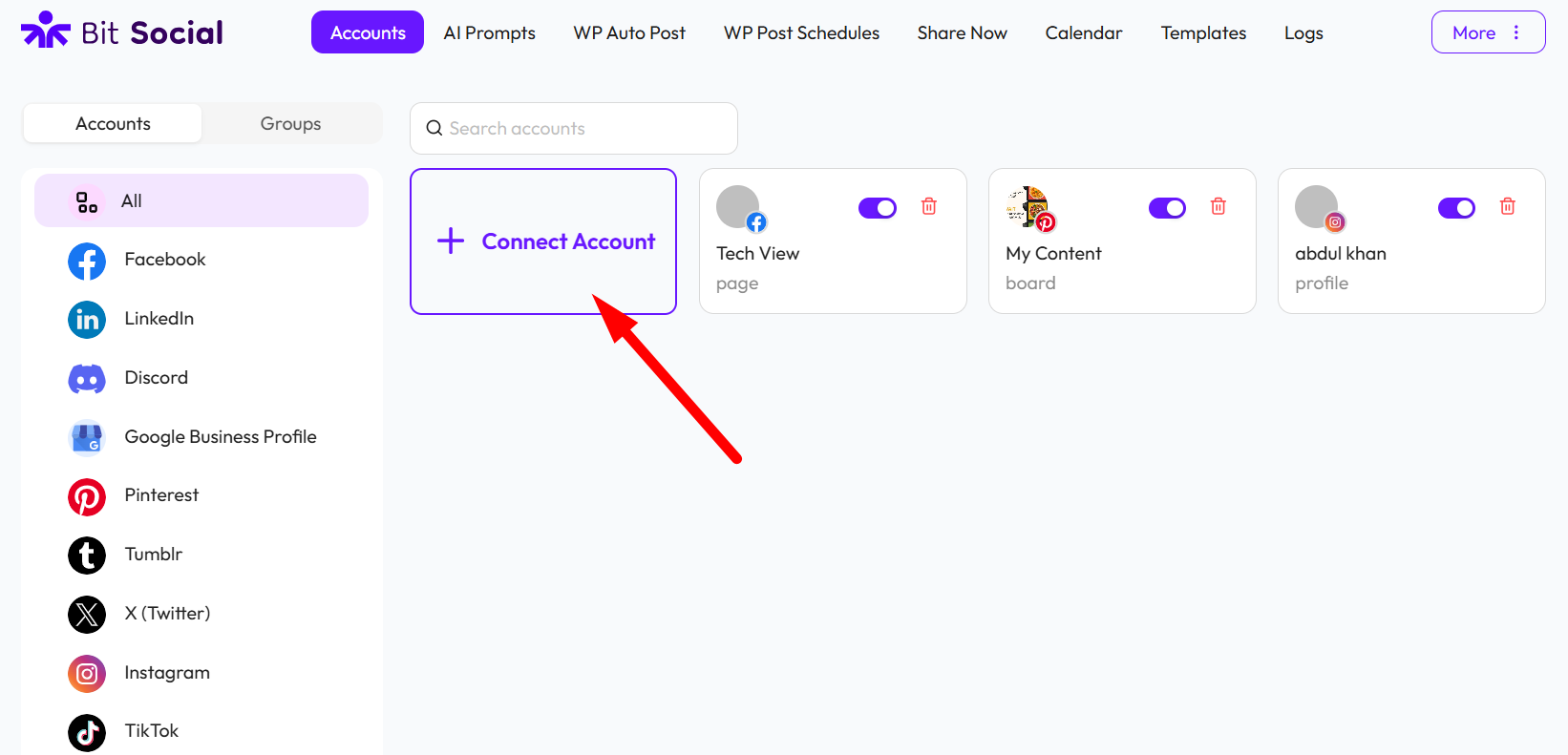
Next, you need to connect all the social media accounts you want to auto-post from WooCommerce. To get started, click the “+ Connect Account” button.
A pop-up will appear with two connection options:
1. One-Click Connect Method: This is the fastest and easiest option. Simply select your platform and connect your account in just one click.
2. Custom App Method: This option requires a few additional steps and manual configuration. It takes a little more time but gives you more control over the connection settings.
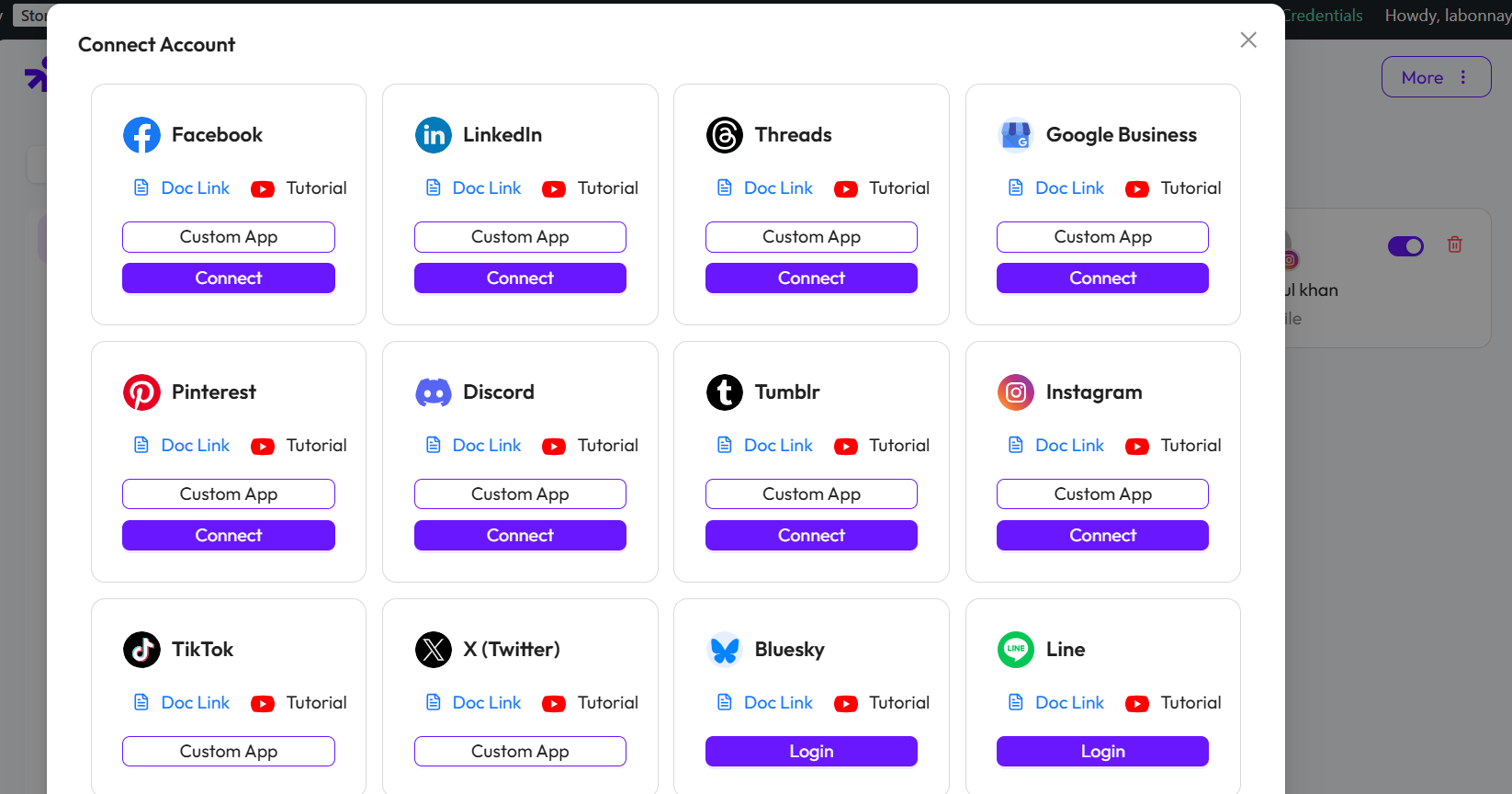
Choose the method that fits your needs, then connect your accounts. After connecting, you’ll find all of them listed under the “Accounts” tab.
Step 03: Set up Auto Posting for WooCommerce Products
Bit Social’s WP Auto Post feature automatically shares any post you publish on WordPress to your connected social media accounts without any manual effort.
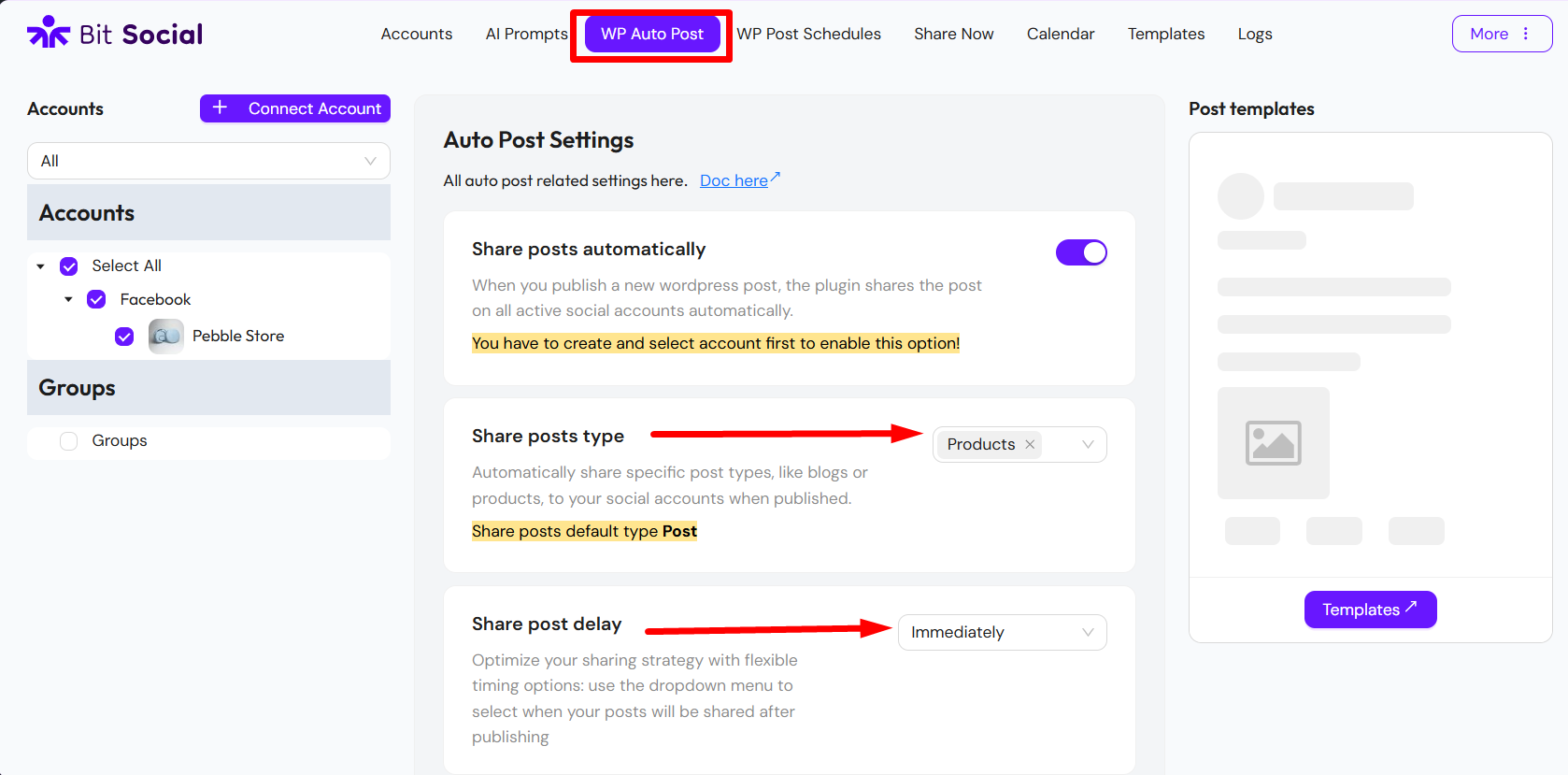
Go to your Bit Social dashboard and open the “WP Auto Post” tab. Next, select the social accounts where you want your products to be shared. Auto posting won’t work until at least one account is selected.
Next, enable the “Share Post Automatically” option and choose the post type. If you want to auto-post WooCommerce items, select “Product.”
Depending on your plan, some advanced post types, such as WooCommerce products, may require the Bit Social Pro version.
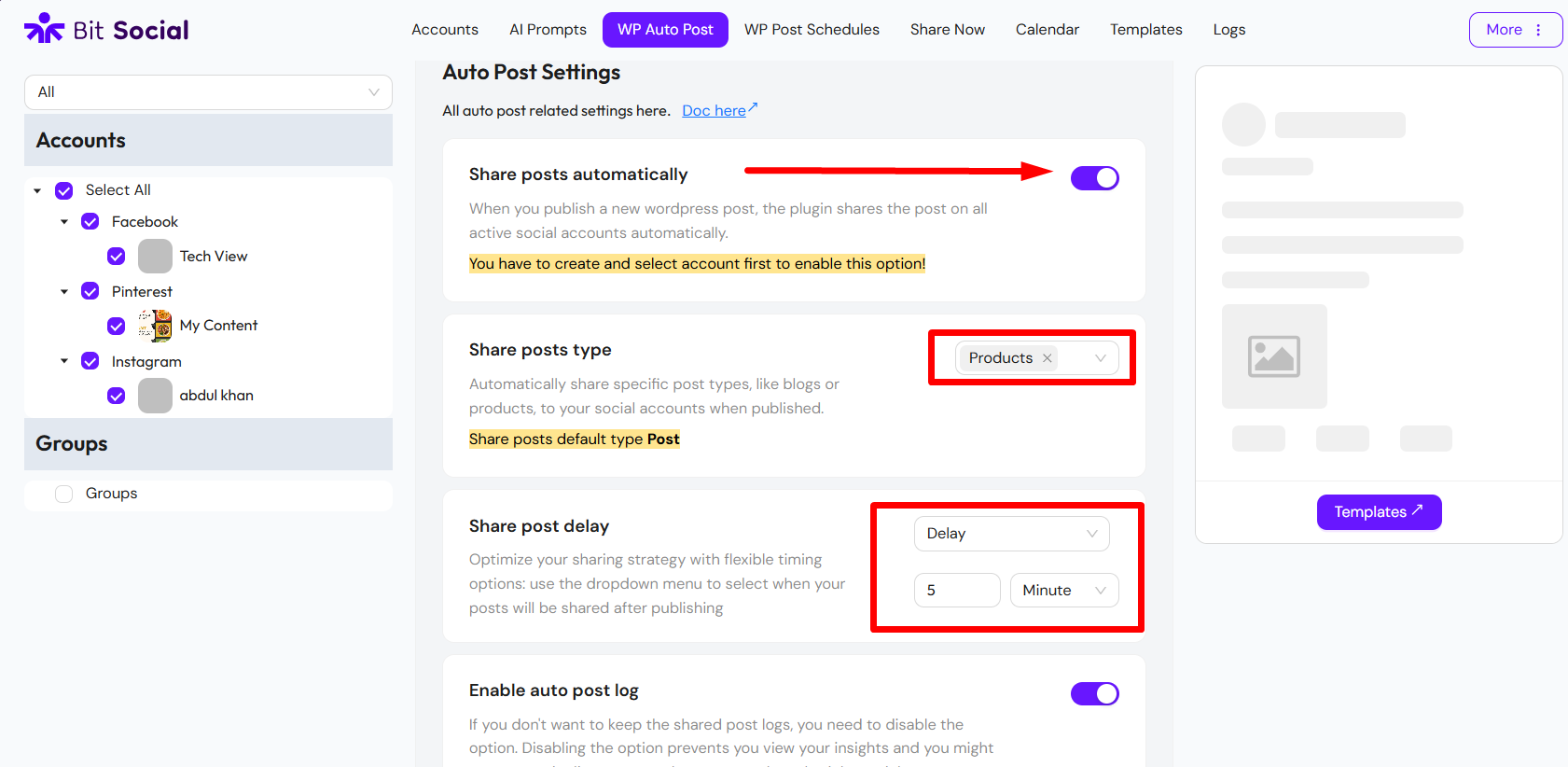
You can choose when your post will be shared. Select it instantly or set a delay to post it later, whatever timing works best for you.
Turn on the Auto Post Log to track and see the details of posts shared to your social media accounts.
On the right side of your dashboard, you will see an option for Post Templates.
Bit Social lets you easily create social media posts by automatically adding product details like name, description, price, quantity, URL, and image in the right order as templates.
You can preview your posts instantly to see how they’ll look before sharing.
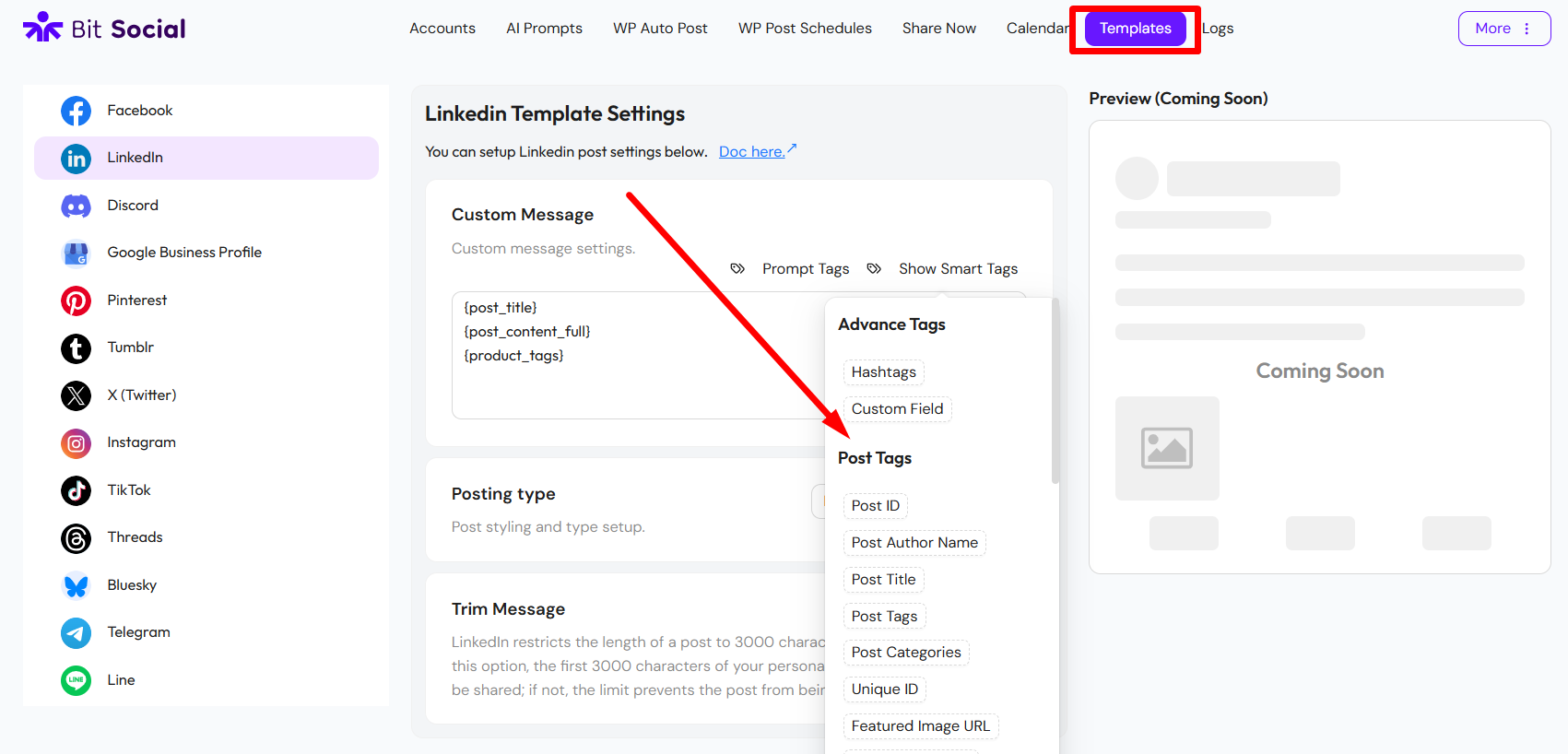
And with that, any product you publish in WooCommerce will be automatically shared to your social media accounts.
Step 04: Use AI Prompts in Bit Social
Bit Social also Integrates with ChatGPT (OpenAI), so whenever you publish or schedule a post, AI can automatically create captions, summarize content, or generate images for you.
To set this up, go to the Bit Social dashboard and click on AI Prompts from the Bit Social menu. Connect the OpenAI with Bit social with an API key.
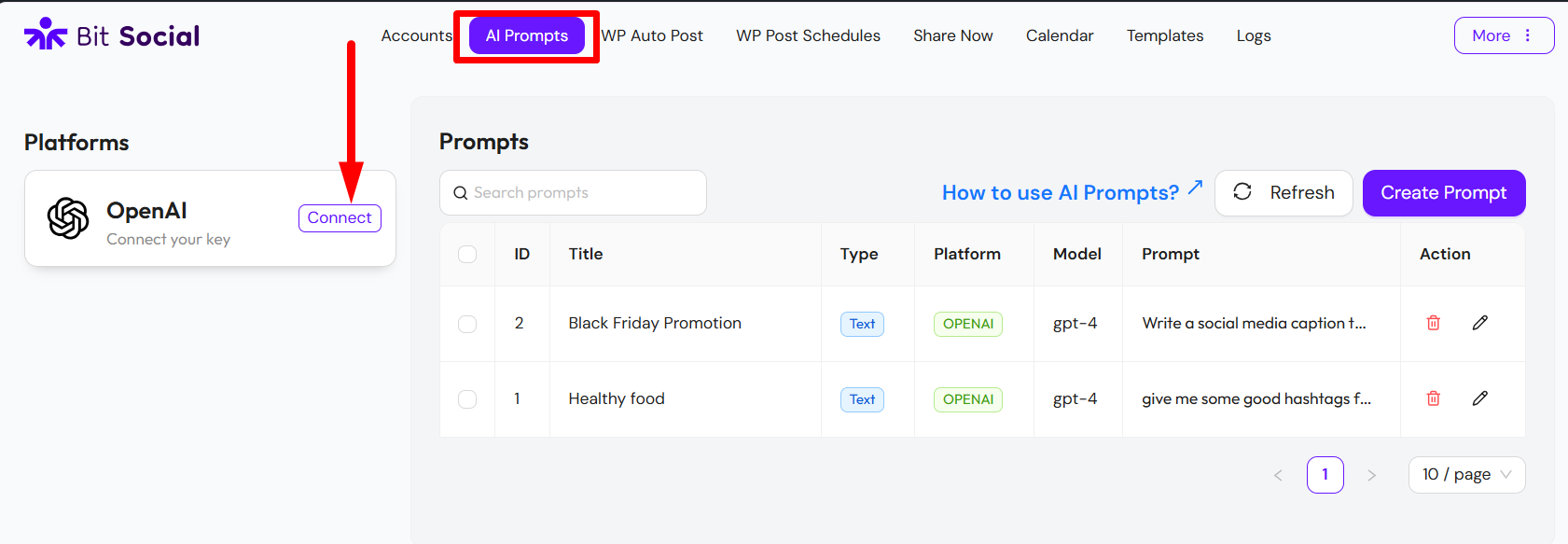
Click on Create Prompt, then add a Title, choose the Type and Platform, select your OpenAI model, and set the temperature.
In the prompt box, write your instruction, for example: “Write an engaging social media caption for the post.”
Finally, map the prompt with smart tags such as {post_title} and {post_content_short_40}. So the AI can automatically use the post title and short content in the caption.
You can also generate images for your posts using OpenAI. Just select the appropriate image model and adjust the settings to create visuals automatically.
Step 05: Add Your Prompt to the Post Template
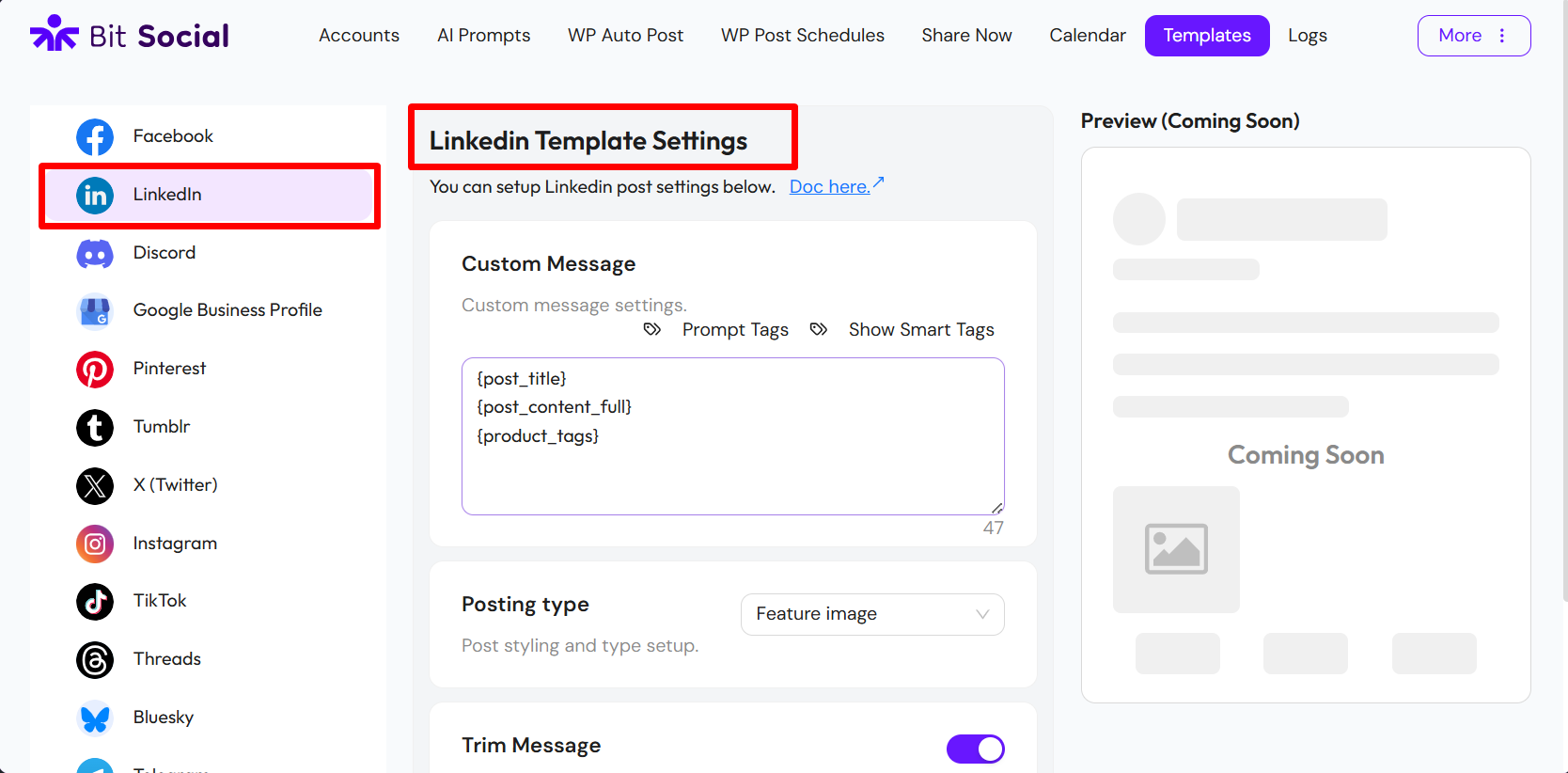
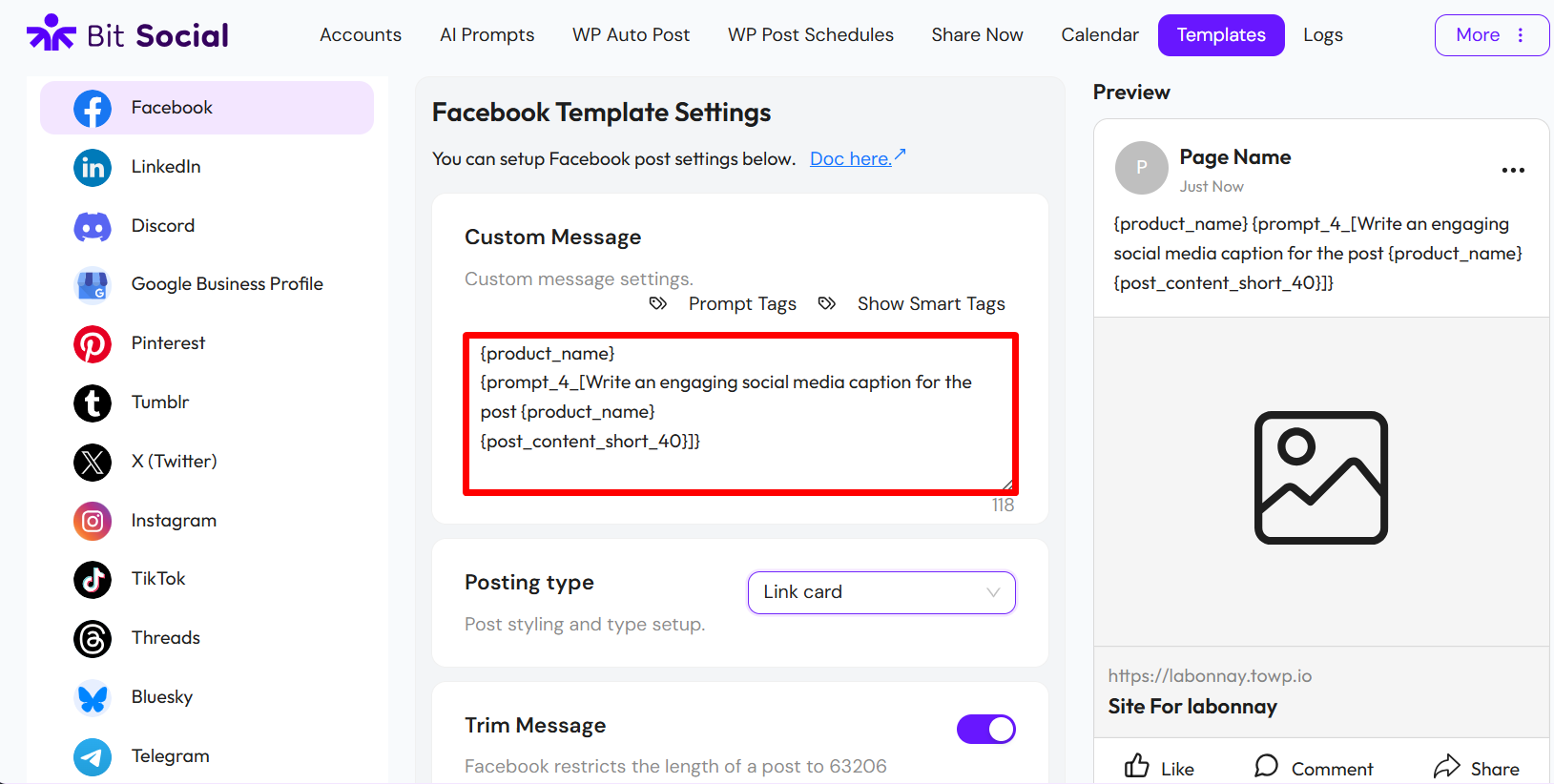
To use your AI prompt, open Templates and edit your template. Click Prompt Tags at the top, choose your created prompt from the list, and add it to the template.
Once you’ve added the prompt to your template, the caption will be generated automatically based on your instructions. You can also create images the same way, just choose your preferred AI model, and it will generate visuals to match your post.
How WooCommerce Auto Posting Works
Let’s look at a simple example. I added a new product, “iPhone 17 Pro Max,” to my WooCommerce store.

In the auto post template, I included Smart Tags like {product_name} and{product_short_description} so the product details are automatically pulled into the prompt.
You can customize different templates for each social platform if needed.
As soon as I published the product, it was instantly shared on my connected social media accounts.
The post appeared automatically on my Facebook page with the product name, description, and link, no manual posting required.

See how easy it is to manage your WooCommerce store and post on social media at the same time.
You no longer have to worry about manually sharing products on every platform. Let Bit Social handle it for you automatically.
Schedule your Social Media Post
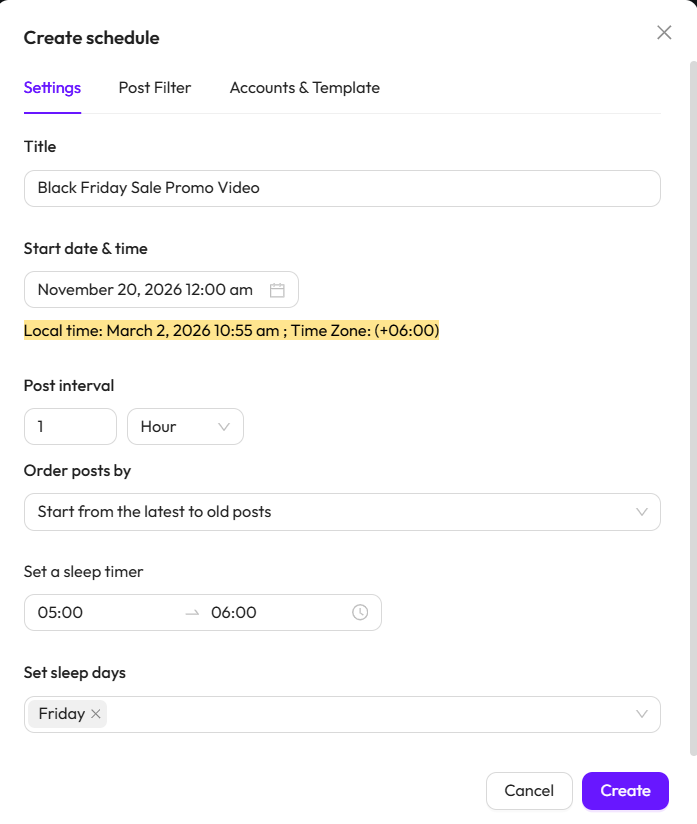
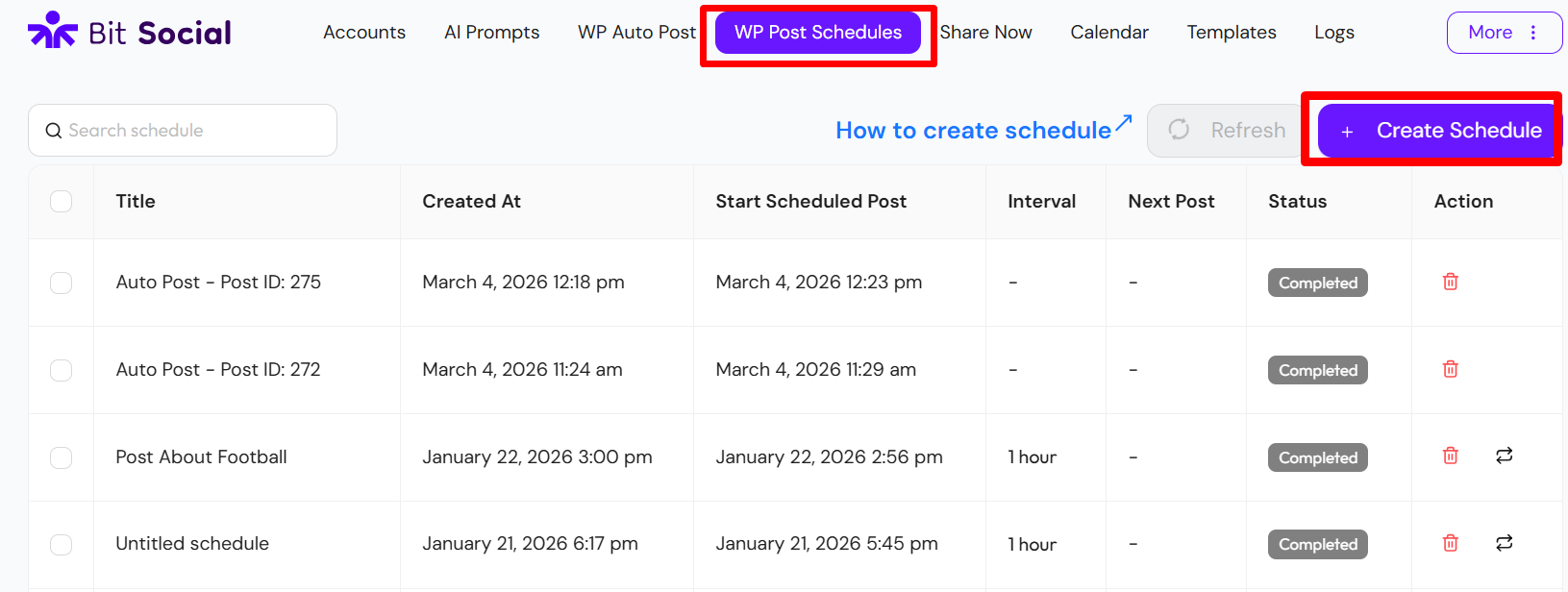
You can even schedule your WooCommerce products for social media. Go to WP Post Schedules in Bit Social and click “+ Create Schedule.”
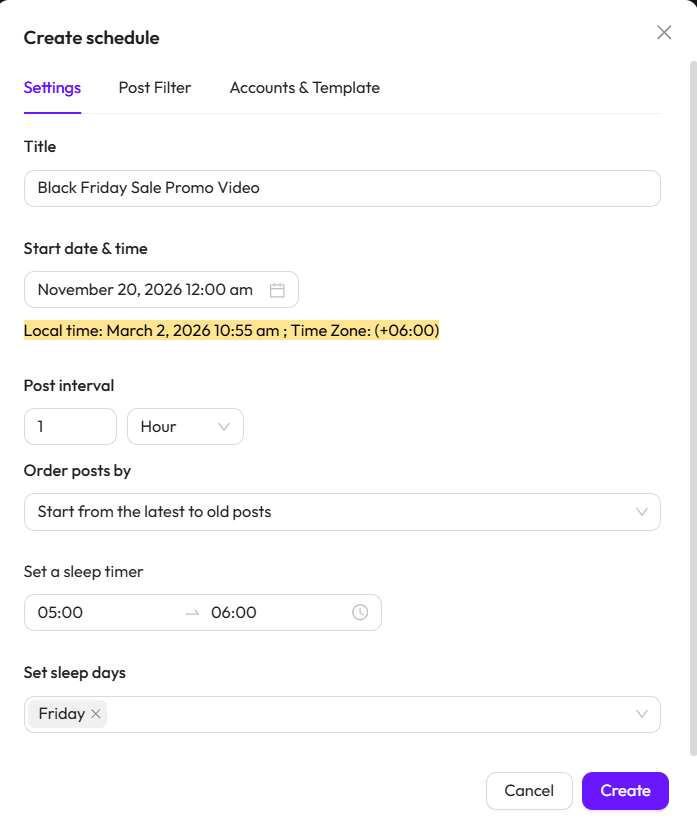
A pop-up will appear with all the scheduling options. Just set the Start Date & Time, Post Interval, and Post Order. You can also use the sleep timer and sleep days to pause posts when needed.
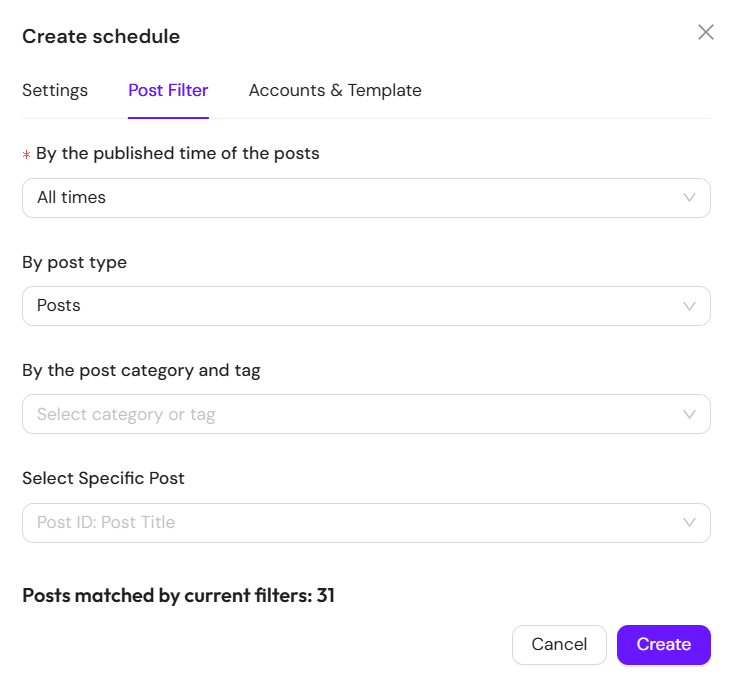
Next, set up the Post Filter. For WooCommerce, choose Post Type: Products and select specific categories or products if you want.
Finally, choose the social accounts you want to post to. You can also select or edit a template here, use an existing one, or create a new template just for this schedule.
Conclusion
Consistency is key for social media growth, but it doesn’t mean doing everything manually. Automating your posts saves time and reduces stress.
Auto-posting WooCommerce products lets you stay consistent without the daily copy-paste routine. Tools like Bit Social handle captions, templates, and integration for you.
With WP Auto Post and scheduling, your new launches, flash sales, and restocks go live automatically. You can choose the exact date and time for each post.
This way, your promotions run in the background while you focus on growing your store. Automation keeps your social media active and your business moving forward.
** FAQs **
1. How can I automatically post my WooCommerce products to social media?
You can connect your WooCommerce store to a social media automation tool. Once set up, new products get shared automatically. This saves you from posting manually every time.
2. Which social media platforms can I share my WooCommerce products on?
You can share products on Facebook, Instagram, LinkedIn, Twitter, and Pinterest. With Bit Social, you can manage all these platforms from one dashboard. This keeps your promotions consistent and easy to handle.
3. Will my WooCommerce product posts include images and links?
Yes, your posts will automatically include the product image, title, price, and a link. Automation tools pull these details easily. This ensures your posts are always complete and clickable.
4. Can I use AI to generate captions for my product posts?
Yes, AI can create captions, summaries, and even images for your products. This reduces the time spent writing posts. You can focus more on growing your store instead.
5. Can I schedule my WooCommerce product posts in advance?
Yes, you can schedule your posts to go live at specific times. This helps you reach your audience when they are most active. Scheduling keeps your social media consistent without daily effort.