
If your birthday email campaign isn’t converting the way the case studies promise, the instinct is almost always the same: sweeten the offer.
Bump the 10% to 20%, add free shipping, maybe throw in a gift.
That instinct is usually wrong.
Across the WooCommerce automation setups we see through Mail Mint’s support inbox and user community, the stores getting real results from birthday email campaigns aren’t the ones offering the deepest discount.
They’re the ones who fixed three unglamorous things first:
- Accurate birthday data
- An automation that fires on the right day instead of a rough approximation
- Copy that reads like a genuine touch instead of a coupon dump
This guide walks through what actually drives birthday email performance for a WooCommerce store selling in the $20 to $150 range, where margins are already tight enough that discounting harder isn’t a real strategy.
You’ll get the setup steps, three ready-to-adapt templates, and the automation logic, all inside WooCommerce, using data your store already has.
Quick Answer
A birthday email campaign automatically sends a personalized email and offer to a customer around their birthday, using data your store already holds.
In WooCommerce, Mail Mint’s Anniversary trigger reads a saved birthday field and fires the email on the right day automatically, so no one has to track dates or discount depth by hand.
TL;DR: Craft A Birthday Email Campaign In WooCommerce
- Birthday emails are already converted well without deep discounts. Omnisend’s 2026 report puts the average birthday order at $744, more than four times the platform baseline.
- If a campaign is flat, the usual cause is data accuracy or trigger timing, not discount depth, and real WooCommerce support threads back that up.
- WooCommerce has no birthday automation built in, but you don’t need a new platform. One custom field plus Mail Mint’s Anniversary trigger covers it, no PHP or theme editing required.
- The best birthday emails pull from real WooCommerce order data, not just a first-name merge tag.
- A short sequence around the birthday date reliably outperforms a single email sent on the day.
What A Birthday Email Campaign Actually Involves
A birthday email campaign is an automated sequence that sends a customer a personalized email, usually with some kind of offer, around their birthday.
The automation is what separates it from a manual one-off. Once it’s set up, it runs on its own using a birthday date stored against each customer’s profile.
For a WooCommerce store, that data point already exists in some form for most customers. It could be collected at signup, during checkout, or through a follow-up request.
The campaign’s job is to turn that saved date into a recurring, low-effort touch that you don’t have to remember to trigger manually.
Why This Channel Performs Well For WooCommerce Stores
Birthday emails work because they combine two things that most marketing emails don’t have together: a personal occasion and an audience that already trusts the brand enough to have shared their birthday.
For a WooCommerce store, that audience is also the cheapest one you have.
A customer who’s already ordered from you once costs far less to sell to again than a new visitor from paid traffic. Their order history, product category, and past spend already live in your store’s database.
So instead of buying a new audience, you’re activating the one you already paid to acquire.
That shows up in the data too. Omnisend’s 2026 eCommerce Marketing Report found birthday automations producing an average order value of $744.37, more than four times the platform’s overall average, alongside a 43.3% open rate and a 14.3% click-to-conversion rate.
None of that depended on a deep discount. The lift came from timing and personalization pulled from real customer data.
Key Takeaway
Birthday automations hit a $744 average order value industry-wide, without needing an aggressive discount to get there. If your numbers are far below that and the discount is already competitive, the gap is somewhere else in the setup.
Here’s how to translate that into a number for your own store, without overstating what one industry stat can promise.
Expected monthly orders = birthday recipients that month × your email’s click rate × click-to-conversion rate
Say your store has 500 active customers. If birthdays are spread roughly evenly across the year, about 42 customers have a birthday in a typical month.
From there, the outcome depends on your own click rate, which you can pull from your campaign reports, combined with Omnisend’s 14.3% click-to-conversion rate.
That rate only applies to people who already clicked, so it can’t be multiplied against every recipient.
For illustration only, not a benchmark: if 20% of those 42 recipients click, and 14.3% of clickers convert, that’s roughly 1.2 orders that month.
At a $70 average order (the midpoint of a typical $20 to $150 WooCommerce range), that’s around $84, or close to $1,000 a year.
Bottom Line
The point isn’t that every 500-customer store is leaving a specific dollar figure on the table. It’s that a birthday automation gives you a measurable revenue opportunity from customers you’ve already acquired.
Your own click rate, conversion rate, AOV, and birthday-list size determine what that opportunity is actually worth for your store.
If Your Birthday Emails Aren’t Converting, The Discount Usually Isn’t The Problem
When a birthday campaign underperforms, the first lever most store owners reach for is the discount. It’s the most visible part of the email, so it feels like the obvious fix.
In practice, it’s rarely where the actual problem lives.
There are three things that can cause a birthday campaign to underperform, and they all happen before the discount ever reaches the inbox.
The birthday data itself is wrong or incomplete
Most WooCommerce stores never had a birthday field until they added one, so customers who registered or checked out before that point simply have nothing on file.
If your store collects birthdays through a generic form plugin instead of a WooCommerce-native field, that data may not even be attached to the customer record your automation is reading from.
The trigger is approximate instead of exact
Some setups substitute the WooCommerce customer’s account-creation date for a birthday, since it’s a field guaranteed to exist.
That’s a different event entirely, and it shows up to the customer as an email that’s off by weeks or months.
This isn’t a hypothetical risk.
Search the support forum for the Birthday Discount Vouchers plugin and you’ll find store owners reporting the system was “not creating coupons neither sending emails,” and others asking bluntly, “in which time emails are sent?” because they couldn’t tell when the automation was supposed to fire.
A WordPress.org thread about MailPoet’s birthday automation explains the underlying reason.
That platform’s automations only “trigger when something changes,” which works for a new signup but not for a birthday, since a birthday isn’t an event, it’s a date that quietly matches once a year.
Time zone handling causes a similar issue.
WordPress runs on a single site-wide time zone setting, so an automation firing off that setting can land a day early or late for customers outside it, which is enough to break the personal feel the email depends on.
The email reads like every other promo, just with a candle emoji
A first-name merge tag and a discount code isn’t personalization, it’s a template.
What actually works is pulling from the order data WooCommerce already has: how many times they’ve ordered, what category they buy in, how close their last order was to their birthday.
That’s the one advantage a WooCommerce-native automation has over a generic ESP that only sees an email address.
Bottom Line Before raising a discount percentage, check whether the birthday date is accurate, whether the trigger fires on the real date, and whether the copy says anything specific to that customer. Those three fixes cost nothing and usually move the number more than a bigger offer would.
Collecting Accurate Birthday Data In WooCommerce
The most reliable way to collect a birthday is to ask at a moment when the customer is already filling out a form, rather than sending a separate request that adds friction.
An optional field on account registration or on checkout captures the date without adding a step, and because it’s optional, it doesn’t add a reason for anyone to abandon the form.
For customers who already have an account but no birthday on file, a short request through a post-purchase Thank You page or a dedicated opt-in form works well, especially when it’s framed as unlocking birthday perks rather than as a data request.
You can place this right alongside the order summary the customer’s already looking at.
Either way, treat this as an ongoing backfill rather than a one-time campaign.
The field fills in gradually as customers place orders or update their account, and the automation simply includes more people over time.
Good to Know
Keep the birthday field optional everywhere it appears.
A required field on checkout adds friction that has nothing to do with the purchase, and for a store already watching conversion rate closely, that’s not a trade worth making for one data point.
Setting Up An Automated Birthday Email In Mail Mint
Now, let’s set up the birthday email automation in Mail Mint.
Before you start, make sure you have a date field for the customer’s birthday. In the automation, Mail Mint will use this field to know when the birthday comes around.
The setup itself is pretty simple:
Step 1 – Start with the Birthday Automation Recipe
Go to Mail Mint → Automations and look for the “Automate Birthday Wishes” recipe.
Click it and select Import Recipe.
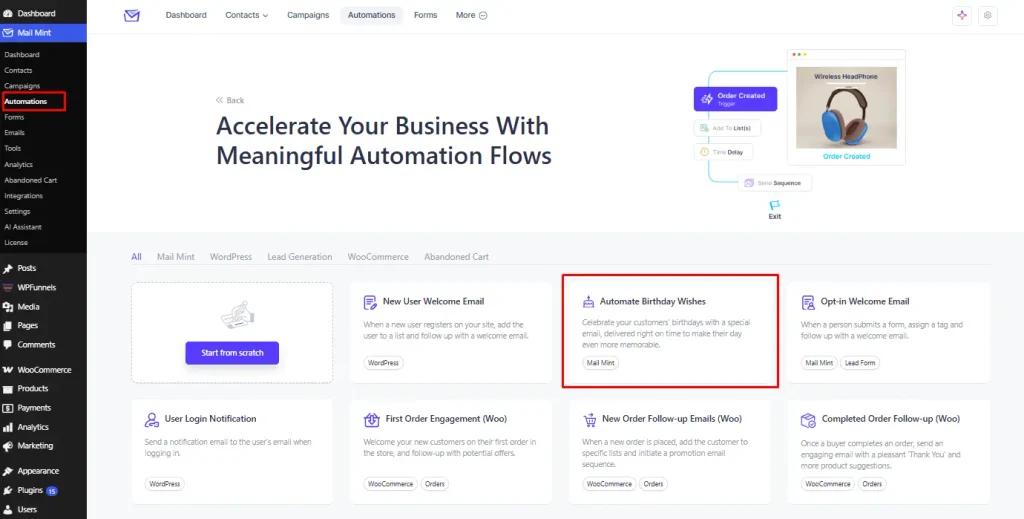
This gives you a ready-made automation flow that you can edit instead of building everything from scratch.
Step 2 – Set the Birthday Trigger
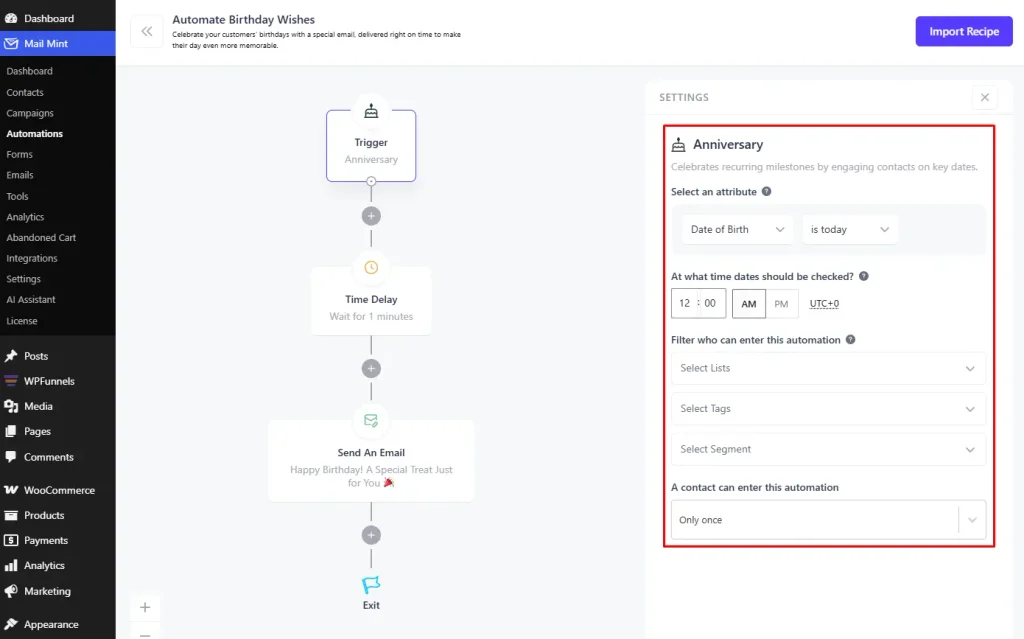
The automation starts with an Anniversary trigger.
Click the trigger and, under Select an attribute, choose Date of Birth. Then select “is today.”
This tells Mail Mint to check the customer’s birthday and enter them into the automation when the date matches.
You can also choose the time when Mail Mint should check the dates.
Step 3 – Add the Email
Once the trigger is ready, you can add the actions you need to the automation.
Click the + icon below the trigger. Mail Mint will open a list of actions, including Send An Email, Time Delay, Add To List(s), and others.
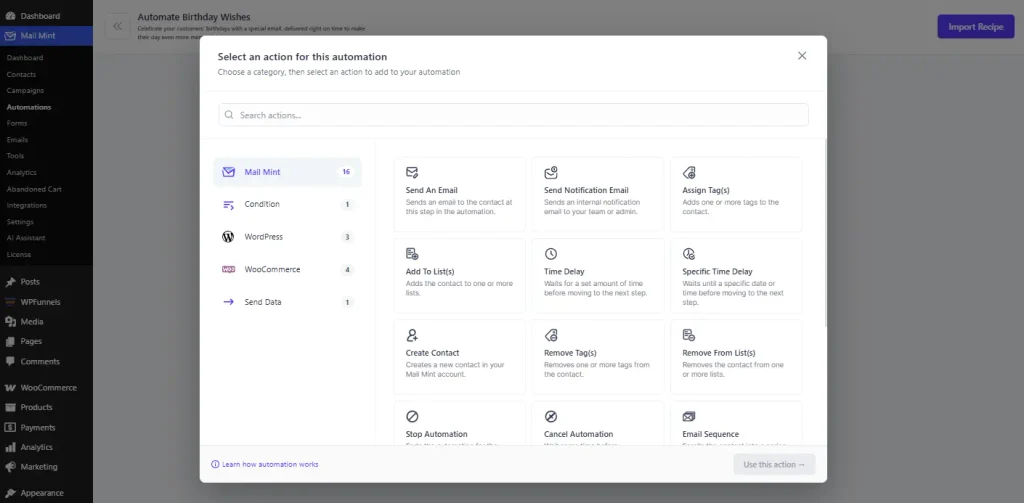
For a basic birthday campaign, add a Send An Email action and create your birthday message.
You can also add a Time Delay before the email if you want to wait for a specific amount of time before sending it.
Now activate the automation and once it’s live, this runs without anyone checking a calendar. New customers who fill in a birthday get added automatically, and the automation keeps firing every year without being rebuilt, and without touching a line of code.
From then on, Mail Mint will check the Date of Birth field and run the automation when a customer’s birthday arrives. You don’t have to keep checking the dates or send the emails yourself.
Pro Tip Set the Anniversary trigger a few days ahead of the actual date if the campaign is a short sequence, and on the exact date if it’s a single email. The trigger doesn’t care which approach you take, but the offset has to match the sequence you’re building around it.
Good to Know We’ve covered the mechanics behind triggers, delays, and actions in more depth elsewhere: Mail Mint Automation walks through how each piece fits together beyond just the birthday use case.
Three Birthday Email Templates You Can Adapt Today
These 3 templates cover the range worth testing: a straightforward discount, a version with no discount at all, and a milestone version for repeat customers. None of them lean on an aggressive percentage to do the work.
Template 1: The Straightforward Discount
This is the easiest version to start with. You give the customer a clear birthday offer, tell them how long they can use it, and make the next step obvious.
Subject line: Happy birthday, {first_name}! Here's a little gift for you

Hi {first_name},

Happy birthday!

We wanted to do something a little special for you, so here's 15% off your next order.

Use code BDAY15 at checkout to get 15% off anything in the store.

The offer is valid until the end of the month, so you have some time to pick something you like.

If you're not sure what to get, you can start with some of the products you’ve bought from us before.

[Shop your favorites →]

Hope you have a great birthday and enjoy the gift!

[Store Name]
Template 2: The No-Discount Relationship Email
This version is useful when you want a birthday email to feel more like a personal thank-you than a sales promotion. You don’t need to offer a discount here.
Instead, give the customer something that makes them feel valued, such as early access to a new product or restock.
Subject line: We just wanted to say happy birthday, {first_name}

Hi {first_name},

Happy birthday!

We just wanted to take a moment to say thank you for being part of
[Store Name].

You've been with us since [first order date], and we've really
appreciated having you as a customer.

So, as a small birthday gift, we'd like to give you early access to
[product name or new collection].

It's available to you before we make it available to everyone else.

[Get early access →]

No discount code needed. Just use the link above and take a look if
you find something you like.

Have a great birthday!

[Store Name]
Template 3: The Milestone Birthday
This one is best for customers who have already ordered from you several times. Instead of giving the same birthday offer to everyone, you can use their order history to make the offer more relevant.
For example, you can mention how many times they’ve ordered and given them an offer in a product category they already know and like.
Subject line: {first_name}, your birthday gift is already picked out

Hi {first_name},

Happy birthday!

You've ordered from us [X] times, so we wanted to make your
birthday a little more special this year.

We've picked out a birthday gift just for you: **20% off [product
category they've bought before]**, plus **free shipping** on your
next order.

Since you've bought from this category before, we thought you might
find something you'll like here:

[Shop [Product Category] →]

Your birthday offer is valid through [date], so you have until then
to use it.

Thanks for being a returning customer, and have a great birthday!

[Store Name]
Timing And Cadence That Actually Move The Needle
A single email sent on the birthday itself is the minimum you need to get started, and it’s perfectly fine if you want to keep things simple.
But if you want to give the campaign more chances to work, a short three-part sequence is worth testing:
- A heads-up email a few days before the birthday
- The main birthday email on the day
- A last-chance reminder before the offer expires
This gives your email more than one chance to get noticed, especially when the first message gets buried in a busy inbox.
Whichever cadence you use, avoid mentioning the customer’s age directly.
Personalization should focus on the birthday and the relationship you have with the customer, rather than reminding them how old they’re turning.
There’s also one WooCommerce-specific thing worth knowing.
Scheduled automations depend on WP-Cron, which only runs when your site gets a visit.
So, if your store has low traffic, a scheduled birthday email could be delayed by a few hours if nobody visits the site around the scheduled time.
If your birthday emails aren’t going out when expected, this is worth checking before assuming there’s something wrong with the automation.
We implement effective strategies like this across automated sequences, not just birthday campaigns, if you want to learn more about cadence and timing.
Remember
A three-part sequence doesn’t mean sending three different discounts.
You can use the same offer in all three emails and simply change the message slightly each time. This gives the customer another chance to see the offer without making the campaign feel repetitive.
Should You Build This In WooCommerce Or Move To A Standalone Platform?
If your store is already running on WooCommerce and you have customer accounts in place, building birthday automation inside WooCommerce is usually the simpler option.
Your customer data already lives there, so you don’t need to export it or sync it with another platform.
The setup also only needs a custom field and one email automation flow, rather than moving your data somewhere else.
The same applies when you compare it with standalone email marketing platforms.
Mailchimp, Constant Contact, Brevo, and Campaign Monitor can all run birthday automations.
But you still need to connect your WooCommerce customer and order data to those platforms, and most of them charge based on the number of contacts you have.
| Consideration | Native (Mail Mint) | Standalone ESP |
|---|---|---|
| Setup effort | One custom field plus one automation | New platform account, data export and re-mapping |
| Where the data lives | Stays inside WooCommerce | Duplicated or synced to an outside platform |
| Cost at a $20 to $150 AOV | Included in the existing plugin cost | Extra monthly subscription, usually tiered by contact count |
| Best fit | A store already running WooCommerce email marketing natively | A store that has genuinely outgrown WooCommerce customer data |
To make that concrete, a common WooCommerce-specific route is AutomateWoo. Its core plugin runs $119 a year, and birthday automation isn’t included in that.
It’s a separate Birthdays add-on at $49 a year.
That’s $168 a year stacked on top of whatever you already pay for general email marketing, before it sends a single birthday email.
The case for moving to a standalone platform comes when a store needs advanced segmentation, multi-channel automation across SMS and push, or a marketing team large enough to need dedicated CRM tooling.
Birthday automation alone usually isn’t a good reason to migrate an entire email stack.
Good to Know
This deserves its own guide, and we’ve written one: 7 B2C Email Marketing Strategies to Boost Your ROI covers where birthday campaigns fit alongside the rest of a WooCommerce retention stack.
Measuring Success of Birthday Email
Evaluating how well your birthday email campaigns work is crucial for making them even better. Let’s say you run an online fashion store, and you use some important indicators to see if your birthday emails hit the mark.
First up is the Open Rate. This tells you how many people opened your birthday emails. If a lot of folks open them, it means your subject lines and content are catching their interest.
Then, there’s the Click-Through Rate (CTR). This shows the percentage of people who clicked on links in your email. A higher CTR means people are not just looking but also taking action.
For example, if your birthday email has a special discount code, a high CTR means people are checking it out and using it.
And of course, there’s the Conversion Rate. This tells you how many people not only opened and clicked but also went ahead and did something you wanted, like making a purchase.
Imagine your fashion store sees a big jump in sales during the birthday campaign compared to regular times.
That’s a clear sign your birthday emails are working and bringing in more revenue. You can easily measure it with marketing funnel metrics.
Remember, it’s not just about the numbers. Feedback from customers and how they respond to exclusive offers also gives you a sense of how well your birthday emails are doing.
By looking at both the numbers and what customers are saying, you get the full picture and can keep making your birthday campaigns better.
Final Thoughts
Birthday email campaigns are pretty simple once the foundation is in place. The hard part isn’t coming up with a bigger discount.
It’s making sure the right customer has the right birthday date, the automation checks that date correctly, and the email gives them a good reason to come back.
So don’t try to perfect everything at once.
Start by collecting accurate birthday data. Add the birthday field where customers are already entering their information, and keep it optional so you’re not adding friction to checkout.
For customers you already have, collect the missing dates gradually through a post-purchase request or an opt-in form.
Then build the automation around the actual birthday date. In Mail Mint, the Anniversary trigger can check the Birthday field and start the automation when that date comes around.
From there, you can keep it simple with one email or add a short sequence with a reminder before the offer expires.
Finally, test the email itself. Start with a straightforward offer if you have one, but don’t assume a bigger discount will automatically mean more sales.
Try different offers, subject lines, timing, and messaging as you collect enough data to see what your customers actually respond to.
You can get the basic version running first and improve it as your birthday list grows. There’s no need to wait until every customer has a birthday on file or until you’ve built a complicated sequence.
If you’re ready to try it, the free version includes the automation builder, so you can build the birthday workflow and see how it works before committing to anything.
Frequently Asked Questions
What is the best time to send a birthday email in a WooCommerce store?
Send it on the customer’s actual birthday rather than treating the whole month as their birthday. If your automation lets you choose a send time, morning is a good place to start so the email reaches the customer early in the day.
Does a bigger birthday discount increase conversions?
Not necessarily. A bigger discount can make the offer more attractive, but it isn’t the first thing to change when a birthday campaign underperforms.
Check the birthday data, trigger timing, and email copy first. If those are working, then test different offers and see what your own customers respond to.
What if I don’t have birthdays for most of my existing customers?
That’s fine. Start collecting them from now on through an account field or a post-purchase request.
You don’t need the whole customer base to have a birthday before launching the automation. Let the list grow naturally as more customers add their date.
How do I automate birthday emails in WooCommerce without custom code?
WooCommerce doesn’t have birthday automation built in, so you’ll need a plugin that adds it.
With Mail Mint, create a birthday field for your contacts, then use the Anniversary trigger to check that field and add an email to the automation. You can then add an optional coupon as part of the email if you want to include a birthday offer.
Should a birthday campaign be one email or a short sequence?
Start with one email if you want to keep things simple.
If you have an offer with an expiry date, test a short sequence instead: a heads-up before the birthday, the main email on the day, and a final reminder before the offer expires.
Can a birthday email work without a discount?
Yes. You can use the email to thank the customer, give them early access to a new product, offer free shipping, or simply give them a small birthday perk.
The goal is to give them a reason to engage without automatically turning the birthday message into another discount email.