
You’re running a WooCommerce store, and like most store owners, you’re always looking for ways to squeeze a little more revenue out of every sale, right?
I’ve seen many growing WooCommerce stores focus heavily on bringing in more traffic because, naturally, more visitors should mean more orders.
That’s okay.
But what if you could increase the value of the customers who are already buying from you?
Yes. You can actually get more revenue from a sale that has already happened.
Many stores are already doing it. But how?
Are they pushing another product during checkout? Or maybe offering bigger discounts?
No.
The opportunity is actually in what you offer the customer right after they complete their purchase.
A customer who just paid you is, for about ninety seconds, still in buying mode. Their card is already on file, their guard is already down, and they’ve already decided to trust your store.
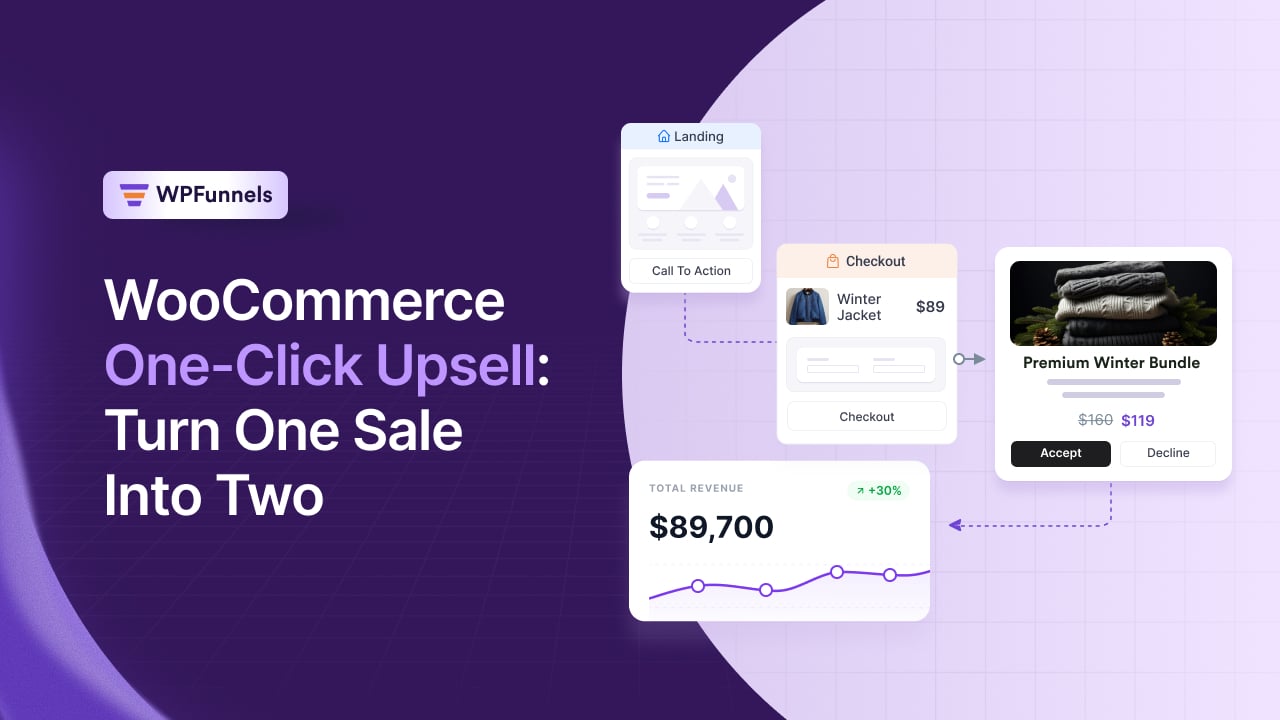
That’s where a WooCommerce one-click upsell comes in.
You show them a relevant offer after checkout, and they can accept it without entering their payment details again.
Sounds simple…?
Well, there’s a bit more to getting it right.
Let me explain how it works and how you can set it up in WooCommerce.
Quick Answer
A WooCommerce one-click upsell shows a customer a special offer right after checkout, which they accept without re-entering payment details, as long as your store’s payment gateway supports it. WPFunnels handles one-click upsells on all major WooCommerce gateways, including Stripe, PayPal, WooCommerce Payments, and Square, so most stores can turn this on without any extra payment setup.
TL;DR – WooCommerce One-Click Upsell
- One-click upsells convert well for a specific reason: the friction that kills most offers, re-entering payment, is already gone by the time you show it.
- Post-purchase offers and pre-purchase offers (product page, cart, checkout) aren’t interchangeable. Each fits a different moment in the buyer’s decision.
- The “one click” part depends on your payment gateway. Most major gateways support it, but it’s worth checking before you promise a frictionless experience.
- One well-matched offer at a fair discount consistently beats three generic ones.
- If you’re already running funnels in WPFunnels, one-click upsell isn’t a separate tool to learn. It’s a step you add to a funnel you’ve already built.
- The metric that actually tells you if it’s working isn’t “did they click.” It’s whether your average order value moved after the offer went live.
What a One-Click Upsell Actually Is (And Where the “One Click” Can Quietly Break)
A one-click upsell is a special offer shown to a customer immediately after they buy something, before they land on the thank you page, for a related product or upgrade.
They accept it with a single click, and the charge goes through on the same card they just used, with no new checkout form and no re-entering payment details.
That last part is the entire point of the feature, and it’s also where a lot of stores get tripped up.
“One click” isn’t a guarantee that comes free with any plugin on any store.
It depends on whether your payment gateway supports charging the customer again without a new payment form.
WPFunnels supports this on the gateways most WooCommerce stores already use: Stripe, PayPal, WooCommerce Payments, Square, Authorize.Net, Mollie, PayFast, Sumit, Direct Bank Transfer, and Cash on Delivery.
If your store runs on one of these, turning on a post-purchase upsell means the offer is genuinely one click, with no separate integration step.
Pro Tip: Before you build anything, check your gateway against WPFunnels’ complete, regularly updated list: Supported Payment Gateways.
If your gateway isn’t on that list, the offer doesn’t fall back to some slower, two-step version of itself.
It simply doesn’t fire.
That’s a real thing store owners run into.
One WPFunnels user reported that their upsell and downsell “does not load and goes directly to the thank you page,” and support traced it to an unsupported payment gateway.
Another hit a flat “payment gateway not found” error on the upsell step.
Check your gateway against the supported list before you build the funnel, not after your first real customer hits it.
Bottom Line: If your gateway isn’t on WPFunnels’ supported list, the offer won’t show at all. Not a popup, not a fallback step, nothing. Confirm compatibility first.
Why This Beats Chasing More Traffic
Here’s the math that makes post-purchase upsells worth building, not just a nice-to-have: acquiring a new customer costs you ad spend, content, or time, every single time.
Upselling an existing customer costs you nothing beyond the offer itself, because they’ve already made the decision to trust you with their money.
A 2026 study of 1,847 digital businesses found that physical-goods ecommerce stores had an average upsell conversion rate of 18.7%, with the top quartile reaching 29.4%.
That’s not a WooCommerce-specific benchmark, so don’t treat those numbers as a guarantee.
But it gives you a current reference point for how many customers may be willing to take an additional offer.
Here’s what that looks like with real numbers.
Take a store doing $50,000 a month in WooCommerce revenue, with roughly 500 orders a month, so an average order value of $100.
An 18.7% upsell conversion rate would mean roughly 94 customers accepting an additional offer each month.
If that offer is priced at $20, that’s an extra:
94 × $20 = $1,880/month
$1,880 × 12 = $22,560/year
That’s roughly $22,560 a year from customers who were already buying, with zero additional customers, zero additional ad spend, and zero additional traffic.
Key Takeaway: A 2026 study of 1,847 digital businesses found an average upsell conversion rate of 18.7% for physical-goods ecommerce, with the top quartile reaching 29.4%. On a 500-order-a-month store, matching the 18.7% benchmark would mean roughly 94 customers accepting an additional offer. Your actual revenue will depend on the value and relevance of your upsell.
The reason post-purchase specifically works comes down to psychology, not just mechanics.
A customer browsing your product page is still deciding whether to trust you at all, and showing them a second product to think about adds friction to a decision they haven’t made yet.
A customer who just completed checkout has already decided.
They trust the brand enough to hand over payment information once, so asking them to add one more relevant item, with zero new effort, is a much smaller ask than convincing a stranger to buy anything at all.
This is also why “add more offers” is the wrong instinct if your acceptance rate is low.
The lever that actually works is relevance and timing, not volume.
A 2026 analysis of 17 million sessions across 50,000+ Shopify brands found that the same offer could perform 4x better or worse depending on how and where it was presented.
A second unrelated offer right after the first doesn’t compound your revenue. It usually just costs you goodwill and makes the store feel like it’s fishing for money.
Pre-Purchase vs. Post-Purchase Upsells: Which One Fits Where
So, where should you actually put your upsell?
That depends on what you’re offering and when you want the customer to see it.
Pre-purchase upsells show up before the transaction is final: on the product page, in the cart, or as a checkout order bump.
These work best for small, low-commitment add-ons, like a phone case next to a phone, a cleaning kit next to a yoga mat, or a warranty next to an appliance.
The customer hasn’t paid yet, so anything that feels pushy or expensive here risks talking them out of the entire purchase.
Keep pre-purchase offers cheap, obviously relevant, and easy to say no to without a second thought.
Post-purchase (one-click) upsells show up after the sale is locked in, before the thank you page.
Because the original sale is already secured, you can afford to be a little bolder here: a higher-priced complementary product, a bundle, or an upgrade the customer didn’t consider during checkout.
The risk of losing the original sale is gone, which is exactly why this is where most of your incremental AOV should come from.
A simple way to decide:
- Under 10% of the order value: usually a good fit for a pre-purchase add-on.
- 10-50% of the original order: if it’s a genuine complement or upgrade, the post-purchase moment is usually a better fit.
Good to Know: We’ve covered this comparison in more depth elsewhere: Order Bump vs Upsell: What Is Better To Increase AOV.
How to Set Up a One-Click Upsell Funnel in WooCommerce (4 Steps)
If you want to create an effective one-click upsell offer in WooCommerce, you first need a reliable funnel builder that supports post-purchase offers.
In this case, you can take WPFunnels into consideration. It lets you build your WooCommerce funnel, add an upsell step after checkout, assign the product you want to offer, and design the offer page.
Let’s walk through the setup step by step so you can see exactly how it works.
Step 1: Start (or open) a funnel and set your main product.
From your WordPress dashboard, go to WPFunnels and either import a ready-made funnel template or build one from scratch on the visual canvas.
Set your Checkout step to the product you want customers to buy first. This is the sale that triggers the upsell afterward.
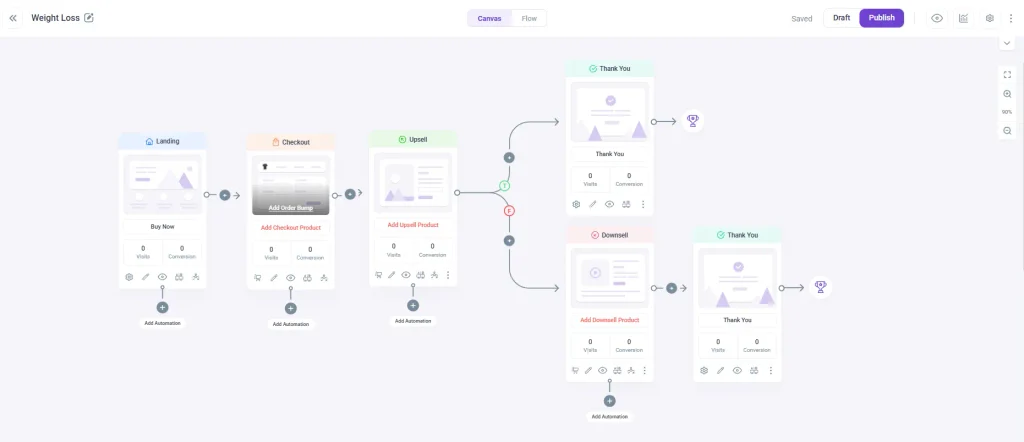
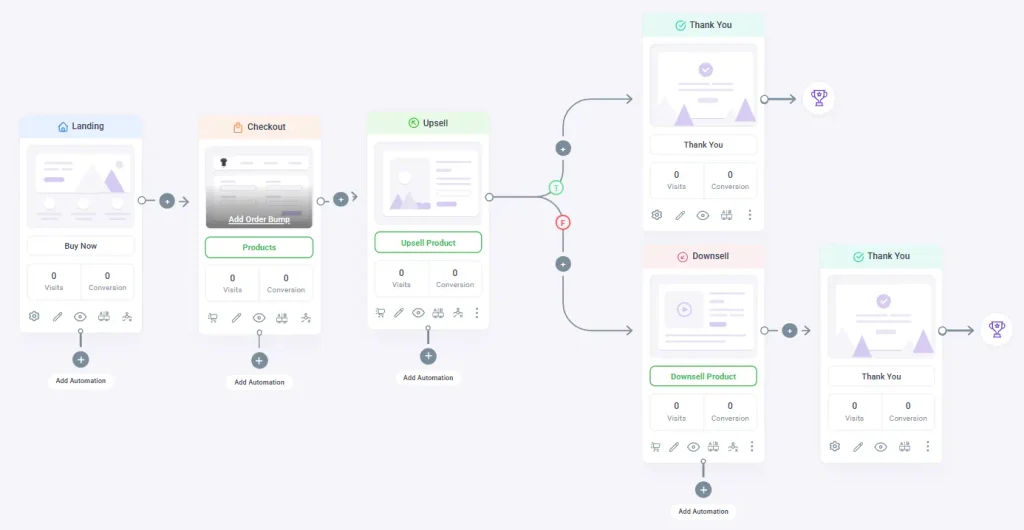
Step 2: Add an Upsell step to the funnel. On the canvas, add an Upsell step directly after Checkout.
This is the page that will show your one-click offer once the customer places their order.
It doesn’t require a separate plugin or a new checkout flow…it’s a step inside the same funnel.
Editorial note: capture a screenshot of the funnel canvas with the Upsell step being added or selected, showing it positioned between Checkout and Thank You.
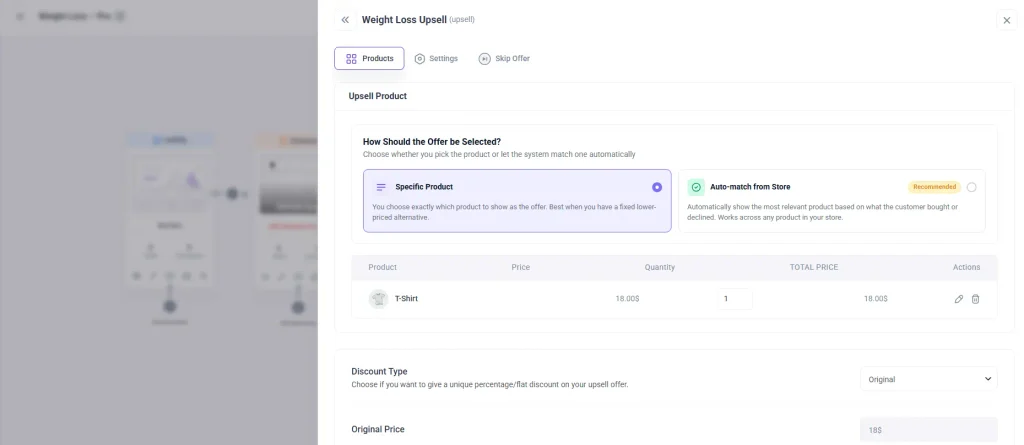
Step 3: Choose your upsell product and set the offer. Open the Upsell step and select the product you want to offer.
Ideally, choose something that complements the main purchase rather than competing with it.
Add a discount if you want to sweeten the deal. A 15–30% range works well as a starting point without eroding margin too much.
Then customize the offer page copy using your page builder of choice.
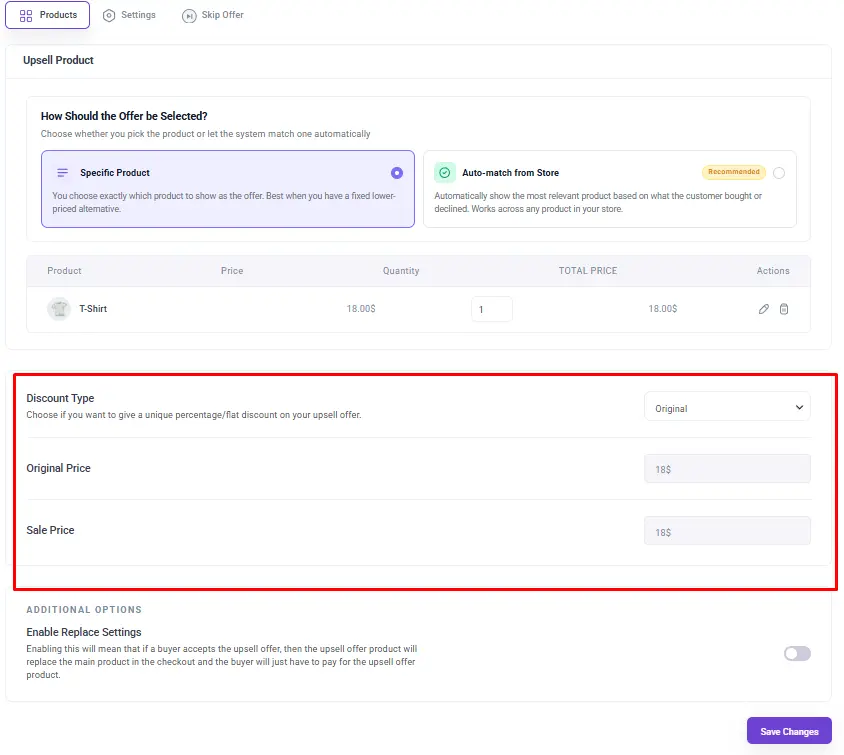
Step 4: Publish the funnel and test it end to end. Save and activate the funnel, then place a real test order using a payment method your store actually supports.
Confirm that the upsell offer appears immediately after checkout without asking for payment details again.
When you accept the offer, make sure it adds the item to the original order rather than starting a new transaction.
That’s the whole setup. No separate upsell plugin, no custom code, and no new checkout process to maintain alongside your existing one.
Once this basic version is live, WPFunnels’ Global Funnel feature lets you go a step further. You can build a separate funnel, each with its own upsell offer, for a specific product category.
A customer who bought yoga gear gets automatically routed into a yoga-specific funnel with a yoga-relevant upsell. A customer who bought electronics gets routed into a different funnel entirely, so the offer always matches what’s actually in the cart instead of showing everyone the same thing.
Good to Know: Here’s how to set this up by category: Global Funnel Based On WooCommerce Product Category.
What Actually Makes People Accept the Offer
Getting a one-click upsell live is the easy part. Getting customers to actually accept it depends on a few things that matter much more than how many offers you show.
Relevance matters more than anything else on this list. An offer that naturally complements what someone just bought feels helpful.
An unrelated offer can feel like the store is simply trying to squeeze more money out of them, which can leave a worse impression than not offering anything at all.
For Example: If someone just bought a coffee maker, a bag of beans is an easy yes. A phone case is not.
Relevance works across categories too:
- A skincare buyer can be offered a travel-size companion product.
- An online course buyer can be offered a bonus module or template pack.
- An electronics buyer can be offered an extended warranty or compatible accessory.
- A subscription box buyer can be offered a one-time add-on that doesn’t disrupt their existing plan.
Pricing matters almost as much. A discount in the 15–30% range tends to be the sweet spot, enough to feel like a genuine deal without looking desperate.
The offer should also make sense compared to the original order. Someone who just spent $25 isn’t a great candidate for a $150 upsell, but they’re a strong candidate for something in the $5–$15 range.
Restraint is underrated here. It’s tempting to chain two or three offers together as soon as you see the feature, but a customer who declines the first offer and immediately gets hit with another can start to feel like they’re being worked, not helped.
Once you’ve got a few weeks of acceptance-rate data, you can decide whether a second chained offer is worth adding. Don’t build the full sequence on day one.
Remember: Start with a single, well-matched offer. Only add a second, chained offer once you have real acceptance-rate data to justify it.
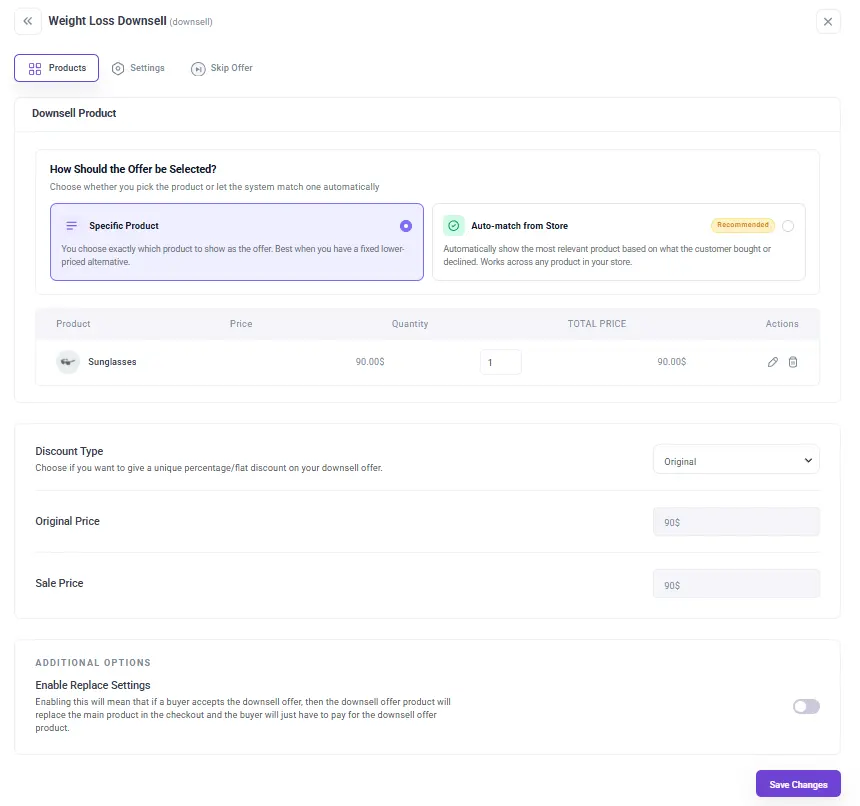
A decline on the first offer doesn’t have to be a dead end either. WPFunnels lets you add a downsell step right after the upsell… a lower-priced alternative that only shows if the customer says no to the original offer.
It uses the same conditional logic as the rest of the funnel: show this step only if the upsell wasn’t accepted.
Set it up once you have baseline acceptance data on the primary offer, not before, so your fallback is based on real numbers instead of a guess.
Good to Know: We’ve written a full breakdown of this fallback tactic: Downsell Offer Tactic To Turn Rejections Into Revenue.
Is It Actually Working? What to Track
The only number that tells you whether a one-click upsell is paying off is average order value before and after you turned it on. Everything else is a supporting metric, not the verdict.
Inside WPFunnels, the funnel analytics dashboard tracks conversion and revenue at the funnel level.
This lets you see how much of your revenue is specifically coming from accepted upsell offers, rather than guessing from your overall store totals.
Watch three numbers over the first few weeks: the upsell acceptance rate (what percentage of buyers say yes), the revenue-per-order lift on funnels using an upsell versus ones that don’t, and whether your overall conversion rate on the main product held steady.
If acceptance is low, the fix is almost always relevance or price, not more offers.
If your main product’s conversion rate drops after adding an upsell, that’s usually a sign the offer page is adding friction it shouldn’t. Check that it’s not asking for anything the customer didn’t already provide.
Once you have a baseline, A/B testing the offer, different product, different discount, different copy, is where most of the further gains come from.
Small changes in how the offer is worded can move acceptance meaningfully more than most stores expect.
Good to Know: This deserves its own guide, and we’ve written one: 10 Post Purchase Upsell Strategies to Increase CLV.
It’s Time To Get More From The Sales You Already Make.
I want to close with something bigger than just setting up a one-click upsell, because the real opportunity here isn’t about adding another feature to your WooCommerce store.
It’s about how you look at every sale.
You’ve already done the hard part when a customer completes a purchase. You paid to bring them to your store, earned their trust, and got them through checkout.
So why should the opportunity to increase that order end there?
A relevant one-click upsell gives you a simple way to make that existing sale more valuable.
You’re not chasing another visitor or spending more on acquisition. You’re simply giving a customer who already trusts you one more useful thing to buy.
A customer who just completed checkout is already in buying mode. Your job is to make the next step easy, relevant, and worth accepting.
And that’s the direction you should keep moving toward:
- Start with one relevant post-purchase offer.
- Make sure your payment gateway supports one-click upsells.
- Watch your acceptance rate and AOV before adding more offers.
- Use downsells and chained offers only when your data gives you a reason to.
If you’re already building funnels in WooCommerce, adding a one-click upsell can be one of the simplest ways to increase the value of the customers you’ve already worked to acquire.
Ready To Turn One Sale Into Two?
If you want to start using one-click upsells in your WooCommerce store, you can set it up with WPFunnels and start testing your first offer in just a few minutes.
Frequently Asked Questions
What is a one-click upsell?
A one-click upsell is a special offer shown to a customer immediately after they complete a purchase. They can accept it with a single click, without re-entering their payment details, and the charge is added to the order they just placed.
How do I set up a one-click upsell in my WooCommerce store?
Using a funnel builder like WPFunnels, you add an Upsell step to a funnel right after your Checkout step, choose the product you want to offer along with an optional discount, and publish the funnel. No separate plugin or custom checkout is required.
Can a one-click upsell actually increase my average order value?
Yes. Post-purchase offers lift average order value by roughly 5.6% on average, based on a 2023 analysis of data from post-purchase app ReConvert across more than 40,000 merchants, and that’s with a single relevant offer, not an aggressive sequence.
Do I need a specific payment gateway for one-click upsell to work?
Not a specific one, but your gateway does need to support charging a returning customer without a new payment form. WPFunnels supports one-click upsell on Stripe, PayPal, WooCommerce Payments, Square, Authorize.Net, Mollie, PayFast, Sumit, Direct Bank Transfer, and Cash on Delivery.
If your gateway isn’t on that list, the offer won’t fire, so it’s worth checking WPFunnels’ supported gateway list before you build the funnel around it.
What’s the difference between a one-click upsell and an order bump?
An order bump appears during checkout, before the customer has paid, usually as a small add-on next to the payment button. A one-click upsell appears after the customer has already paid, on its own offer page, and can afford to be a higher-value offer since the original sale is already secured.
How many upsell offers should I show after checkout?
Start with one. A single, well-matched offer consistently outperforms a chain of two or three, especially before you have acceptance-rate data to justify adding a second one.