
If you are reading this article, then I presume you’re probably looking to grow your revenue per month. And I assure you, following this guide will indeed help you achieve your goal.
Over the past few years, I have observed several WooCommerce stores to find out the best ways to increase revenue and found out that the best way to do so is to increase “Average Order Value.”
Meaning, if you focus on increase the amount every buyer spends per order, you can get faster revenue growth.
But, the real question is “how?”.
How do you get customers to spend more without hurting conversions?
Well, I have personally worked on testing several tactics and came to conclusion that there are two specific ways that can deliver the highest results:
- Cross-selling during checkout (can help increase up to 20-25% extra revenue)
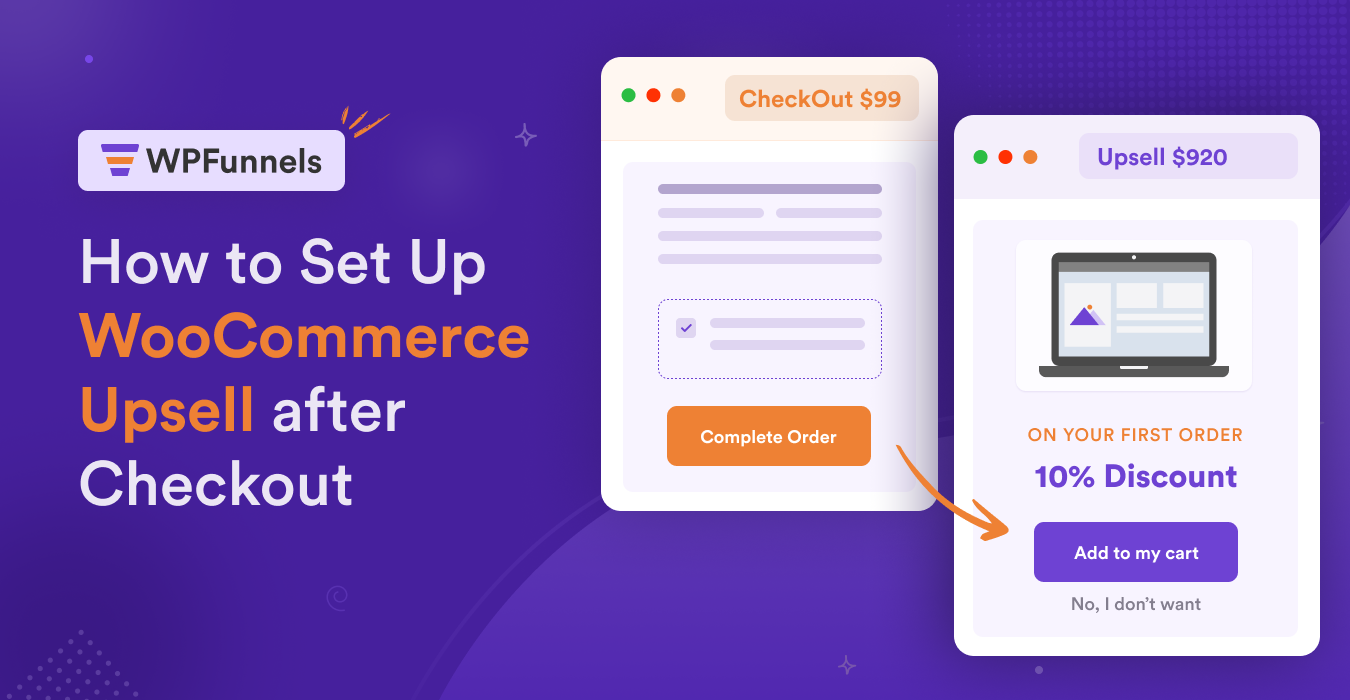
- One-click upsell right after checkout (can earn you up to 35% extra revenue)
So today, I’ve decided to create a practical guide on helping you implement one-click upsells in your WooCommerce store so that you too can increase your revenue right away!
The good thing about this is you don’t really need to make too many changes. You can implement this in as low as 5-minutes.
But, what you need to put some time on is in gaining a little bit of knowledge, that is reading this guide. That’s all.
I will keep this straightforward, and include tips from my real-life experience so that you understand what you are following.
So, let’s begin.
TL;DR – WooCommerce Upsell After Checkout
- Post-purchase upsells can increase your average order value.
- Show the offer right after the original purchase for better conversions.
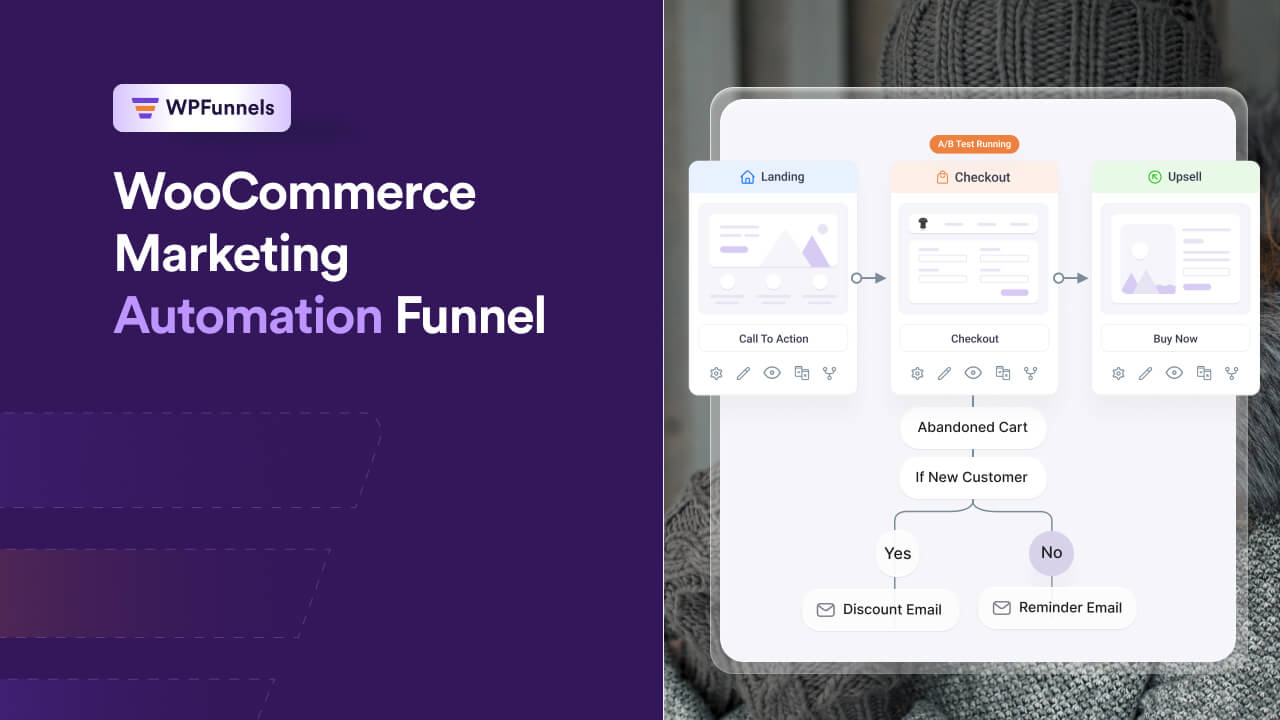
- Basic funnel flow: Landing Page → Checkout → Upsell → Thank You Page.
- Offer relevant products, add-ons, or additional services to increase purchase value.
- Use one-click upsells with the “Replace Order” option for smooth upgrades.
- Keep pages simple to protect the shopping experience and reduce your cart abandonment rates.
- Final verdict: You can easily create one click upsell for WooCommerce with the WPFunnels Plugin.
How to Set Up WooCommerce Upsell after Checkout
In this section, I will show you how you can create a funnel that includes upsell offers for your WooCommerce products.
So, before planning and creating your funnels, first install and activate WPFunnels & WPFunnels Pro in your WooCommerce store. And then follow the steps below.
Step 1 – Decide Your Funnel Products & Offers
The first thing you need to do is to plan your sales funnels. You have to decide which products you want to create sales funnels for and what upsell offers you want to make for them.
Choosing the right product is crucial for your upsell to succeed. As you learned in the examples above, you have to make sensible offers that the buyers will be able to relate to after purchasing the initial product.
Let’s say you sell beauty & health products and you want to create a sales funnel to sell Tresemme Shampoo, Hair Conditioners, and Hair masks.
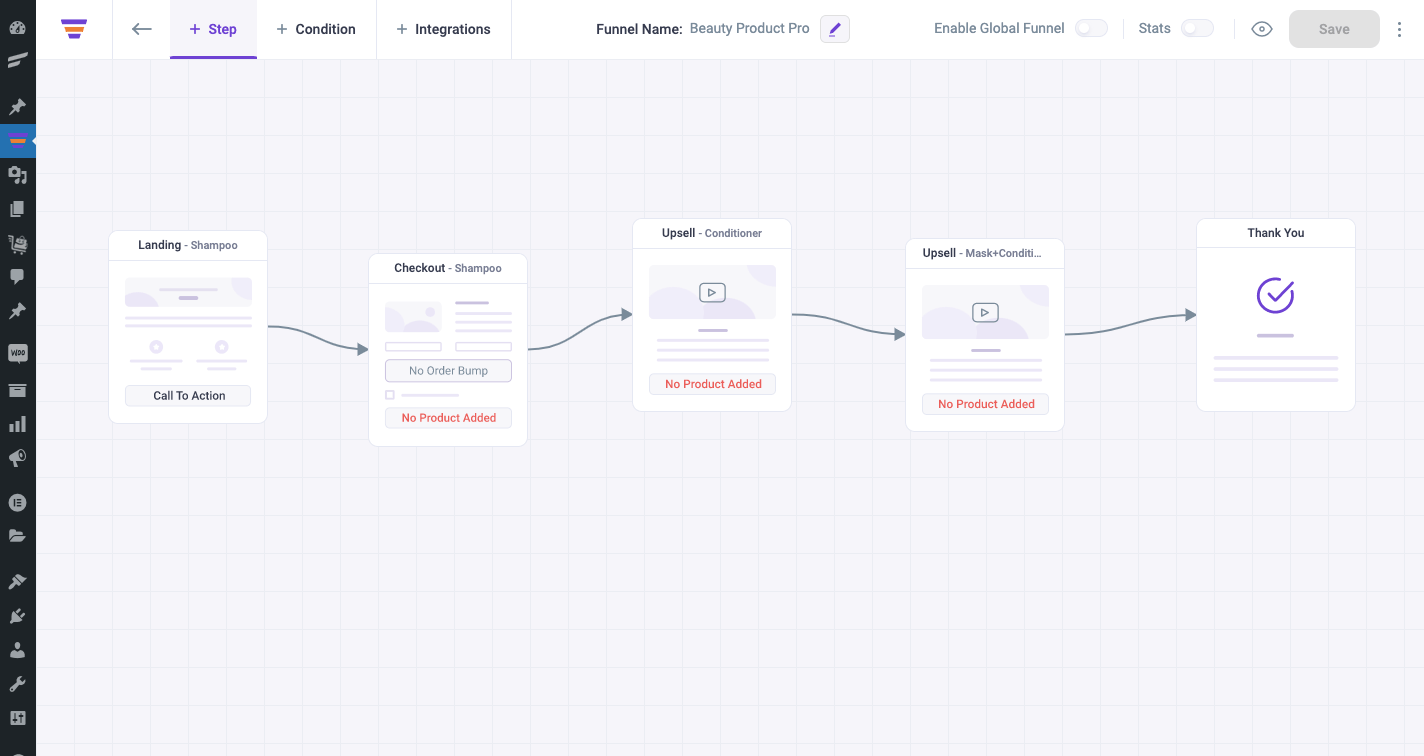
The following may be the planned funnel steps for these products:
- A Landing page to offer the initial product – in this case, a Tresemme Shampoo.
- A Checkout page for the buyer to pay for the Shampoo.
- An upsell offer right after the checkout process, where you may offer the Tresemme Hair Conditioner.
- A second upsell offer where you may offer a Combo bundle, that includes the same Tresemme Conditioner And A Hair Mask pack, which the buyer can accept instead of the 1st upsell product.
- Finally, a Thank You page to summarize the purchase.
You can see that in this funnel, there is a combination of two upsell techniques.
- The 1st upsell offer is a relevant product to the initial product and can be used together (i.e., the Shampoo and Conditioner).
- The 2nd upsell offer is rather a bundle that includes the Conditioner along with a Hair Mask. A buyer can take this bundle instead of just the conditioner as an upsell.
Both the upsells will help increase the order value, and rejecting the upsell offers will still mean you have made money from the buyer upon selling just the Shampoo.
Now, let us look at how you can create this funnel using WPFunnels.
Let’s jump into the step-by-step process of how you can configure multiple Upsells after checkout with WooCommerce & WPFunnels.
. . .
Step 2 – Visualize Your Plan with the Right Funnel Steps
- With WPFunnels, import a pre-made funnel template or create a funnel from scratch.
– Learn how
- Once you have added the steps and connected them in order, it should look like this:
. . .
Step 3 – Assign Your Initial Offer Product
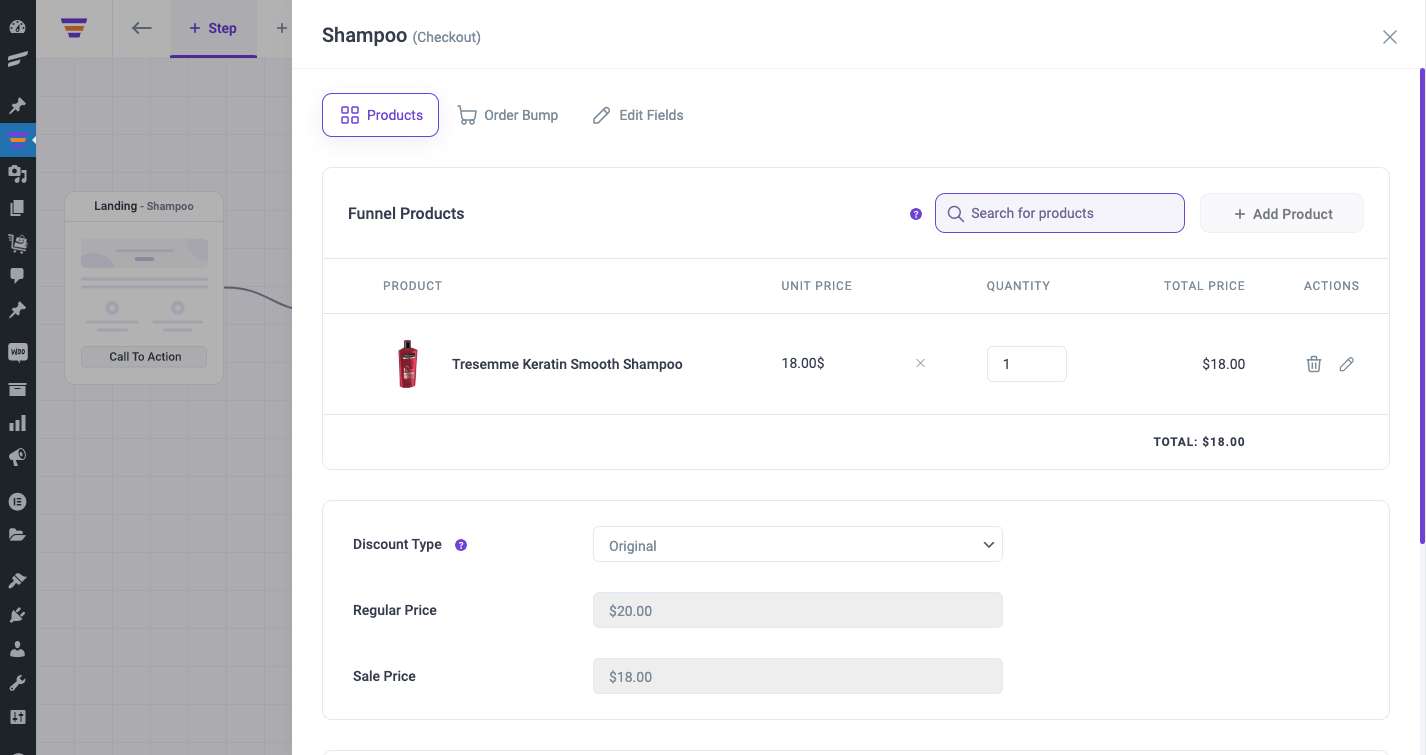
- To assign the initial offer product in your funnel, go to the settings drawer of your checkout step.
- There, search and add your product – in this case, the Tresemme Shampoo.
– Learn How
. . .
Step 4 – Design the Landing Page and the Checkout Page of Your Funnel
Now that you have assigned the main funnel product, edit the Landing step and the checkout step to design them for conversion.
. . .
Step 5 – Configure Your First WooCommerce Upsell Offer
- Assign the Tresseme Hair Conditioner as the Upsell offer product for your first upsell.
– Learn How
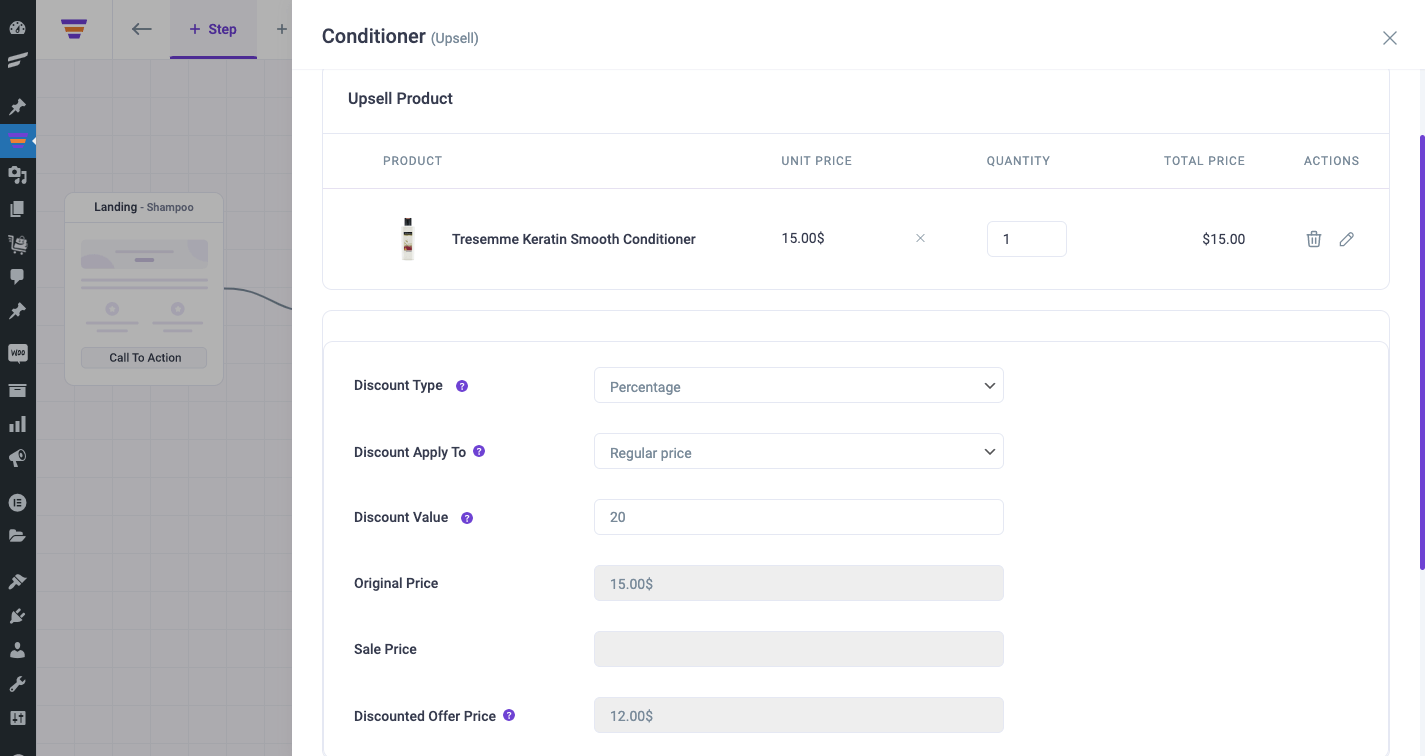
Here, I am using the Percentage Discount on the regular price of the product.
After 20% discount, my product price is now $12 for this funnel. While the original price of this product is $15 in store.
- Then design and update the upsell offer content to make it relevant to your offer.
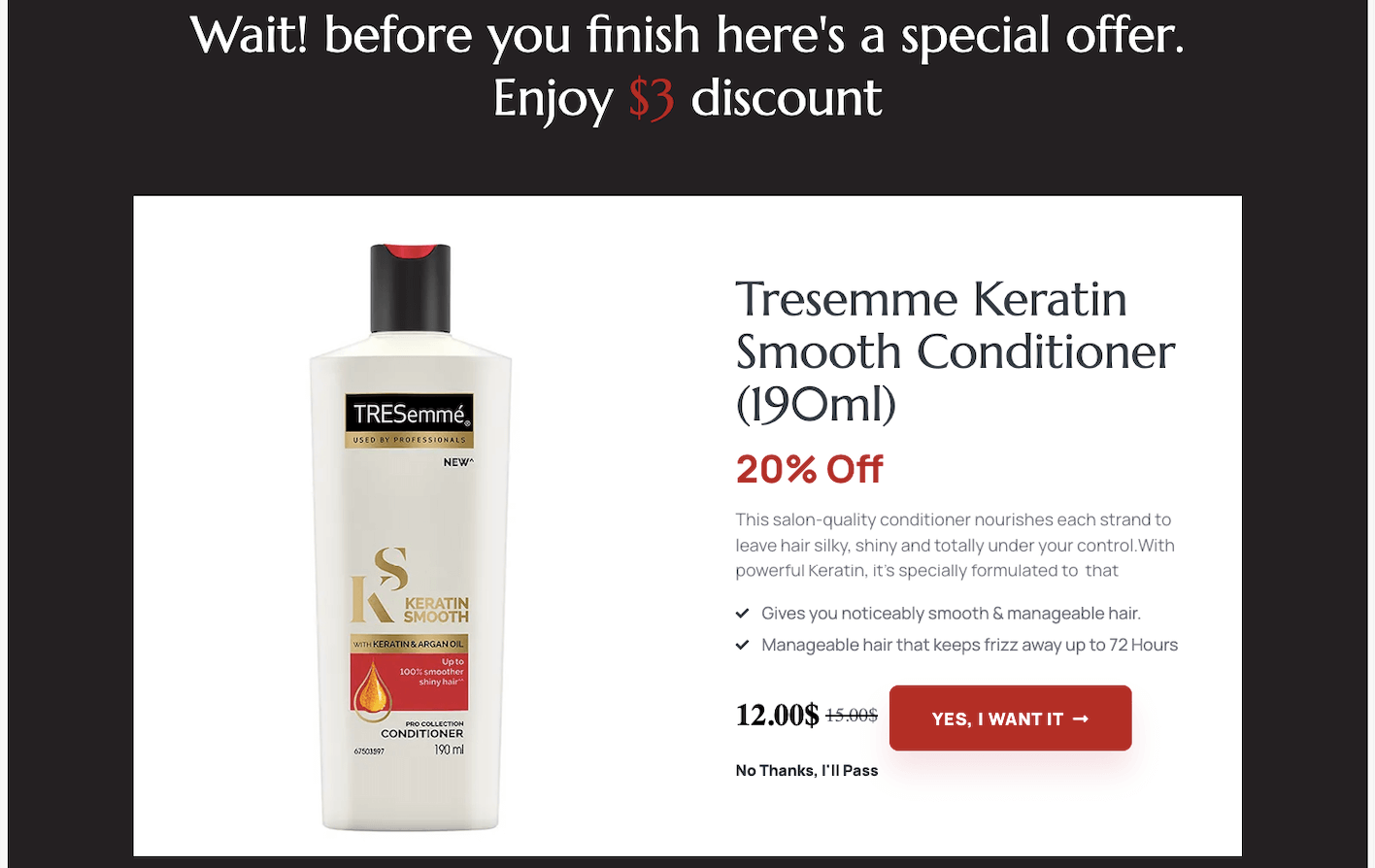
- Enable ‘Show Price’ for the Offer button (WPFunnels widget) to display the offer price.
. . .
Step 6 – Configure Your Second WooCommerce Upsell Offer
It’s the same process. First, assign the offer product, which is the bundle of Conditioner and Hair Mask in this case. And then design the Offer page.
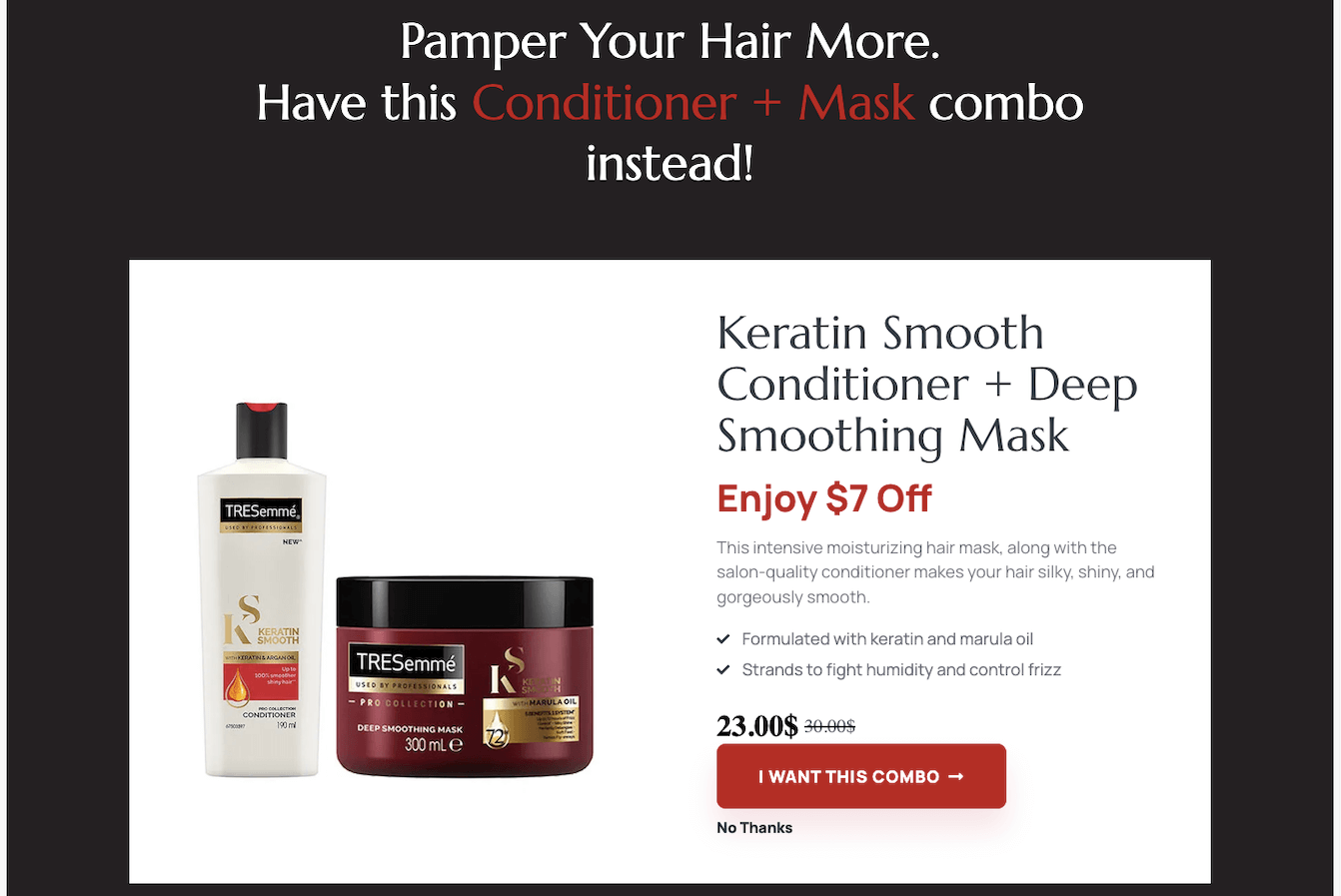
Here I am using the Flat Amount Discount on the original price.
After $7 discount, my product price is now $23 for this funnel, while the original price is $30.
. . .
Step 7 – Enable ‘Replace Order In Previous Step’ For the Second Upsell
- Go to the settings drawer of your second upsell step.
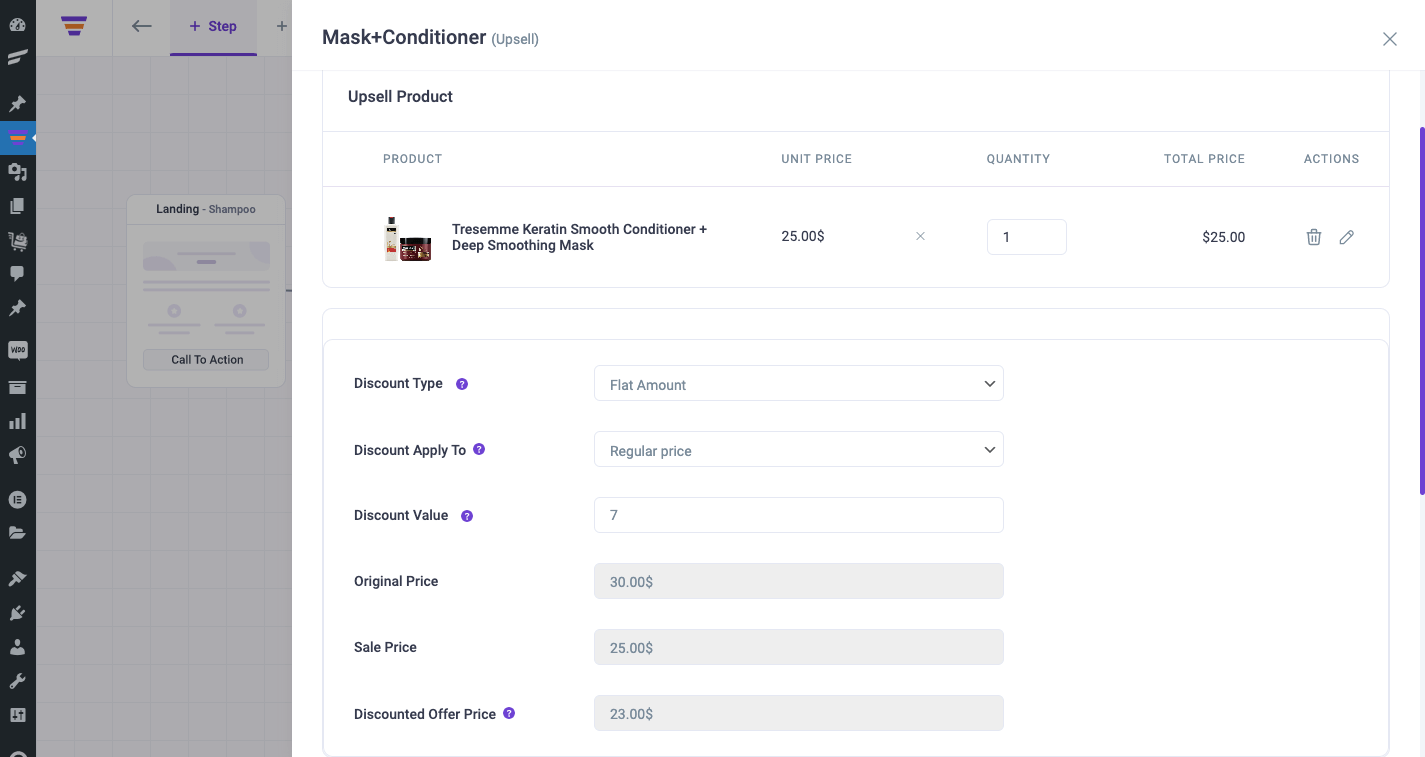
- Scroll down to Additional Options and Enable Replace Settings. Then choose the option, ‘Replace Order in Previous Step’.
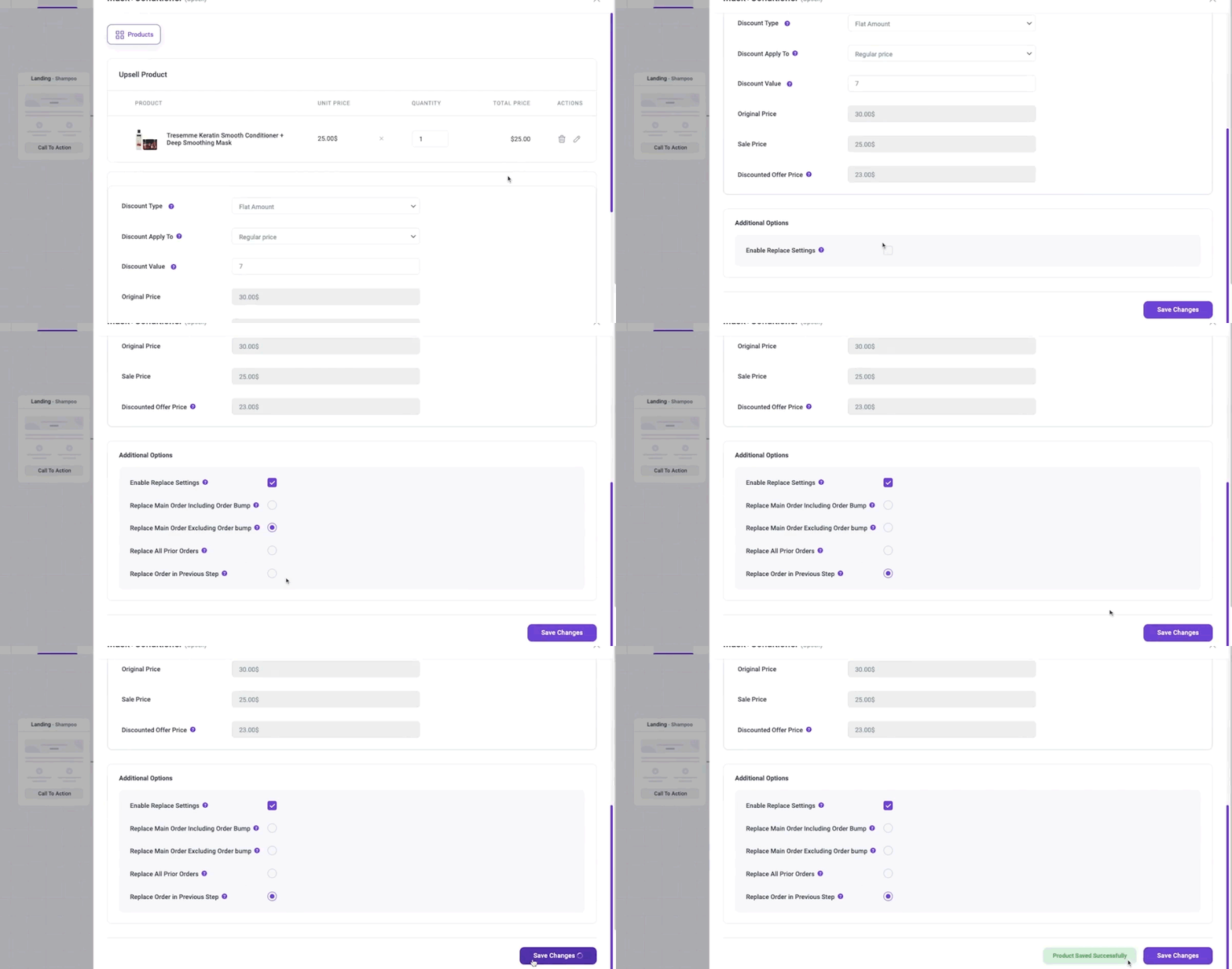
This allows your buyers to replace the first upsell offer upon accepting the combo offer in the second upsell.
. . .
Step 8 – Finally, Design Your Thank You Page and Start Promoting Your Funnel
Simply edit the thank you step and update the design & content to match your brand, and your funnel is ready to deploy.
You can then start promoting your funnel via Social Media, Paid Ads, or Email Marketing and start getting potential customers to visit your funnel, who will end up purchasing your products.
That’s it! That’s how easy it is to set up WooCommerce upsell offers using WPFunnels.
Post-Purchase WooCommerce Upsell Examples
Let us look at a couple of examples to help you understand how one-click upsells after checkout work.
Example 1 – Offer More Quantity / Volume As Upsell
Suppose you have a WooCommerce store where you sell Baby Formula. And you decide to sell 10 Fl oz Formula Milk as your initial offer at $9.
After checkout, you offer an Upsell – which is to buy 15 Fl oz Formula Milk instead at only $12 (which normally costs $15) at a special discount.
So parents who visit your store may grab this offer as they are getting 50% more of the Formula Milk for only $3 more.
And since they have already paid for the 10 FL oz Formula Milk, even if they reject the upsell offer, you won’t lose the initial sale of $9.
Example 2 – Offer A Better Alternative
Let’s say you sell Phone accessories and you created a funnel for a pair of Sony headphones that costs $50.
After a person purchases it, you can then offer him to purchase a better pair of headphones instead, maybe the Ultra Bass Sony Headphones, which costs $100, but at a 20% discount. So the offer price will be $80.
In this case, the buyer will be able to take a better pair of headphones by only paying $30 more while saving $20.
If this is within budget, the buyer will surely accept the offer.
Example 3 – Make An Affordable Bundle Offer Instead
Let’s say you have an online Beauty store and you are creating a funnel for Serums. And suppose a buyer purchased the Vitamin C Serum, which costs $9.
Right after checkout, you can ask the buyer to go for the 3-in-1 Face Nurturing Serum bundle for $21, which includes the Vitamin C Serum, the Hyaluronic Acid Serum, and the Niacinamide Serum in one bundle.
In this case, the buyer will be getting 3 serums by paying $6 dollars less. And at the same time, the bundle is aimed at helping to improve the beauty of the face.
So if a buyer is concerned about the skin of his/her face and wants to save money, they will rather go for this bundle.
The examples above are some of the tactics you can use when making upsell offers, but you can incorporate more amazing tactics, such as offering a related product, the highest-selling product in a category, the most popular product in your store, etc.
At the end of the day, it will help you persuade more buyers to spend more than what they initially intended to.
Real Case Study of Increasing Revenue with AOV
Let’s share a simple real example of how you can increase revenue by improving Average Order Value (AOV).
Last year, we launched a product. Let’s call it Product X.
The launch price was around $650 after a 60% discount. To increase the value of each purchase, we added a bundle with two related products. Let’s call it Bundle Z.
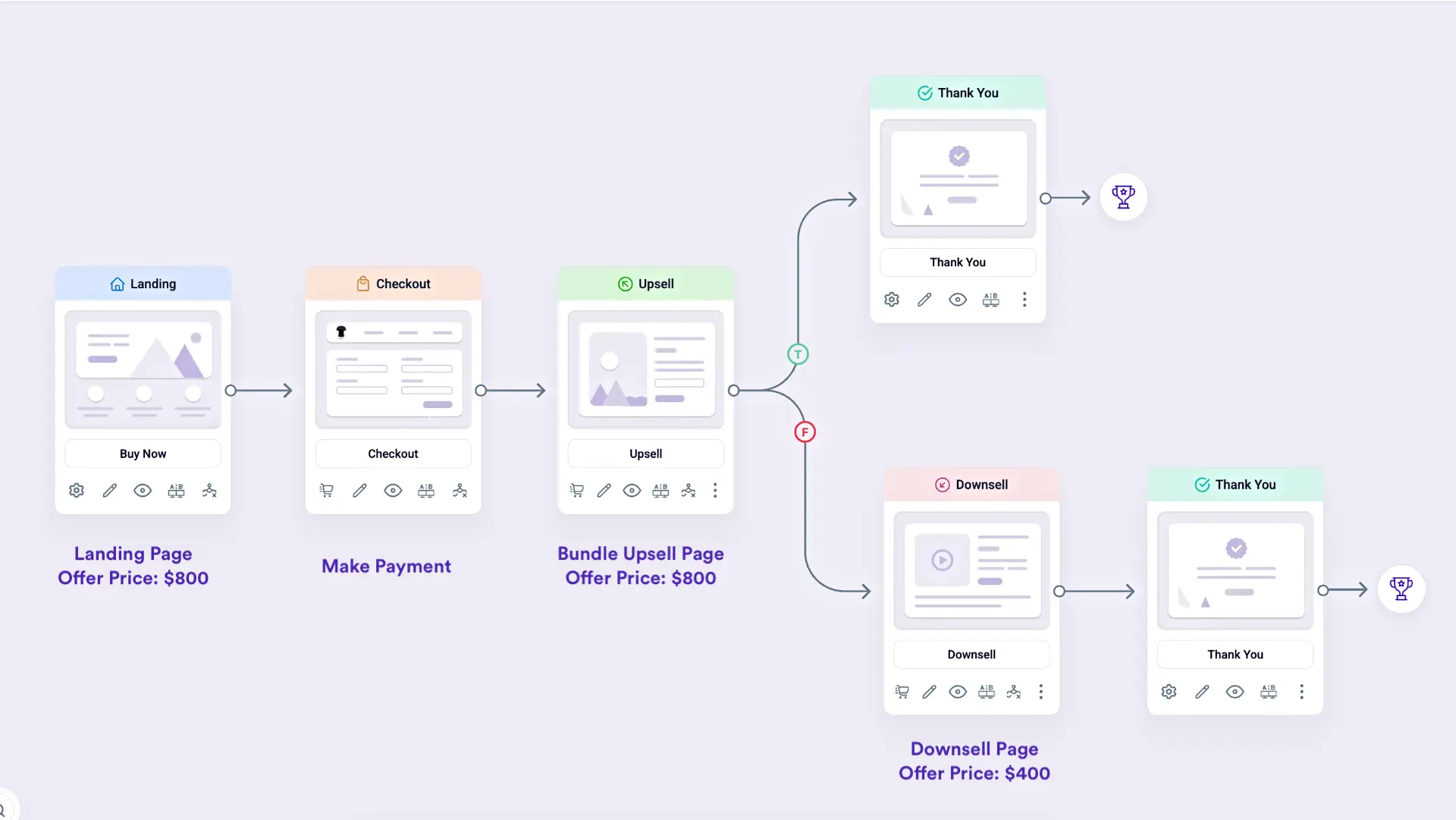
Here is how the funnel worked:
- Customers land on a page offering Product X for about $650.
- When they decide to buy, they move to the checkout page.
- After checkout, we show a one-click upsell offering Bundle Z at 50% off for about $800.
- If customers skip the upsell, we show a downsell with another product for about $400.
During the launch, we received about 30 orders. Without any upsell, the revenue would have been around $19,500.
But 12 customers accepted the upsell, which added about $9,600 in extra revenue.
We didn’t use anything complicated. We simply added a one-click upsell, and it increased the total revenue by over 40%.
We built this funnel using WPFunnels, which shows that a simple upsell page and a strong offer can help you earn more from every order.
Conclusion
Post-purchase upsells help you increase revenue without spending more on ads. You earn more from customers who have already completed a purchase.
The key is offering the right product at the right time. A relevant and fairly priced upsell after checkout feels helpful and increases your average order value.
With the right funnel tool, the setup process is simple. You can create targeted offers, add discounts, and guide buyers smoothly after checkout.
If you want higher conversions, start using one-click upsell offers. They reduce friction and turn single purchases into bigger orders.
** FAQs **
How can I set up WooCommerce upsell after checkout?
You can use funnel tools to create post-purchase up-sells in your WooCommerce store. After the original purchase, you show relevant products as a one-click offer. This helps you increase average order value without interrupting checkout.
Why should I use post-checkout upsells in my WooCommerce store?
Post-checkout offers reduce cart abandonment rates because the payment is already completed. Any accepted upsell increases the total purchase value. It’s a simple sales tactic to grow revenue safely.
What products should I offer as WooCommerce upsells?
You should offer complementary products or useful add-ons related to the original item. You can also suggest additional services like an extended warranty. Relevant products improve your shopping experience and conversions.
Do upsells really increase sales in an ecommerce store?
Yes, upsells help in increasing sales velocity and boosting average order value. When you show value-driven offers at the right time, online shoppers are more likely to accept. This leads to higher revenue from every customer.
What is the difference between cart upsell and post-checkout upsell?
A cart upsell appears before payment, while post-checkout up-sells appear after the original purchase. Cart offers may increase cart abandonment rates if not used carefully. Post-checkout offers are usually safer for conversions.