

As a WooCommerce store owner, you’d naturally think that bringing more visitors to your store would help you make more sales, right?
Yeah, that might work in some cases. That’s okay.
But during a sale, there’s something else you need to think about.
You’re spending more on ads to bring in customers, and the discounts you’re offering are already eating into your profit.
And if most customers buy just one product and leave, you could end up making more sales without making as much profit as you’d hoped.
So, what can you do to make more from the customers you’re already paying to bring in?
That’s what I want to help you with today.
I’ve put together a simple, one-hour WooCommerce sale checklist to help you check your profit margins, add relevant offers at checkout, and make sure everything is ready before the rush begins.
And yes, you can reuse the same checklist for Black Friday, Christmas, and every holiday sale afterwards.
Quick Answer: What Should I Do In The Next Hour?
First 15 minutes: pick your 3 best sellers and check what profit is left at your sale price.
Next 25 minutes: give each one a small add-on at checkout, and add one offer after payment.
Last 20 minutes: stop coupons stacking, check your free shipping setting, and place two test orders.
TL;DR: The WooCommerce Sale Checklist At A Glance
- Start with your 3 best sellers. They’ll carry most of your sale anyway.
- Check your margin at the sale price. You might be surprised how little is left.
- Give each one small add-on, cheap enough that nobody thinks twice.
- Add one offer after payment. Usually “want another one at a discount?”
- Lock your coupons and free shipping, so the discount doesn’t leak more than you planned.
- Place two test orders. Then just glance at four numbers each day.
First, How Much Time Do You Have?
Be honest with yourself here. Then start from your row.
| Where you are | Do this | Time |
|---|---|---|
| Sale starts in a few days | Steps 1 to 5, in order | About 1 hour |
| Sale starts tomorrow | Steps 2, 3 and 5 | About 35 minutes |
| Sale is already live | Steps 2, 3 and 5, then the daily check | 35 minutes, then 5 a day |
| Sale just ended | Jump to “After the sale” | 20 minutes |
hese are our estimates for a first setup. If your add-on products are already in your store, you’ll be quicker.
Step 1: Pick Your 3 Best Sellers And Check Your Margin (15 Minutes)
Okay, let me ask you something. At your sale price, how much profit do you actually make from one order?
You probably know how much you’re selling your products for. But do you know how much is left after covering all the costs? That’s what we’re going to figure out for your 3 best sellers, because these are the products you want to focus on during the sale.
Here’s how to calculate it: sale price minus product cost, shipping, payment fees, and ad cost per order.
Let’s take a simple example.
Say you’re selling a $50 product at 30% off. That brings the price down to $35. Now subtract $15 for the product cost, $5 for shipping, $1.30 in payment fees, and $12 in ad costs for that order.
What’s left?
Just $1.70.
Yep, that’s all.
Now, what if you offer a small add-on for $8, and it costs you $3? If 1 in 5 customers buys it, that’s an extra $1 in profit per order on average, before any additional costs.
That’s almost 60% more profit per order, without spending more on ads.
And that’s why we’re starting with your best sellers and profit margins.
Your action items
☐ Find your 3 best sellers.
☐ Calculate the profit per order for each one at the sale price.
☐ If any product leaves you with a negative margin, consider lowering the discount or leaving it out of the sale.
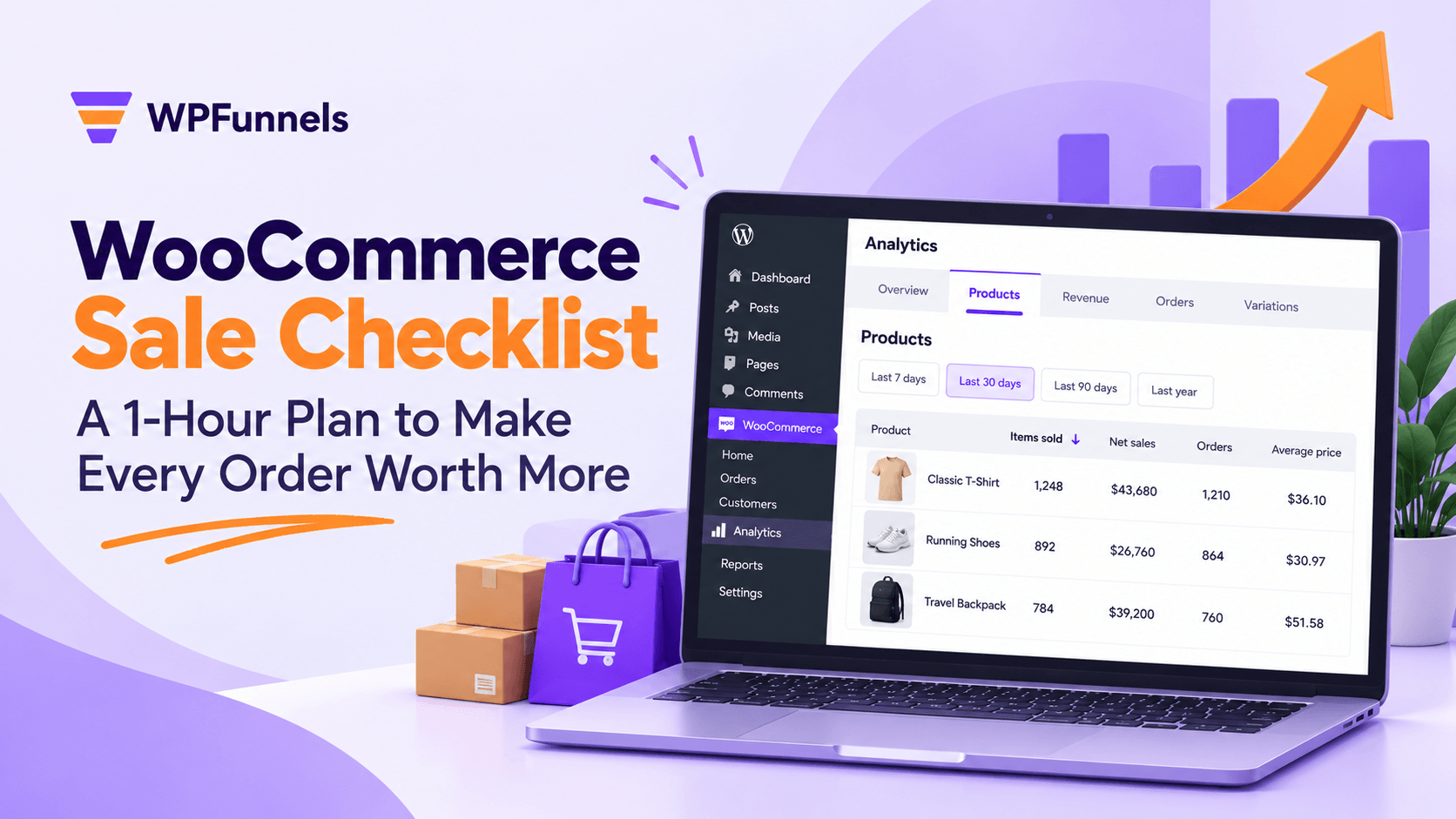
Where to find it: In WooCommerce, go to Analytics, then Products, and sort by items sold.
To calculate your ad cost per order, divide last week’s ad spend by the number of orders it generated. Running both Meta and Google ads? Add their costs together.
And don’t just guess your ad costs. They can rise as the holiday season gets closer, but that doesn’t happen every time. For example, Agency GeistM reported that Meta cost per click rose 10% in late October 2024, while its analysis of early October 2025 reported a 12% drop in CPMs.
Your own ad costs are what matters here, so use your actual numbers to work out your margins.
Step 2: Pick One Small Add-On For Each (10 Minutes)
Think about your best seller for a second. What does someone usually need with it?
That’s your add-on.
It should finish what they’re buying, and cost little next to it. If they have to stop and think, it’s too big or too random.
| If your best seller is | Try this |
|---|---|
| A costume or outfit | Face paint, a makeup kit, an accessory |
| Something that needs power | Spare batteries or a charger |
| A gift | Gift wrap or a greeting card |
| Something that runs out | A refill or a second pack |
| Something that needs care | A care or cleaning kit |
Your action items
☐ Pick one add-on for each best seller.
☐ Price it low, and check it still leaves you some profit.
☐ Make sure you have enough stock for the whole sale.
That last one matters more than it sounds. When one furniture store rolled out its add-on to every visitor, it sold out the warehouse. During a sale, an add-on you can’t ship turns into a refund and an awkward email.
Where to set it: Settings, then Products, then Inventory. Turn on a low stock alert so you hear about it before your customers do.
Step 3: Add It At Checkout, Plus One Offer After Payment (15 Minutes)
Two places. That’s it.
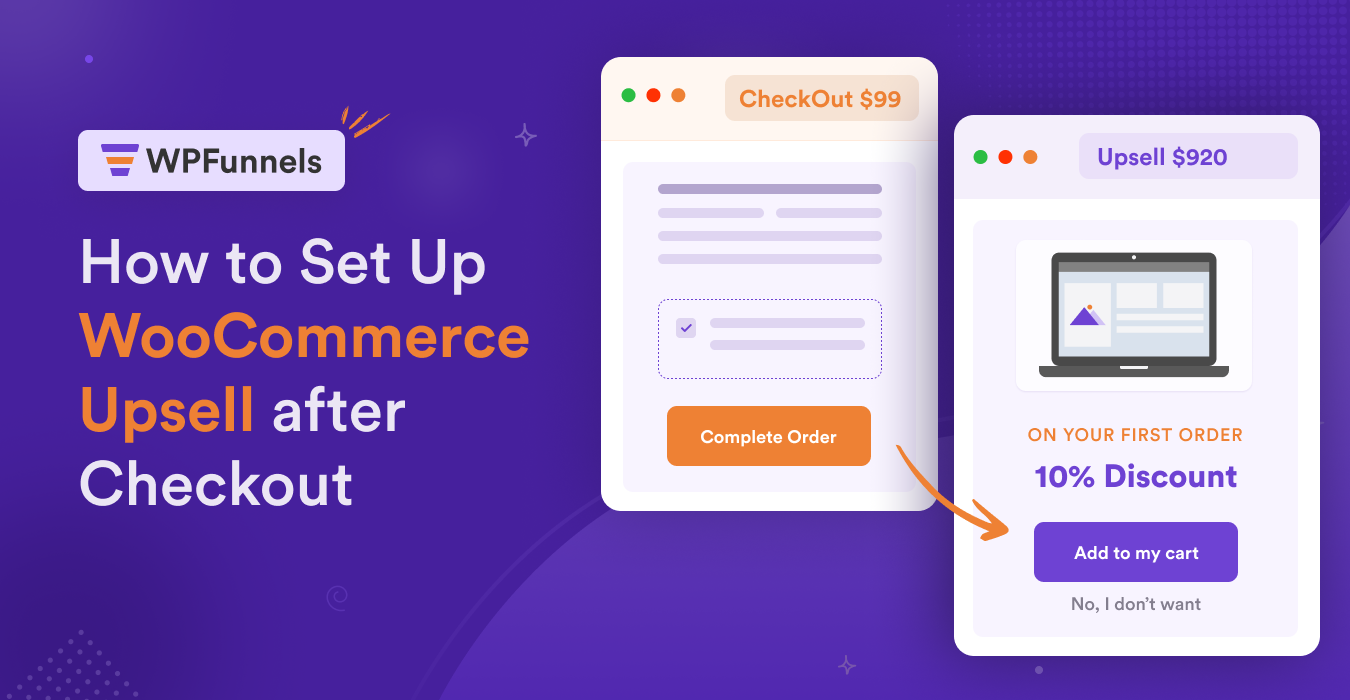
At checkout, add a simple checkbox. People call this an order bump. The buyer has already decided to purchase, and with one tick, they can add another product to the same order.
After payment, show one more offer. Usually, it’s a second unit of what they just bought, at a discount. And because the original order is already paid for, declining this offer won’t cost you that sale.
But does it actually work?
One small store added an offer after checkout, and its average order value went from $58 to about $70. You’ll also find industry articles quoting up to 10–30% increases in order value from order bumps.
Just keep in mind that these articles don’t point to an original study, so treat that figure as a reference, not a promise.
We’ve tested this on our own launches, too. In one software launch, regular sales were expected to reach $19,500 from 30 orders. One after-payment offer, accepted by 12 customers, added $9,612, and the average order value went from $650 to $970.
You can read the full story. Here is the guide.
Of course, that’s software, not a physical product store, so your numbers will look different. But the idea is the same: the buyer who just paid is your warmest buyer.
One more thing. Keep it to one offer before payment and one after. It’s tempting to add more. Don’t.
As one store owner on Reddit put it, “Having too many upsell will distract the purchase flow I guess.” (Read the thread)
Your action items
☐ Add one checkbox offer at checkout for your best sellers.
☐ Add one offer after payment.
☐ Stop there.
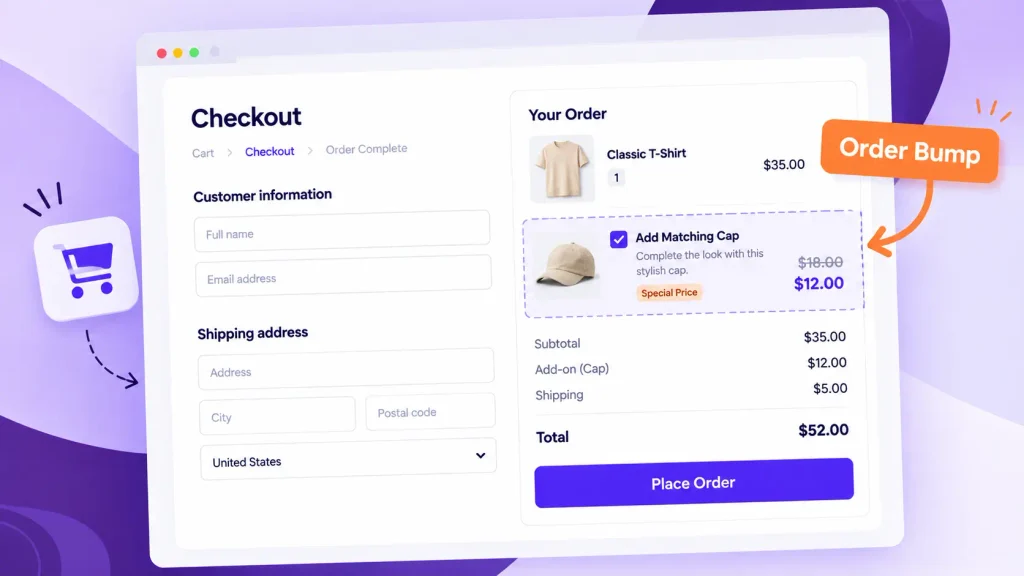
How to set it up: WooCommerce doesn’t offer checkout add-ons on its own, so you’ll need a plugin. If you want step-by-step screenshots, our order bump setup guide walks you through it.
On WPFunnels Free or Pro? Here’s what each covers:
| Feature | Free | Pro |
|---|---|---|
| Order bump on your storewide checkout | One, shown to every buyer | Several, each shown based on what’s in the cart |
| Offer after payment | One per funnel | More, plus post-purchase upsells |
| Different add-on for each of your 3 best sellers | Use one add-on that fits all three, or create a separate funnel per product (Free includes 3 funnels) | Yes, on the storewide checkout |
So, if you’re using Free, the simplest option is to choose one add-on that works for all three best sellers. If each product needs a different add-on, Pro lets you use cart-based offers on one checkout.
Quick Answer: Should the Extra Offer Go Before or After Payment?
Use one of each. A checkbox before payment lets customers add something to their order, while an offer after payment gives them another chance to buy without risking the original sale.
You don’t need to add more offers just yet. One furniture store’s tests found that a single add-on performed better than several.
Step 4: Stop Coupons And Free Shipping Leaking Your Profit (10 Minutes)
This is the step most people skip. And it’s usually where a sale quietly loses money.
You need to check two settings.
1. Can your sale coupon stack with other coupons?
During a sale, buyers try every code they can find. Old codes, influencer codes, all of it. If your sale coupon combines with them, you can end up giving away way more than you meant to.
The fix takes ten seconds. Open your sale coupon and tick Individual use only.
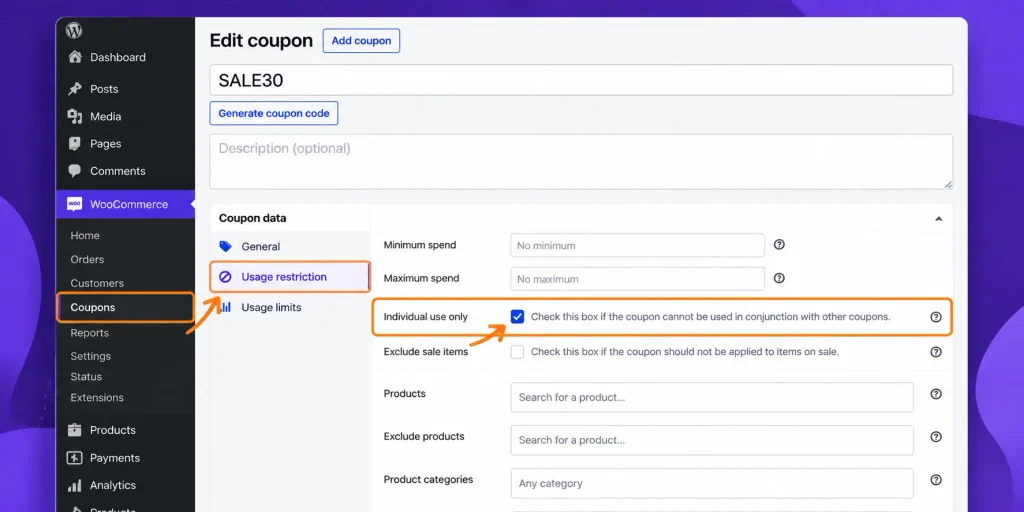
If your products already have a sale price, think about ticking Exclude sale items too. (WooCommerce’s coupon guide explains both.)
2. Does free shipping look at the price before or after the coupon?
Did you know there’s a setting for this? Most people don’t.
If free shipping needs a minimum order amount, WooCommerce gives you a checkbox called Apply minimum order rule before coupon discount.
- Unchecked: a $60 cart with a $15 coupon counts as $45. So it might miss your $50 minimum.
- Checked: the same cart counts as $60 and gets free shipping. Nice for the buyer, but you pay for it.
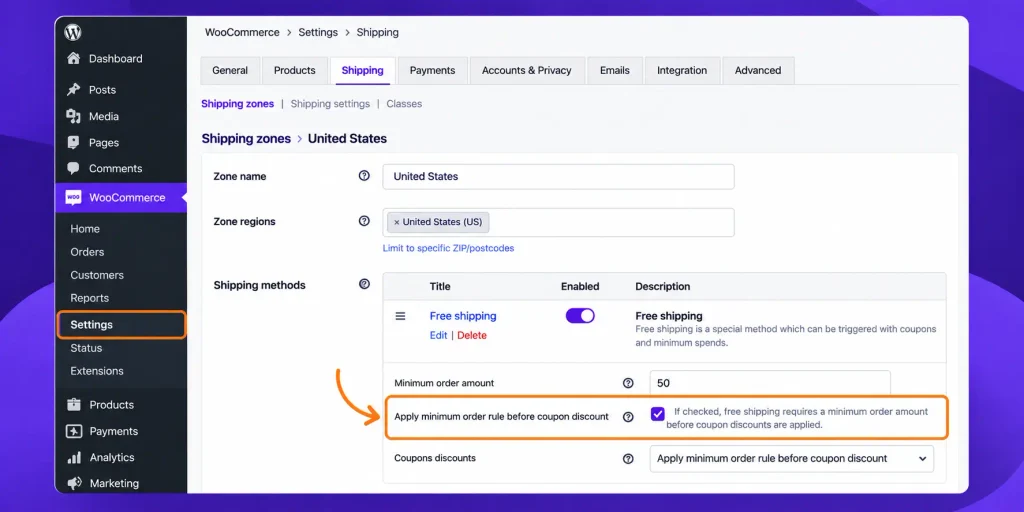
Neither one is wrong. Just pick one on purpose, using your margin from Step 1. (WooCommerce explains it here.)
Your action items
☐ Tick Individual use only on the sale coupon.
☐ Pause old coupons that shouldn’t run during the sale.
☐ Decide which way the free shipping checkbox should go.
Where to find them: Coupons are under Marketing, then Coupons, in the Usage restriction tab. Free shipping is under Settings, then Shipping, inside your shipping zone.
Quick Answer: How do I stop WooCommerce coupons stacking during a sale?
Open the sale coupon, go to Usage restriction, and tick “Individual use only”. It then can’t be combined with other coupons. Then place one test order with the coupon and your add-on together, so you can see the real total before your customers do.
Step 5: Place Two Test Orders (10 Minutes)
Want to see exactly what your customers will see? Place an order yourself. Two test orders are enough.
| Test order | Coupon | Add-on | Offer after payment | Device |
|---|---|---|---|---|
| 1 | Yes | Tick it | Accept | Phone |
| 2 | No | Leave it | Decline | Desktop |
Your action items
☐ Check the total, discount, shipping and tax all add up.
☐ Open the order email. Is every item there?
☐ Refund or cancel both orders, and check the add-on stock went back up.
If you’re worried these test orders might mess up your sales numbers, don’t worry. Just refund or cancel them once you’re done testing.
During The Sale: Just 5 Minutes A Day
You don’t need to watch everything. Just glance at this each morning.
| If you see this | Do this |
|---|---|
| Checkout conversion drops after adding the add-on | Simplify the add-on line, or swap the product |
| Almost nobody takes the add-on | Try something cheaper or more related |
| Add-on stock is getting low | Restock, or switch to another add-on |
| Orders with a bigger discount than planned | Go back to Step 4 |
And change one thing per day. Otherwise you won’t know what made the difference.
Quick Answer: What’s a good take rate for my add-on?
Honestly, there’s no fixed number. The 30 to 40% you’ll see quoted comes mostly from people selling digital products, and there’s no independent benchmark. For physical products, expect less. After-payment offers can sit in single digits: one retailer went from 3% to 5.8% after testing the wording. So compare against your own first day, not someone else’s number.
After The Sale: 20 Minutes Of Notes
Future you, setting up Black Friday, will be glad you did this.
☐ Compare average order value and profit per order with the week before.
☐ Note which add-on worked, and which didn’t.
☐ Note anything that broke, and how you fixed it.
Reuse It For Black Friday And Every Holiday Sale
If it worked, double down next time. The plan stays the same. Only the add-on changes.
| Sale | Add-on ideas |
|---|---|
| Halloween | Face paint, batteries, treat bags |
| Black Friday and Cyber Monday | Accessories, care kits, a second unit |
| Christmas | Gift wrap, greeting cards |
| Year-end and New Year | Refills, starter packs |
Want more ideas for bigger orders all year round? Have a look at our 10 proven ways to increase average order value on WooCommerce.
FAQs
Will an add-on annoy my customers?
Not if it’s one small, related offer. It’s a single checkbox, and it doesn’t get in the way of paying. Where it goes wrong is when the checkout gets crowded or the add-on has nothing to do with the cart. Keep an eye on checkout conversion for a day after you add it.
Do I need a plugin to increase order value during a WooCommerce sale?
For the checkout add-on and the offer after payment, yes. WooCommerce doesn’t add those on its own. Everything else here, Steps 1, 4 and 5, uses WooCommerce’s own settings.
Can I use this checklist for Black Friday on WooCommerce?
Absolutely. Keep the setup, swap the add-on to fit the occasion, and redo your margin check in Step 1. Black Friday discounts are usually deeper, so that $1.70 can shrink fast.