

If you have been doing email marketing for a while, then you will notice that, over time, some leads stop opening your emails. And I’m not talking about missing one or two emails. Many of them will completely stop interacting for straight 3-6 months.
And the concerning part is, you will notice that some of them have been actively engaged in the past.
This is a common challenge for most businesses, but, it’s actually possible to re-engage many of those prospects.
How? Using automated win-back campaigns.
A timely re-engagement email can help you reconnect with inactive subscribers, improve your engagement, and keep your email list healthy over time.
And today, we are excited to inform you that, now, you can set up automated win-back campaigns in Mail Mint!
Inactive Subscribers Hurt Your Email Marketing Performance
When you focus on growing your email list, it is easy to overlook what happens after some subscribers stop engaging with your emails.
But you have to understand that this behavior is a sign that the prospects themselves are clearly no longer feeling connected to your brand. So, your campaigns won’t deliver the high results as they should.
In the long run, if a large part of your list keeps ignoring your emails, providers like Gmail and Outlook take that as a signal and begin treating your campaigns as less important. It can hamper your SMTP reputation and sometimes increase your spam risk scores.
And you cannot ignore the fact that it is still costing you money to send emails to these leads even if they won’t interact.
Eventually, your open rates start dropping, your inbox placement gets weaker, and you start getting low numbers from your campaigns.
So, it is best not to ignore inactive subscribers if it’s for longer than 3-months.
Keeping all these in mind, we’ve worked on brand new feature in Mail Mint to helping you set up email automation workflows for subscriber win back emails.
Check out how it works.
How The Subscriber Win Back Trigger Works In Mail Mint
Subscriber Win Back trigger helps you automatically detect inactive subscribers based on the conditions you set (for example, contacts who have not opened or clicked an email in the last 90 days).
If a subscriber meets this condition, Mail Mint enrolls them into this automation workflow where you can then set up emails to get them excited about your brand again.
It is possible to re-engage up to 45% inactive subscribers with a proper, personalized, re-engagement campaign.
You could send special coupons, invite them to an exciting event, ask to get on a call with you, use AI generated email content with ChatGPT and Mail Mint, or simply use the “removal from list warning” tactic.
The “removal from list warning” is a tactic where you send an email, telling them that due to inactivity, their email will be removed from your list, and that if they want to continue receiving value added emails from your brand, they should reply within the next x days. This often works well if it’s related to a free subscription, educational content delivery list, or some sort of value added list.
The best part about this is, you will only have to set it up once, and Mail Mint will handle it automatically moving forward.
Setting This Up Takes Less Than 5 Minutes
Let’s see how you can do it when using Mail Mint. You can also check the Mail Mint documentation for additional setup guidance.
Do note that this is a premium feature, meaning you will need Mail Mint Pro installed to set it up.
Step 1 – Create An Automation Workflow
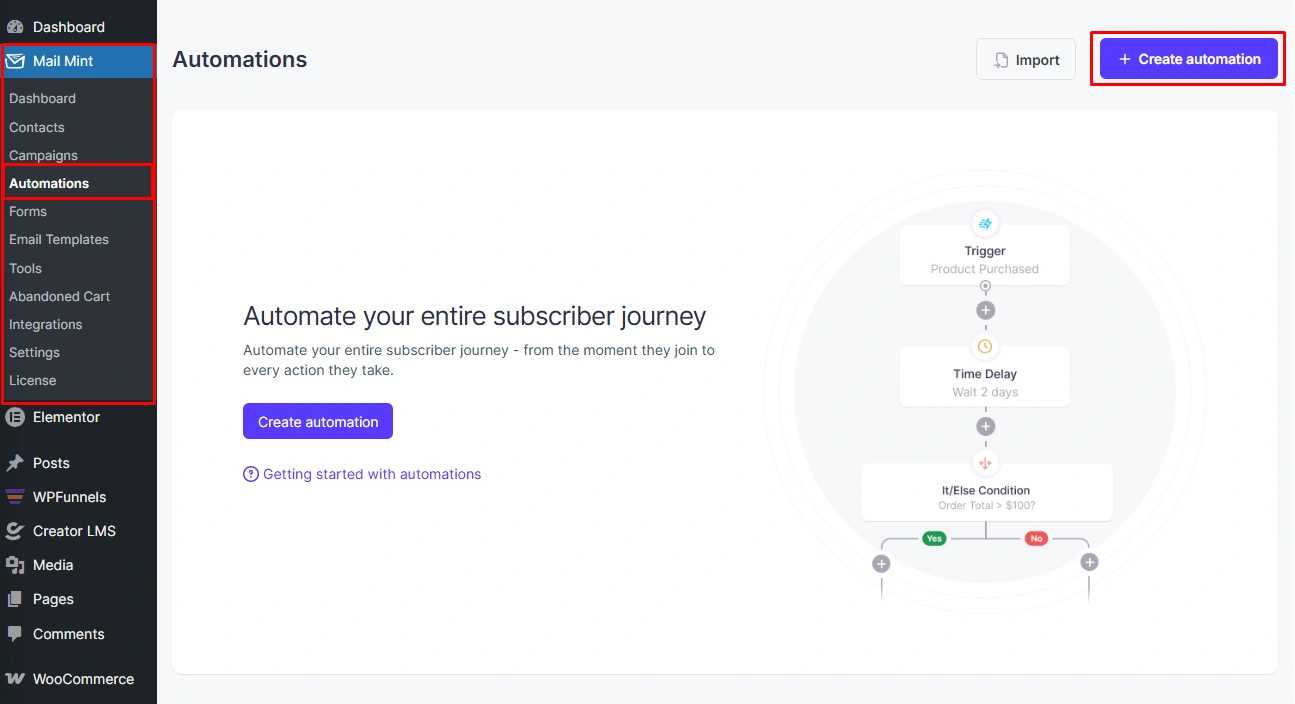
Go to Mail Mint > Automations from your WordPress sidebar and click + Create Automation in the top-right corner.
You will then see the automation recipe screen, where you can start with a pre-built template or create your own workflow from scratch.
Step 2 – Use The Win-back Template Or Start From Scratch
On the recipe screen, you have two options.
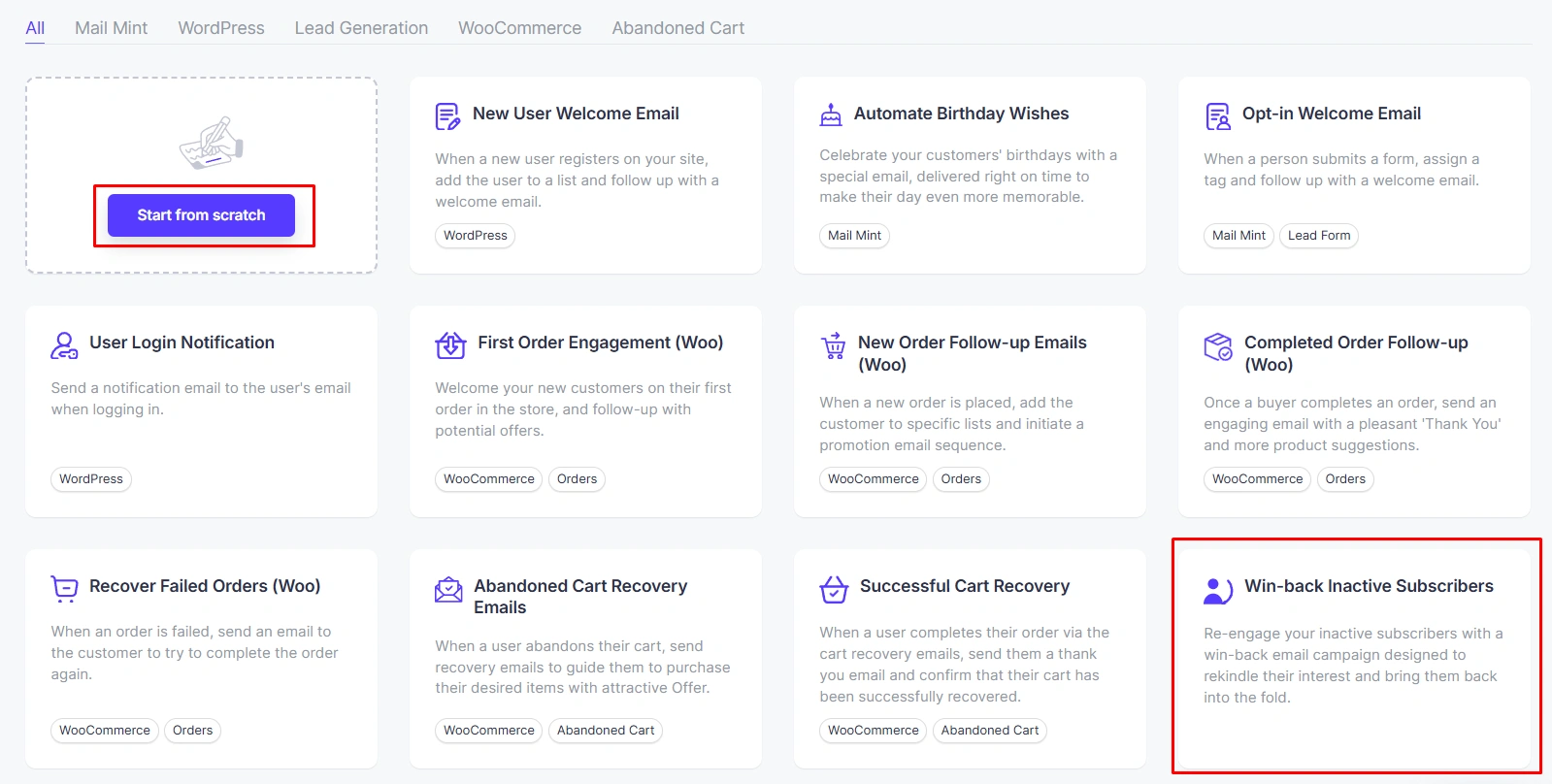
- You can select the Win-back Inactive Subscribers recipe card, which loads a ready-made workflow with the trigger and a basic email sequence already configured for you.
- Or you can click Start From Scratch and select the Subscriber Win Back trigger manually from the trigger library in the next step.
Step 3 – Set Your Inactivity Conditions
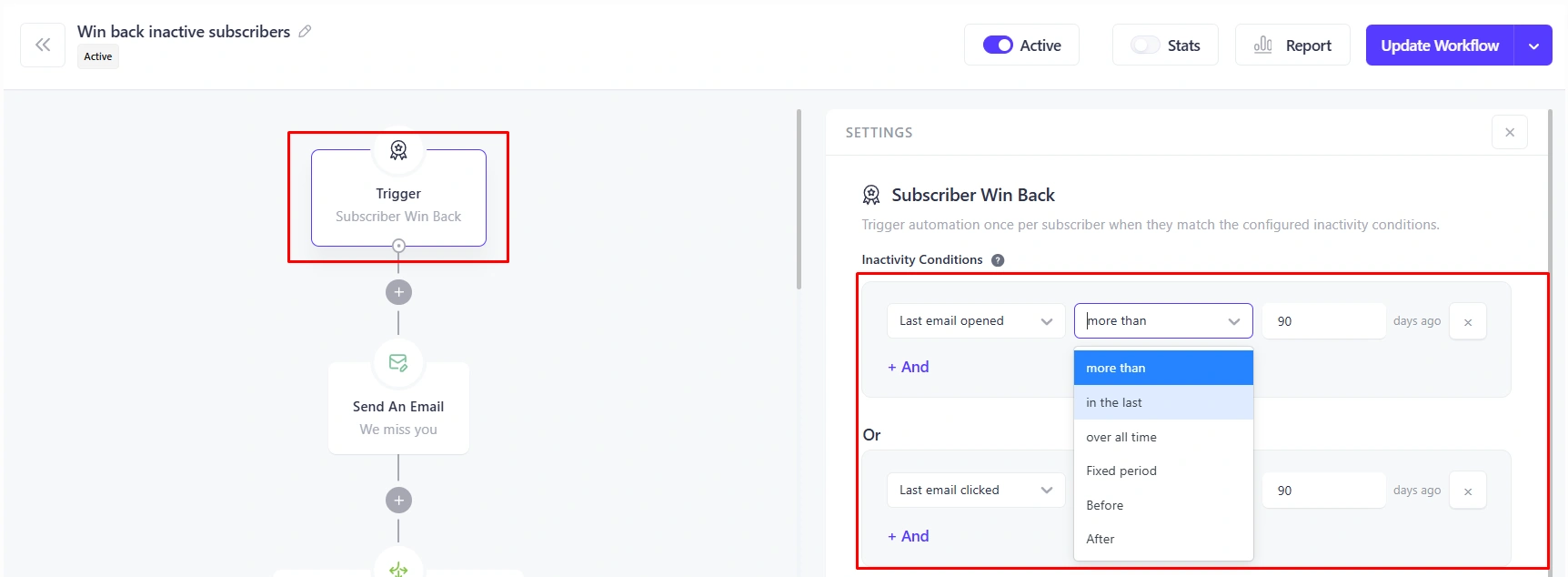
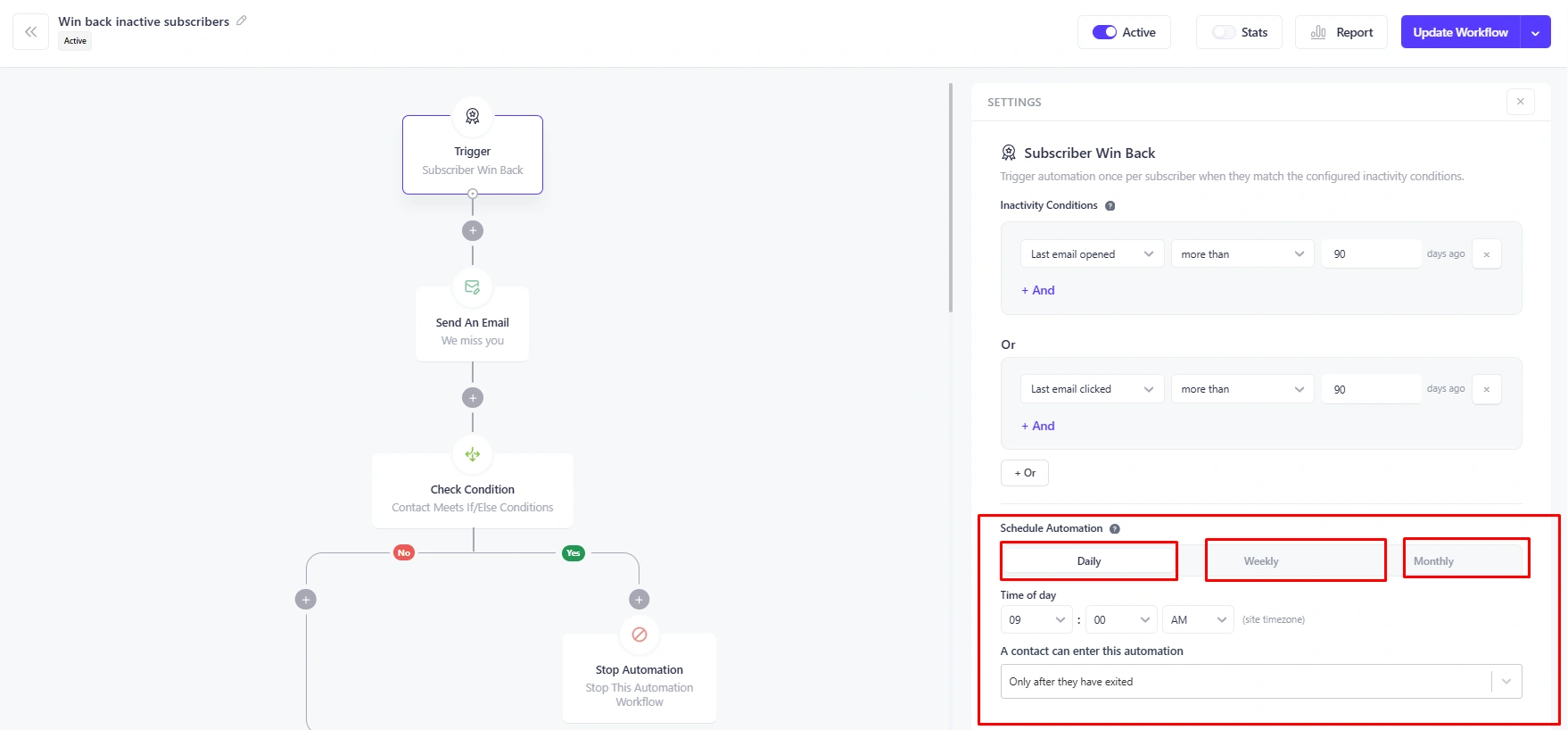
Once the trigger is on the canvas, you will see a Settings panel on the right side. This is where you define what inactive means for your audience.
Each condition has three parts:
- The activity type,
- The operator,
- And the timeframe.
The default setup looks like this:
- The last email opened was more than 90 days ago
- Or, Last email clicked, more than 90 days ago
Using Or between the two conditions means a contact qualifies if either one is true. This gives you the widest coverage when scanning your list and works well in most cases.
You can also click + And to add a condition that must also be met, or + Or to create a separate condition group if you need more specific control.
Step 4 – Set Your Automation Schedule
The Subscriber Win Back trigger runs on a schedule rather than in real time. You can set it to scan your contacts daily, weekly, or monthly.
If you choose Daily, you can also set the exact time for the scan to run based on your site timezone.
Once this is configured, Mail Mint runs the check on its own without you having to do anything.
This is done to make sure your server resources do not get overwhelmed. (Some sites may have thousands of leads, so too much frequent checks would overload the memory)
Step 5 – Build Your Re-engagement Workflow
Now it is time to build the workflow on the canvas. Here is a recommended flow that handles both possible outcomes.
Send a re-engagement email first. Add a Send an Email action as the first step. Keep this email short and personal.
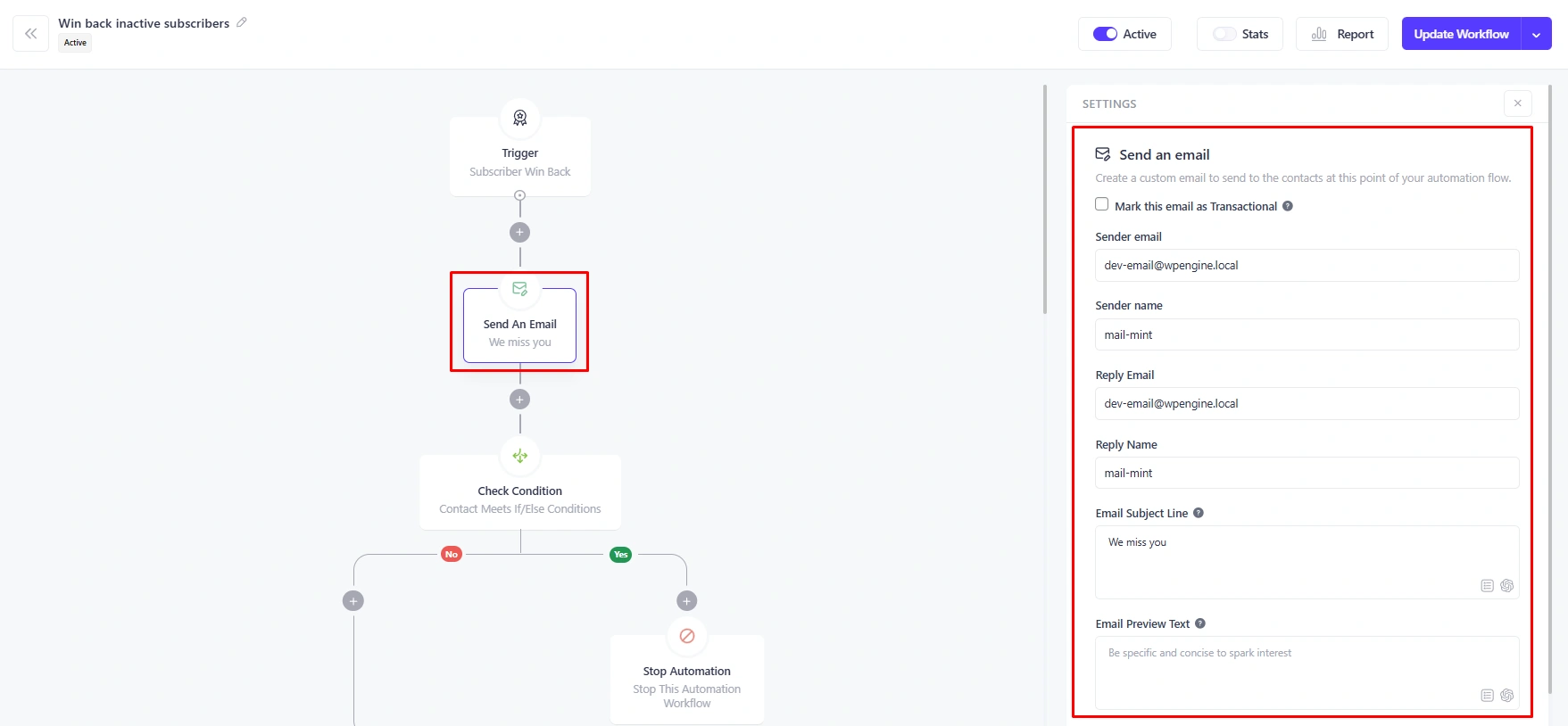
A simple “We miss you” subject line with one clear call to action works best. The goal is to get one click, not to send a full newsletter.
Add a time delay. After the email, add a Time Delay of 3 to 7 days. This gives the contact enough time to open and respond before the next step runs.
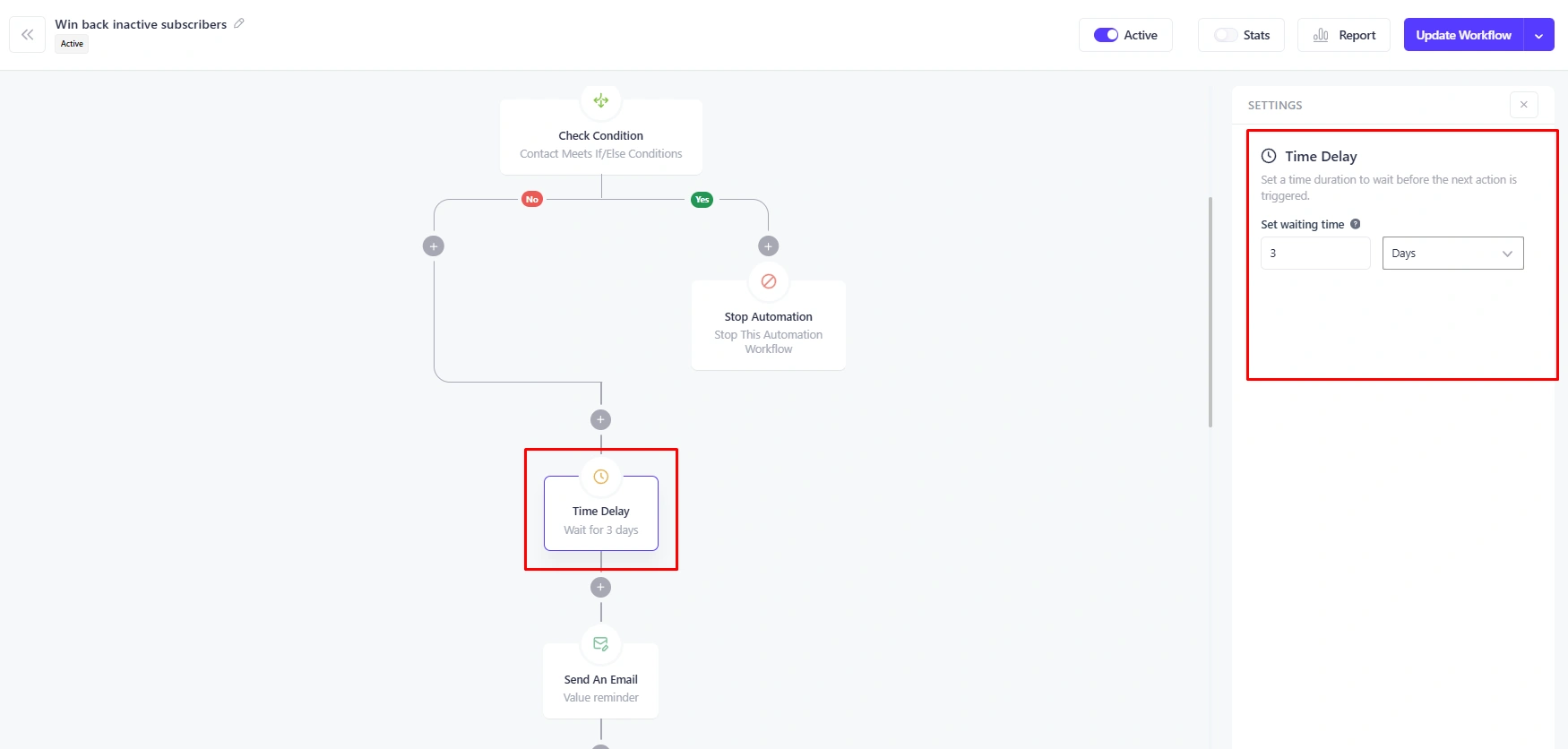
Check if they responded. After the delay, add a Check Condition step to see whether the contact opened or clicked your email. This splits the workflow into two paths.
- On the Yes branch, the contact responded. Add a Stop Automation step to exit them from the workflow cleanly. They are back, and no further action is needed.
- On the No branch, the contact did not respond. Add a Change Contact Status action and set the status to Inactive. This removes them from your future campaigns and keeps your list clean going forward.
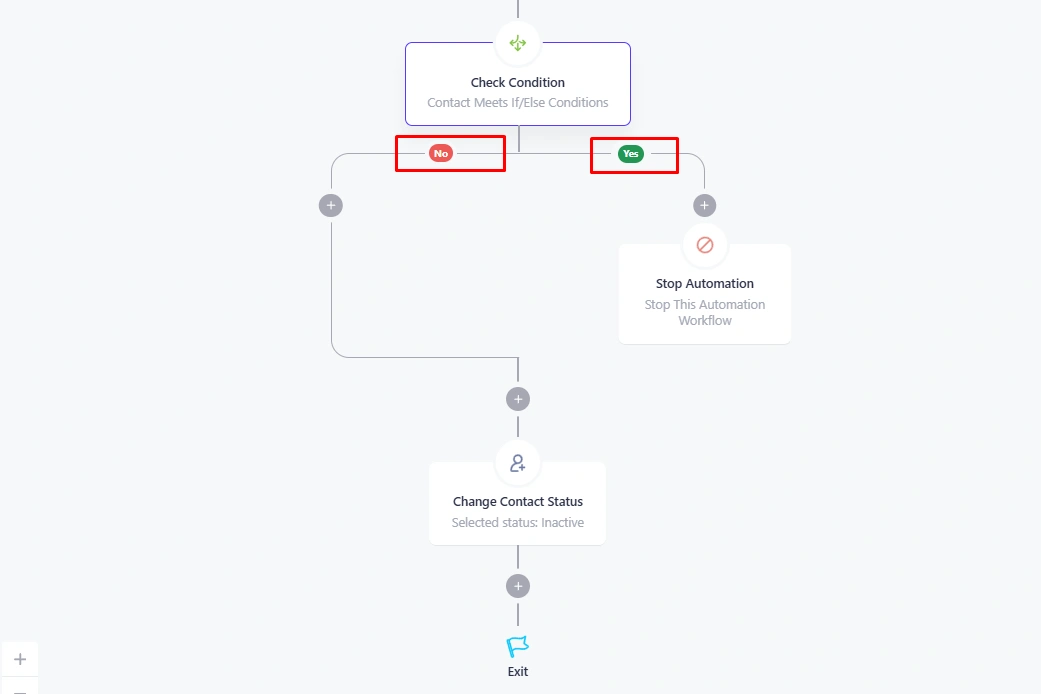
If you want to give them one final chance before making them unsubscribed, you can add one more short email on the No branch before the status change. (A last-chance message with a clear unsubscribe option works well here.)
Step 6 – View And Manage Your Inactive Contacts
Once automation starts running, contacts begin getting marked as inactive.
You can view all of them from Mail Mint > Contacts.
Use the Status filter at the top of the contacts table and select Inactive. You will see only the contacts that have been marked inactive, whether by automation or manually.
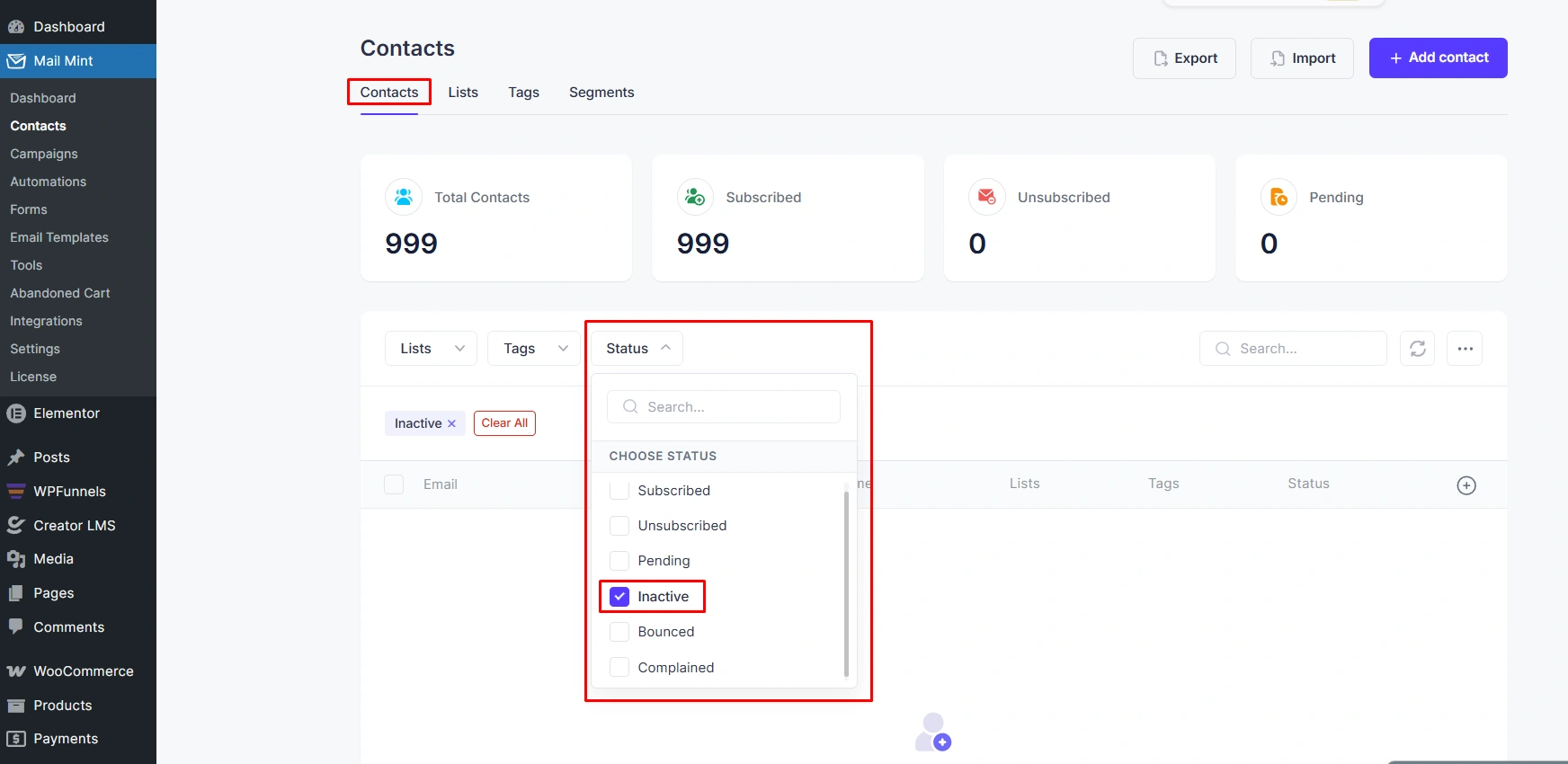
From here, you can bulk delete permanently unresponsive contacts, export the list for a deeper review, or update individual statuses as needed. Checking this list on a weekly basis is a good habit for keeping your email list healthy.
Step 7 – Activate The Automation
When your workflow is ready, click Start Workflow in the top-right corner of the canvas. The status changes from Draft to Active.
And that is it! Mail Mint will now start scanning your contacts based on your schedule and handling everything from there.
What’s Next?
The Subscriber Win Back trigger is one of the latest improvements we added to Mail Mint for WordPress and WooCommerce users, making it an even stronger alternative to traditional email marketing plugins like MailPoet.
Along with this feature, we also released a few other helpful updates.
✅ Mail Mint now automatically deletes expired coupons that were generated through your automation workflows, so your WooCommerce store stays clean without any manual cleanup.
✅ We also improved reCAPTCHA for multiple Mail Mint forms on the same page.
More is on the way. Stay tuned!
Start Winning Back Your Inactive Subscribers Today
As you saw, the Subscriber Win Back automation is simple to set up and runs entirely on its own once it is active.
So go ahead and try it out in Mail Mint today. A healthier list means better results from every single campaign you send.




Comments (3)
Winning back inactive subscribers feels like convincing old friends to come back to the party—without bribing them with pizza. Love your Mail Mint strategies; they make re‑engagement sound less like begging and more like smart hosting. My inbox might finally stop being a ghost town!
This is great for keeping subscribers engaged!
Re-engage inactive subscribers with Mail Mint’s smart email campaigns and automation strategies. Great!