
In this guide, you’ll learn how to generate and configure revenue report email notifications in WPFunnels. These notifications help you receive automated revenue reports directly in your inbox.
Before getting started, make sure you have WPFunnels Basic installed and activated on your WordPress site.
Step 1: Install and Activate WPFunnels
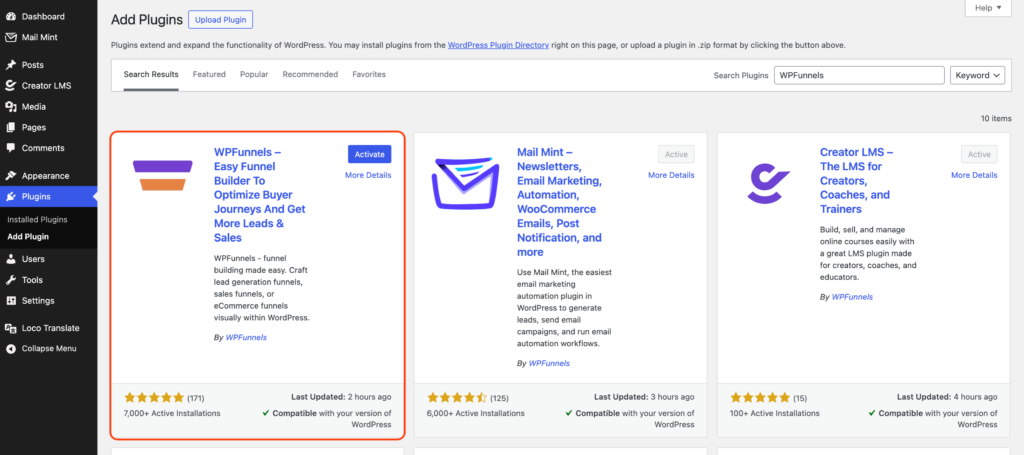
- Log in to your WordPress dashboard, go to Plugins → Add New, search for WPFunnels, and install & activate the WPFunnels Basic plugin.
Step 2: Access Notification Settings
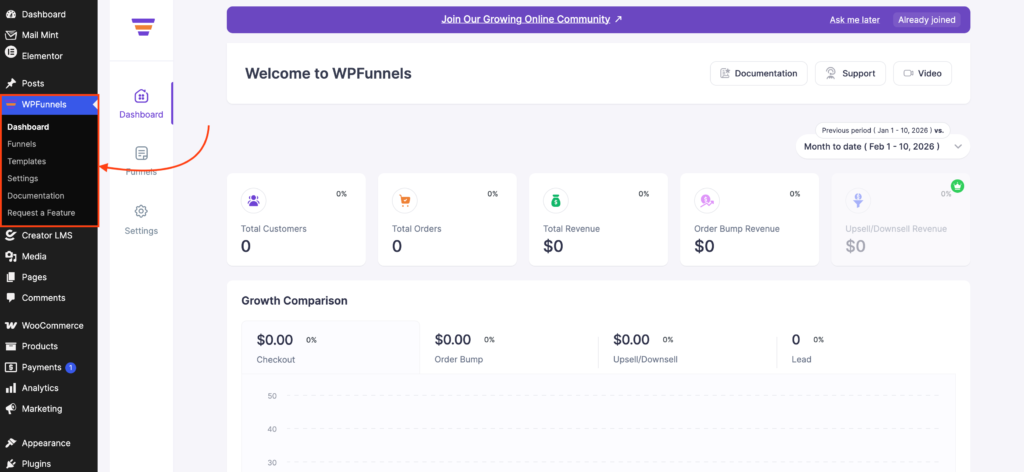
- From your WordPress dashboard, go to WPFunnels → Settings
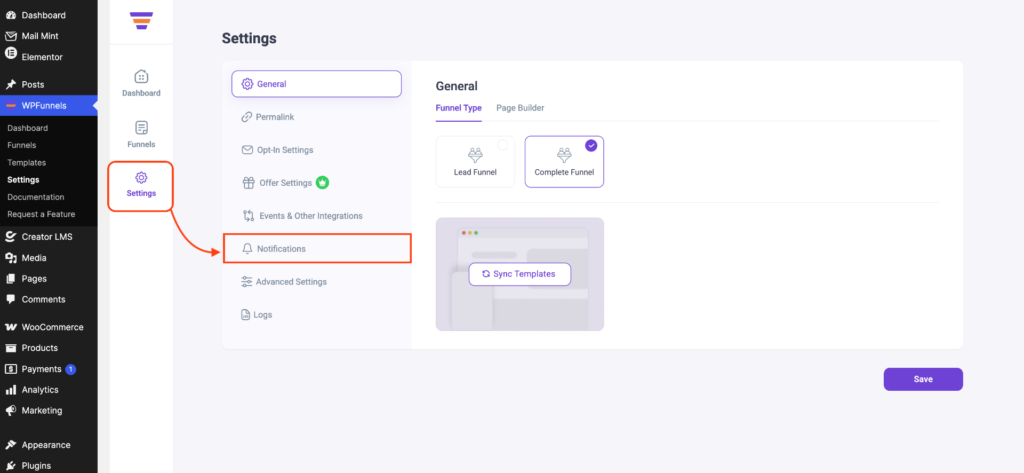
- Inside the settings panel, locate the Notifications option
Step 3: Configure Revenue Notification Settings
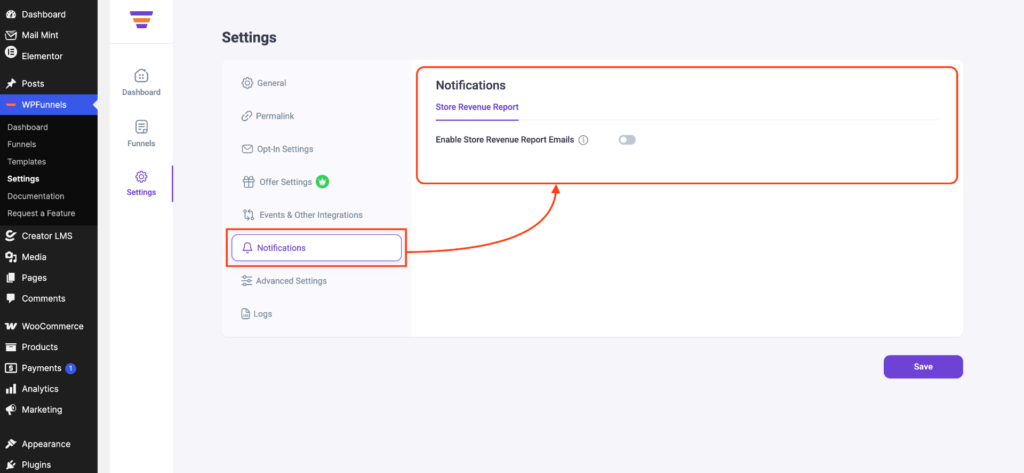
In the Notifications section, you’ll find several options to customize your revenue report email.
- Enable Email Notification: Turn on the toggle to activate revenue email notifications
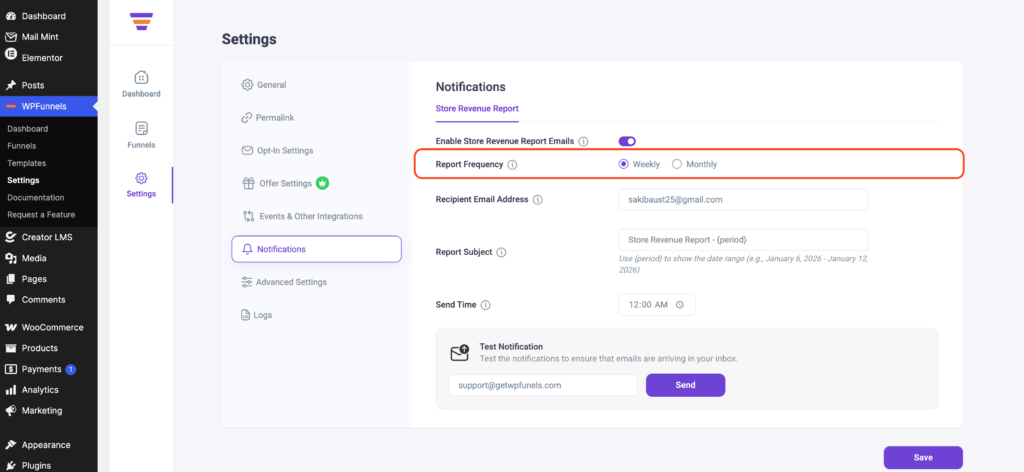
- Select Report Type: Choose whether you want the report to be sent Weekly or Monthly
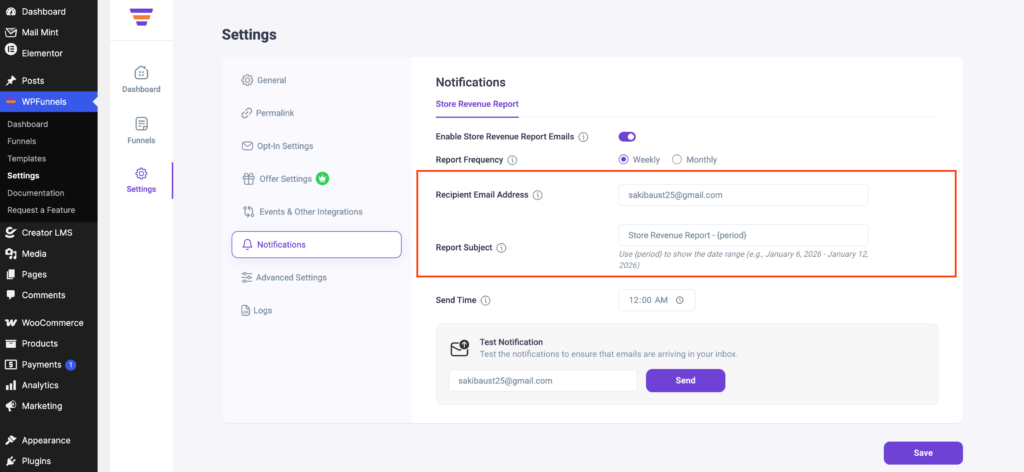
- Recipient Email Address & Report Subject: Enter the recipient email address where you want to receive the revenue report and set a custom subject line for the email.
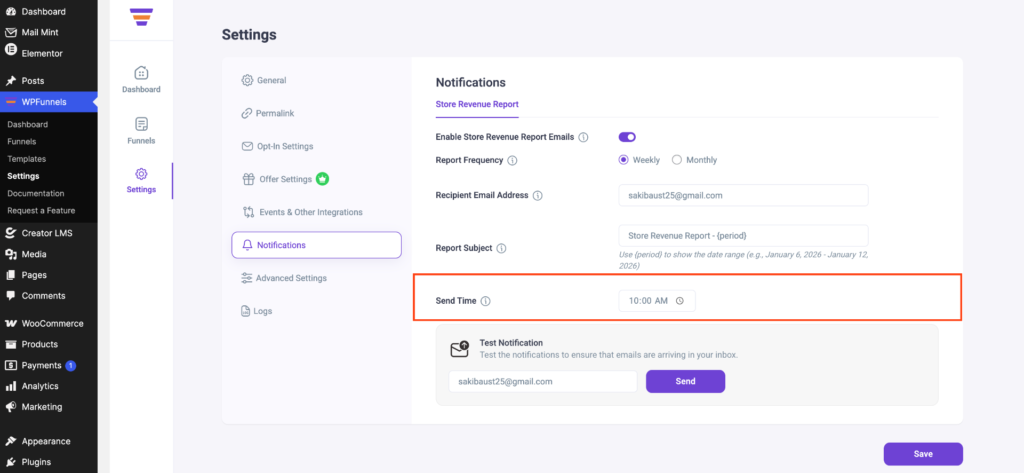
- Send Time: Choose the preferred time when the report email should be sent
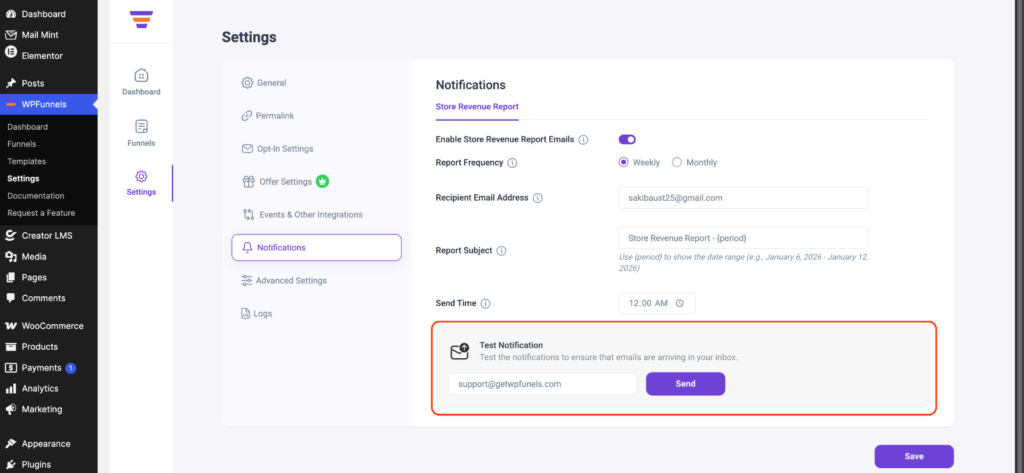
Step 4: Send a Test Notification
- Scroll down to the bottom of the Notifications settings, and then click on Test Notification to send a test revenue report email
After configuring all settings, click Save Changes. You will now receive automated revenue report emails based on your selected schedule.
