
WPFunnels shortcodes are fully compatible with Thrive Architect.
This guide will help you understand which shortcodes to use at each funnel step and how to implement them correctly.
Let’s get started.
Step 1: Create A Funnel
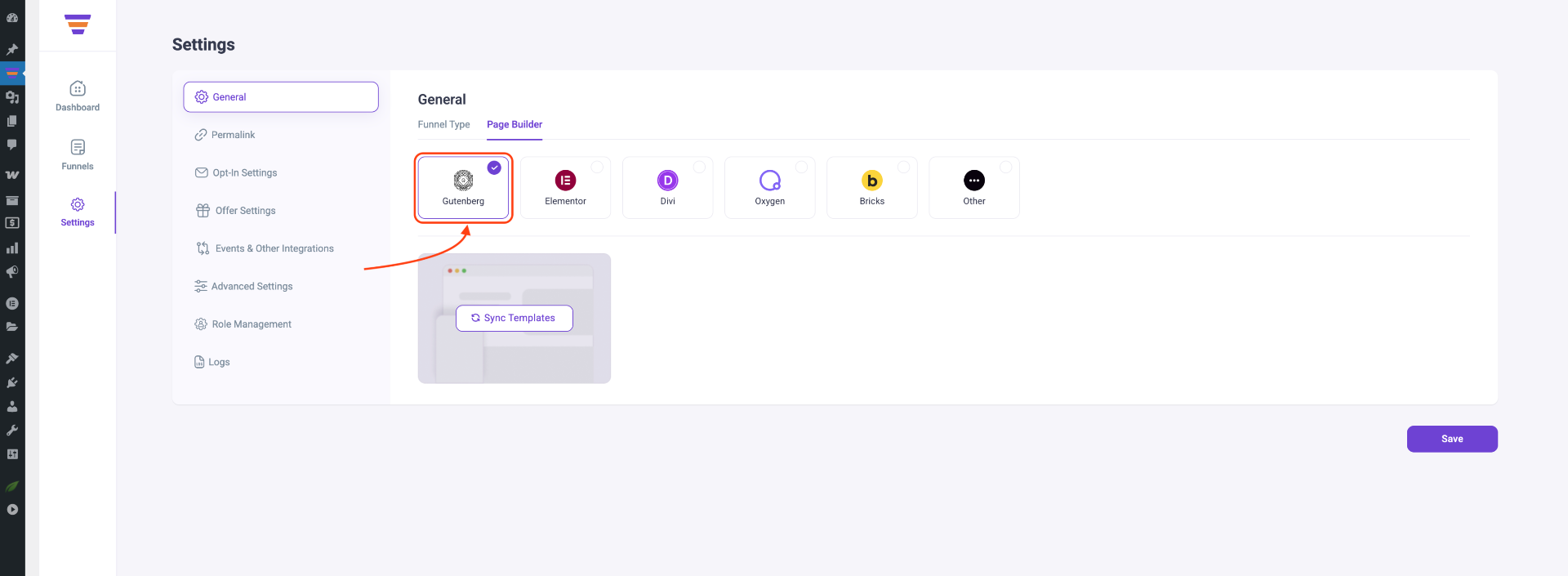
1. Before creating a funnel, ensure that your preferred page builder is selected as Gutenberg under WPFunnels > Settings.
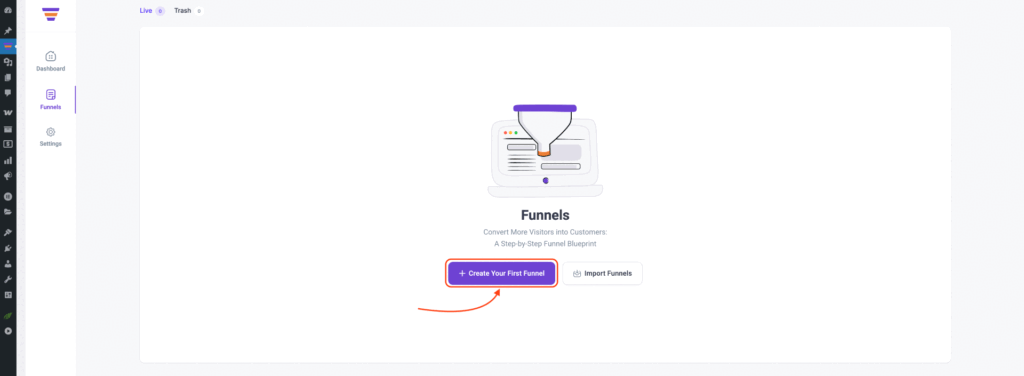
2. Now, Click on Create your new funnels in WPFunnels -> Funnels and Add an Funnel From Scratch.
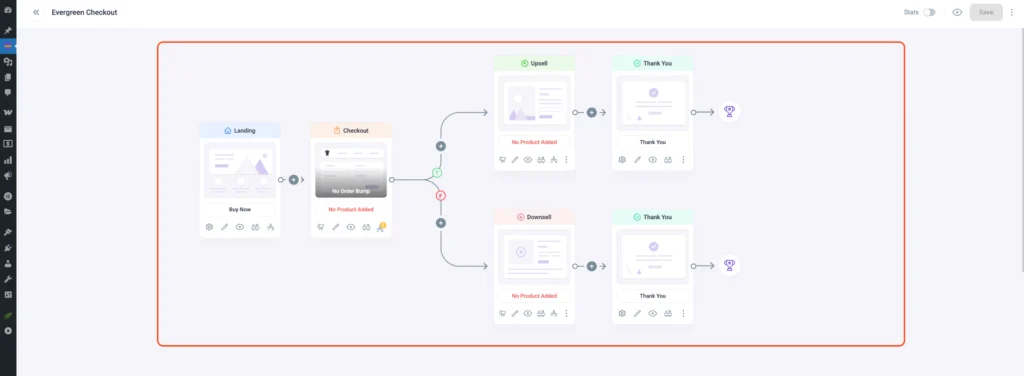
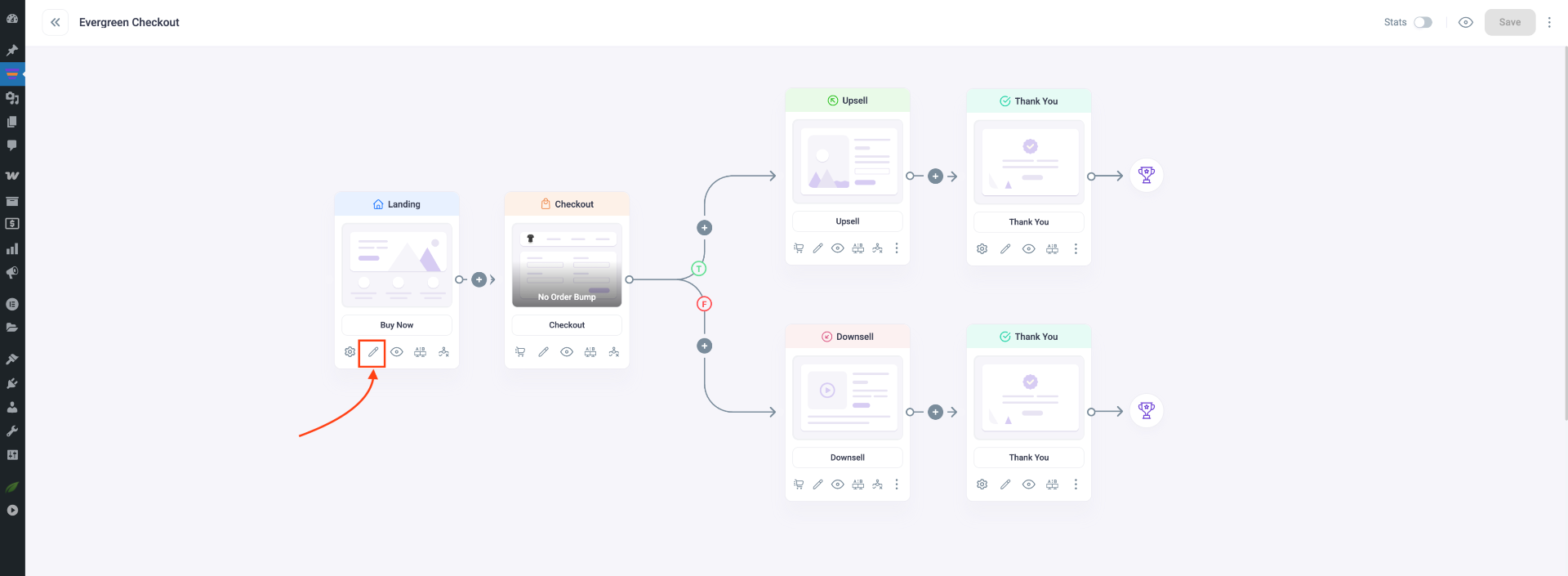
3. In the Funnel Canvas, you can now view all the steps clearly.
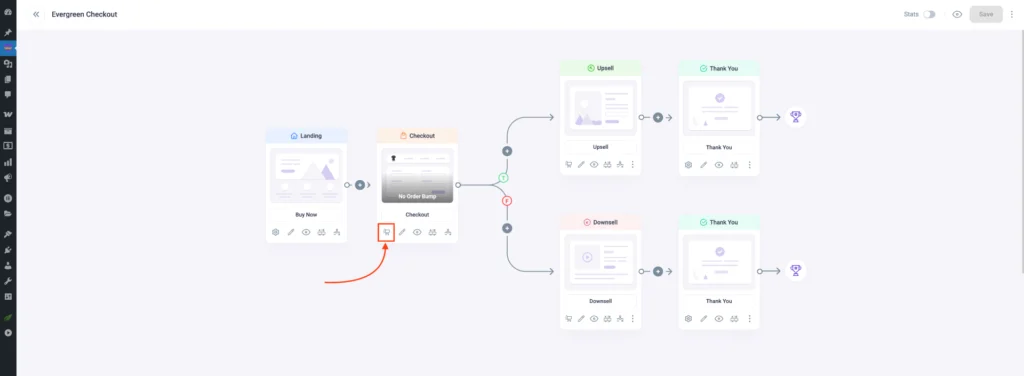
4. Add products to your Checkout, Upsell, and Downsell steps seamlessly.
Now let’s start editing the funnel pages in Thrive Architect.
Step 2: Edit Landing Step
1. Click the Edit icon on the Landing step to open the landing page in Gutenberg.
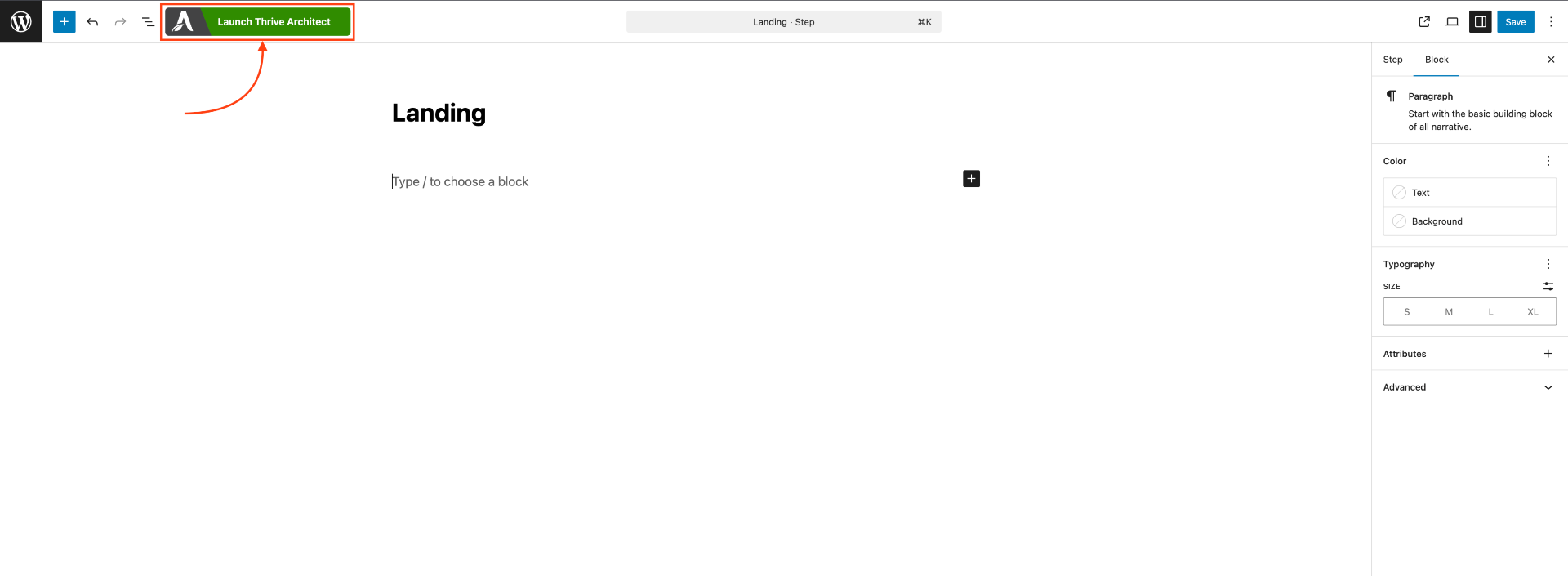
2. Then click Launch Thrive Architect to open the landing page within Thrive Architect.
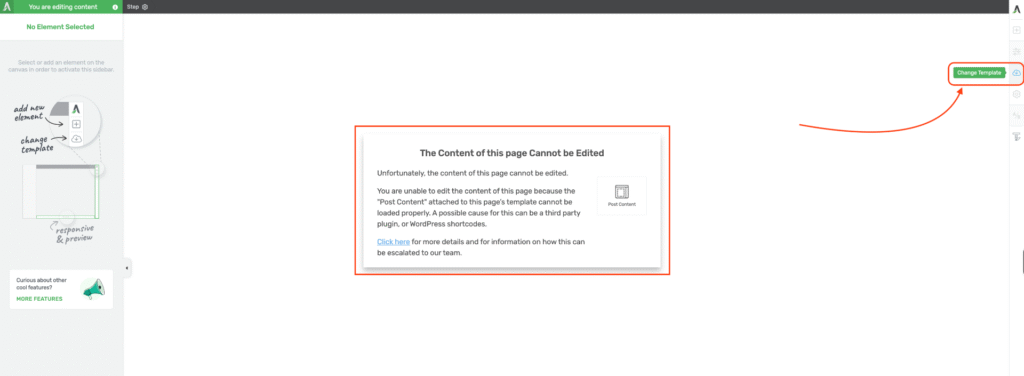
3. Now you will see the message: “The content of this page cannot be edited.” To fix this, click on Change Templates and select any pre-built page.
4. Now, click on the Add Element icon (+) and it will show you all the elements available.
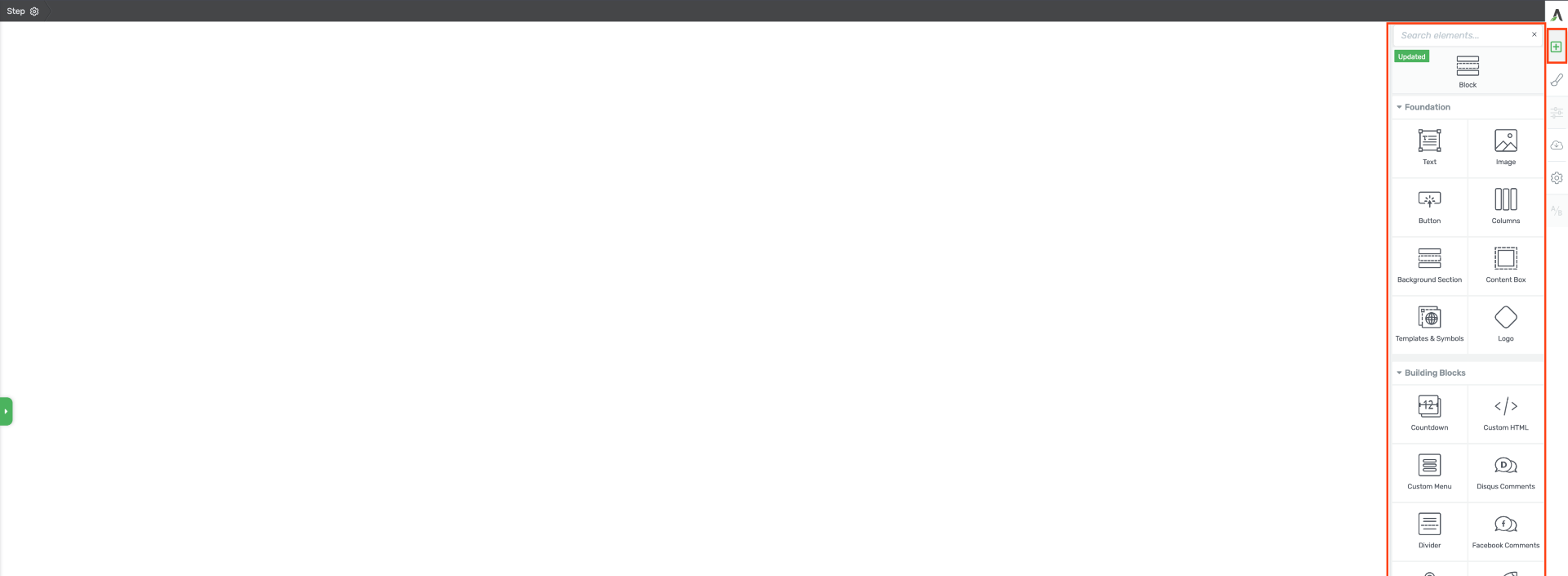
4. Select the Code HTML or Text block to insert your shortcodes.
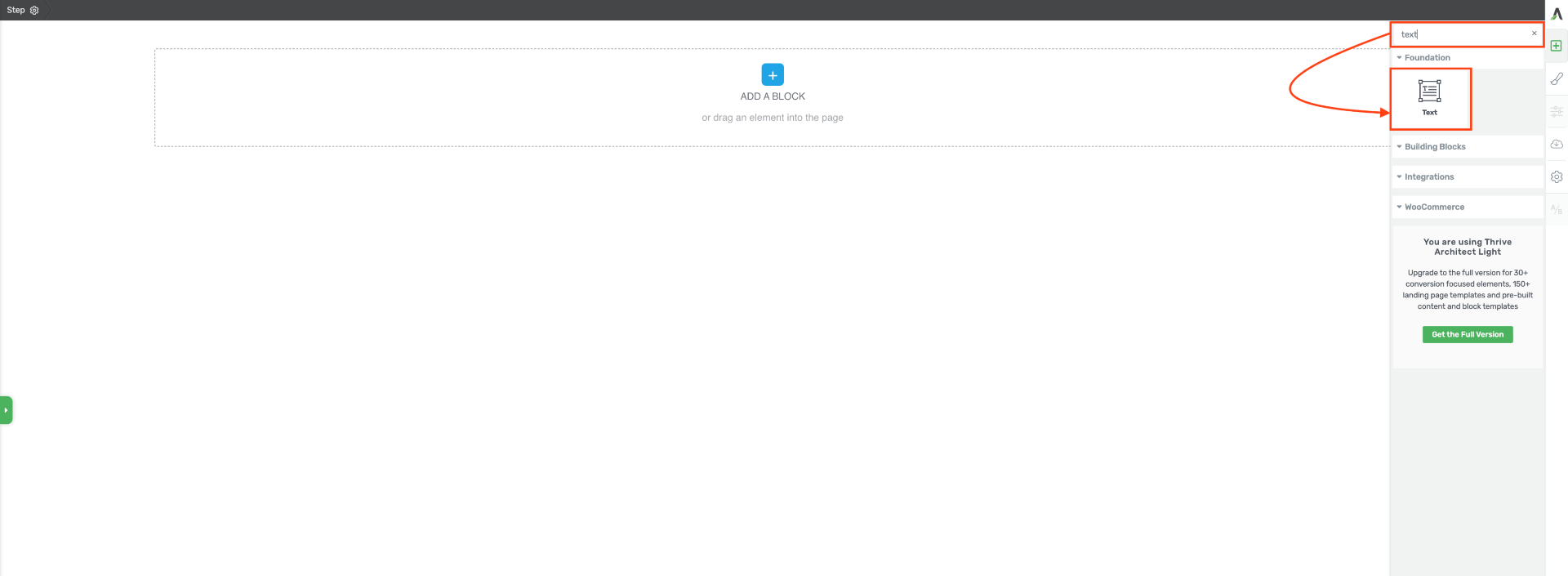
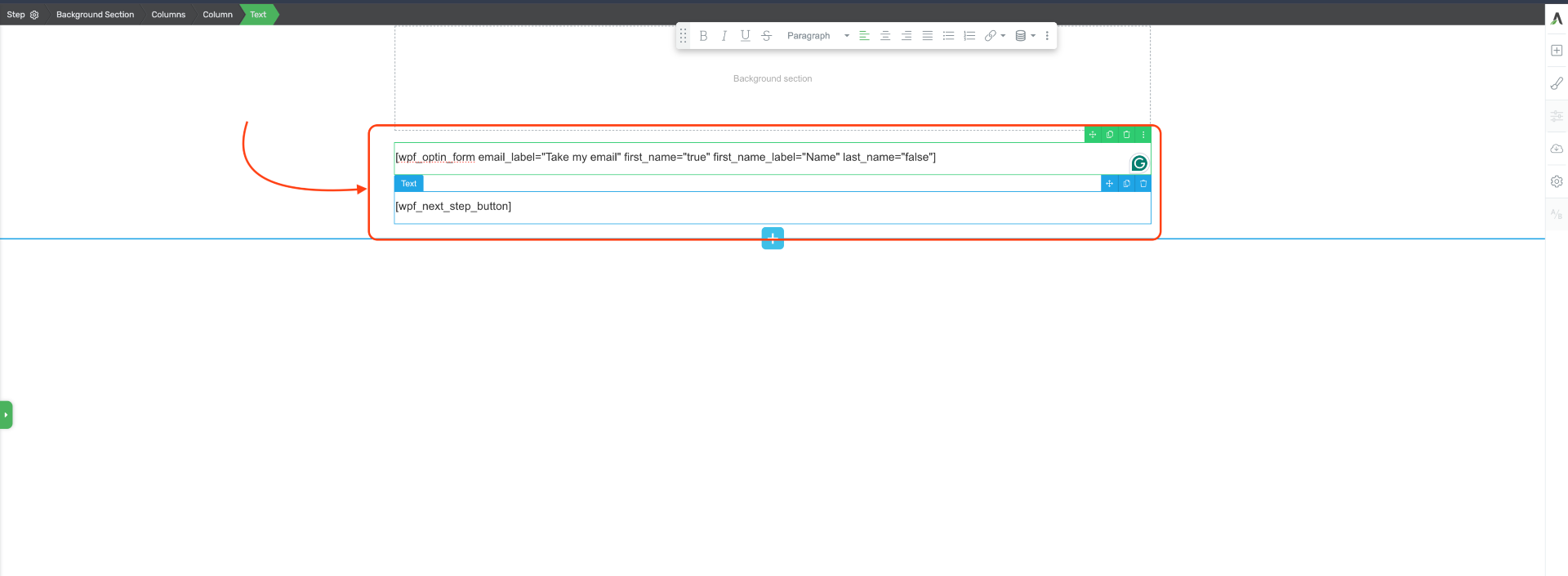
5. If you want to take people to the next step then add the WPFunnels Next Step or Opt-in form shortcode in the textbox with the parameters you need. Then click on Save.
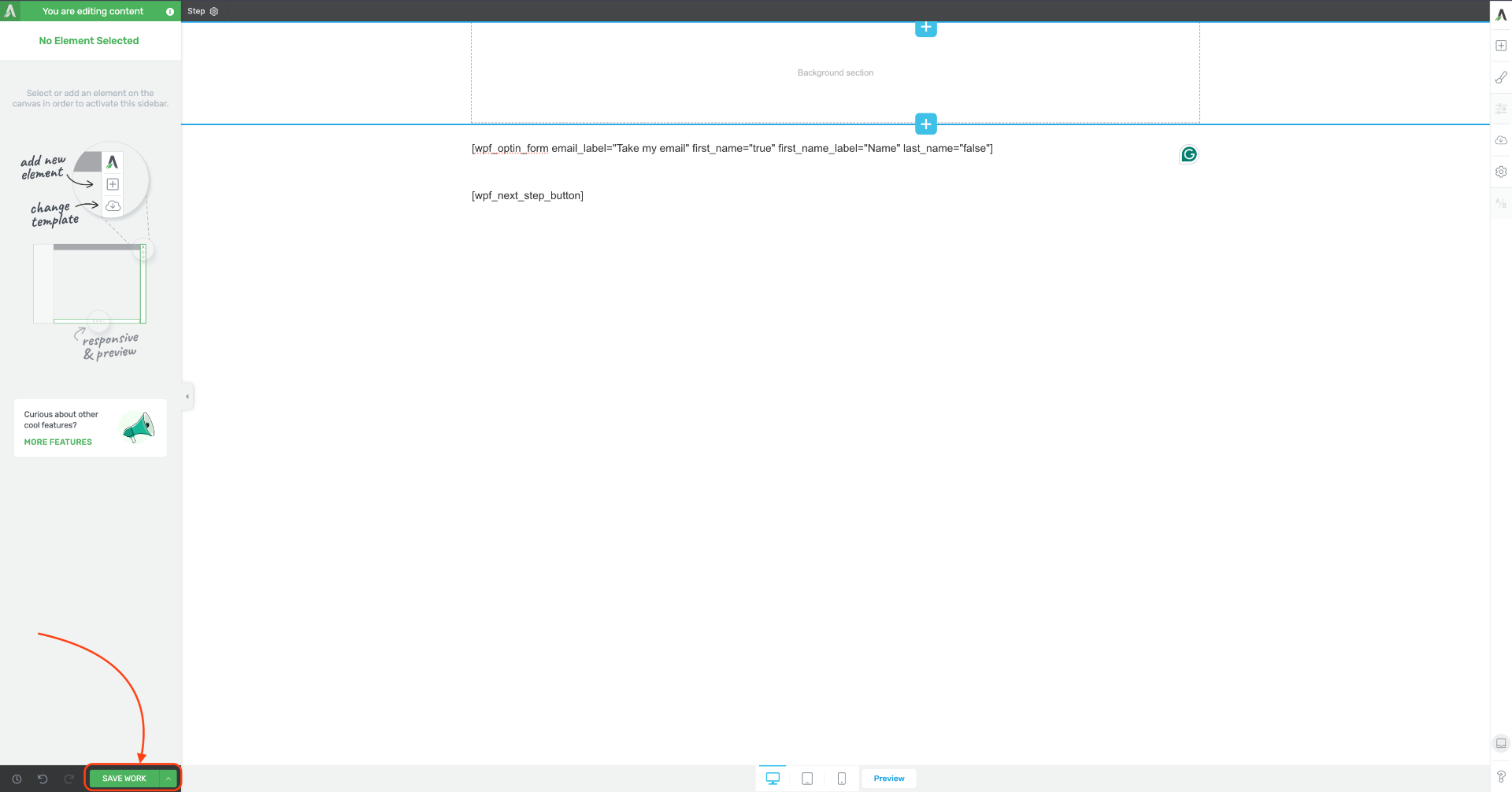
8. After that click on Save Chnages to view the Landing page.
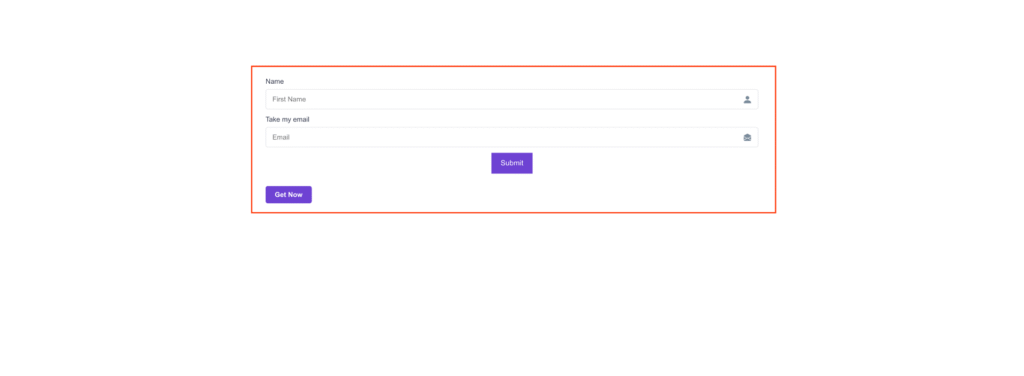
9. Here you can see the Next Step button on Landing page.
Now go ahead and design your landing page as you want. Then move on to editing the next step.
Step 3: Edit Checkout Step
1. Click on the Checkout step Edit icon and follow “Step 2”.
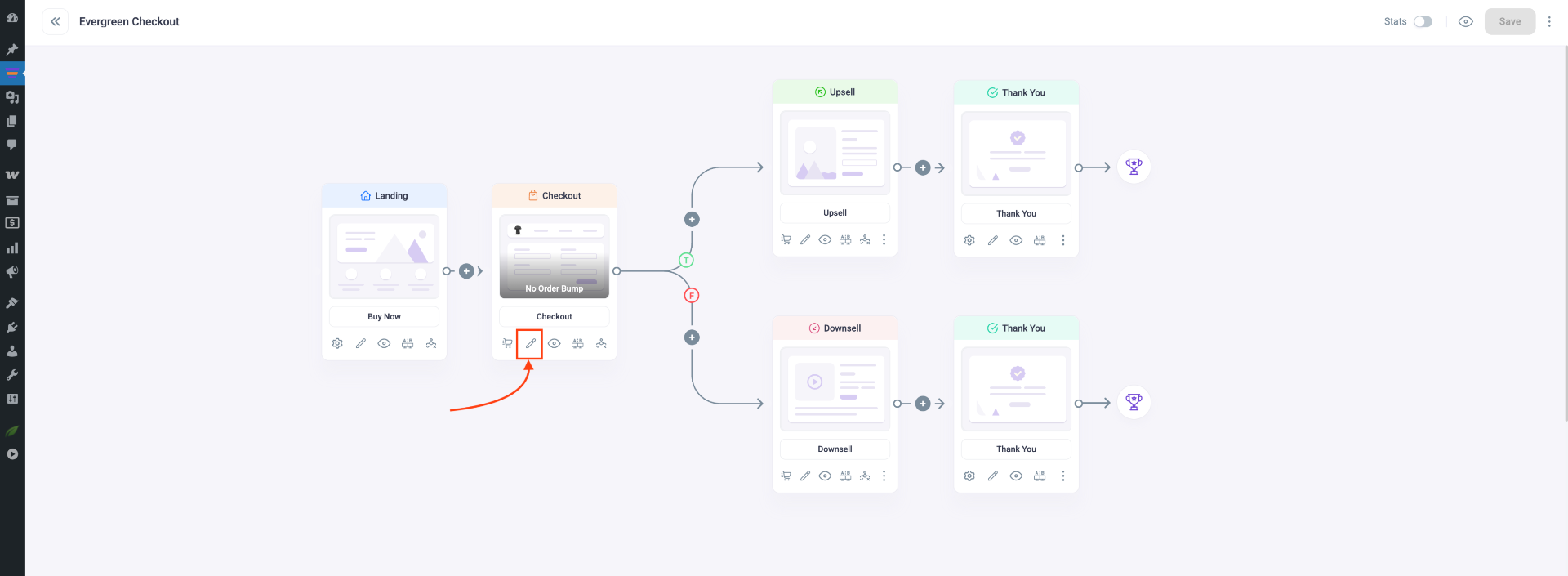
Shortcodes that will work on the Checkout step:
2. Once you place the checkout shortcode in WordPress Content, click on Save.
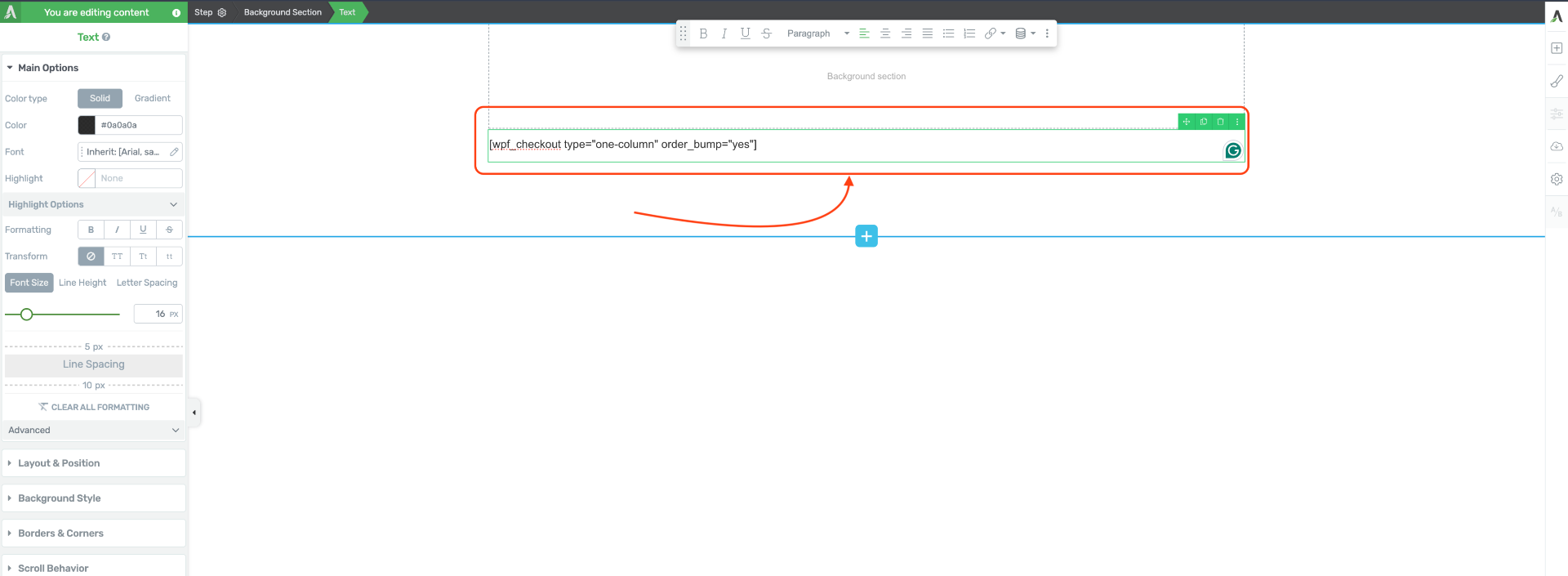
3. After that click on Save & Preview to view the Checkout page.

Step 4: Edit Upsell or Downsell Step
1. Click on the Upsell or Downsell step Edit icon and follow “Step 2”.
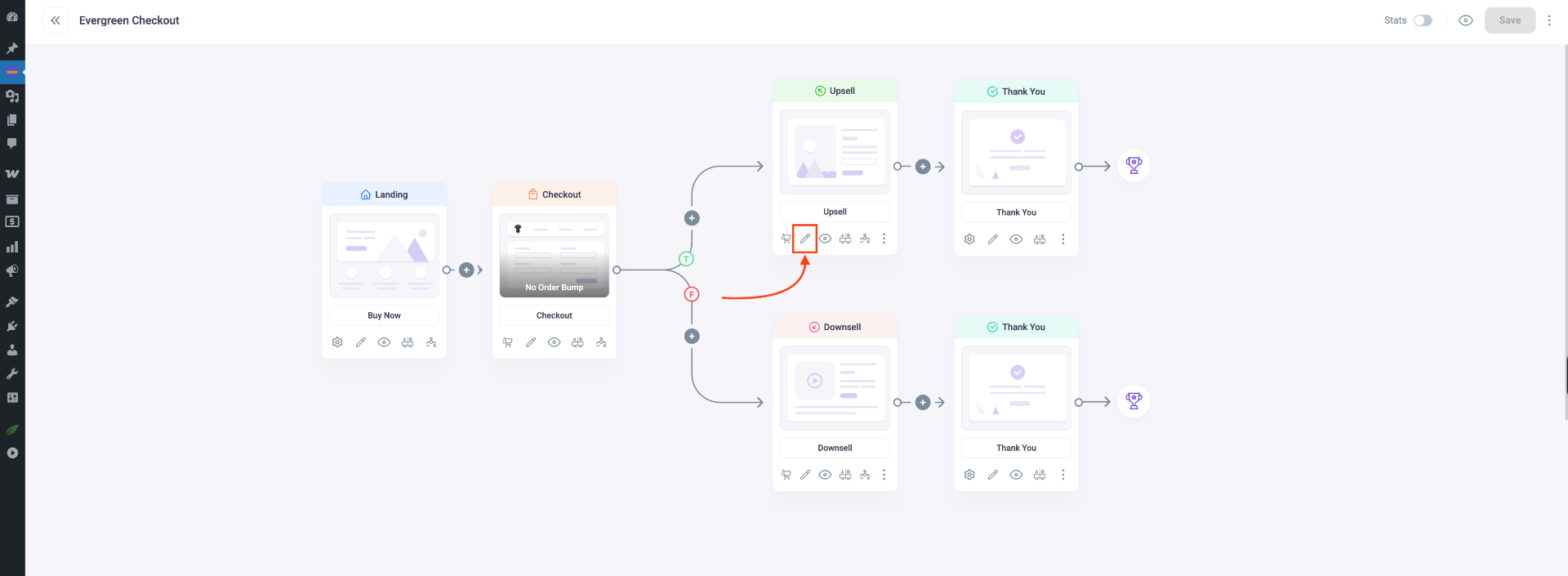
Shortcodes that will work on the Upsell or Downsell step:
2. Configure the Offer Button shortcode to Accept the offer and click on Save.
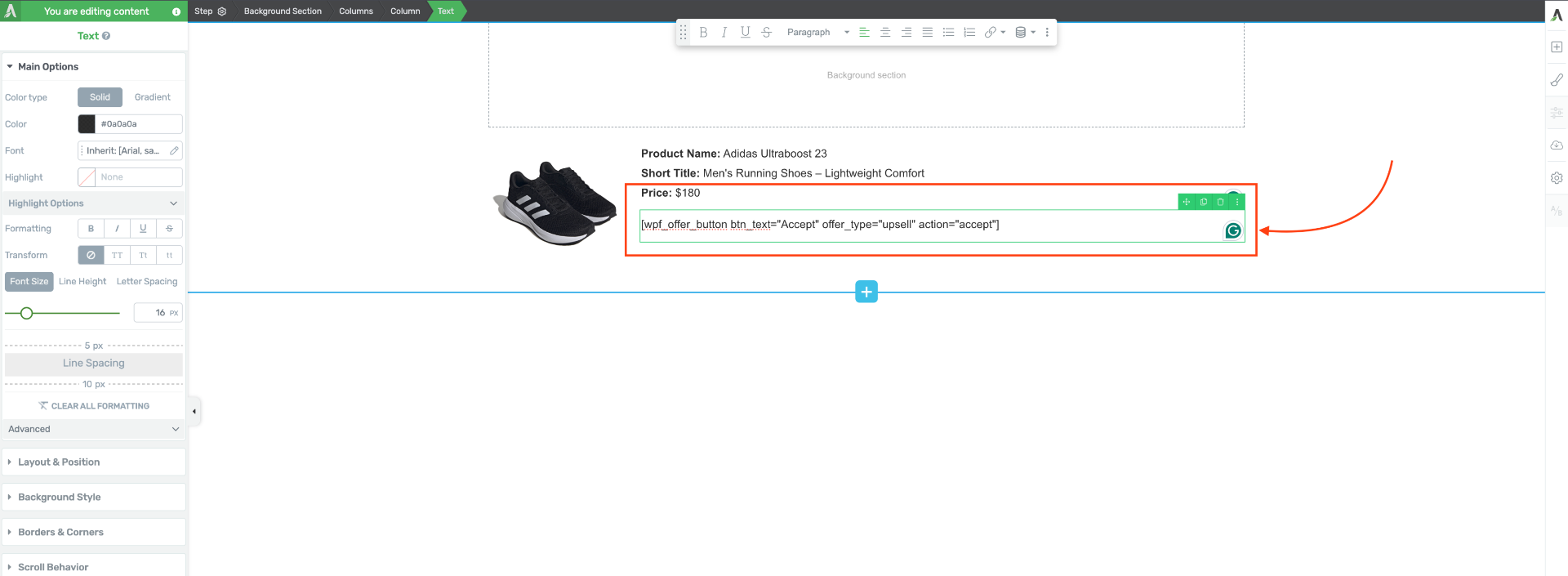
3. Add another Text Block and use the same shortcode again, but this time configure it to Reject the offer. Then click on Save.
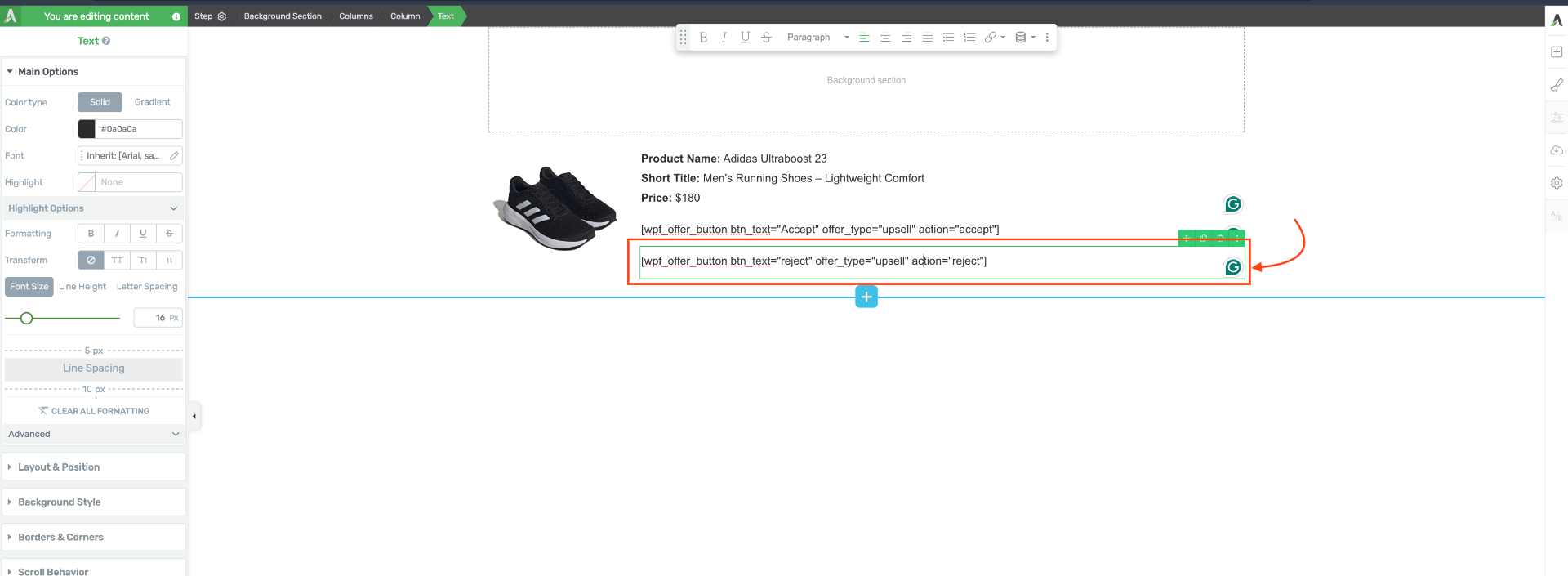
4. After that click on Save & Preview to view the Upsell page. You’ll see the Accept Offer button & Reject Offer button in action.
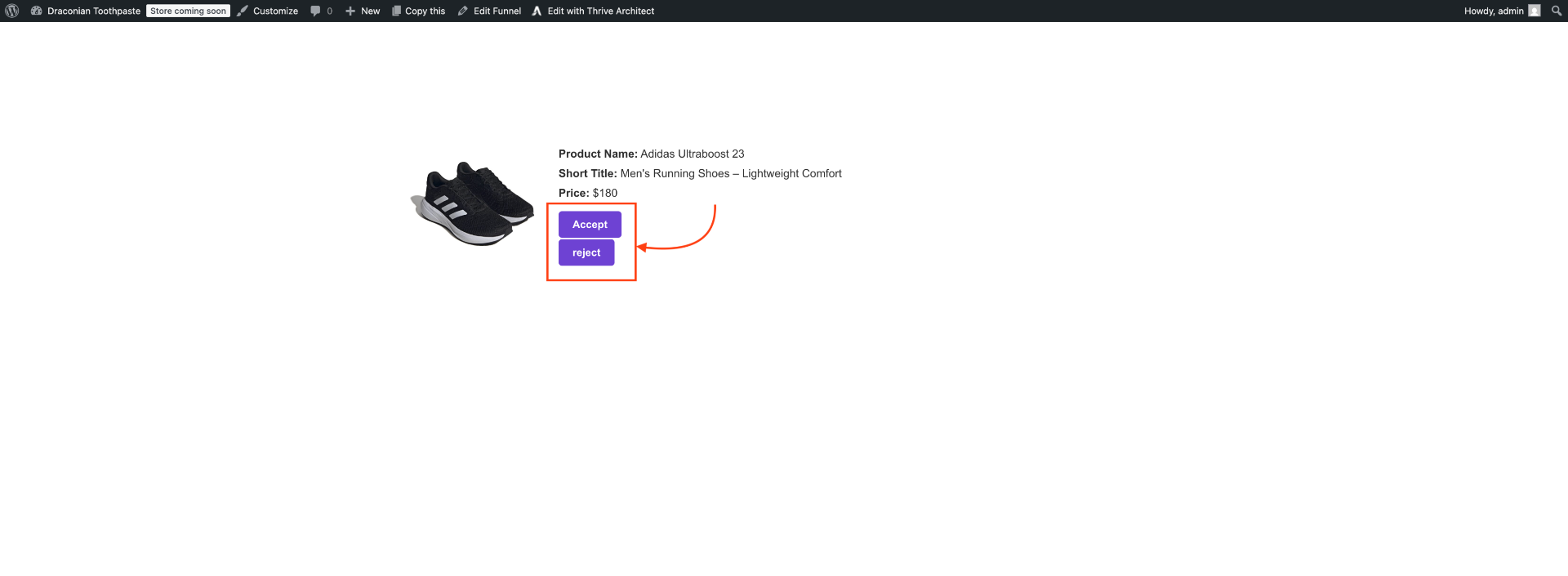
The Offer Button shortcode works the same way on the Downsell page also.
Step 6: Edit Thank You Step
1. Click on the Thank You step Edit icon and follow “Step 2”.
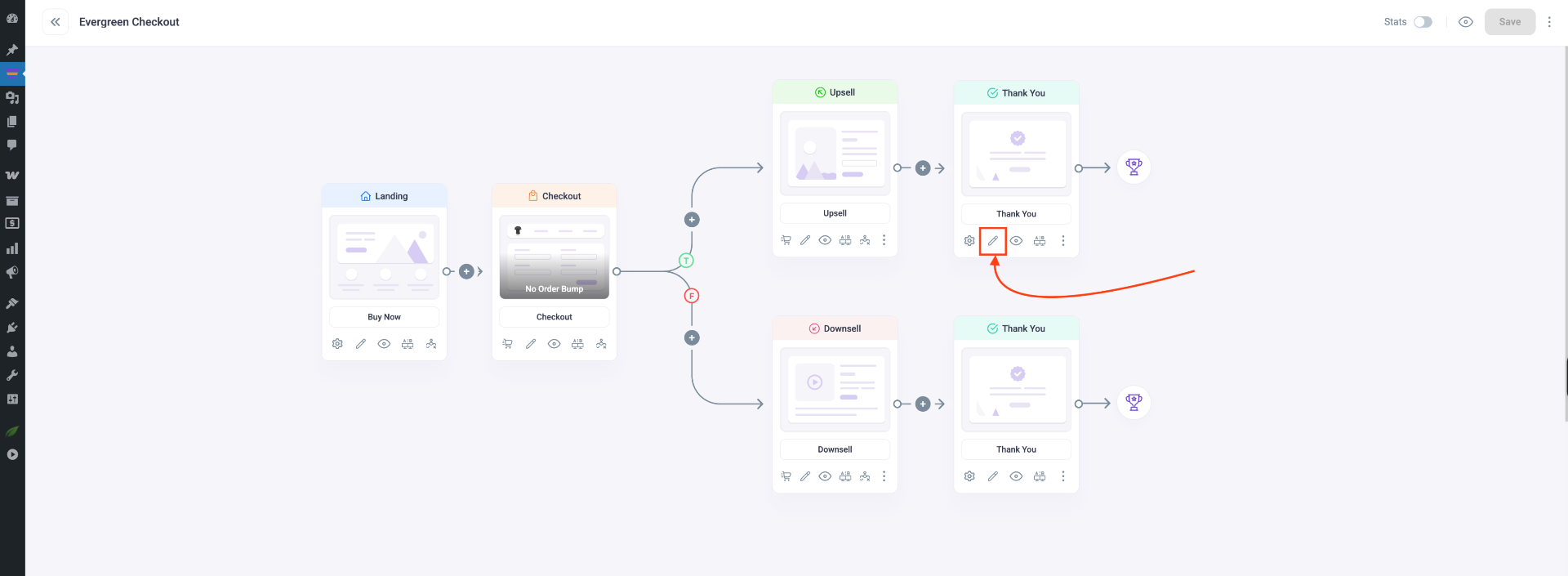
Shortcodes that will work on the Thank You step:
2. Once you place the shortcode in Text Block, click on Save.
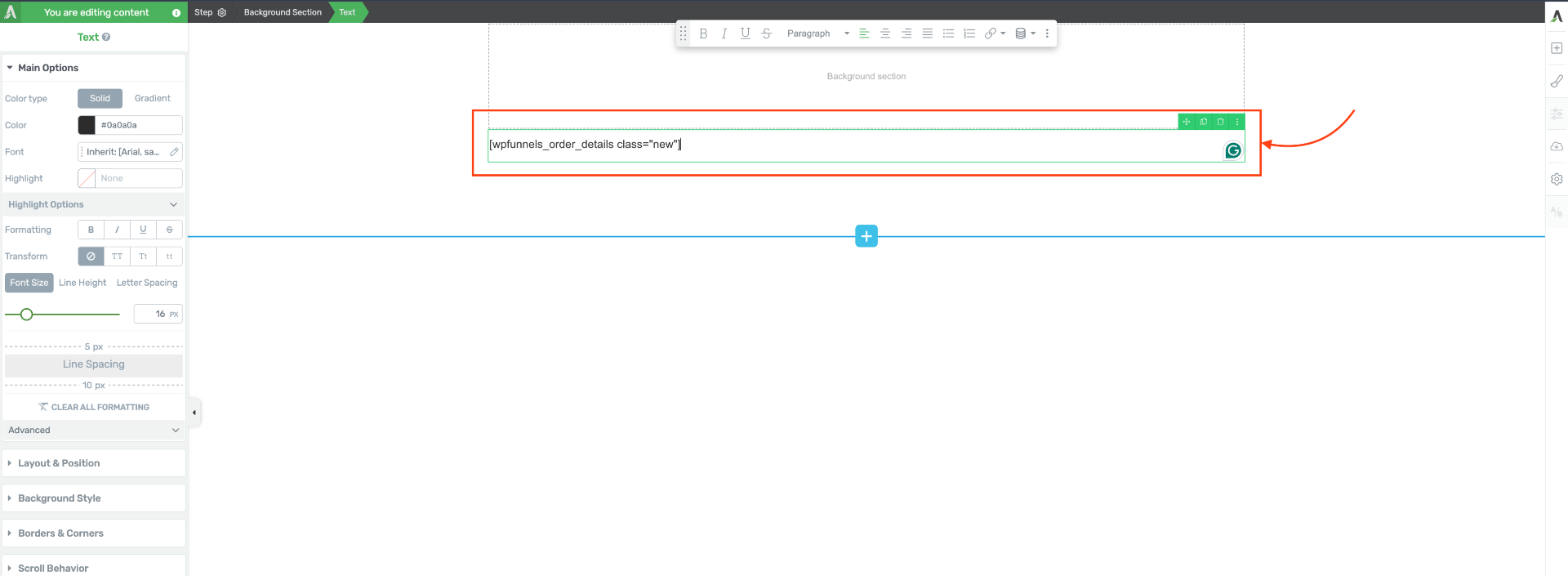
3. Then click on Save & Preview to view the Thank you page and see the order details.

Make sure you place the correct shortcode on the correct step to create functional sales funnels.
Now go ahead and design your funnels with Thrive Architect.
