Re-engage contacts who have stopped opening or clicking your emails using Mail Mint’s Subscriber Win Back automation trigger. This feature lets you automatically detect inactive subscribers and enroll them in a targeted re-engagement workflow.
The Subscriber Win Back trigger monitors your contacts for inactivity based on conditions you define — such as not opening or clicking an email in the last 90 days. When a contact matches those conditions, the automation fires and runs your win-back workflow (e.g., sending a “We miss you” email).
This trigger is a Pro feature available inside the Mail Mint automation builder.
Step 1: Create An Automation
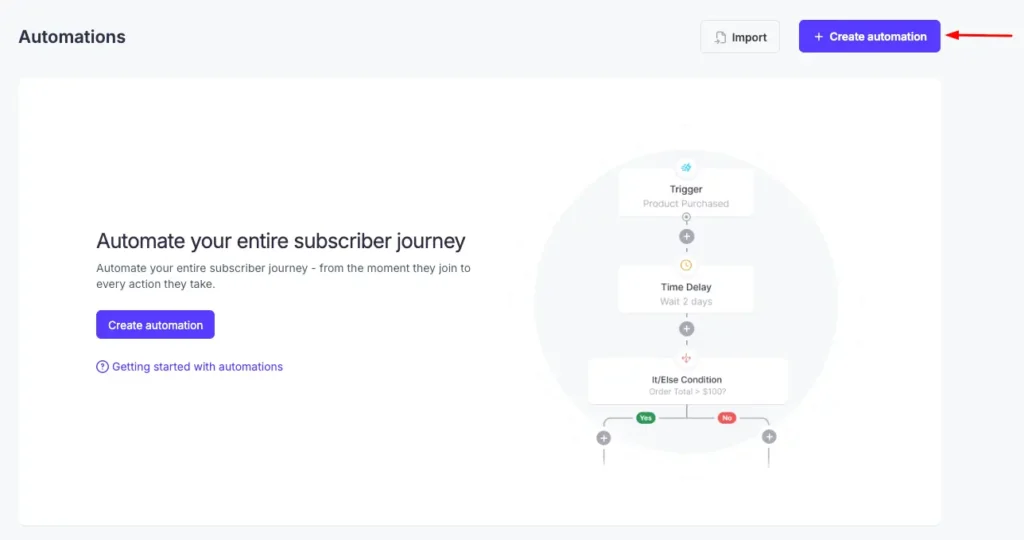
Go to Mail Mint → Automations from your WordPress admin sidebar.
Click + Create automation (top-right corner).
You’ll be taken to the automation recipe screen, where you can either start from a pre-built template or build from scratch.
Step 2: Choose the Win-back Template or Start from Scratch
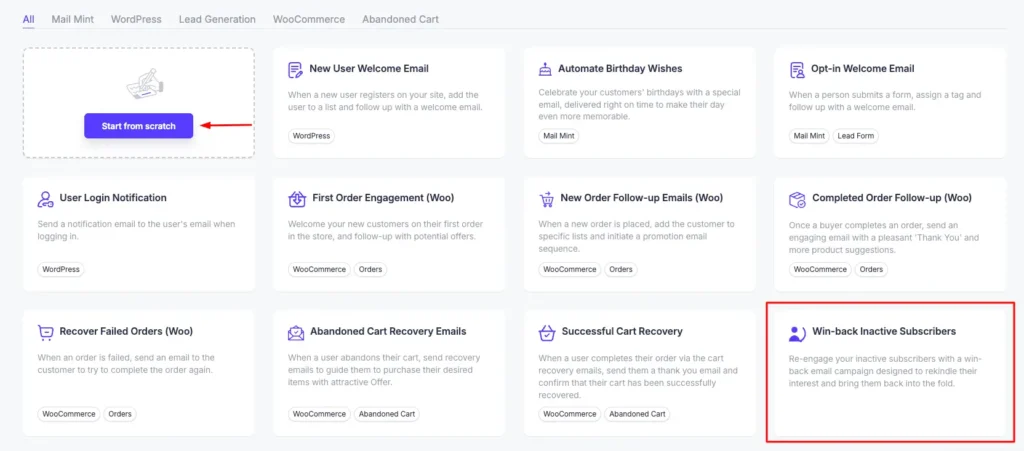
On the recipe selection screen, you have two options:
Option A — Use the pre-built template
Select the Win-back Inactive Subscribers recipe card. This loads a ready-made workflow with the trigger and a basic email sequence pre-configured.
Option B — Start from scratch
Click Start from scratch, then proceed to select the trigger manually in the next step.
Step 3: Select the “Subscriber Win Back” Trigger
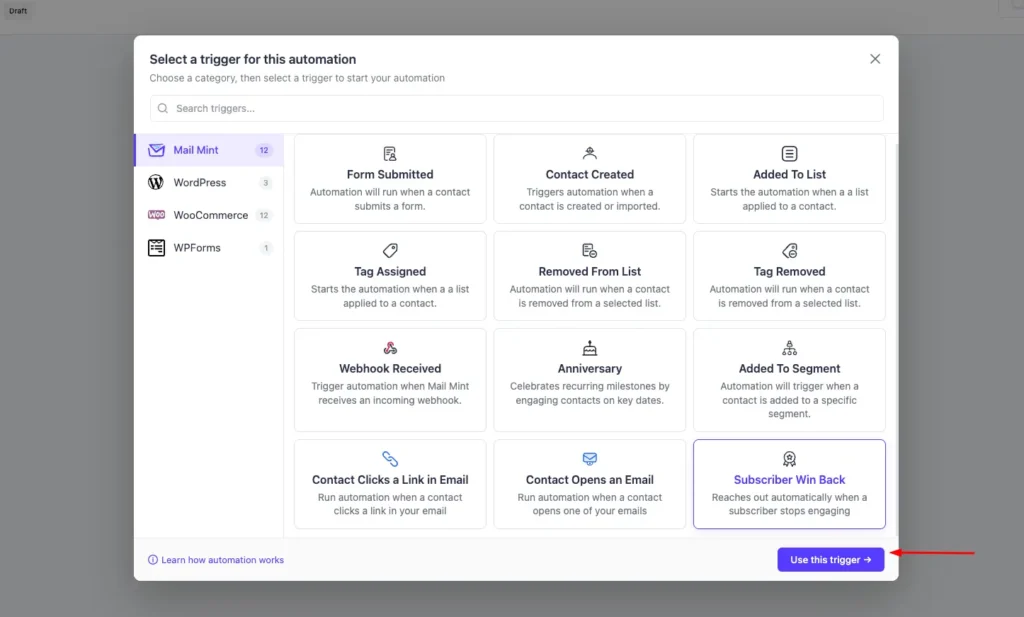
If building from scratch, the trigger selection modal will open automatically.
In the left sidebar, select Mail Mint as the trigger category.
Scroll to the bottom of the trigger grid and click Subscriber Win Back.
Description: “Reaches out automatically when a subscriber stops engaging.”
Click Use this trigger → to confirm and open the automation canvas.
Step 4: Configure the Trigger Settings
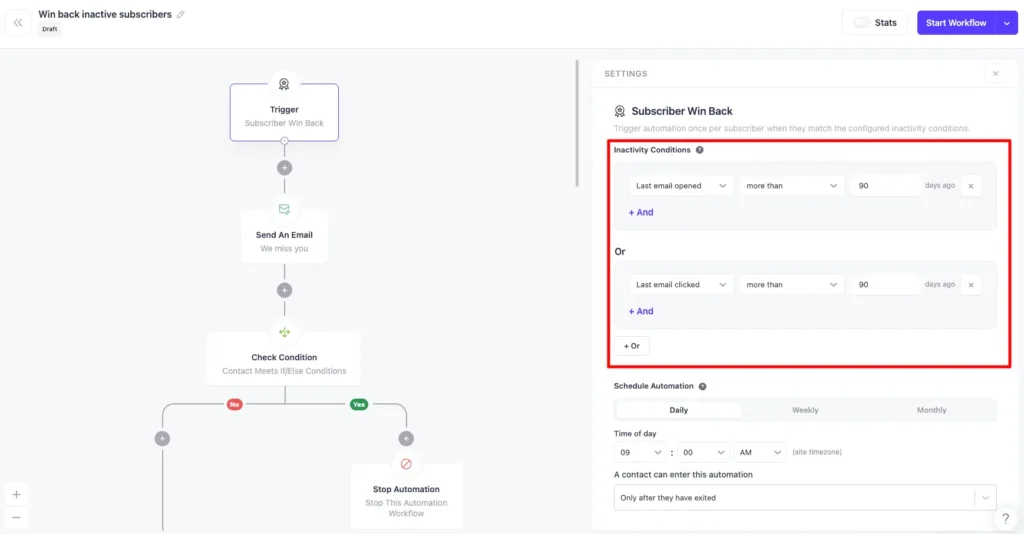
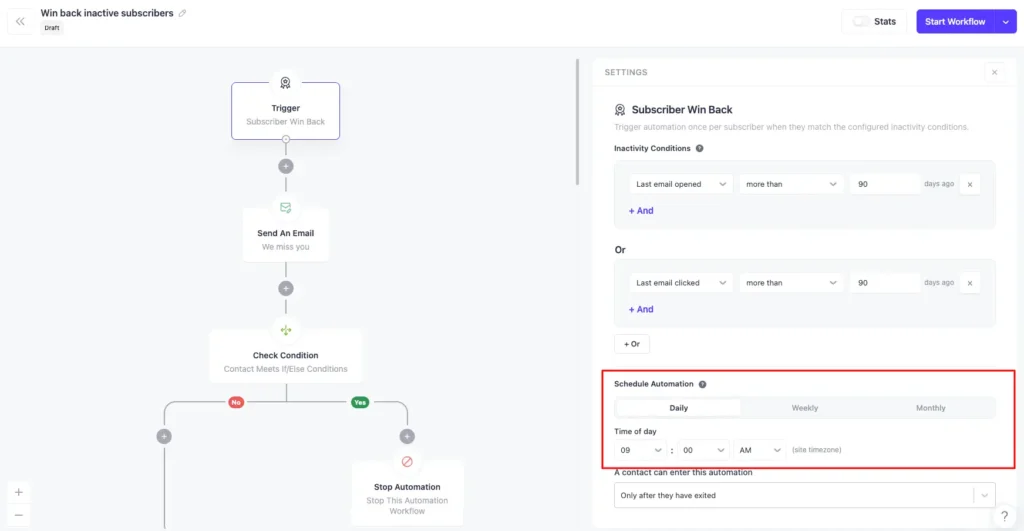
Once the trigger is placed on the canvas, a Settings panel appears on the right side. Configure the following sections:
Inactivity Conditions
Define what “inactive” means for your audience. The trigger will fire for any contact who matches these conditions.
Each condition row has three parts:
Field
Options
Activity type
Last email opened, Last email clicked
Operator
More than
Duration
Number of days ago
Default configuration:
Last email opened → more than → 90 days ago
Or
Last email clicked → more than → 90 days ago
To add more conditions:
Click + And within a group to add an AND condition (contact must meet all conditions in the group).
Click + Or to add a separate OR group (contact only needs to meet one group).
Tip: Using “Or” between opened and clicked means a contact qualifies if either engagement has been absent — this is the broadest and most commonly used setup.
Schedule Automation
The win-back trigger runs on a schedule rather than in real time. Choose how often Mail Mint should scan your contacts for matches:
Option
Behavior
Daily
Scans every day at a specified time
Weekly
Scans once per week
Monthly
Scans once per month
When Daily is selected, set the Time of day using the hour, minute, and AM/PM dropdowns. The time runs in your site timezone.
A Contact Can Enter This Automation
Controls whether a contact can re-enter the automation after previously completing it.
Option
Behavior
Only after they have exited
Contact must fully complete or exit the workflow before they can be enrolled again
This prevents duplicate enrollment and ensures each contact only goes through the win-back sequence once per inactivity cycle.
Step 5: Build Your Win-back Workflow
With the trigger configured, add steps to your automation canvas. Here’s the recommended flow that handles both outcomes — re-engaged contacts and contacts who remain inactive after your outreach.
Recommended Flow
1. Send a re-engagement email
Add a Send An Email action as the first step. Keep this email short and personal — a simple “We miss you” subject line with a single clear call to action (a discount, a preference update link, or just a friendly check-in) works best. Avoid long newsletters here; the goal is one click.
2. Add a time delay
Add a Time Delay step after the email — typically 3 to 7 days. This gives the contact enough time to open and engage before you evaluate their response.
3. Check if they re-engaged
Add a Check Condition (If/Else) step. Set the condition to check whether the contact opened or clicked the win-back email you just sent. This splits the flow into two branches:
Yes (re-engaged) — The contact responded. They’re back. No further action needed — add a Stop Automation step to exit them cleanly from the win-back flow.
No (still inactive) — The contact didn’t respond. This is where you decide their fate.
4. Handle non-responders — Change Contact Status to Inactive
On the No branch, add a Change Contact Status action and set the status to Inactive. This marks the contact as inactive in Mail Mint, which suppresses them from future regular campaigns and keeps your sending list clean. This is important for deliverability — continuing to send to non-responsive contacts hurts your open rates and sender reputation over time.
Optionally, before changing the status, you can send one final email (a “last chance” message) with a clear unsubscribe option, giving the contact one more opportunity to re-engage or opt out gracefully.
Step 6: Filter Inactive Contacts from the Contacts List
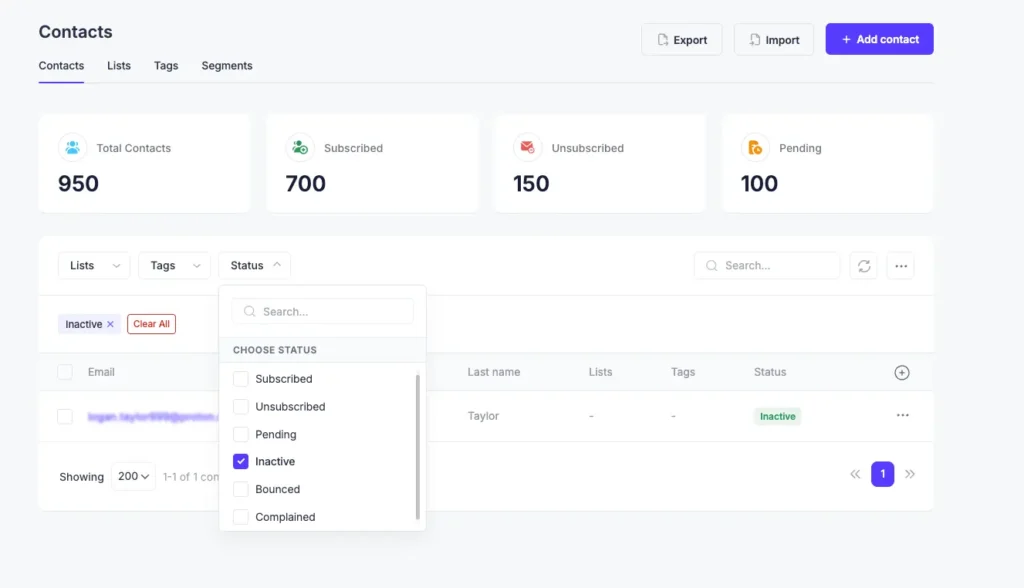
Once the automation has been running and contacts start getting marked as Inactive, you can view and manage them directly from the Contacts list table — without going into the automation at all.
To filter inactive contacts:
Go to Mail Mint → Contacts from your WordPress admin sidebar.
In the contacts table, locate the Status filter at the top of the list.
Select Inactive from the status dropdown.
The table will now show only contacts whose status has been set to Inactive — either by the automation’s Change Contact Status action or manually. From here you can:
Bulk delete contacts who are permanently unresponsive to keep your list lean.
Export the filtered list for a deeper review or to cross-reference with other tools.
Manually update individual contact statuses if needed.
Regularly reviewing your inactive contacts list is a good list hygiene habit. A smaller, engaged list always outperforms a large, unresponsive one in terms of deliverability and campaign performance.
Step 7: Activate the Automation
Once your workflow is complete:
Review all steps on the canvas.
Click Start Workflow in the top-right corner.
The automation status changes from Draft to Active. Mail Mint will begin scanning contacts based on your configured schedule.
How It Works (Behind the Scenes)
Mail Mint runs a scheduled check at your configured time interval.
It queries contacts who match your inactivity conditions and have not been unsubscribed or hard-bounced.
Matching contacts are enrolled into the automation once per cycle (controlled by the re-entry setting).
Contacts who re-engage (open or click) can be detected mid-workflow using an If/Else condition and exited early.