

Authorize.Net is a widely-used and secure online payment gateway that enables users to make payments using credit or debit cards. With Creator LMS, you can seamlessly integrate Authorize.Net to accept payments directly from your course checkout page. This guide will walk you through the steps to set up and configure Authorize.Net for your LMS.
Prerequisites:
Before you begin, make sure you have the following:
- CreatorLMS Basic plugin installed and activated
- CreatorLMS Pro plugin installed and activated
Step 1: Accessing Authorize.Net Payment Settings
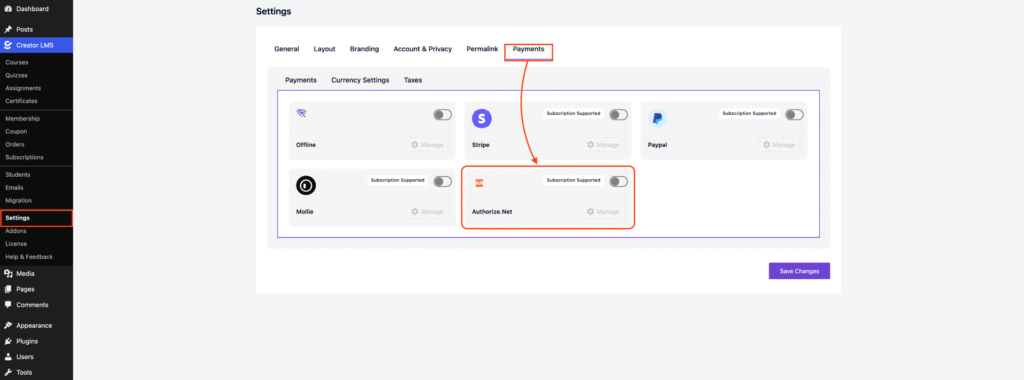
- To access the Authorize.Net payment gateway settings, navigate to: CLMS → Settings -> Payments, then scroll down to locate the Authorize.Net Payment option.
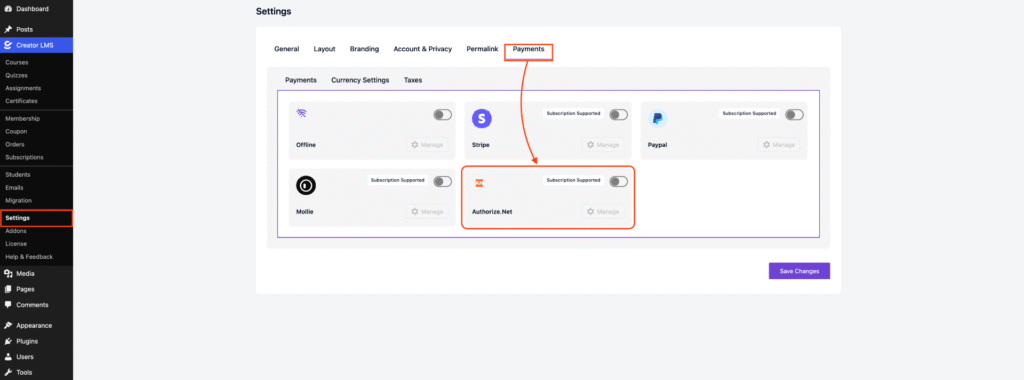
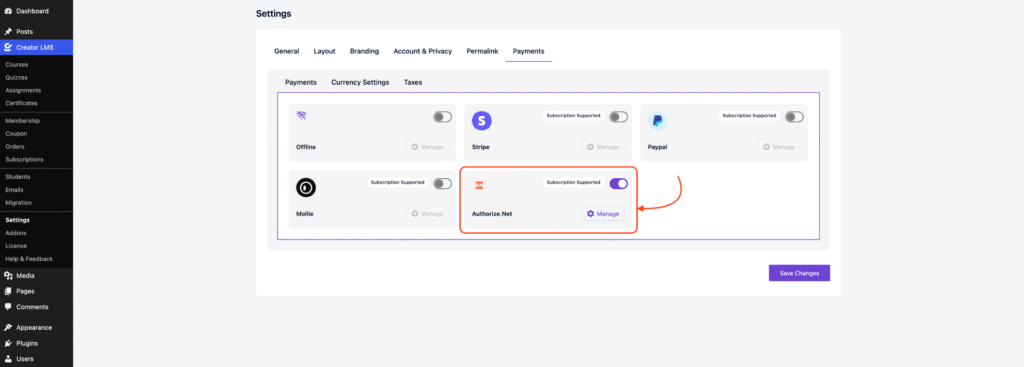
- Enable the Authorize.Net payment option, then you will see a “Manage” button.
Step 2: Configuring Authorize.Net Payment Options
- After click the Manage button. This will take you to the Authorize.Net payment settings page where you can configure your gateway options.
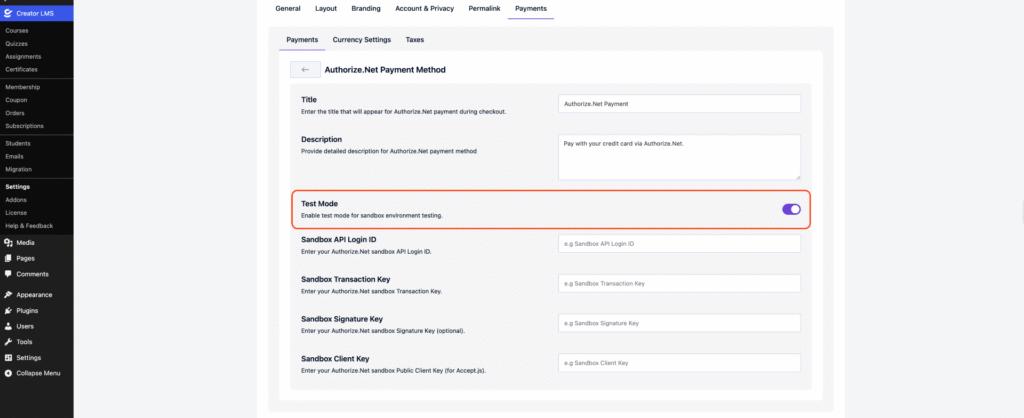
- Enter the Payment Title, which appears on the checkout page (e.g., Credit/Debit Card (Authorize.Net)), and a short Payment Description.
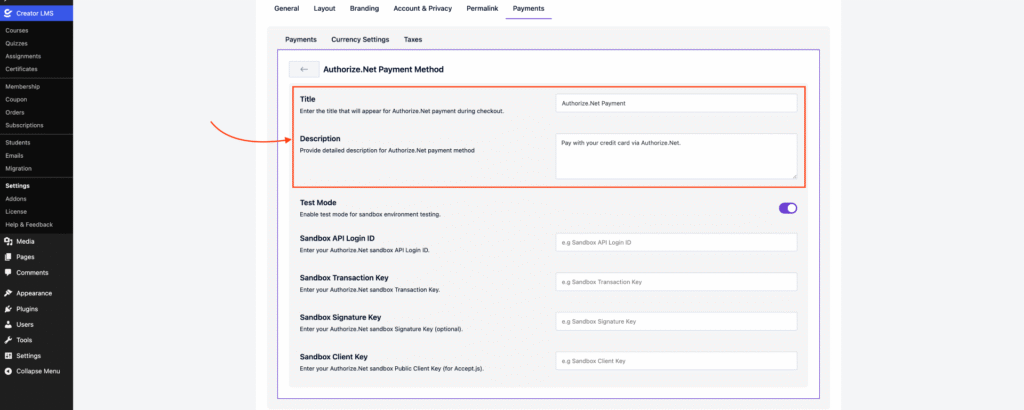
- For testing payments, toggle the Test Mode switch to ON, or proceed with a real-time payment.
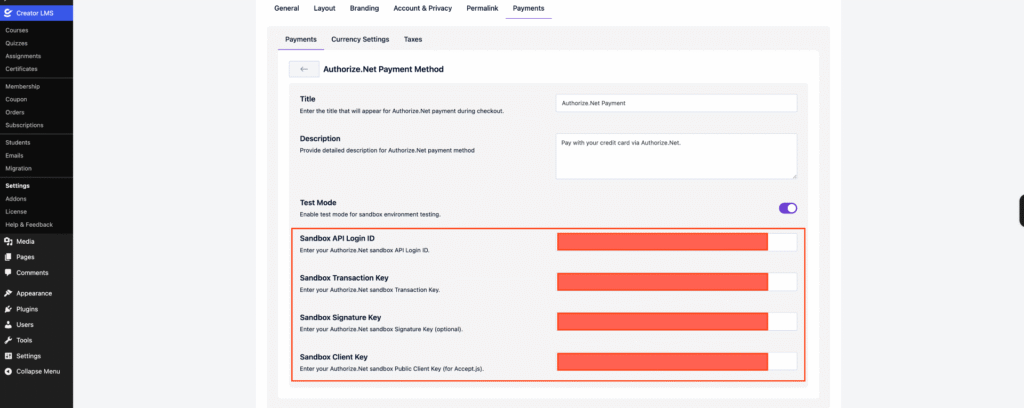
- Now, you need to enter your sandbox credentials on the payment settings page:
- Sandbox API Login ID: Enter your Authorize.Net sandbox API Login ID.
- Sandbox Transaction Key: Enter your sandbox Transaction Key.
- Sandbox Signature Key (Optional): Enter your sandbox Signature Key if required.
- Sandbox Client Key: Enter your sandbox Client Key to enable secure tokenization for checkout.
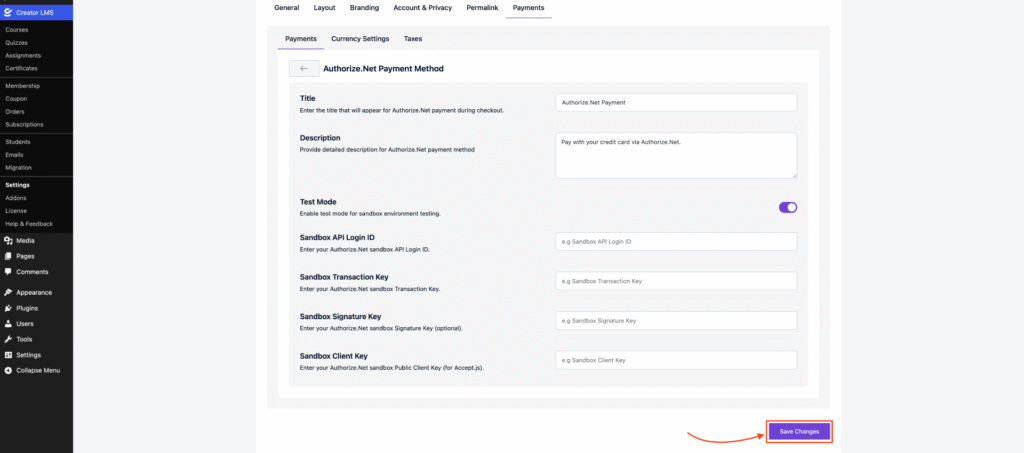
- After configuring your currency settings, ensure you click Save Changes at the bottom of the settings page to apply the updates.
That’s it! Your Offline Payment setup is now complete and ready to use.
