
You can connect WPFunnels with ActiveCampaign to automate workflows and trigger actions based on user behavior in your funnels.
This step-by-step guide will help you set up automated workflows by integrating WPFunnels with ActiveCampaign.
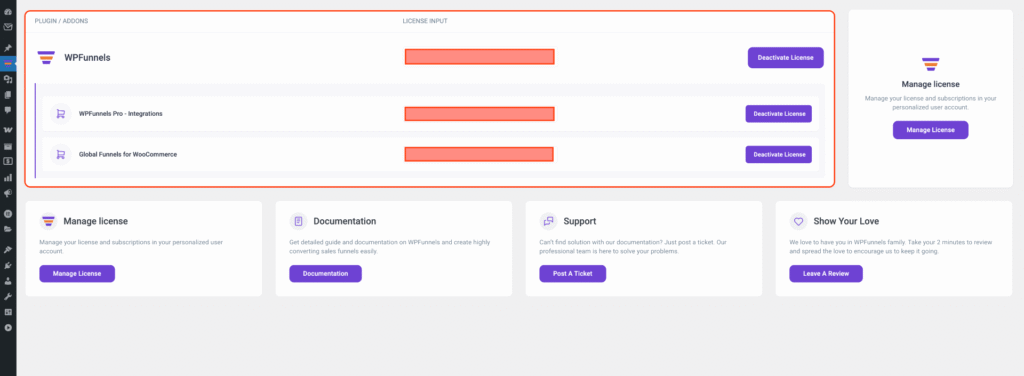
Step-1: Install WPFunnels Integration Add-on
To get started, ensure the following plugins are installed and activated on your WordPress site:
- WPFunnels
- WPFunnels – Pro
- WPFunnels Integration Addon
Once all plugins are active, proceed to the next step.
Step-2: Connect via ActiveCampaign API key
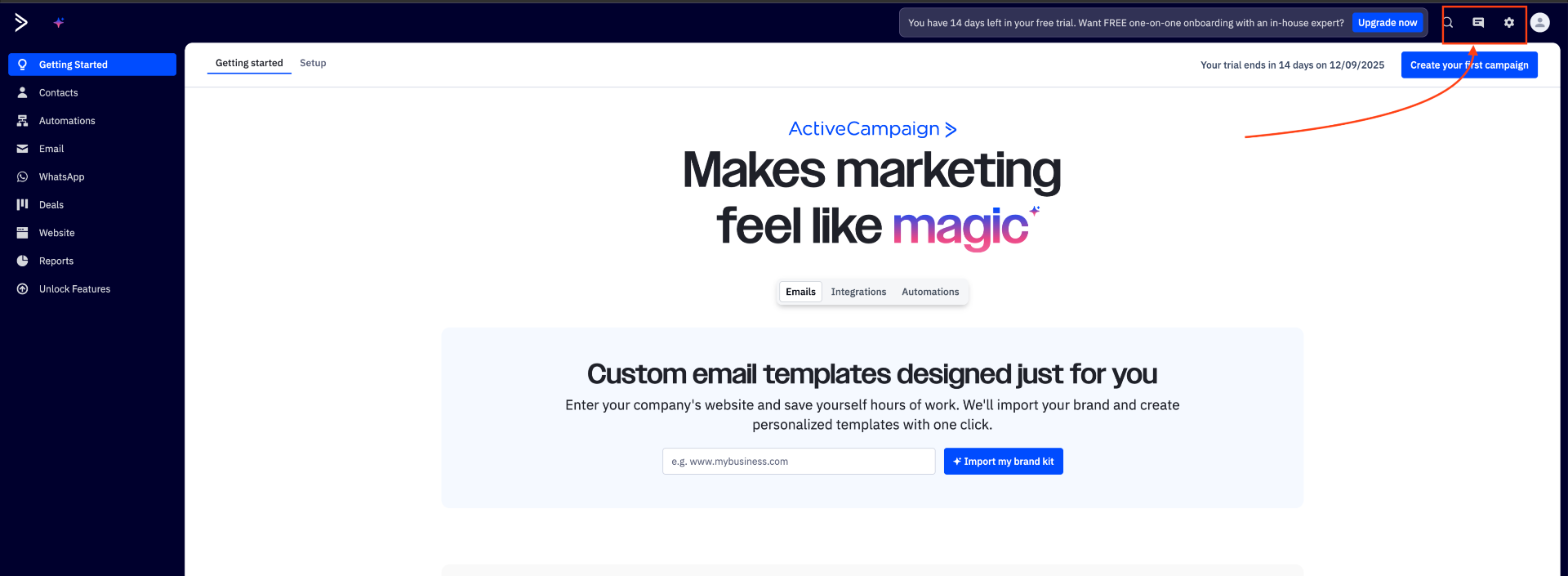
1. Click the “Settings” option located in the upper header navigation menu.
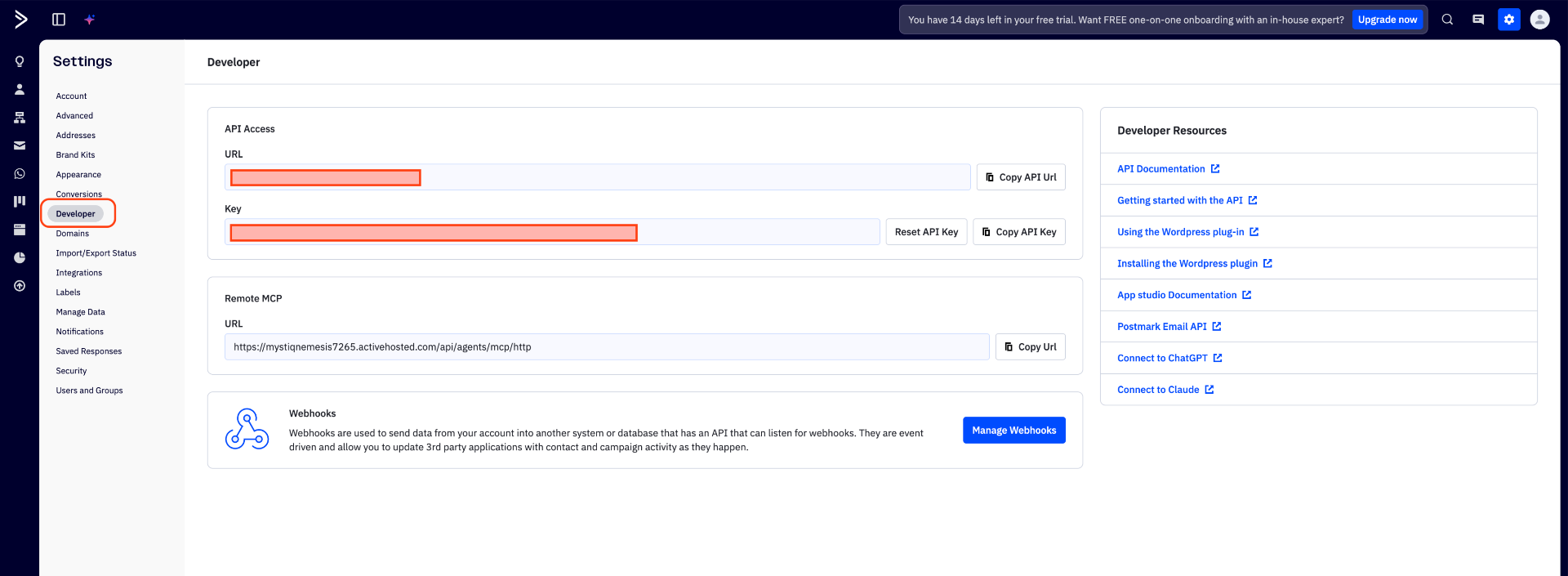
2. The Account Settings menu will appear. Click the “Developer” option.
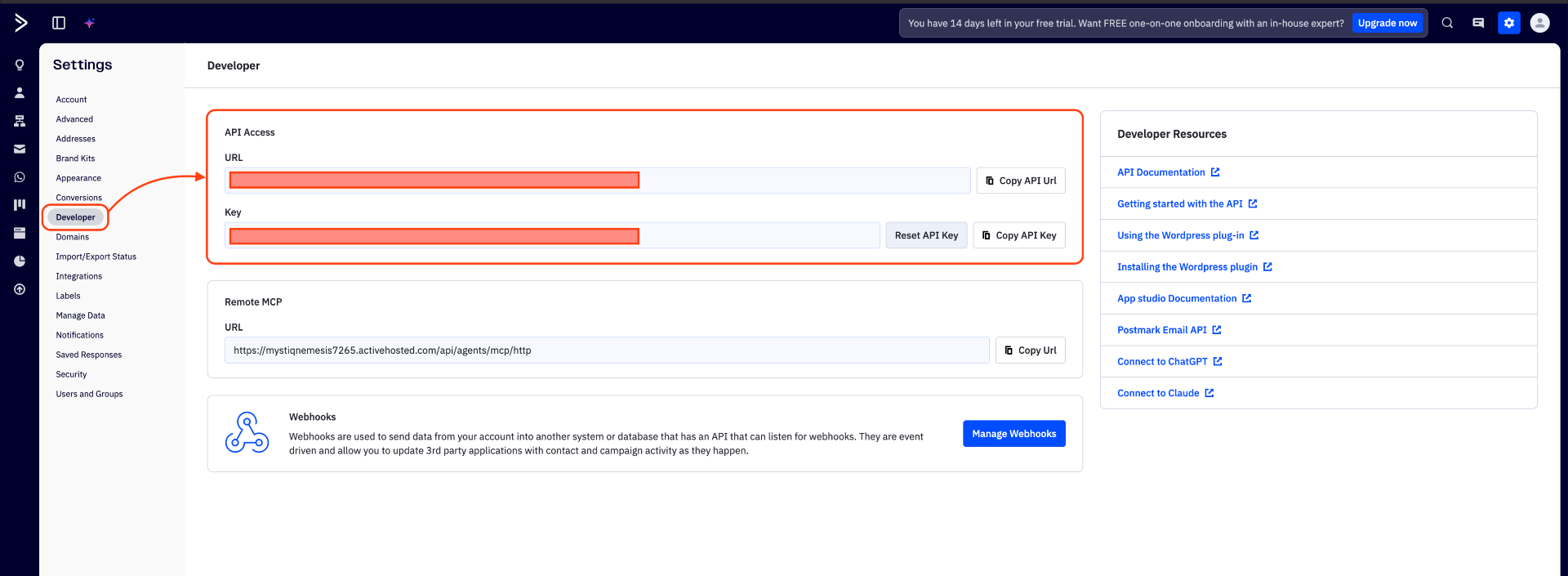
3. The Developer Settings page will display your ActiveCampaign API URL and API Key. Copy these credentials and save them securely for later use.
Step-3: Enable Integration in WPFunnels
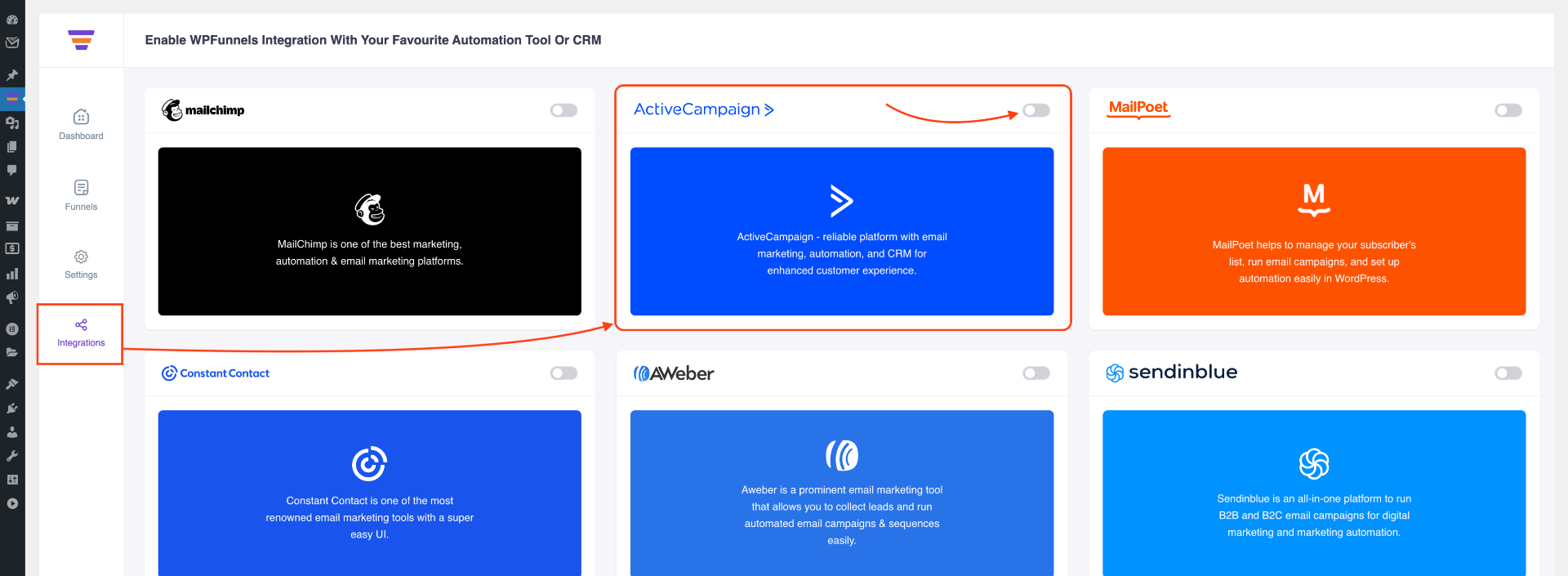
1. Navigate to WPFunnels > Integrations and enable ActiveCampaign on the integrations dashboard.
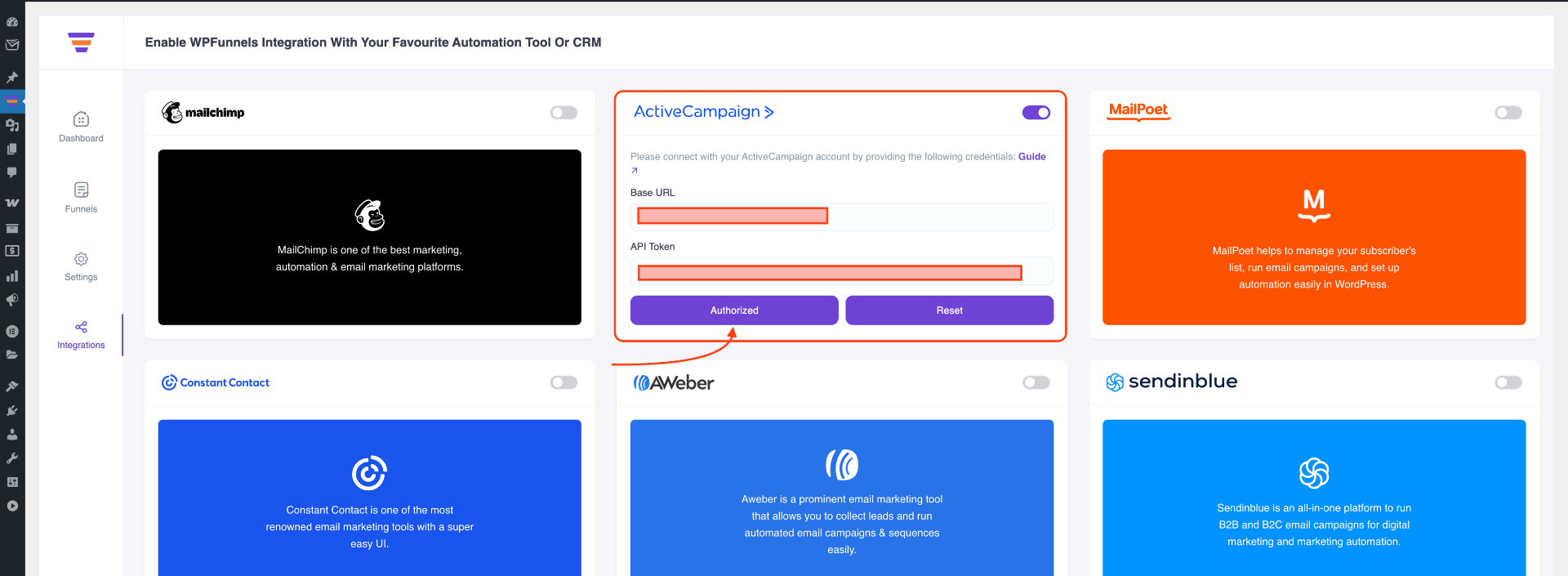
2. Enter the API URL in the Base URL field and the API Key in the API Token field. Then click Authorize to connect with ActiveCampaign.
Step-4: Enable & Add Integration in Funnel
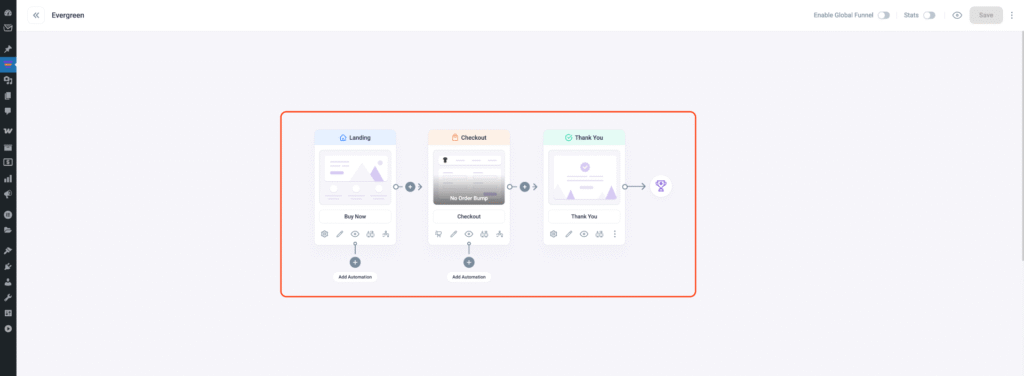
1. Go to WPFunnels and create a new funnel or edit an existing one.
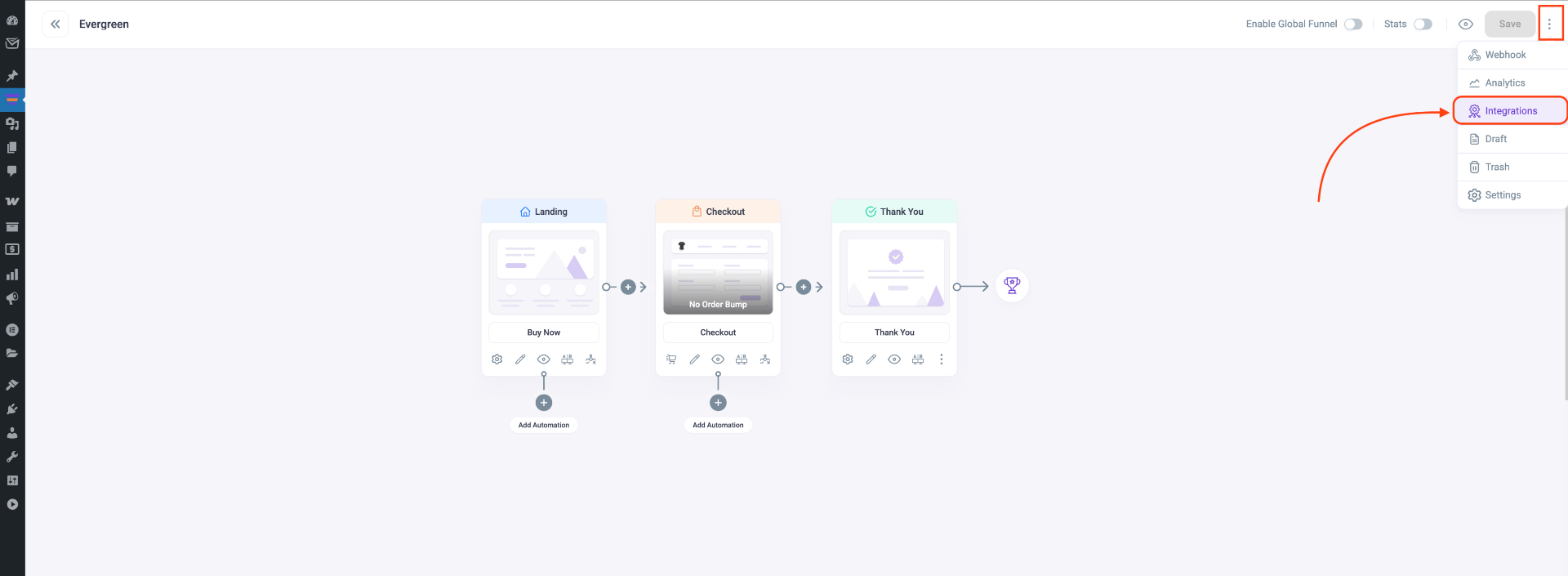
2. Click on the [3 dots] button located at the top-right corner of your funnel canvas. This will open the Integration drawer.
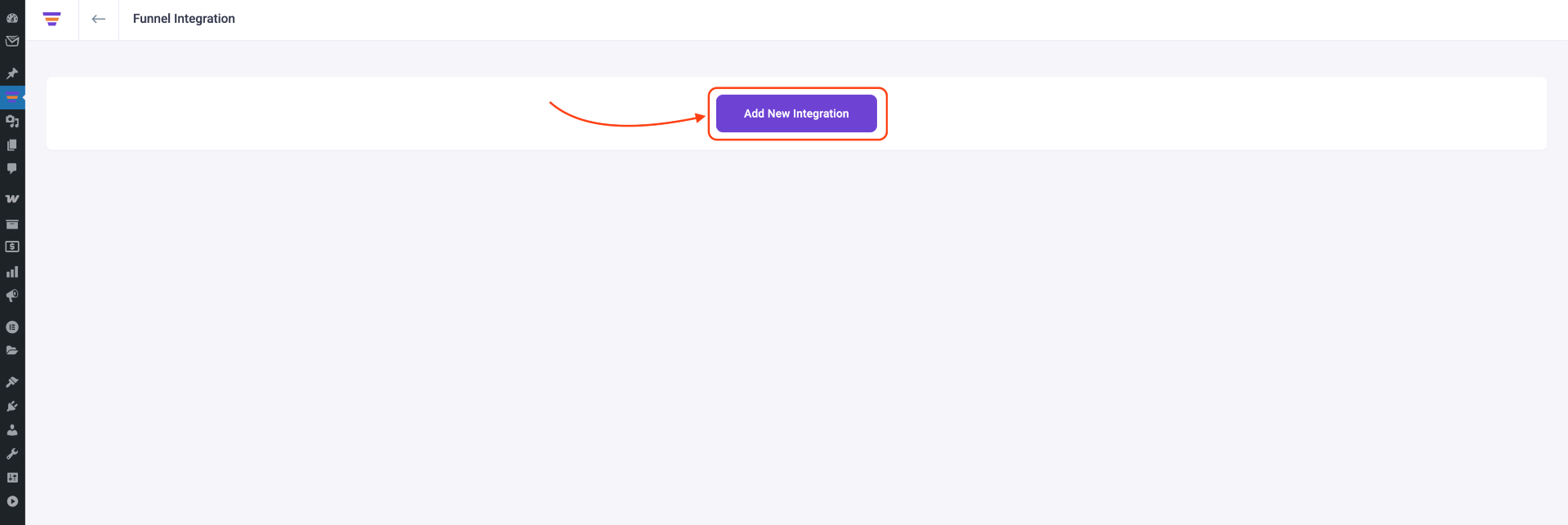
2. Click on the Add New Integration button to start configuring your funnel integration.
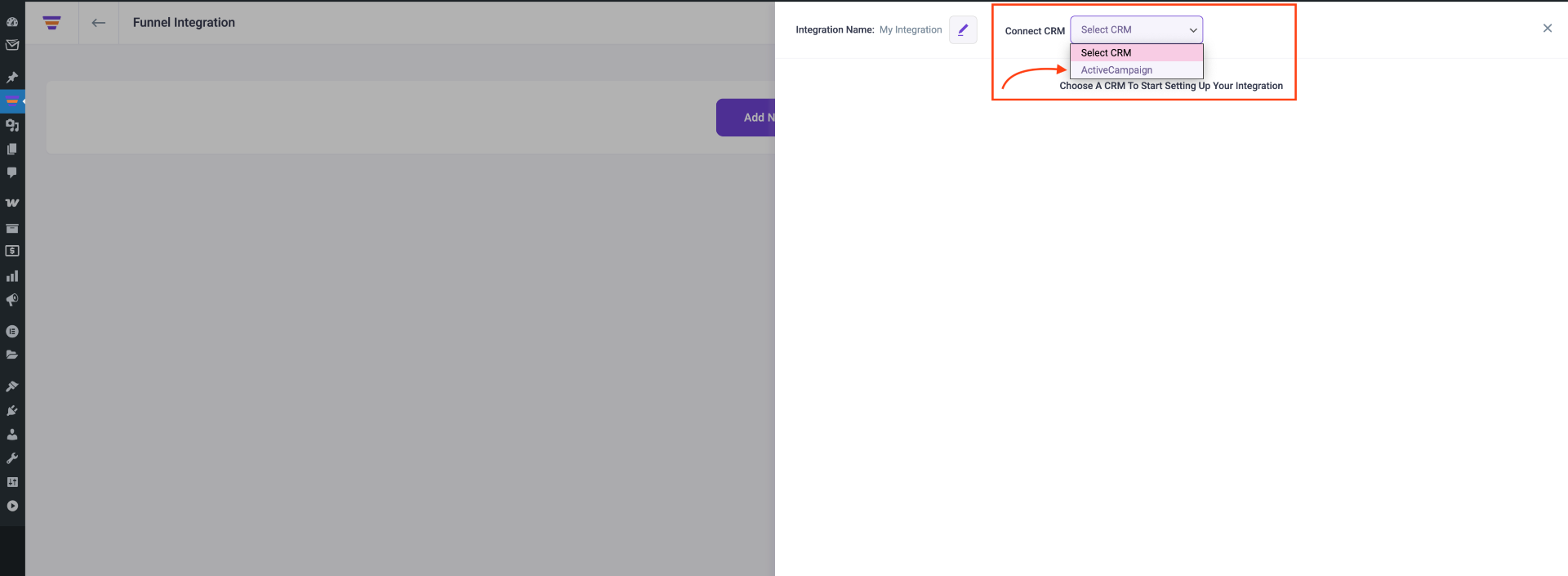
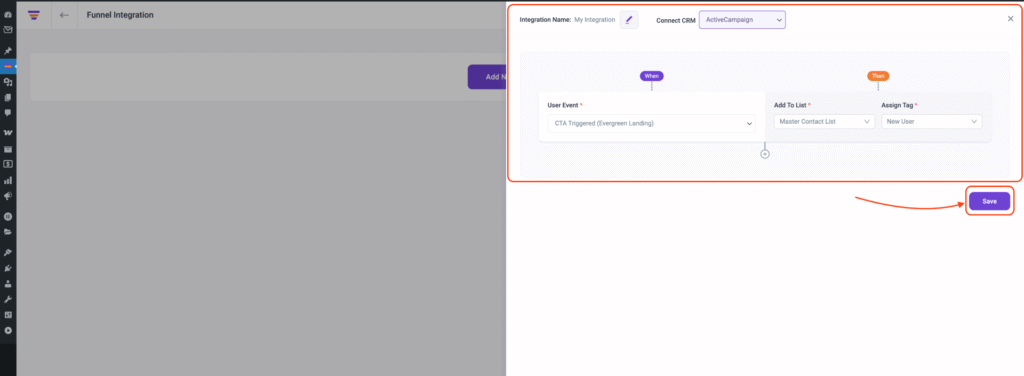
3. In the integration configuration panel, edit the name of your integration if needed and select ActiveCampaign to connect your funnel with it. This opens the integration options where you can configure triggers and actions.
Step-5: Configure User Events & Actions
1. Choose a User Event, select an ActiveCampaign List to add the user to, and assign a Tag. You can create a new List and Tag in ActiveCampaign or use existing ones.
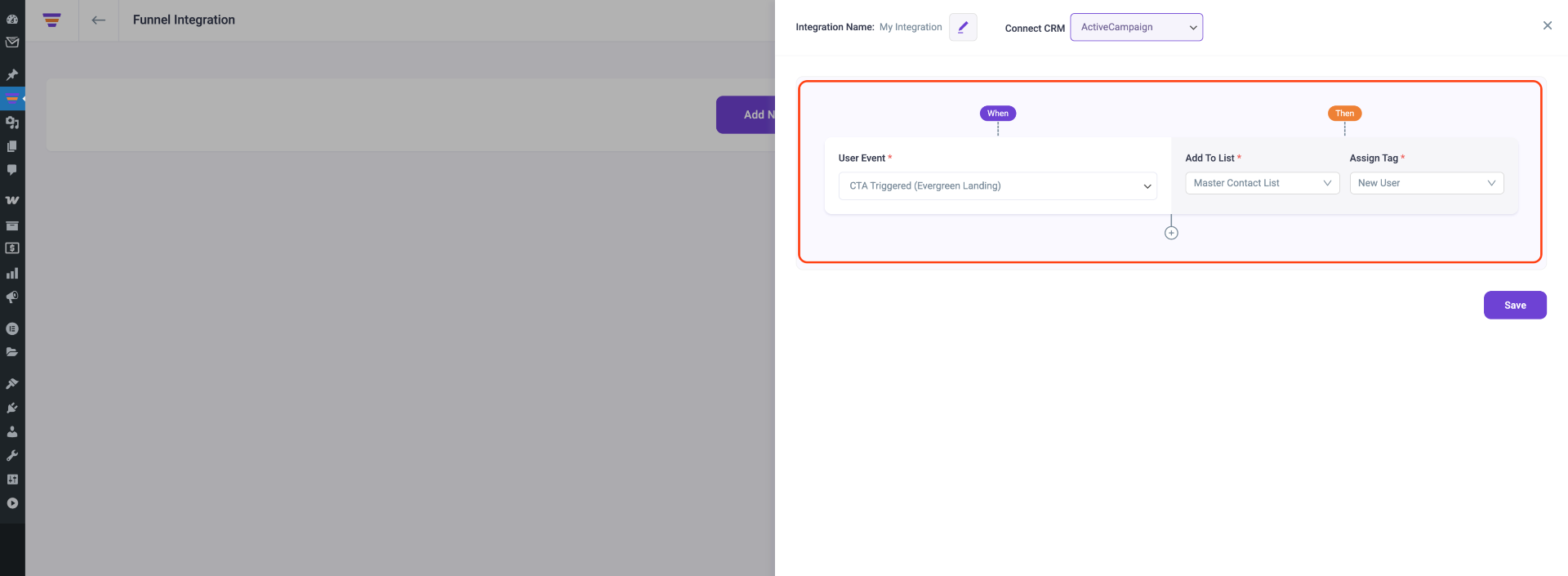
There are several User Events you can choose from:
- CTA Triggered
- After Opt-in Form SUbmit
- Main Order Accepted
- Order Bump Accepted
- Order Bump Not Accepted
- Upsell Accepted
- Upsell Rejected
- Downsell Accepted
- Downsell Rejected
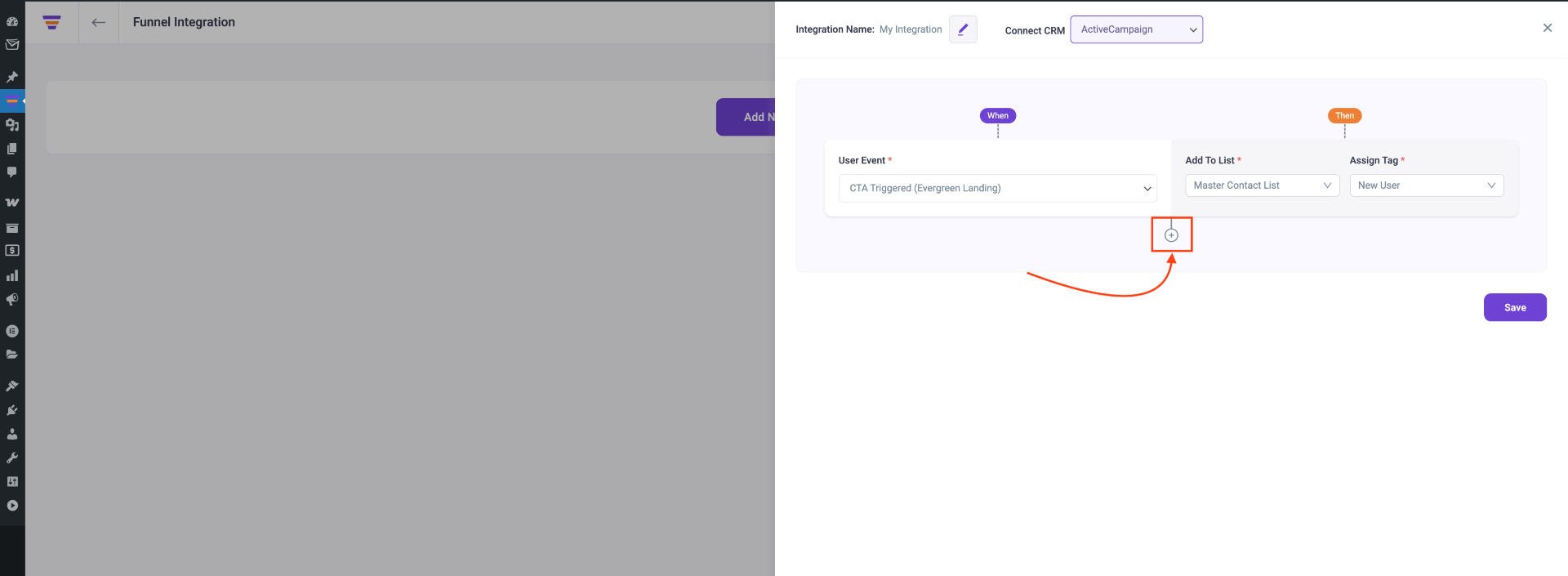
2. To track multiple user actions in a single funnel, click the (+) sign to add additional User Events.
3. Click Save to store your integration. Once saved, any prospect performing the specified actions will be added to the chosen ActiveCampaign List with the designated Tag. This allows you to automate workflows in ActiveCampaign based on funnel activity.
Note: To integrate ActiveCampaign with other funnels, repeat Steps 4 and 5.
That’s it! This is how easily you can integrate with ActiveCampaign and send data from WPFunnels to your lists automatically, based on user actions in the funnel.
