
With WPFunnels, you can use a native Optin Form to collect leads.
This guide will walk you through the steps to add and configure the Optin Form on your landing page.
Let’s get started!
Step 1 – Edit Your Funnel Landing Page
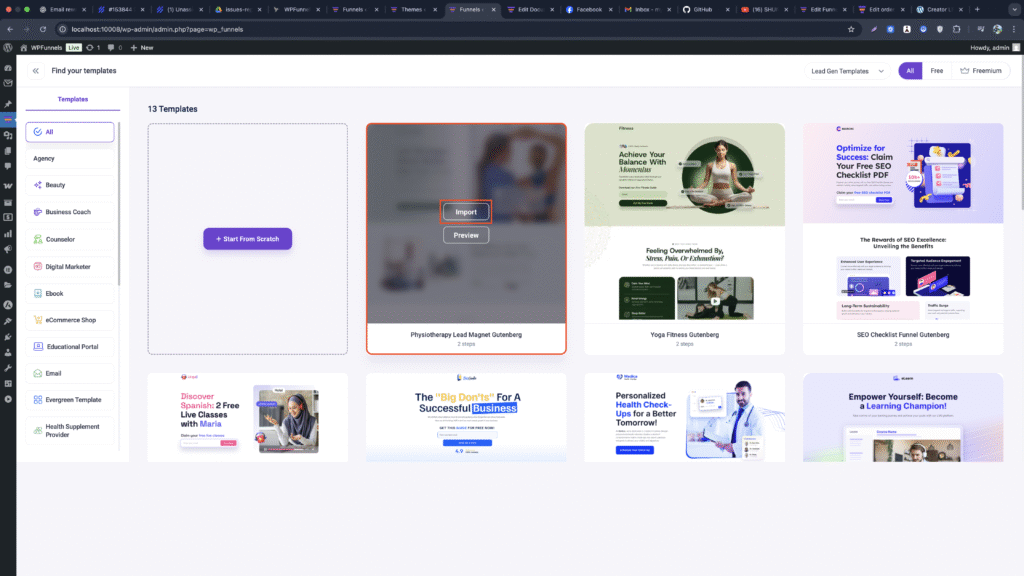
1. First, you can add any lead funnel template for Gutenberg or start from scratch. [Note: Make sure that you have selected Gutenberg as the page builder in WPFunnels Settings. ]
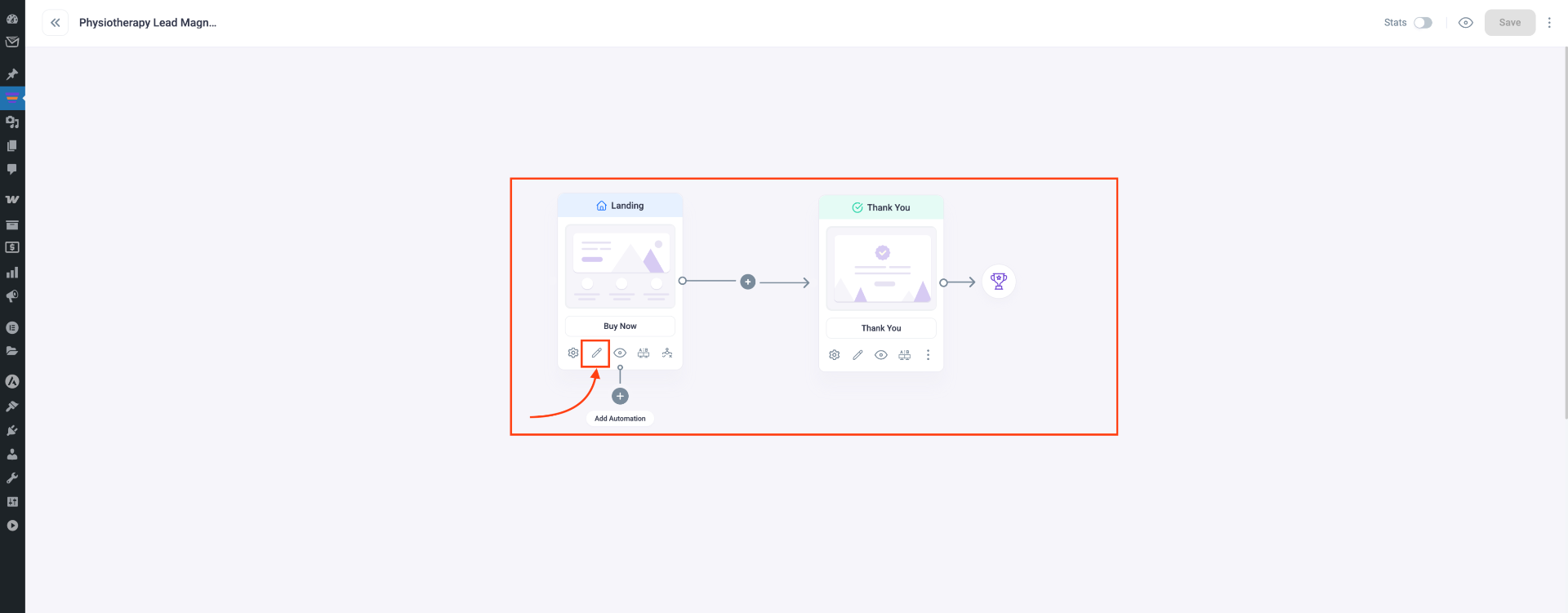
2. On the drag-and-drop canvas, select the Landing step, then click the Edit icon to open it.
And it will open the Landing page in Gutenberg edit mode.
Step 2 – Add The Optin Form Block
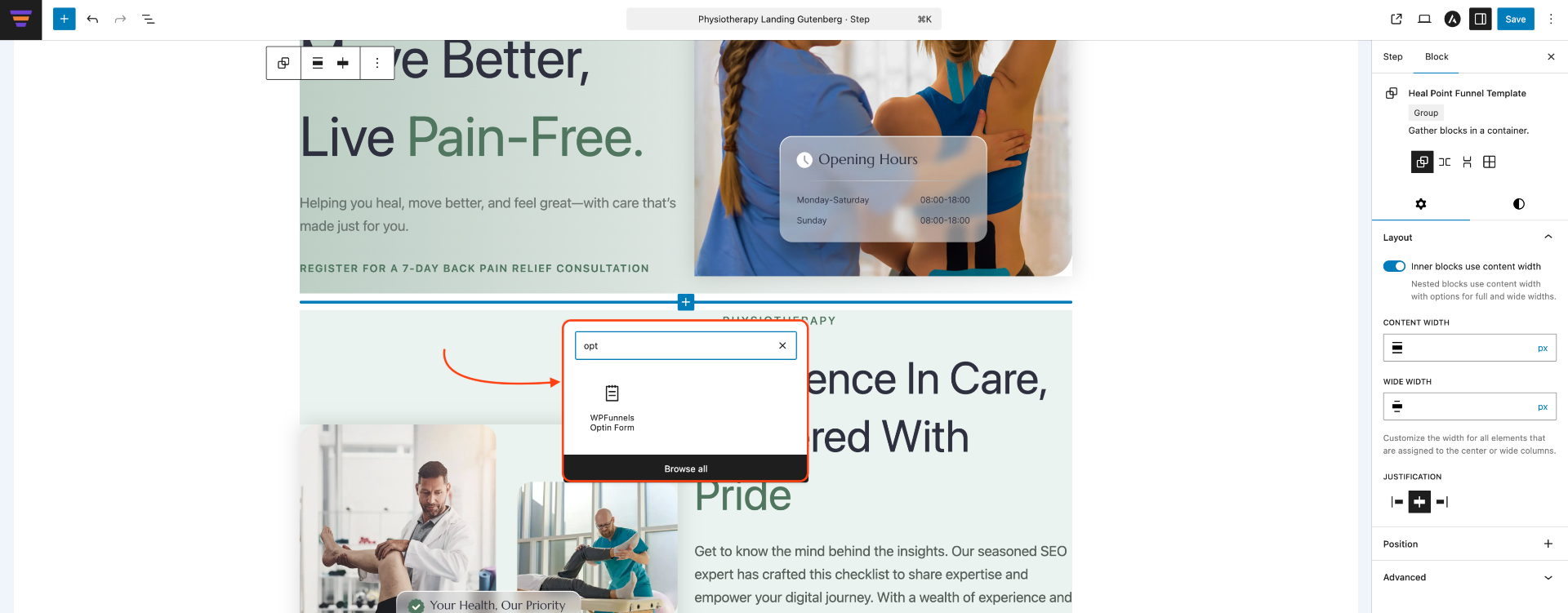
- In the Landing page editor, locate the Optin Form block and add it to your page.
Step 3 – Configure The Optin Form Block
- After adding the Opt-in Form block, the block’s edit options will appear on the right-hand side.
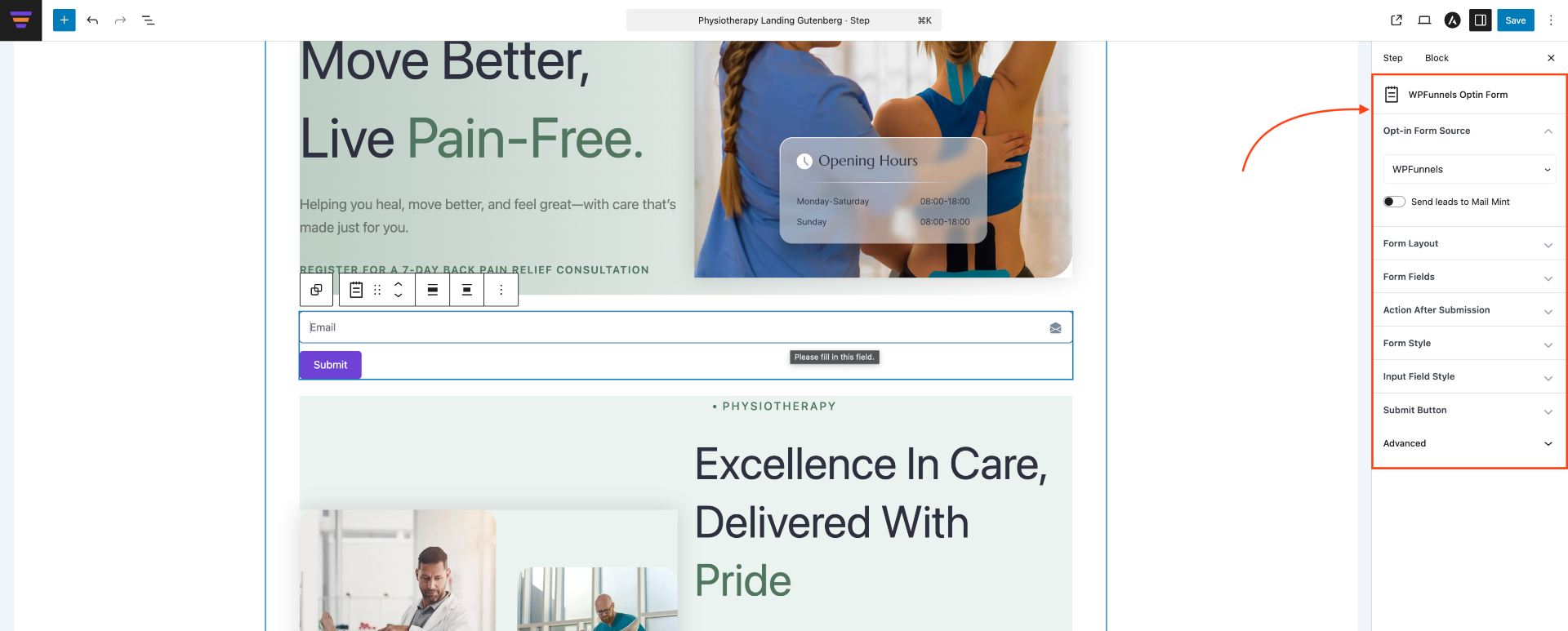
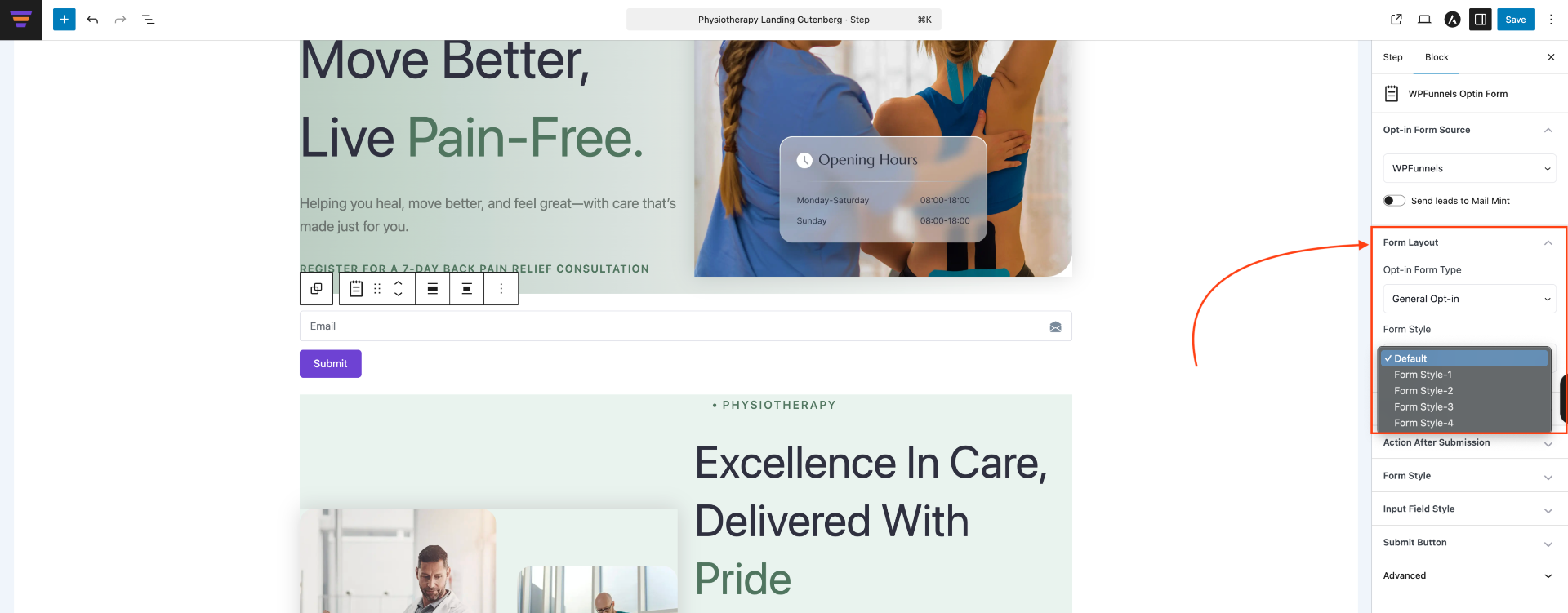
1. Form Layout:
- You have options to choose from a couple of Form Styles.
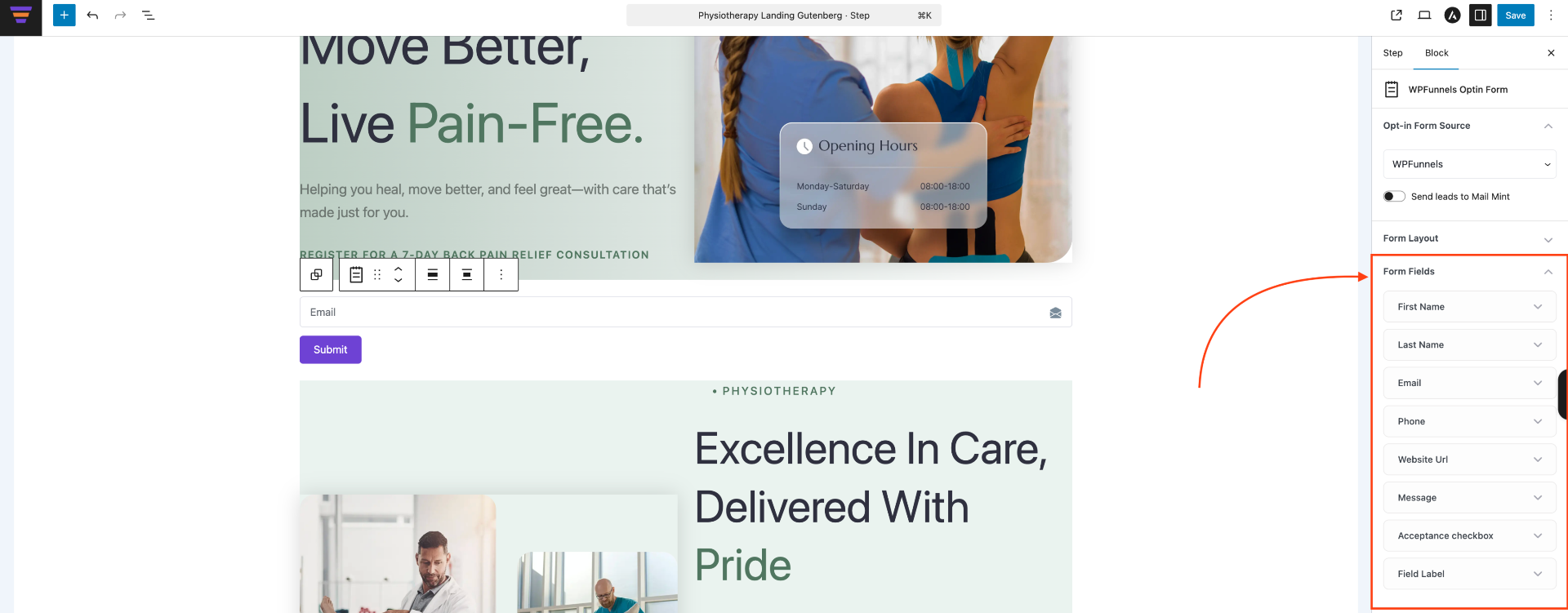
2. Form Fields
- You can choose to Show or Hide the following fields:
- First Name
- Last Name
- Terms & Condition
- Input Field Icon
- Field Label
- Field Required Mark
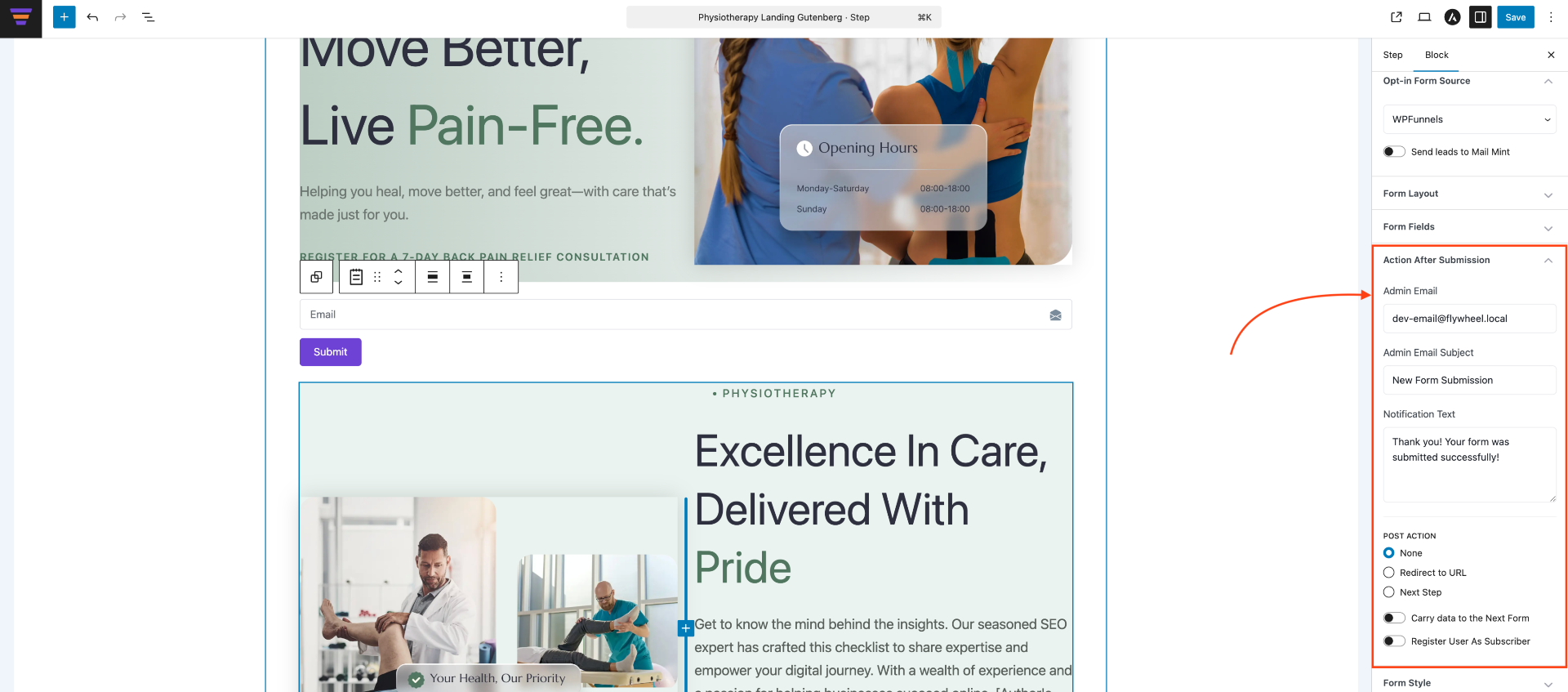
3. Actions After Submit
- You can configure the actions after submit. Such as – you can send an email to the admin and you can send the lead to the next step or a specific URL. In this section, you will see:
- Admin Email
- Admin Email Subject
- Notification Text
- Other Action – None, Redirect to url, Next Step
- Register User As Subscriber (We will discuss this option in the next step)
4. Register User As Subscriber
- When a user submits the opt-in form, their info is collected through CRM. To add them as subscribers, simply enable the Register User As Subscriber option, and their email will be listed automatically.
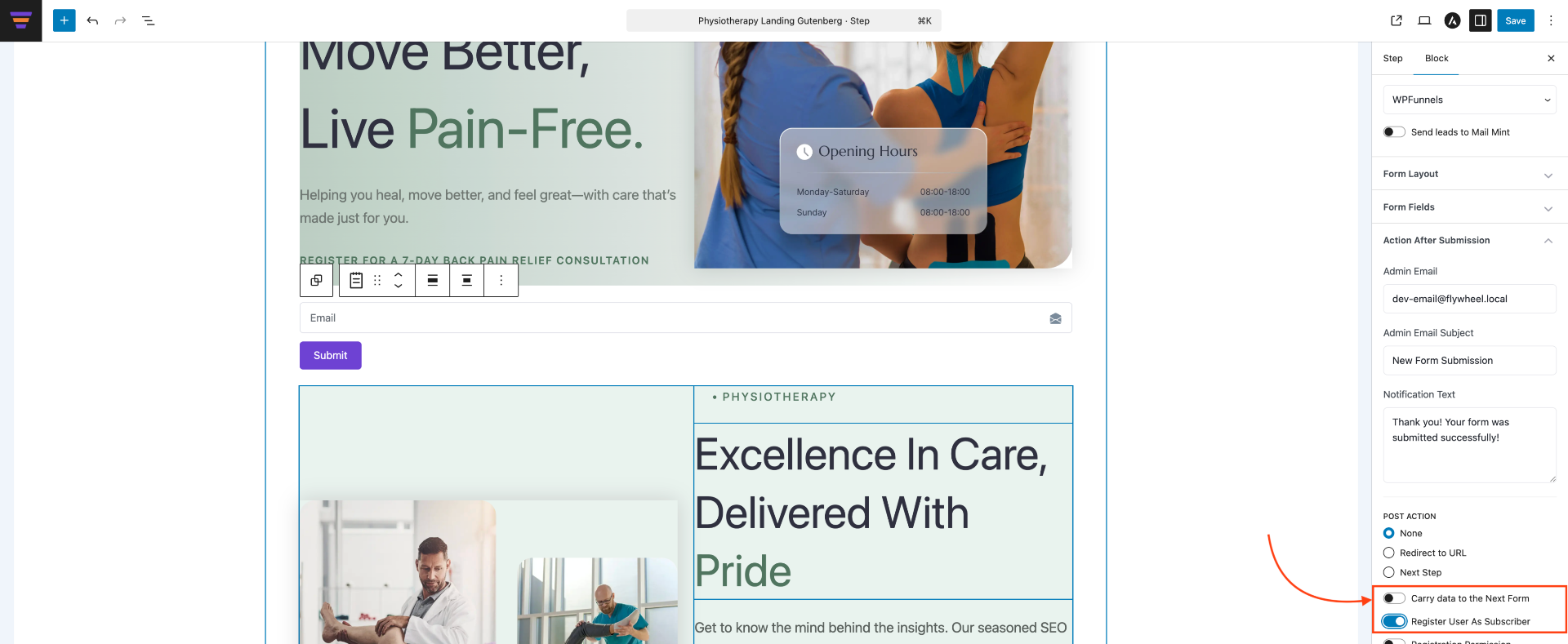
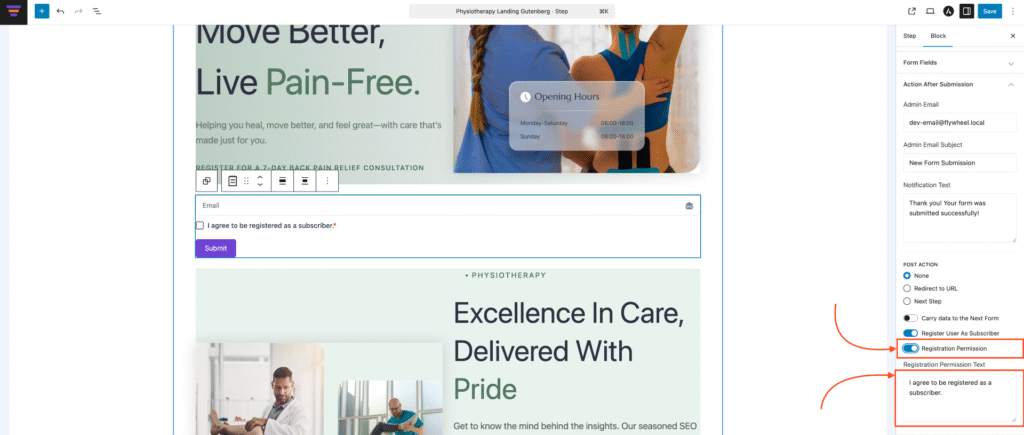
- You can also add a confirmation checkbox by enabling the Subscription Permission option below Register User As Subscriber, which will show a new Registration permission text field:
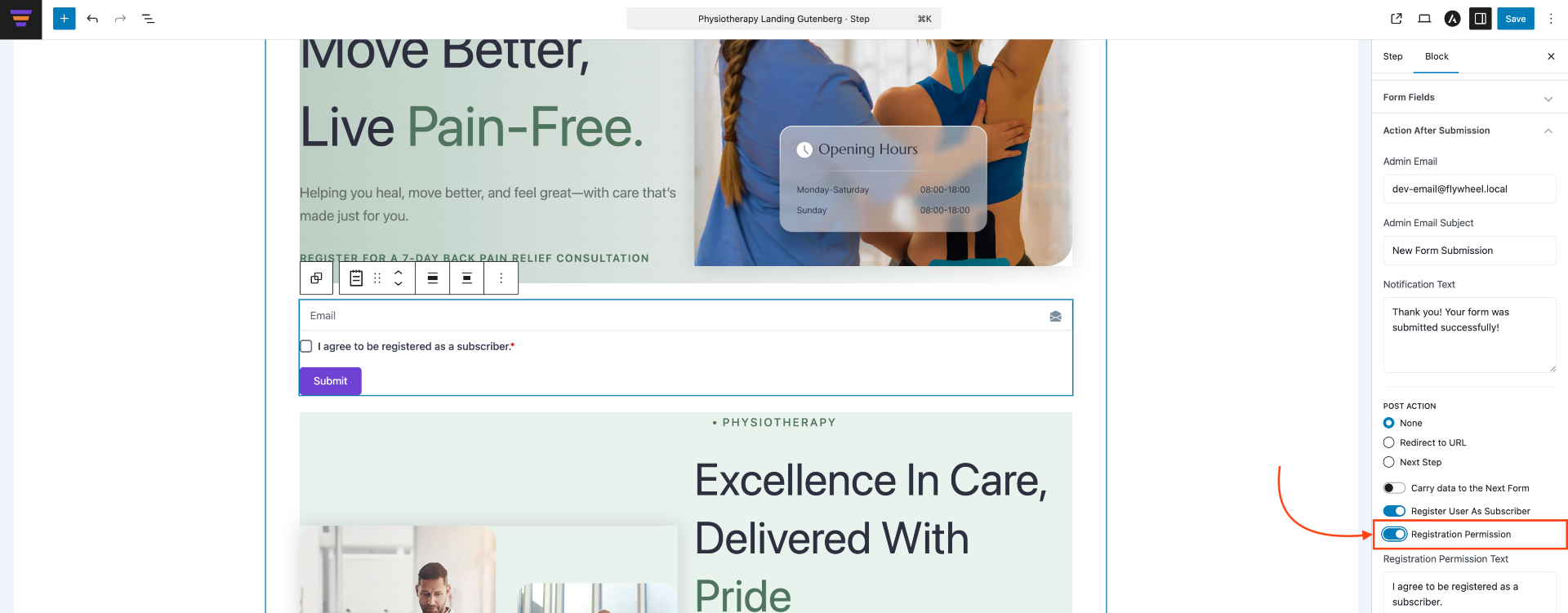
- A new checkbox has been added in the preview section—this confirms the user will be added as a subscriber. To change the confirmation text, update the Registration permission text box.
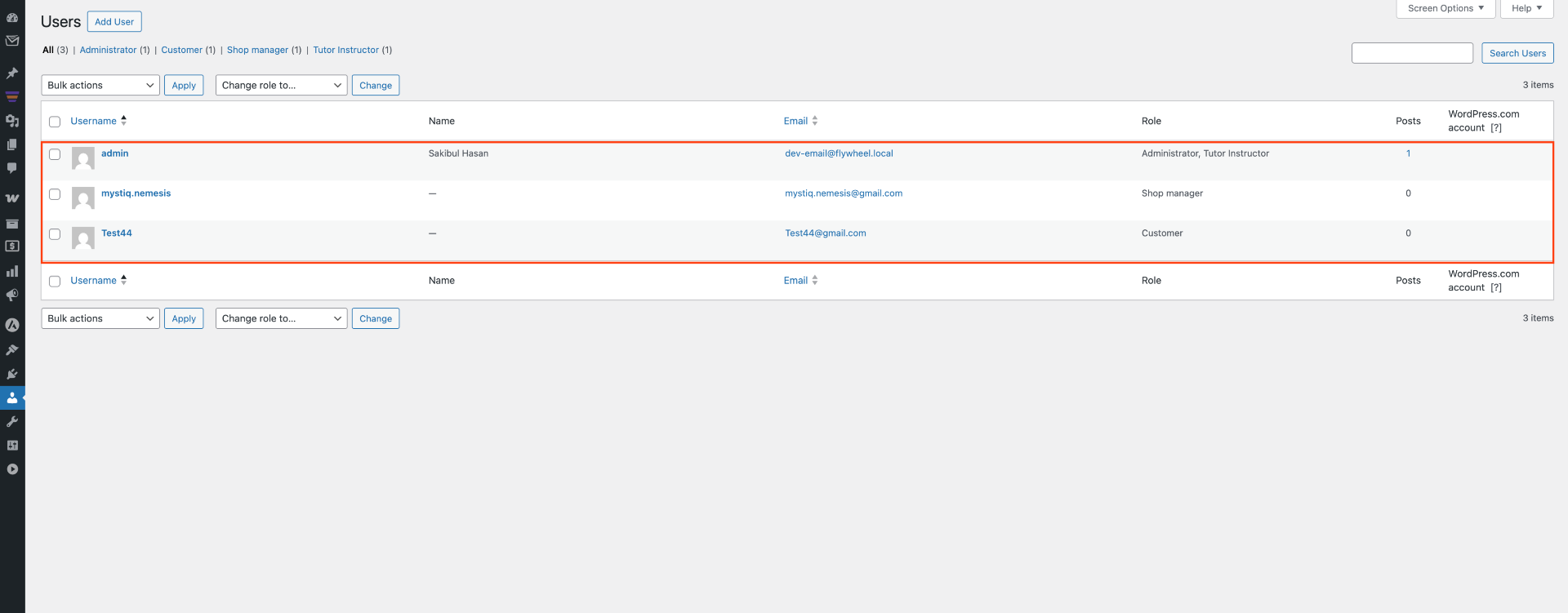
- To check if the users are added as subscribers, go to Users >> All Users, and there you will get the list.
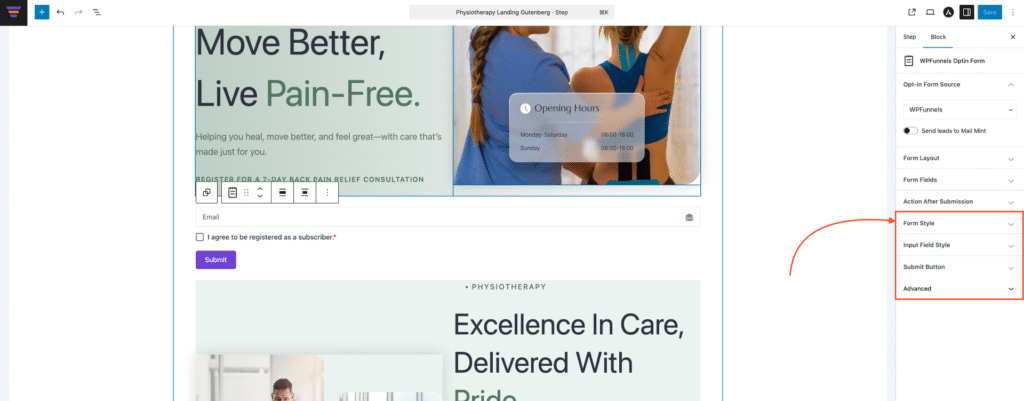
- The next 3 options are for customizing the style.
5. Form Style
- You can customize Form Styles such as Row Spacing, Label Color, and Label Spacing.
6. Input Field Style
- Here you have different Input Field customization options such as – Text & Background color, border, etc.
7. Button Style
- You can customize Button Styles such as – Text & Background color, border, etc.
8. Advanced
- You can enter any additional CSS classes here. Once all options are set, click Update to save your Landing page.
That’s it, you have successfully added and configured the Optin Form for your funnel.
Note:
- You can see the Analytics of the Optin Form in the WPFunnels Analytics section.
- You can also add Integration with WPFunnels Optin Form.
