

WPFunnels provides built-in Skip Offer settings that allow you to automatically skip an upsell or downsell step based on specific conditions. This helps you avoid showing irrelevant offers and improves the overall customer experience.
Follow the steps below to enable and configure the Skip Offer functionality for an upsell or downsell step in WPFunnels.
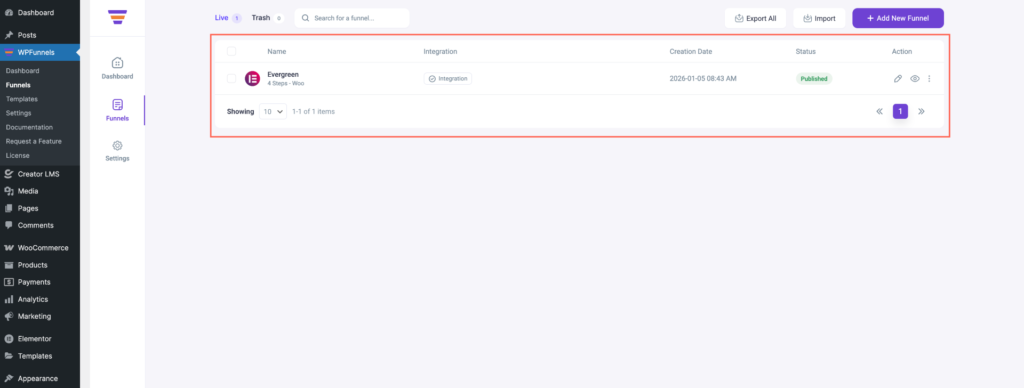
- Import a funnel that includes an Upsell or Downsell step, or open an existing funnel that already has one.
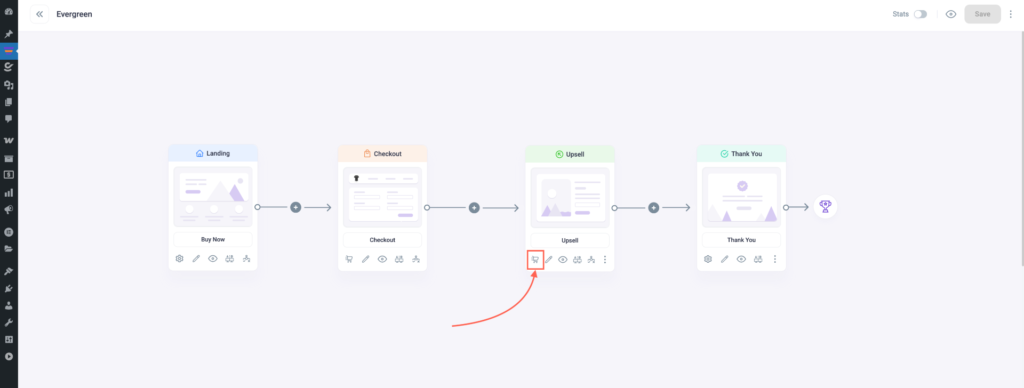
- Inside the funnel, locate the Upsell or Downsell step and click on the cart icon to add a product.
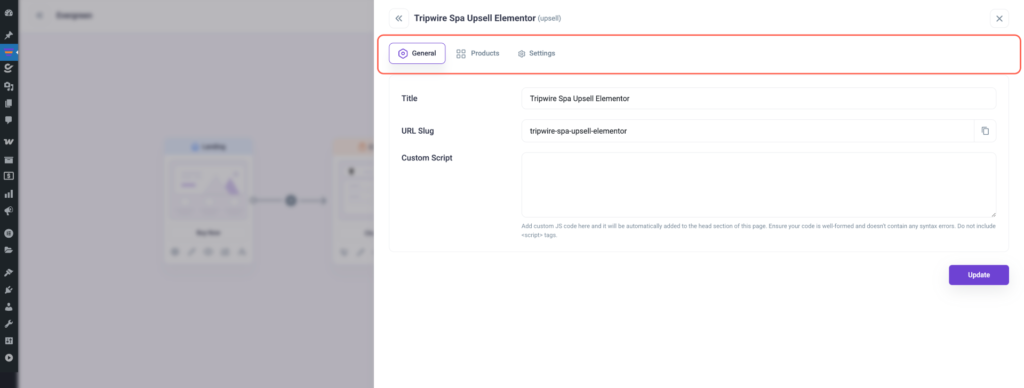
- You will see three tabs: General, Products, and Settings.
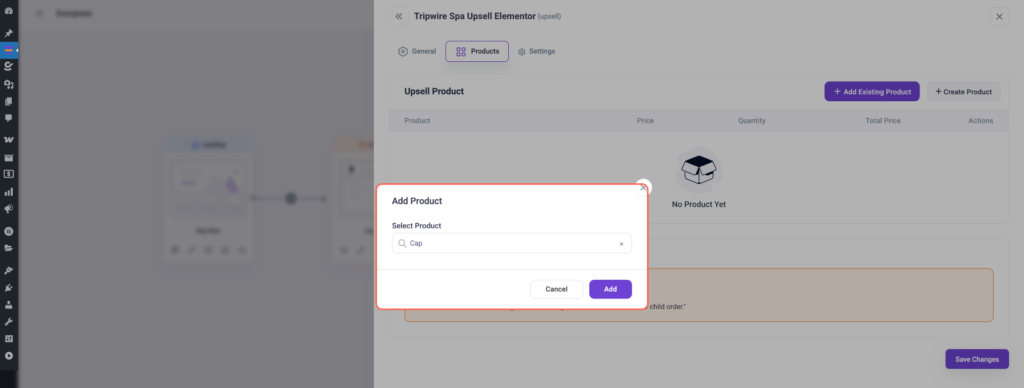
- Go to the Products tab and add the product you want to offer in this upsell or downsell step.
- After adding the product, click on the Settings tab.
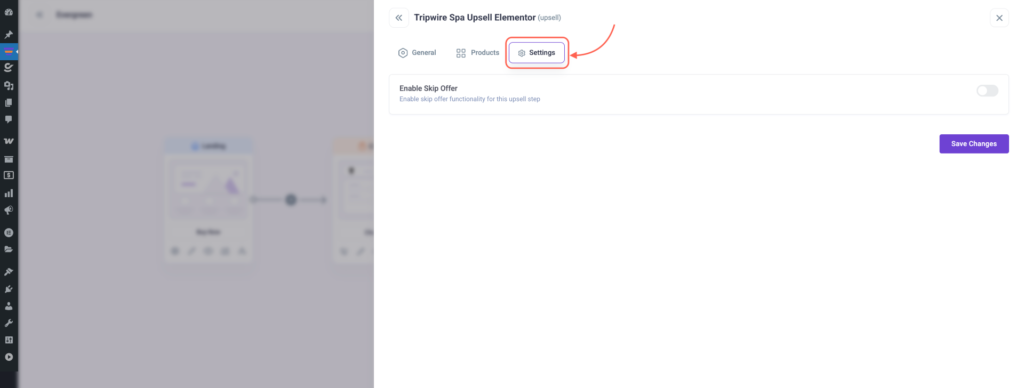
- Enable the toggle option “Enable Skip Offer” to activate the skip-offer functionality.
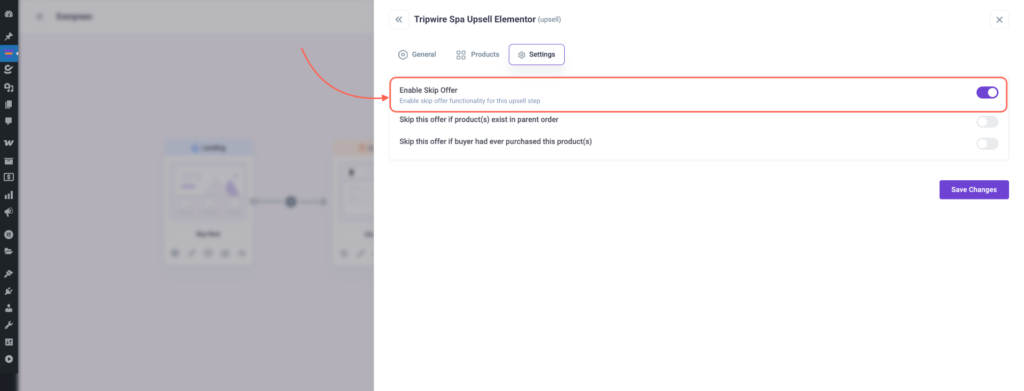
- Once enabled, you will see two available conditions:
- Skip this offer if product(s) exist in parent order: This will skip the upsell or downsell if the product already exists in the main checkout order.
- Skip this offer if buyer had ever purchased this product(s): This will skip the offer if the customer has purchased the same product previously.
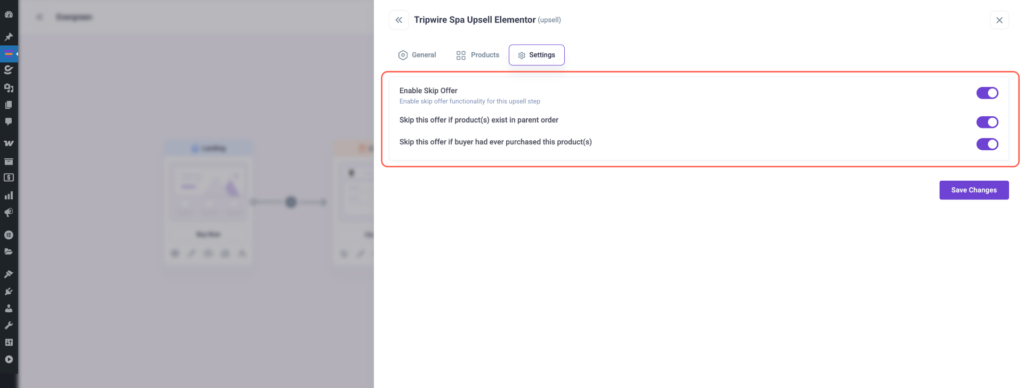
- Select one or both conditions based on your requirement, and click Save Changes to apply the settings.
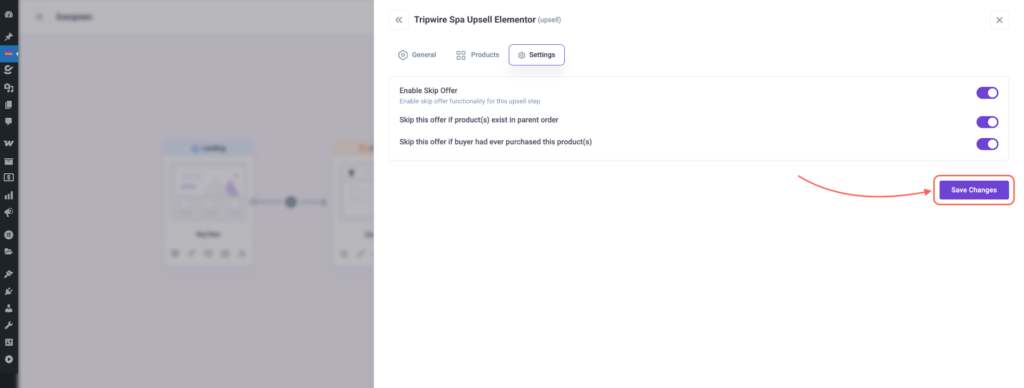
Once these steps are completed, WPFunnels will automatically skip the upsell or downsell offer whenever the selected condition is met and redirect the user to the next funnel step.
