
Adding an order bump to your sales funnel can be a huge advantage for your eCommerce business. And the good news is that with WPFunnels, you can include single or multiple order bumps on your checkout page to intrigue your visitors to buy more.
In this guide, you will learn how you can use order bumps at the funnel checkout page.
Steps To Creating An Oder Bump Offer For Your Funnels
First, create a typical sales funnel. You may import a template or create one from scratch.
- Follow this guide if you are new to WPFunnels and want to start creating a new funnel.
Then follow the steps below to add an order bump offer at checkout.
Step 1 – Add An Order Bump
1. Go to the Checkout steps settings.
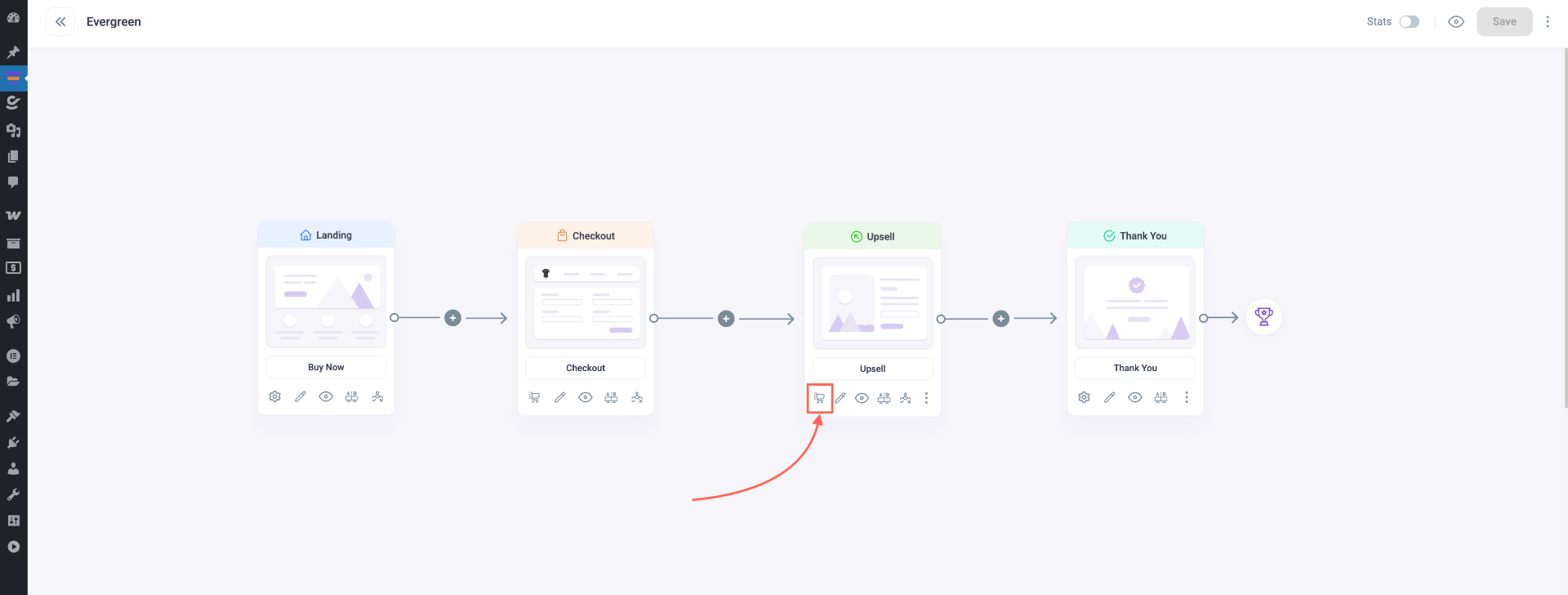
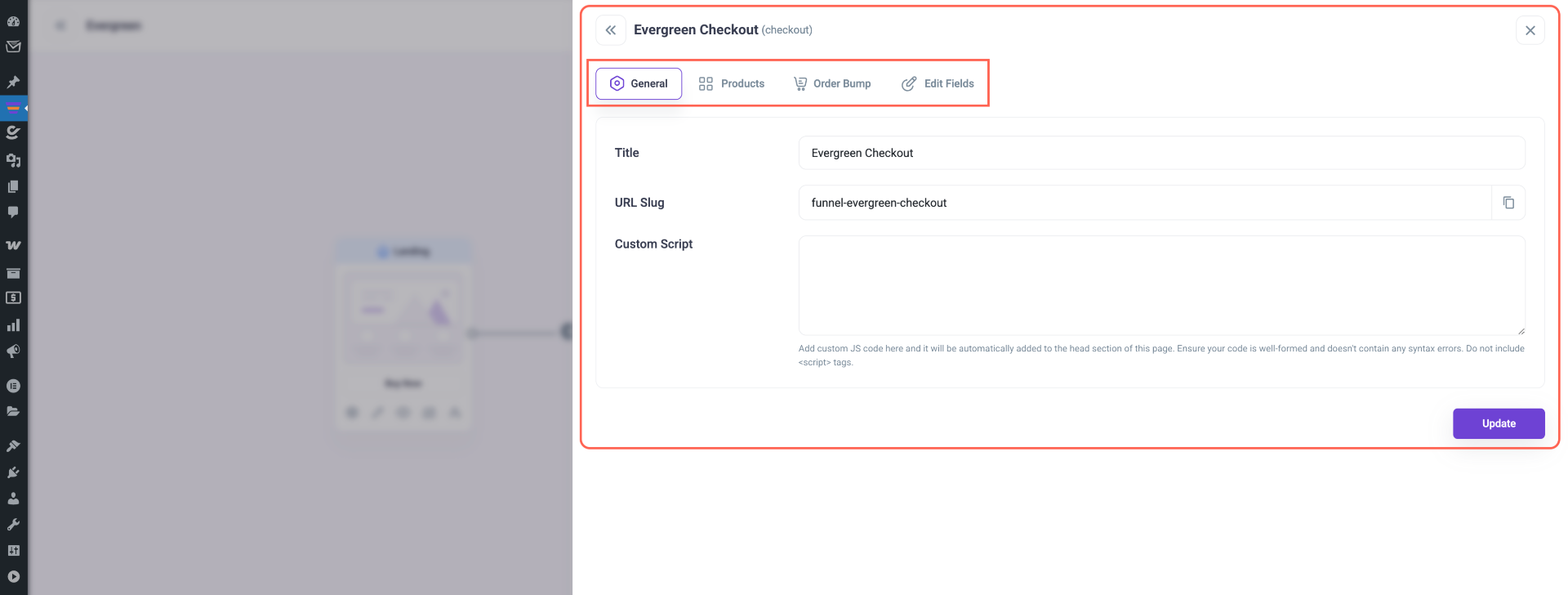
2. Next, open the Order Bump tab and click + Add Order Bump.
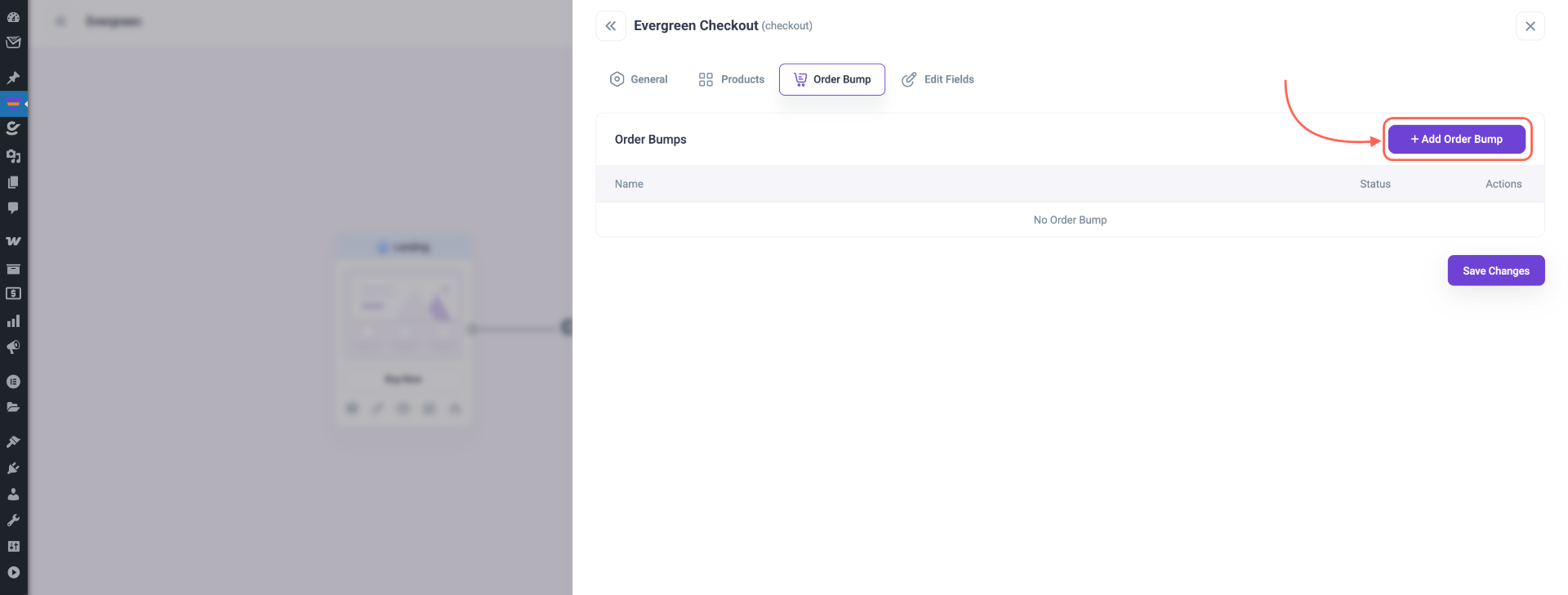
3. Now, this opens the Order Bump Dashboard interface.
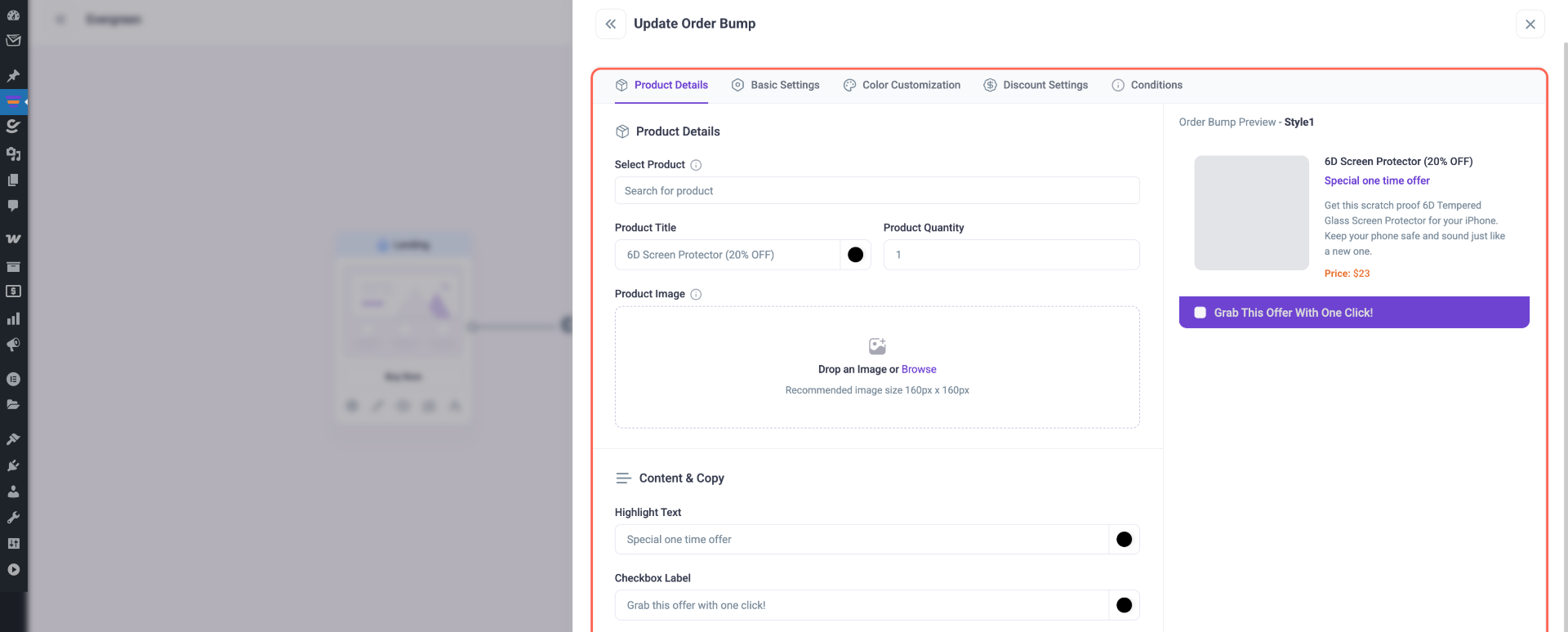
Step 2 – Assign Order Bump Product
- Use the “Select Product” field to search for and assign the product you want to offer as an order bump.
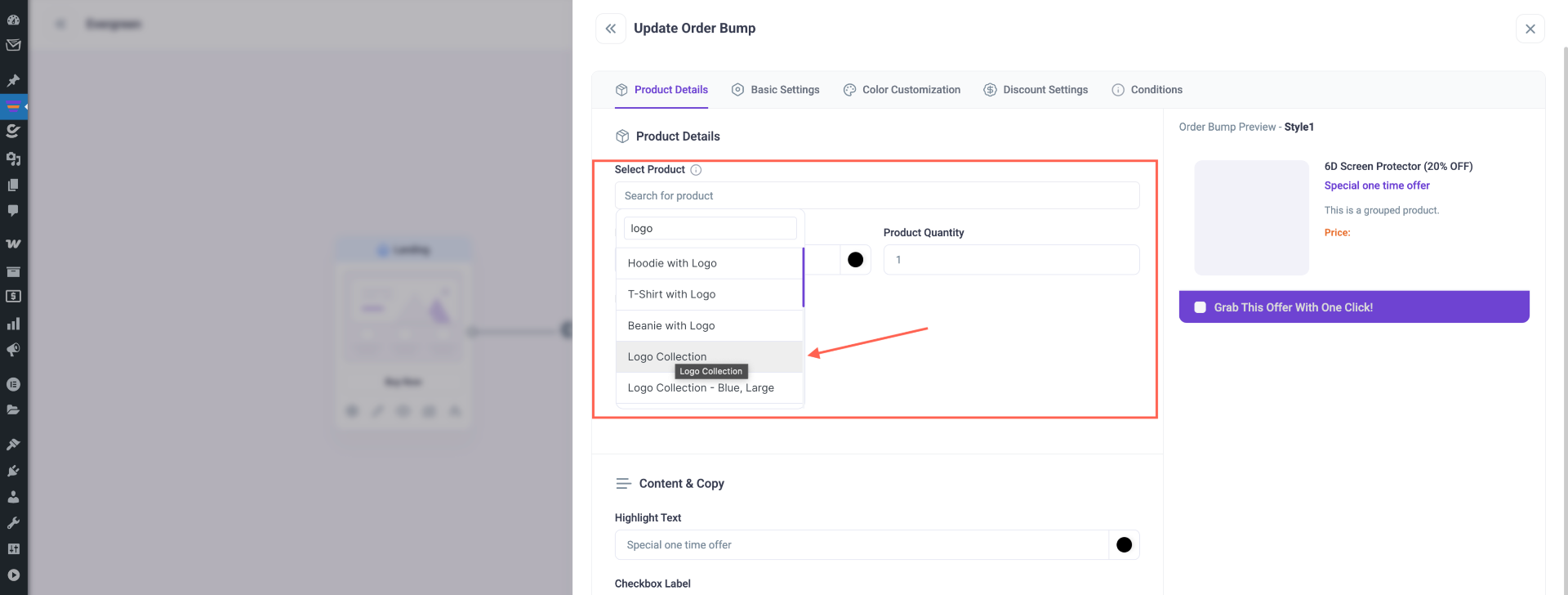
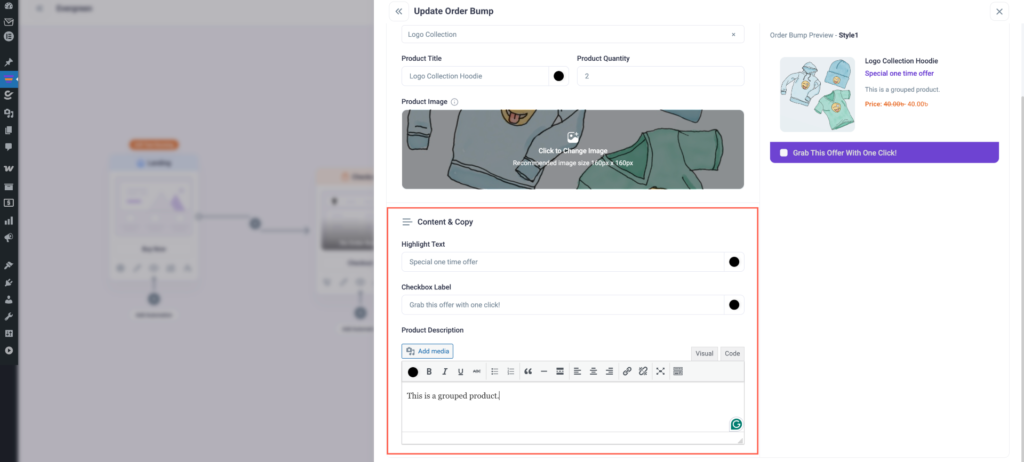
- Now you can edit the product title and adjust the quantity as needed.

- Finally, you can edit the Order Bump content, including the highlighted text, checkbox label, and product description.
Step 3 – Decide on an Order Bump Template To Use
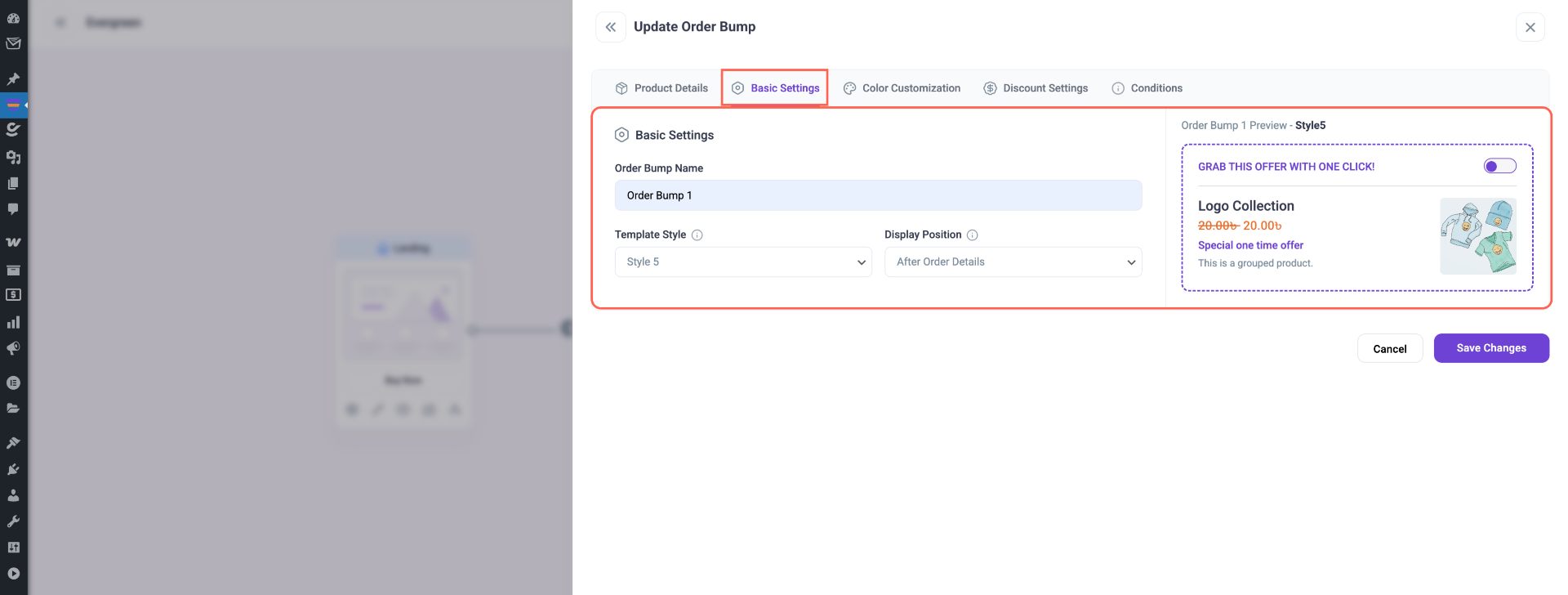
- Click on the “Basic Settings” option, where you can choose different styles and also set the position where you want the product to be displayed.
Step 4 – Customize Your Order Bump Design And Content
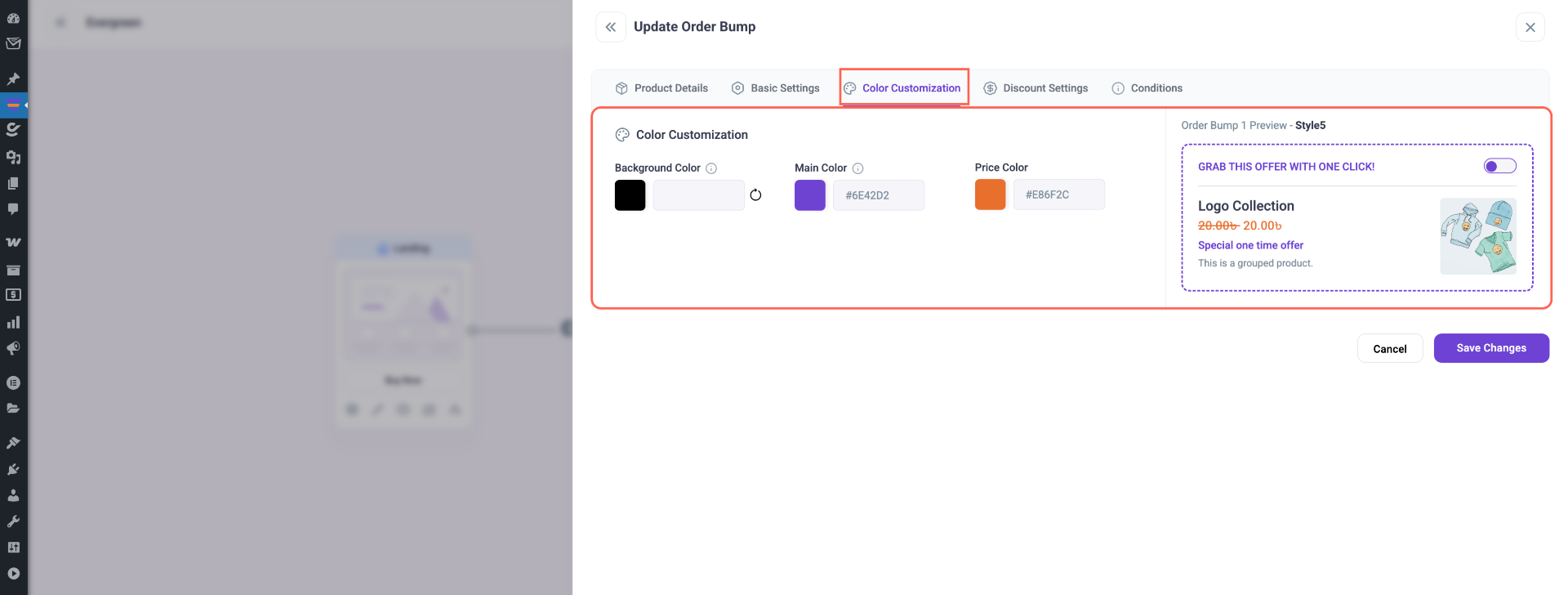
- In the “Color Customization” section, you can adjust different colors to match your branding.
Step 5 – Offer A Discount In The Order Bump Offer (if applicable)
- In the “Discount Settings” section, you can select different discount types, such as Original, Percentage, or Flat Amount.
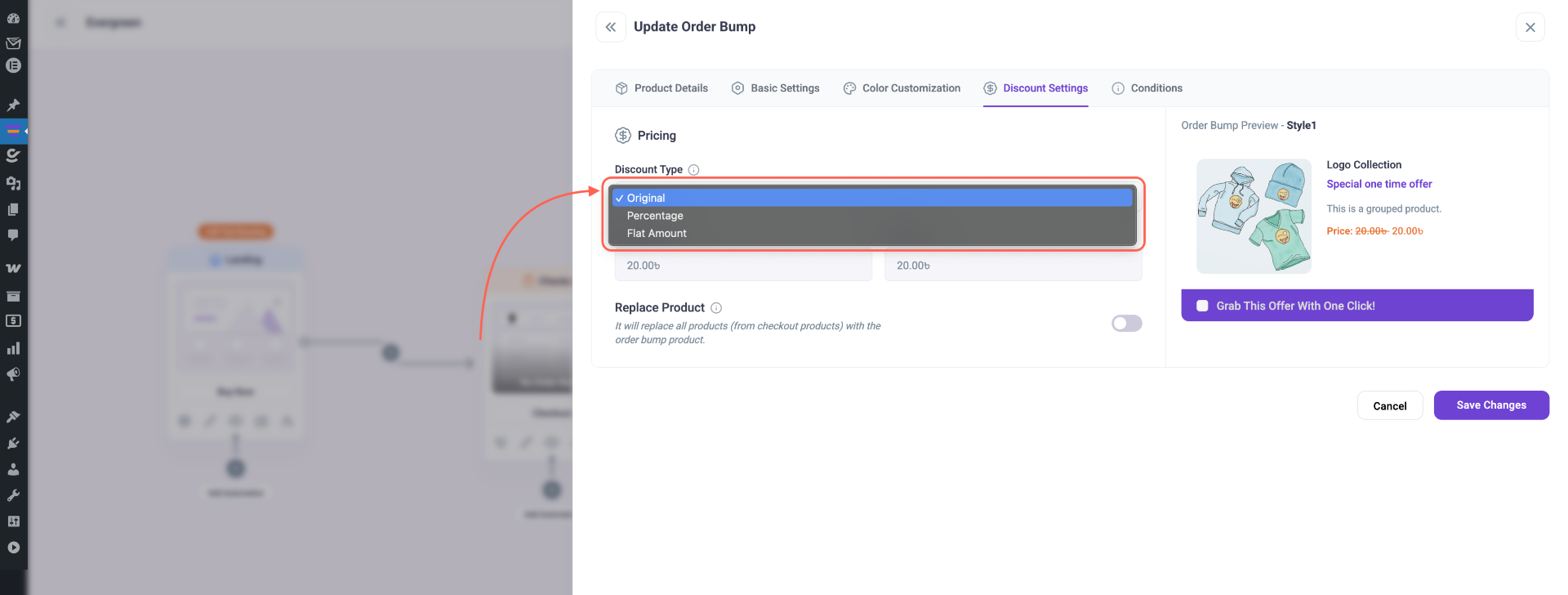
*An example of this scenario is, suppose you created a funnel for an Exclusive Porcelain Vase at $39.99. You may want to offer an order bump to offer two more Vases at a $20 discount. In that case, you may set the quantity to 2. Accepting this order bump will add 2 more vases to the order and a $20 discount.
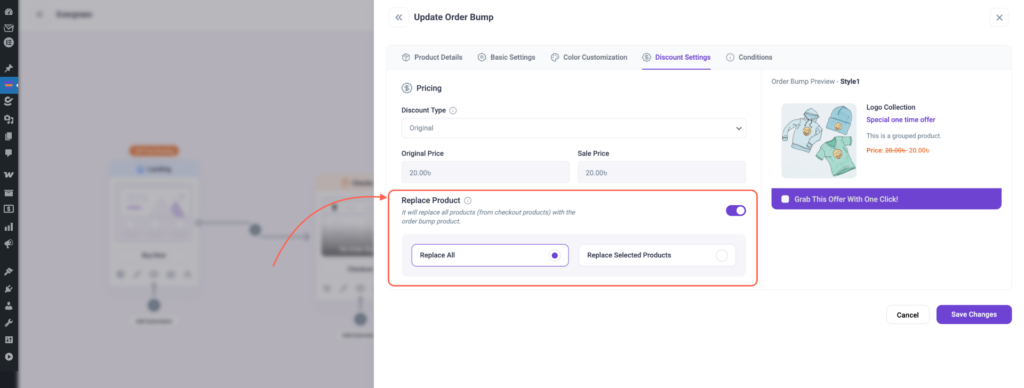
2. In the same section, you can adjust the settings to replace the product with all or any specific product of your choice.
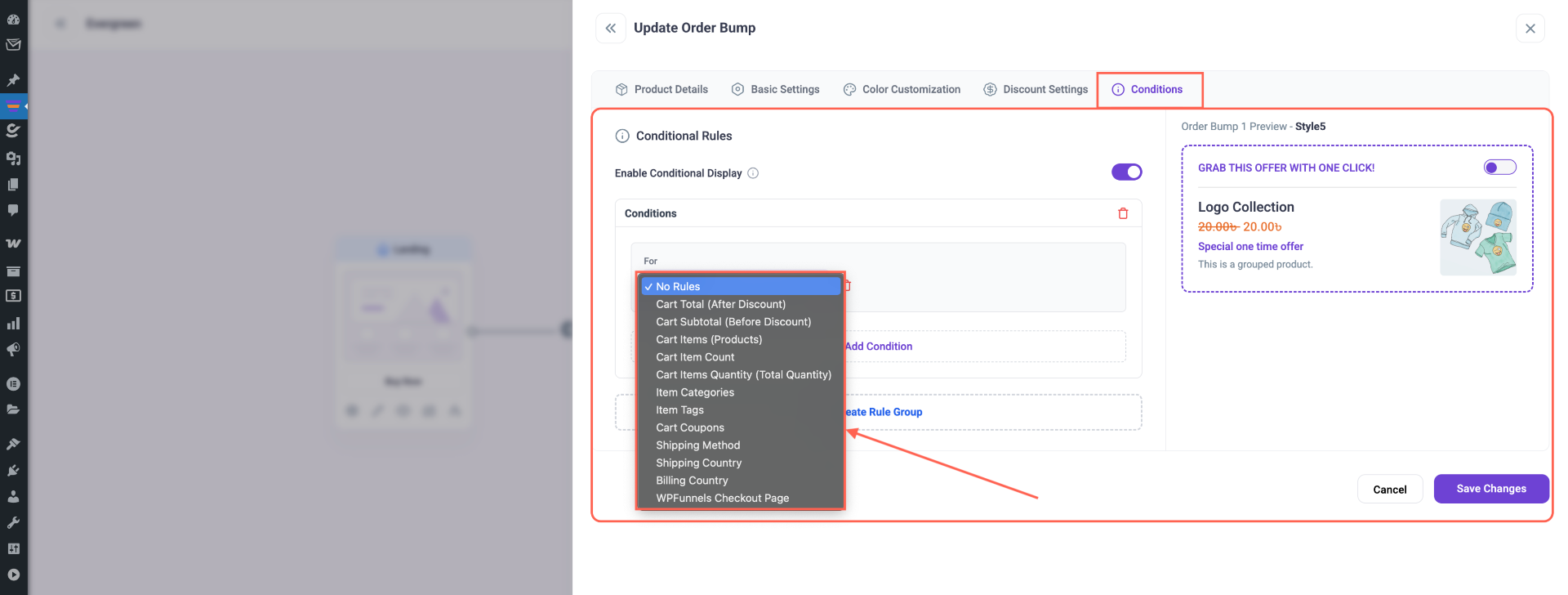
Step 7 – Conditional Order Bump
- In this section, you can set conditional order bumps based on different conditions.
Step 8 – Save And Preview
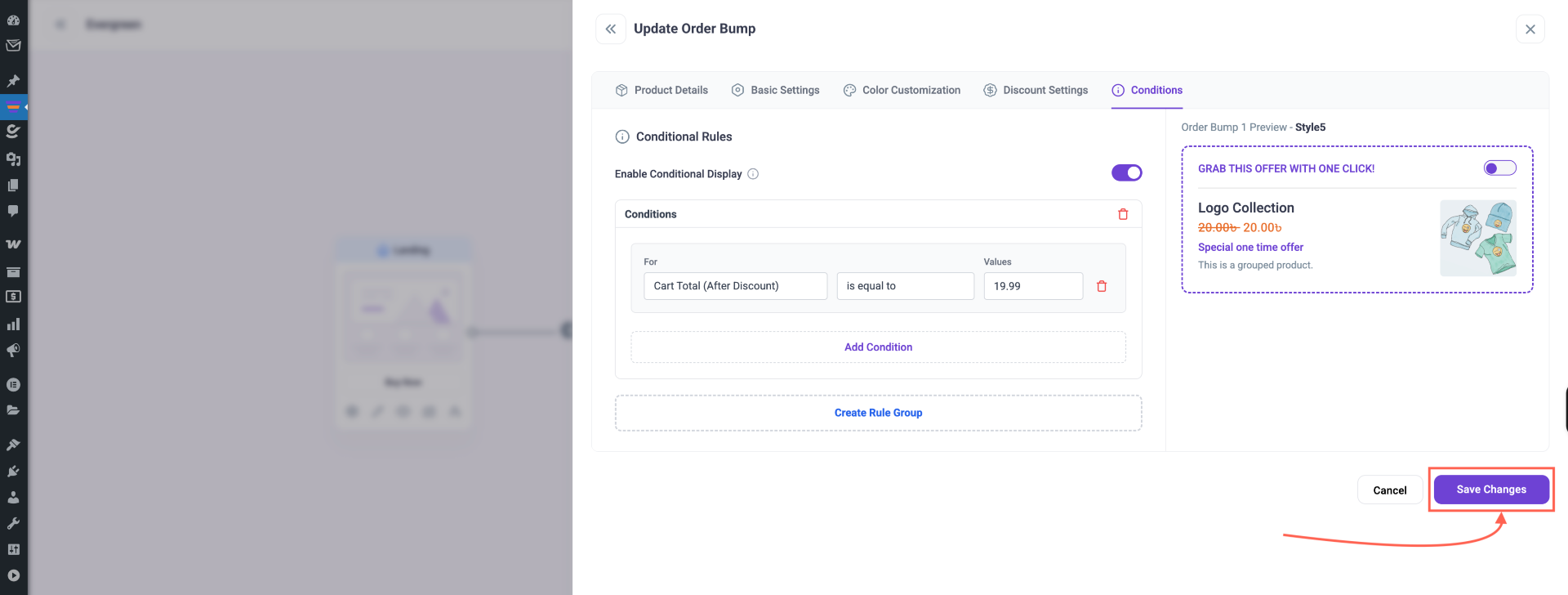
- Once ready, scroll down and click on Save Changes.
2. Then preview the checkout page to see the order bump in action.
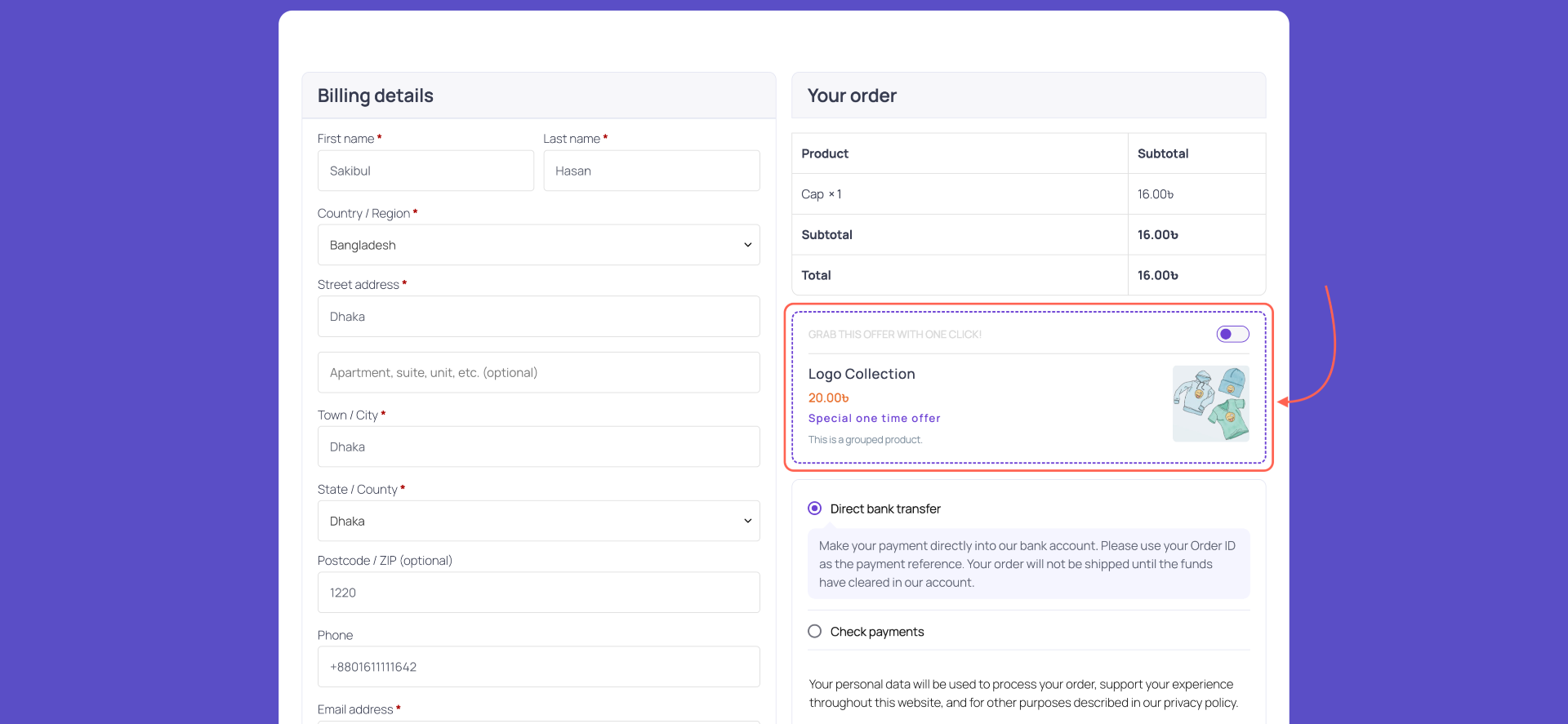
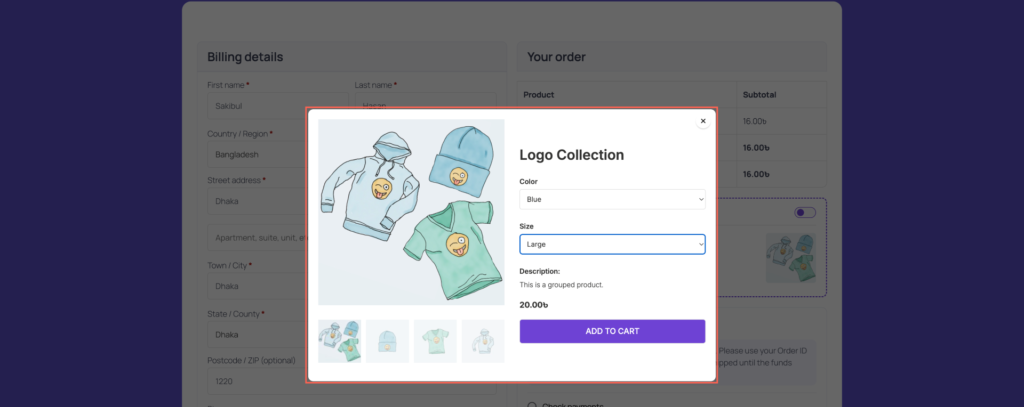
Your order bump is now ready to be offered to users.
