

Order bumps are one of the most powerful ways to increase your average order value. With WPFunnels, you can create advanced order bump offers, and now you can include variable products as part of your bumps.
This allows you to present customers with different options—like sizes, colors, or plans—right on the checkout page, making your upsells more dynamic and tailored. This guide will walk you through the steps to create an order bump with variable products in your funnels.
Steps to Creating an Order Bump Offer with Variable Products
Step 1 – Create a Sales Funnel
First, create a typical sales funnel. You may either import a pre-designed template or build one from scratch. If you are new to WPFunnels, follow this guide to create a new funnel.
Step 2 – Add an Order Bump
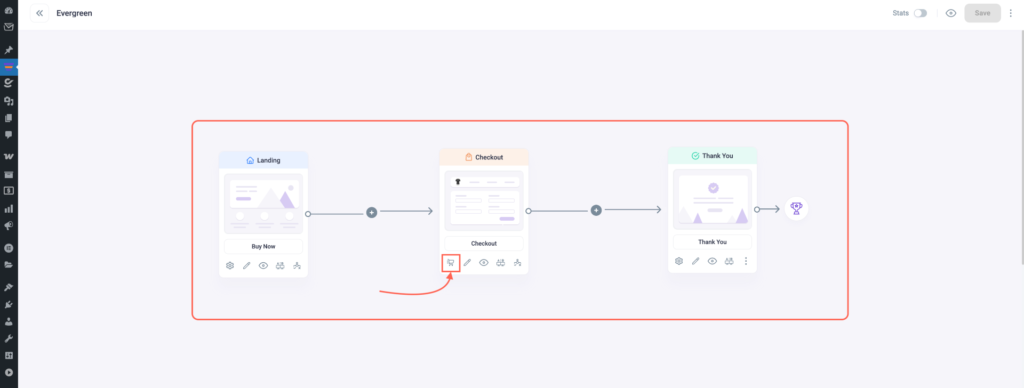
- Go to the Checkout steps settings.
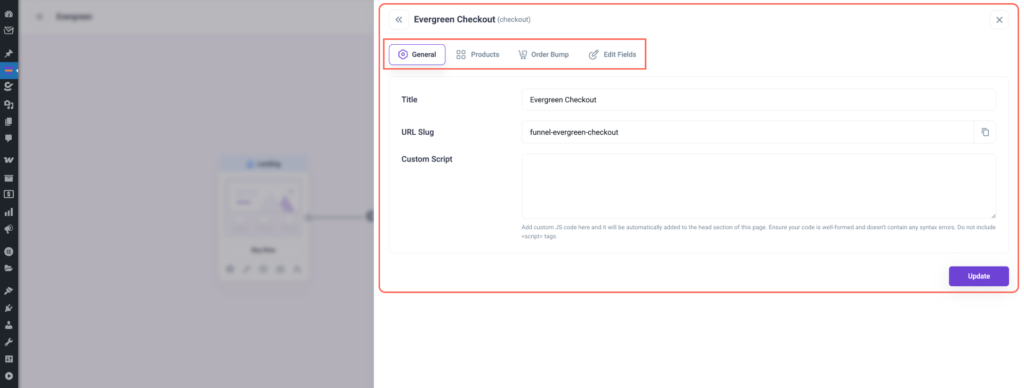
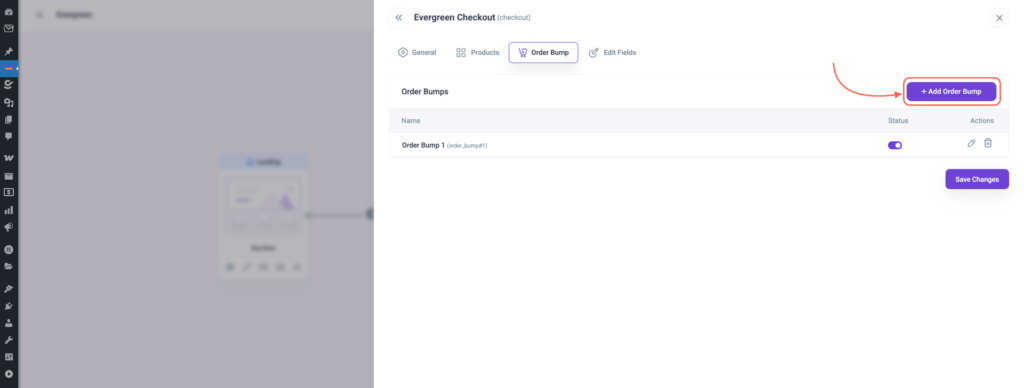
- Here, go to the Order Bump tab and click on + Add Order Bump.
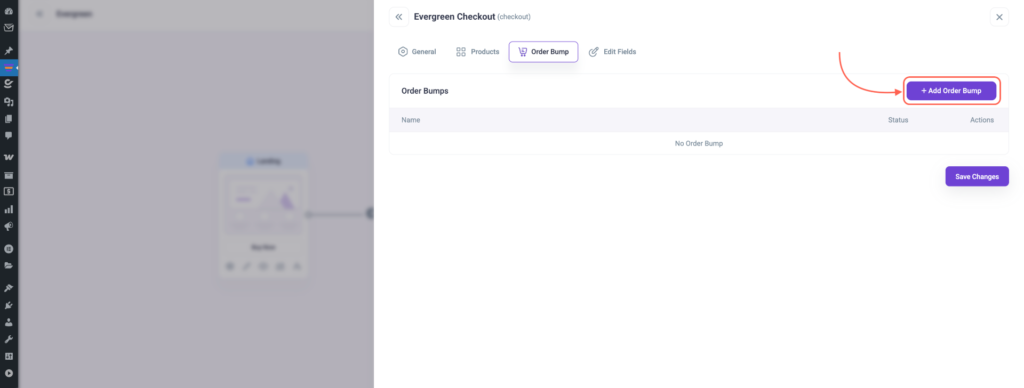
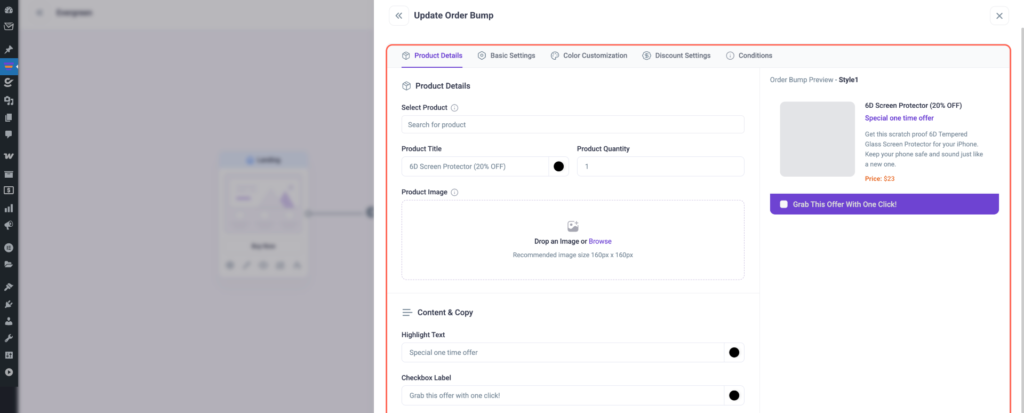
- After that, an Order Bump section will open where you can edit the order bump name and configure many other settings.
Step 3 – Assign Order Bump Variable Product
To add a variable product as an order bump:
- Ensure your product is set as a variable product in WooCommerce with all its variations configured.
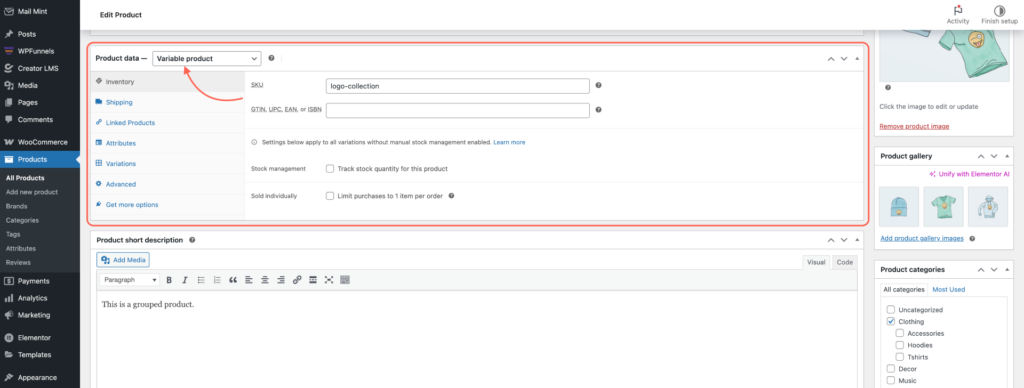
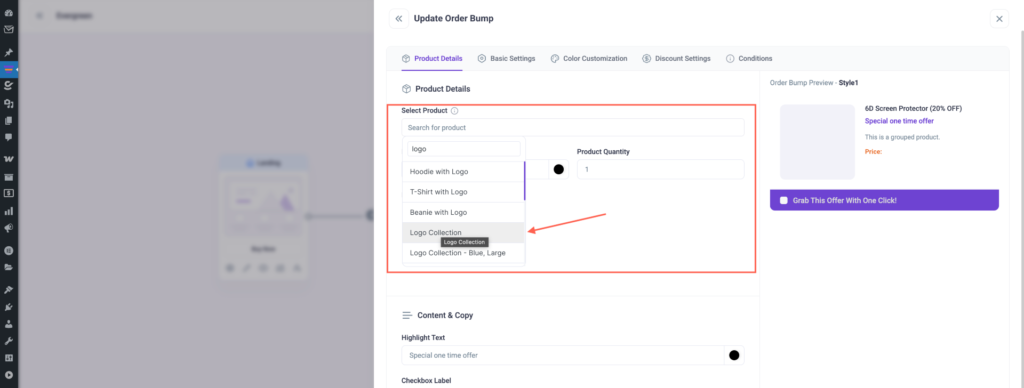
- Now, search and assign the Variable product you want to offer as an order bump on the “Select Product” field.
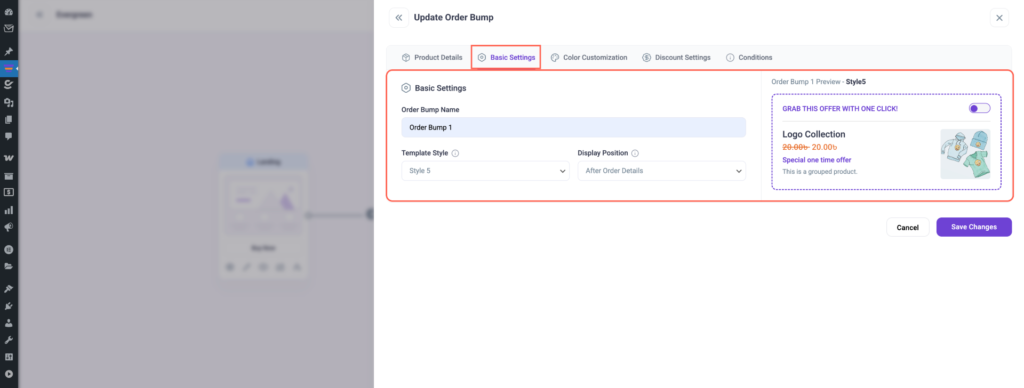
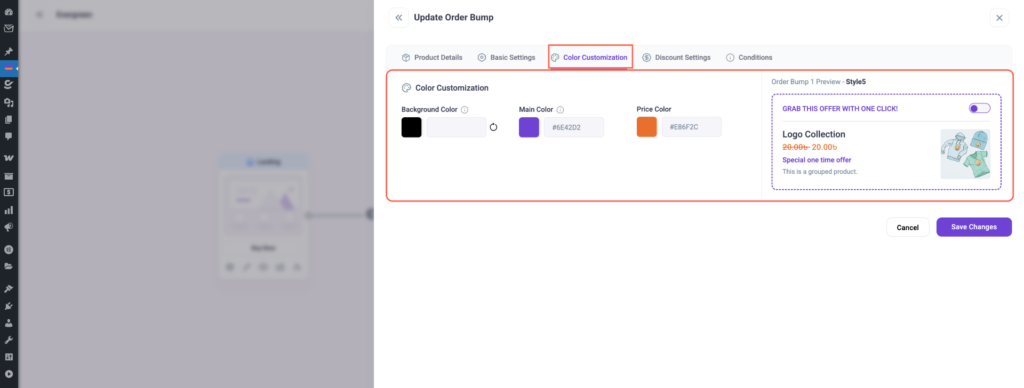
- You have the flexibility to adjust several customization options, including:
- Basic Settings
- Color Customization
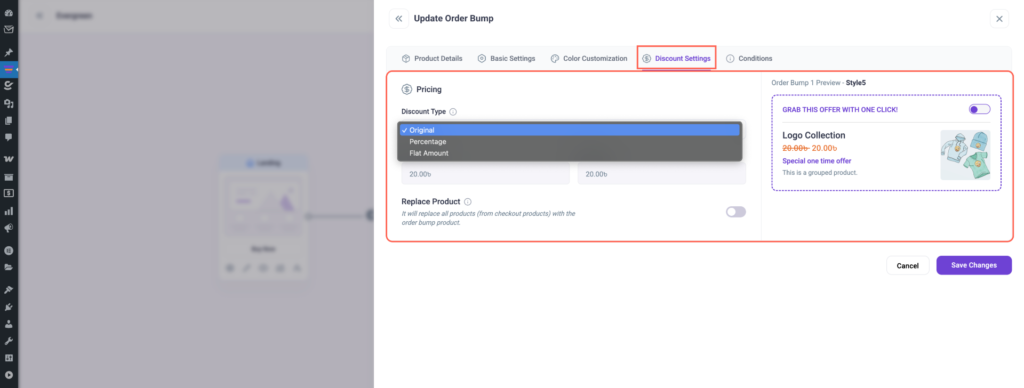
- Discount Settings
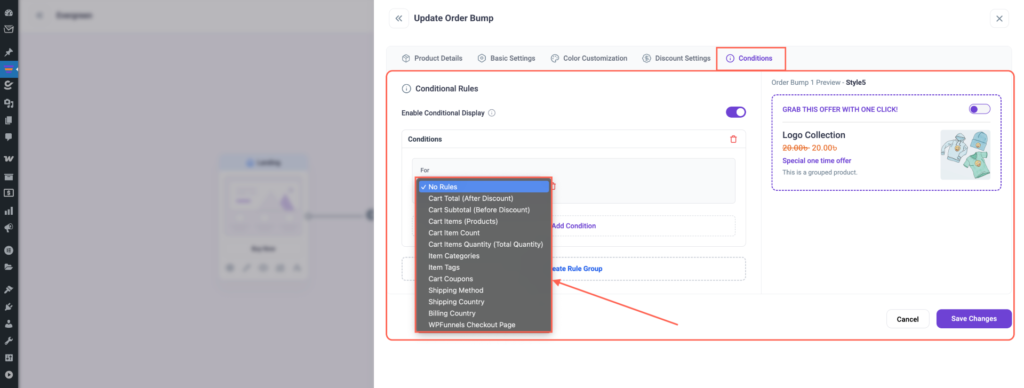
- Conditions
- Basic Settings: Configure the Order Bump name, select a style, and define its display position.
- Color Customization: You can adjust the colors to match your branding and maintain a consistent look.
- Discount Settings: Configure the pricing options you want to offer.
- Conditions: Define conditional rules that determine when your order bump will be displayed.
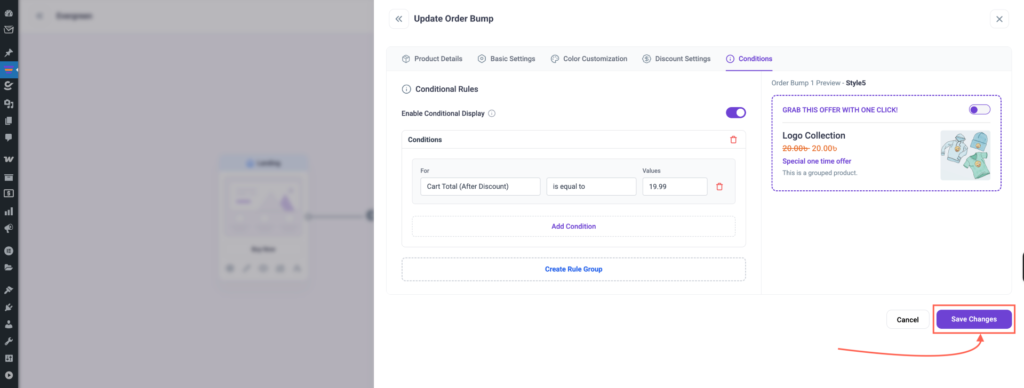
- Finally, select Save Changes to confirm and preserve all modifications
- Similarly, you can add multiple order bumps to the checkout field.
- When you navigate to the checkout page, the newly added order bump will be visible.
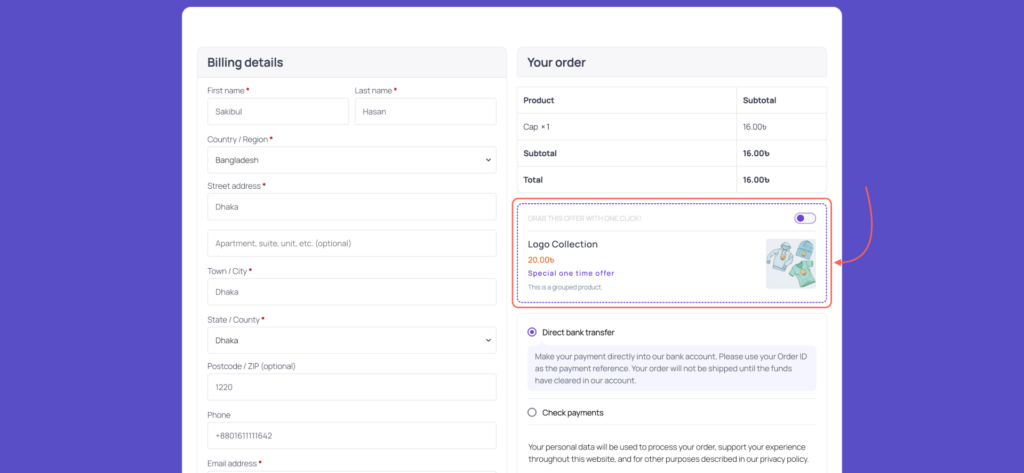
- Click the toggle icon, a pop-up will appear, then select the variants.
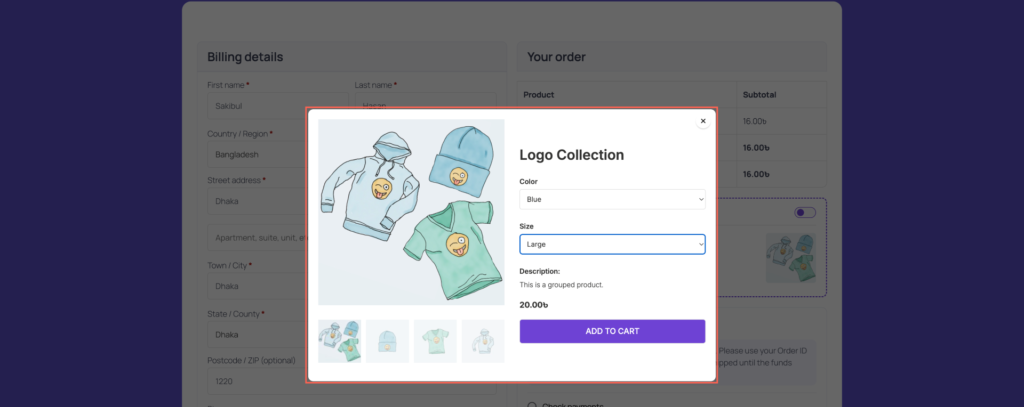
Now your order bump with variable products is ready to go live and available for your customers at checkout!
