

In this guide, we will learn how to add a conditional order bump in WPFunnels. A conditional order bump allows you to show or hide an order bump on your checkout page based on specific conditions, such as the product selected, cart total, or other custom criteria.
Note: This feature requires both WPFunnels Basic and WPFunnels Pro installed and active on your site.
Step 1: Create or Edit a Funnel
- Navigate to WPFunnels → Funnels. Either create a new funnel or edit an existing funnel.
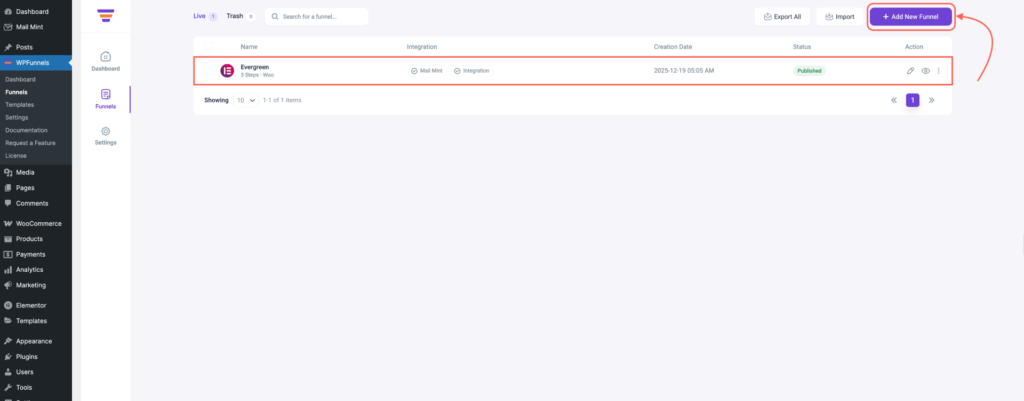
Step 2: Add an Order Bump
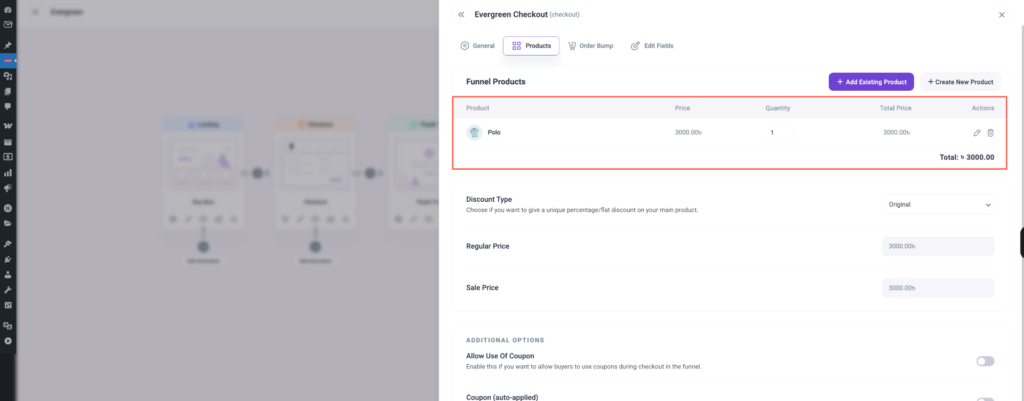
- Inside the funnel editor, go to the Checkout Step and first add a main product.
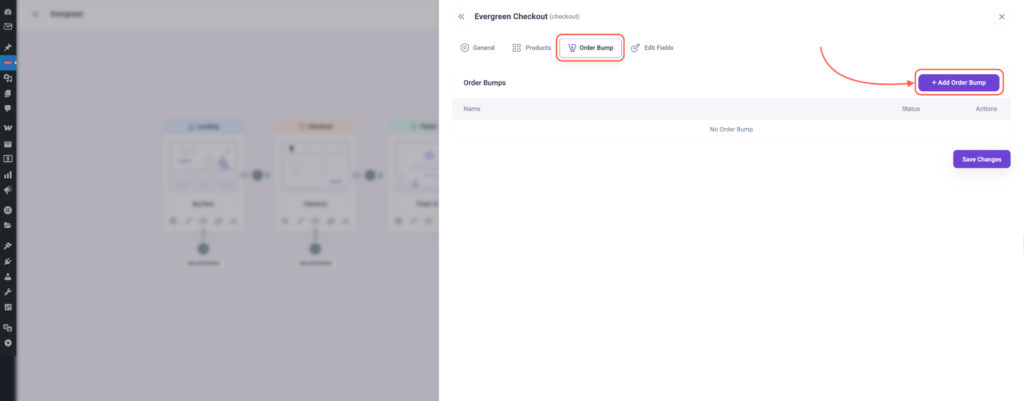
- Now, click on Add Order Bump.
- Select the product you want to offer as an order bump.
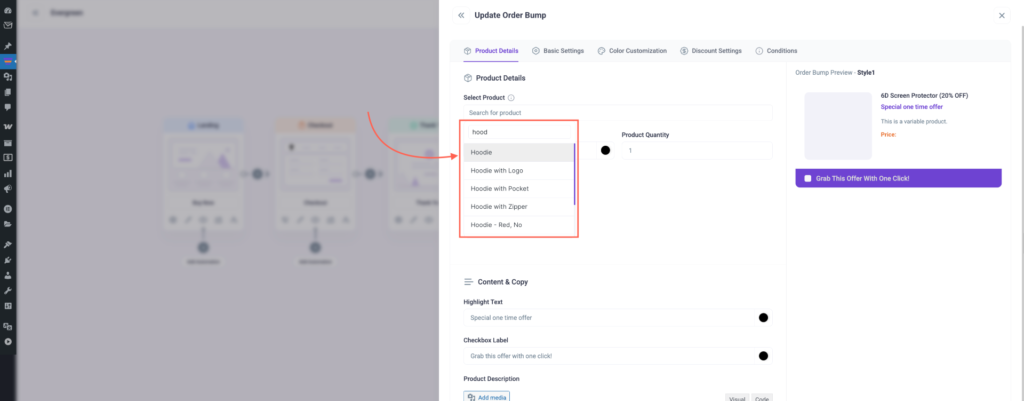
- Configure the title, description, and pricing for the order bump.
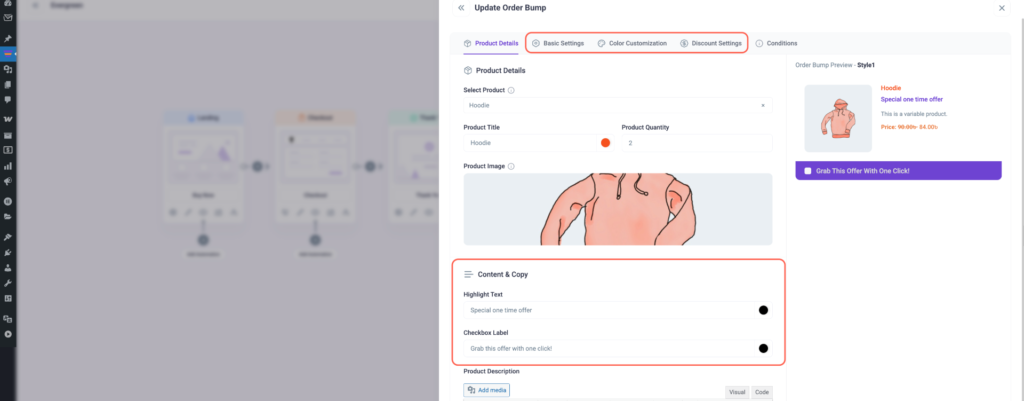
Step 3: Enable Conditional Logic
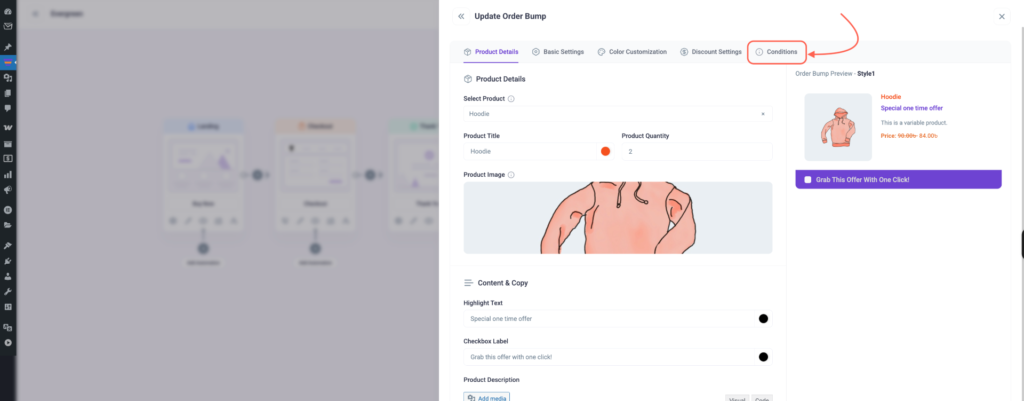
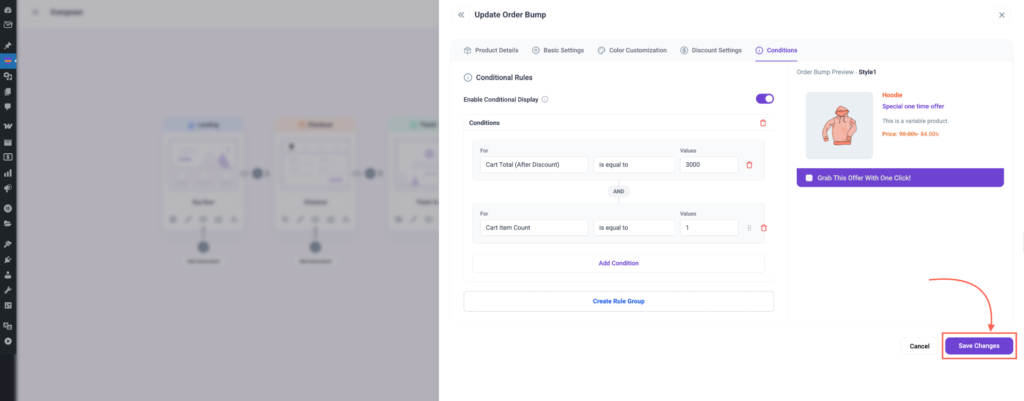
- Now, click on the Conditional Logic section inside the order bump settings.
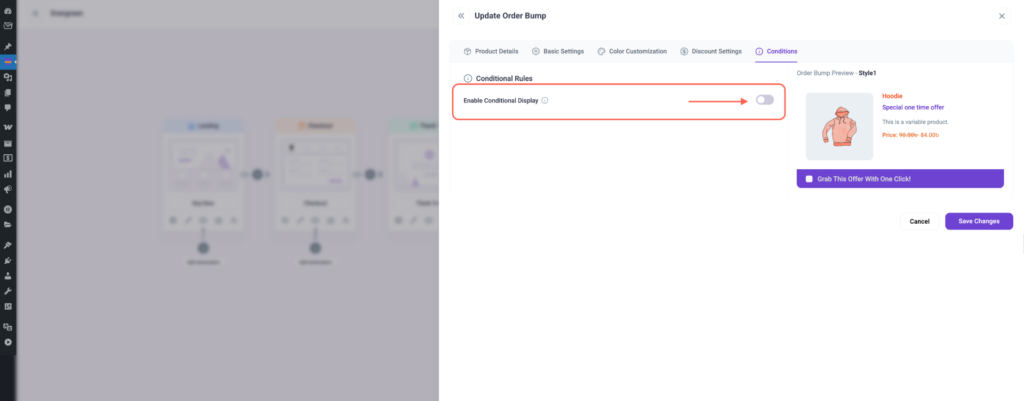
- Enable “Enable Conditional Display ”.
- Set the condition(s) based on your requirements:
- Cart Total (After Discount): Show the order bump if the cart total after applying discounts meets a certain value.
- Cart Subtotal (Before Discount): Show the order bump if the cart subtotal before discounts meets your criteria.
- Cart Items (Products): Display the bump only if specific products are in the cart.
- Cart Item (Count): Trigger the bump based on the number of different items in the cart.
- Cart Items Quantity (Total Quantity): Show the bump depending on the total quantity of items in the cart.
- Item Categories: Trigger the bump if cart items belong to specific categories.
- Item Tags: Trigger based on product tags in the cart.
- Cart Coupons: Show the bump only if a specific coupon is applied.
- Shipping Method: Trigger based on the selected shipping method.
- Shipping Country: Show the bump if the shipping country matches your condition.
- Billing Country: Show the bump if the billing country matches your condition.
- WPFunnels Checkout Page: Apply conditions based on which checkout page the user is on (useful if multiple funnels exist).
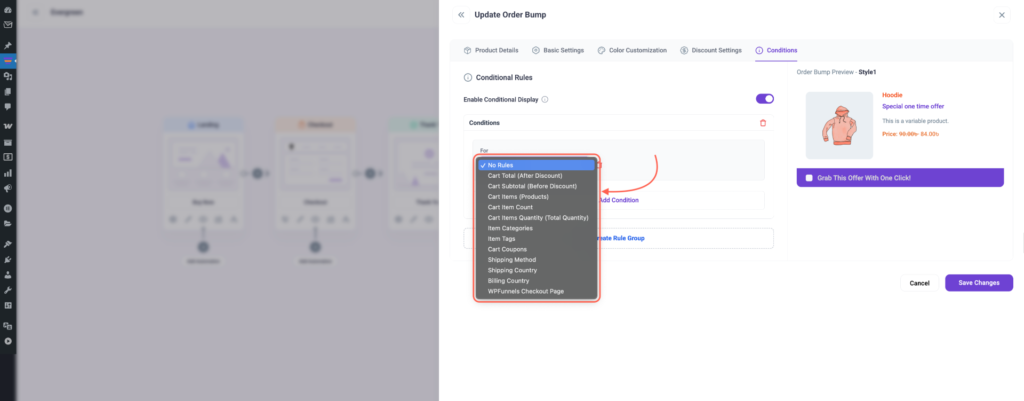
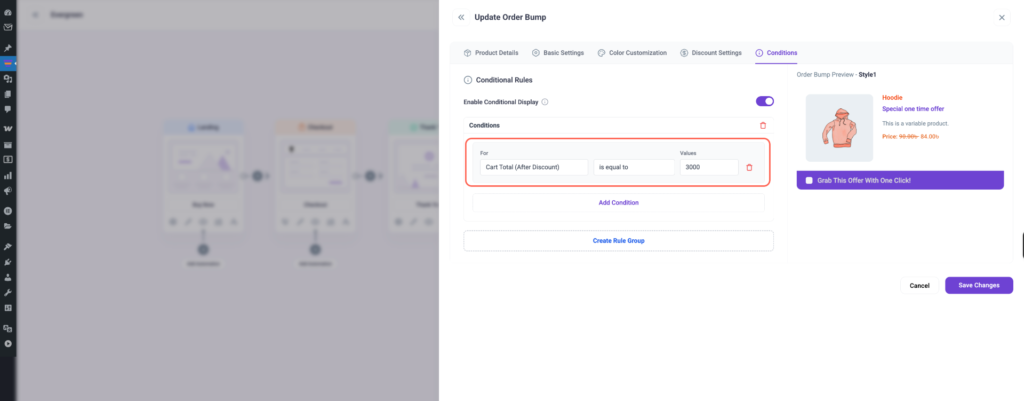
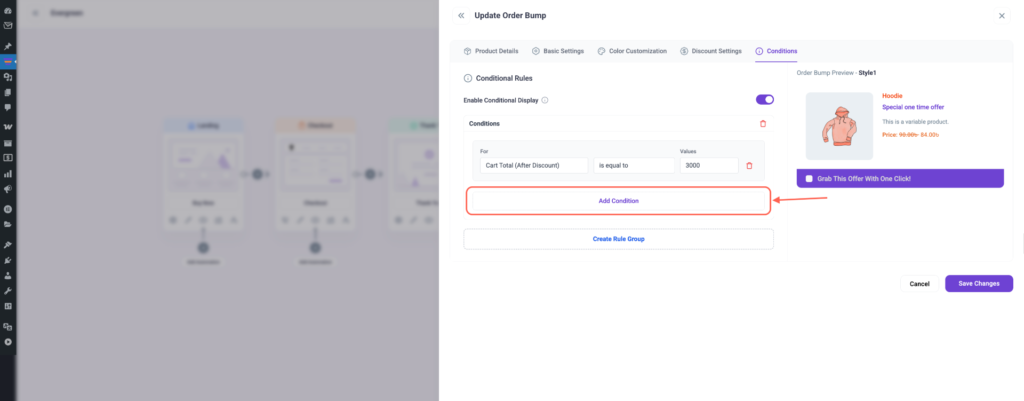
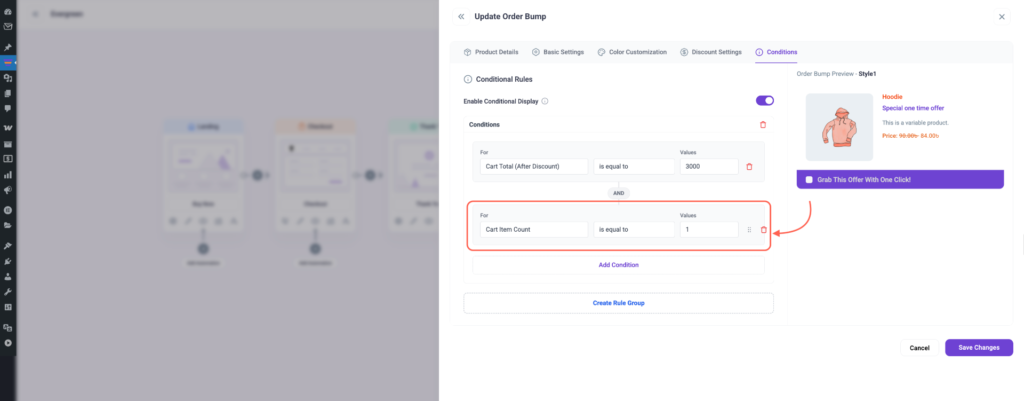
- Repeat to add as many conditions as needed. Click on ‘Add Condition’
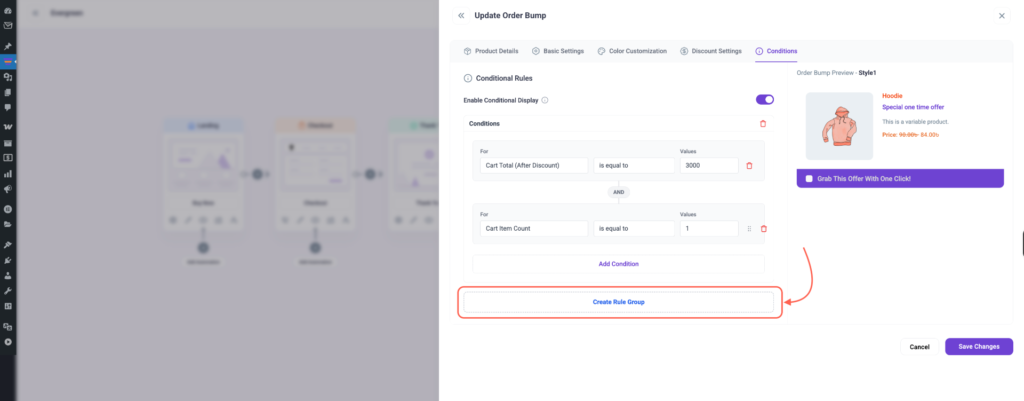
- You can also create a new rule. Click on “New Rule” and set up the rule just like you did for previous conditions.
Step 4: Save and Test
- Click Save to store the order bump settings.
- Test the funnel on the front end.
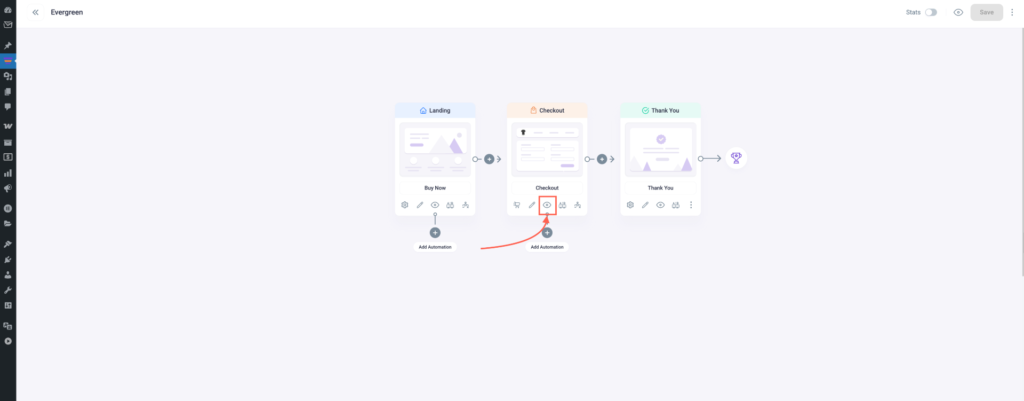
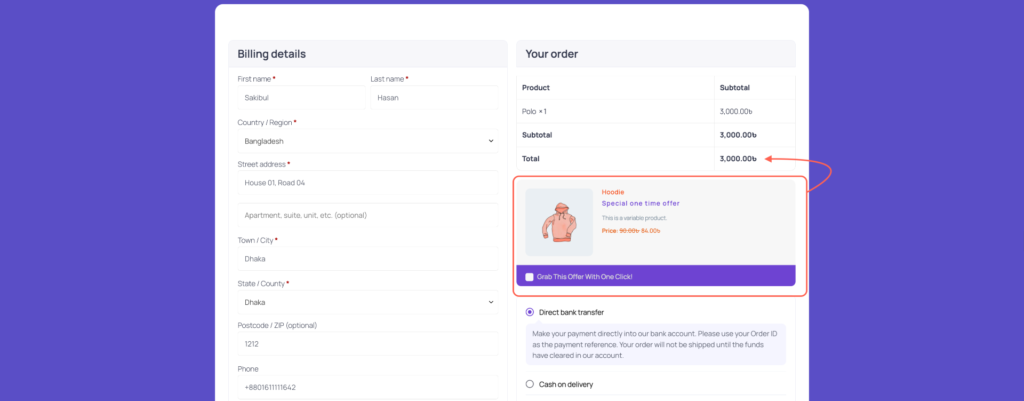
Once all conditional rules are set, your order bump will appear only when the specified conditions are met. This gives you full control over your funnel, allowing you to:
- Show the bump only to the right customers
- Increase conversions by targeting specific products, cart totals, or user locations
- Offer personalized upsells in a way that feels natural and relevant
By using conditional logic effectively, you can make your order bumps more strategic, targeted, and profitable.
