

In this guide, we will walk you through connecting Razorpay with WPFunnels so you can start accepting payments seamlessly through your funnels.
Before you start, make sure you have the following ready: the WPFunnels plugin and the Razorpay for WooCommerce plugin installed and activated on your site.
Step 1: Setup Razorpay
- Go to WooCommerce → Settings → Payments.
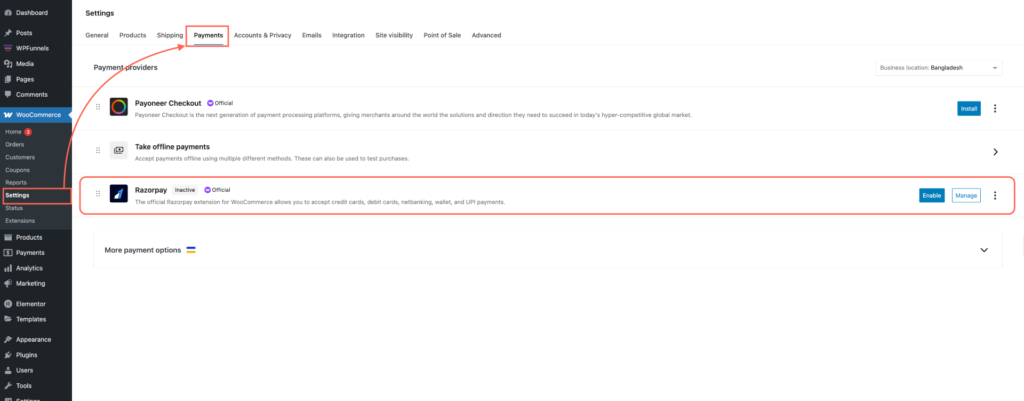
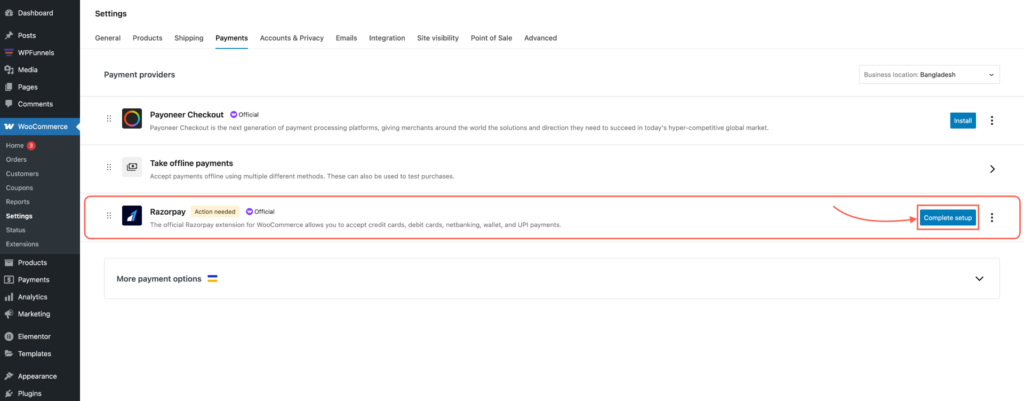
- Locate the Razorpay option and click Complete Setup. This will take you to the Razorpay settings page.
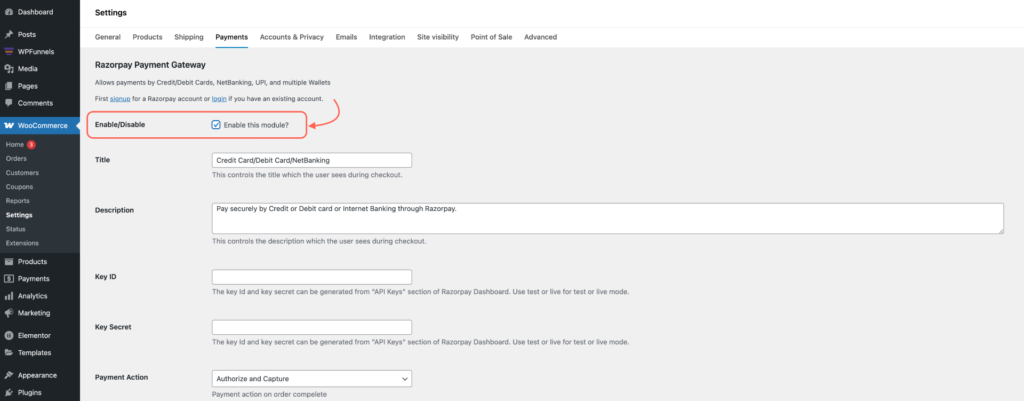
- Enable the payment method by toggling the switch.
- Enter your Key ID and Key Secret, which you can get from your Razorpay dashboard.
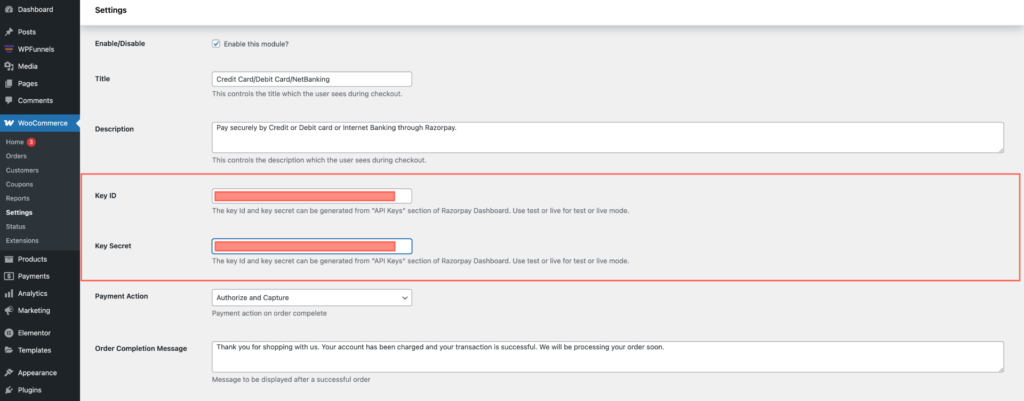
Click Save changes to apply the settings.
Step 2: Test Your Funnel Checkout
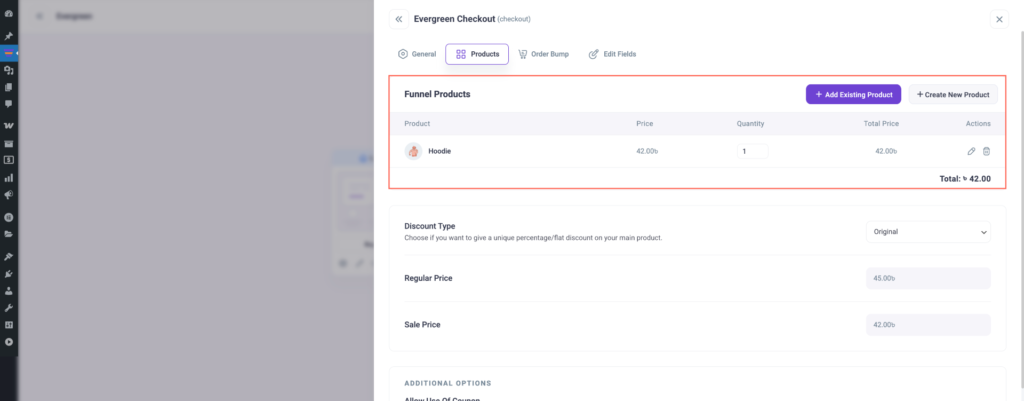
- Go to your funnels. Import a funnel, and then add a product in the Checkout step.
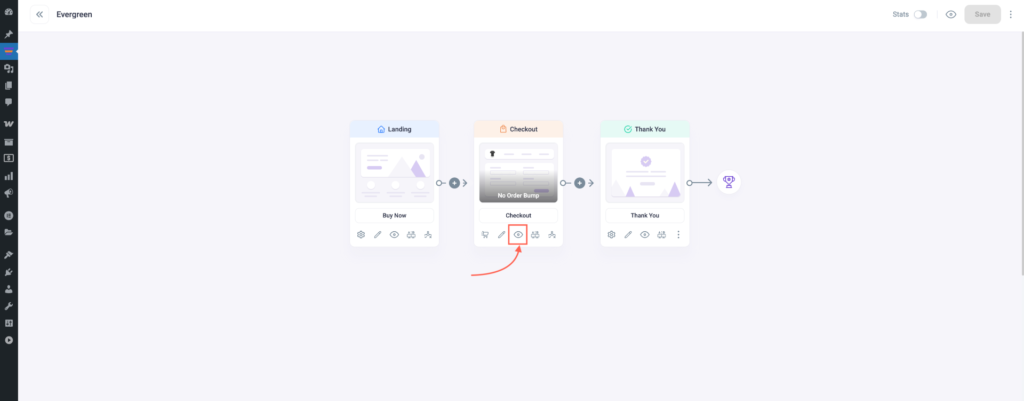
- Preview the funnel to ensure the checkout step is working correctly.
- You should now see Razorpay as a payment option at checkout.
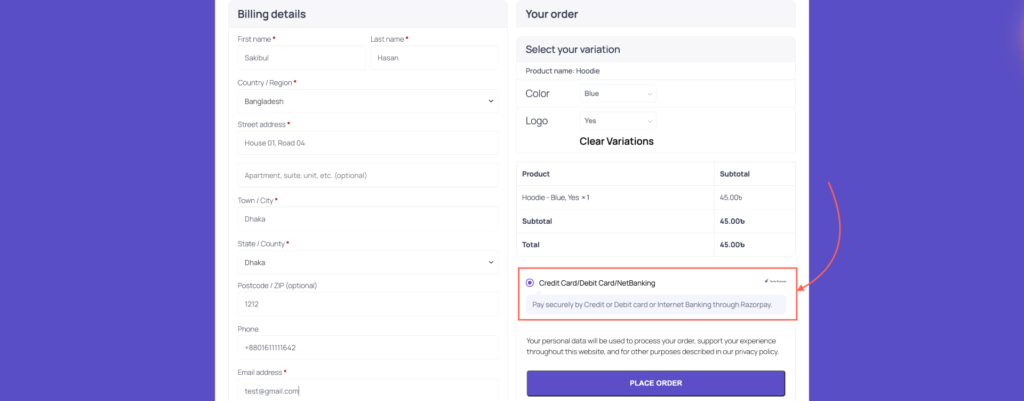
Now your funnel is ready to accept payments via Razorpay!
