Follow the step-by-step instructions below to set up bounce handling with Elastic Email.
Step 1: Log in to your Elastic Email account
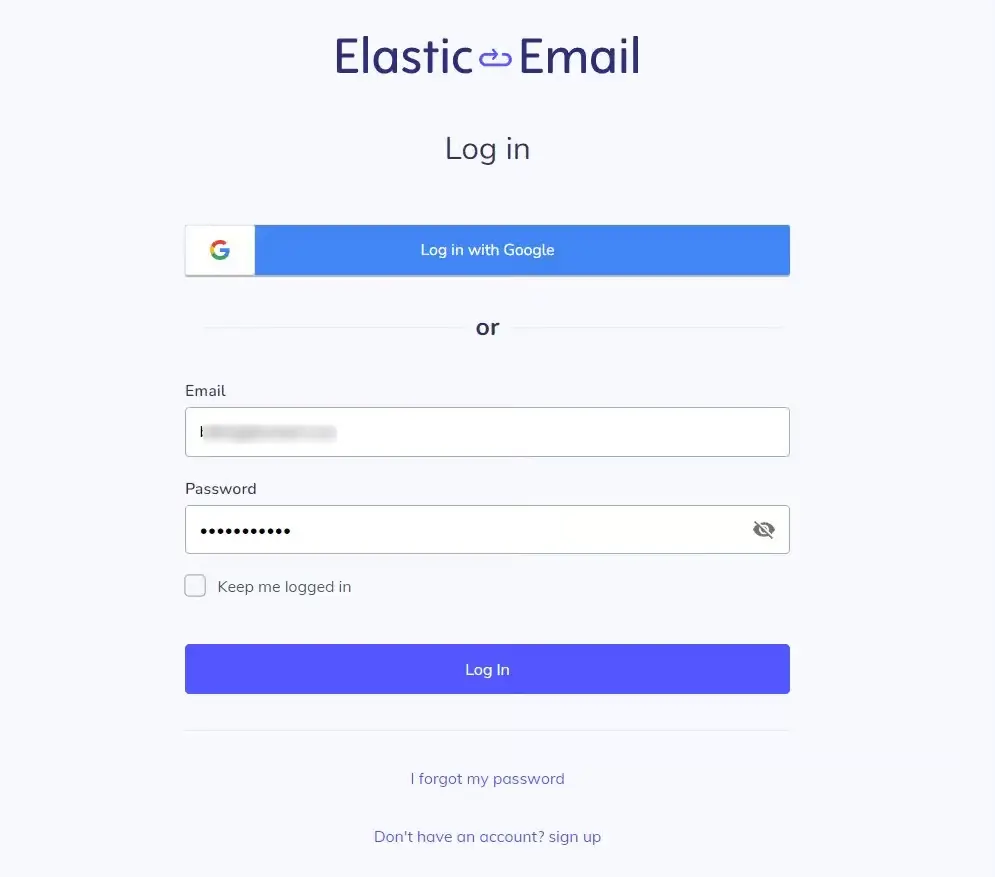
Log in to your Elastic Email account by entering your credentials.
Step 2: Copy the Bounce Handler Webhook URL
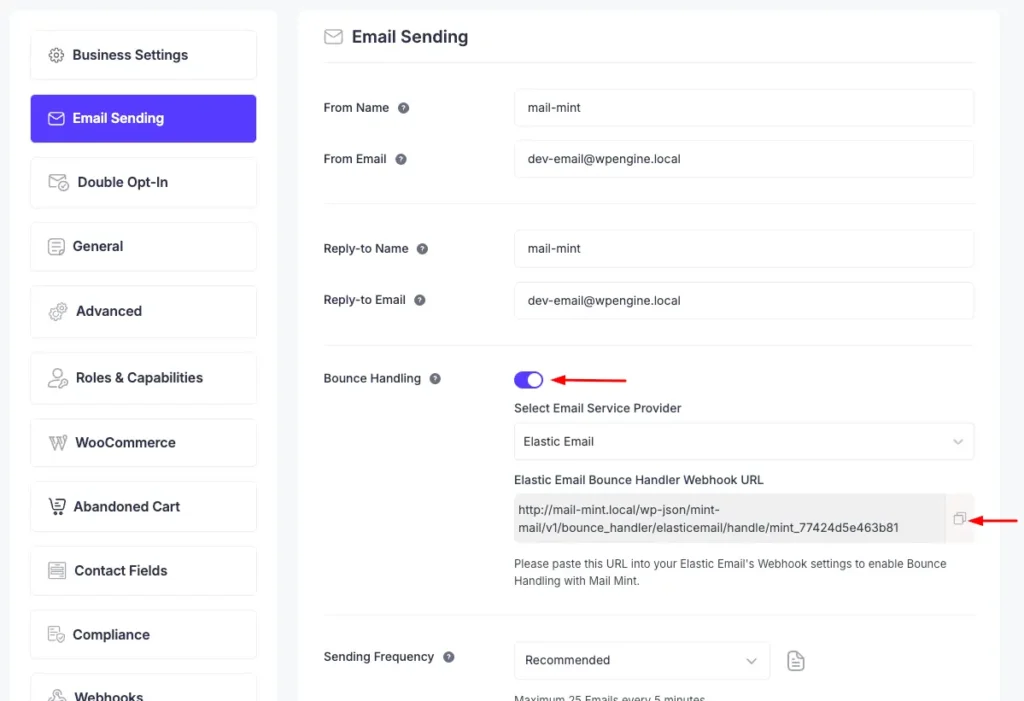
Go to Mail Mint -> Settings -> Email Sending
Scroll down below and enable Bounce Handling.
Select Elastic Email from the dropdown and copy the bounce tracking Webhook URL.
Step 3: Paste the Webhook URL into Elastic Email
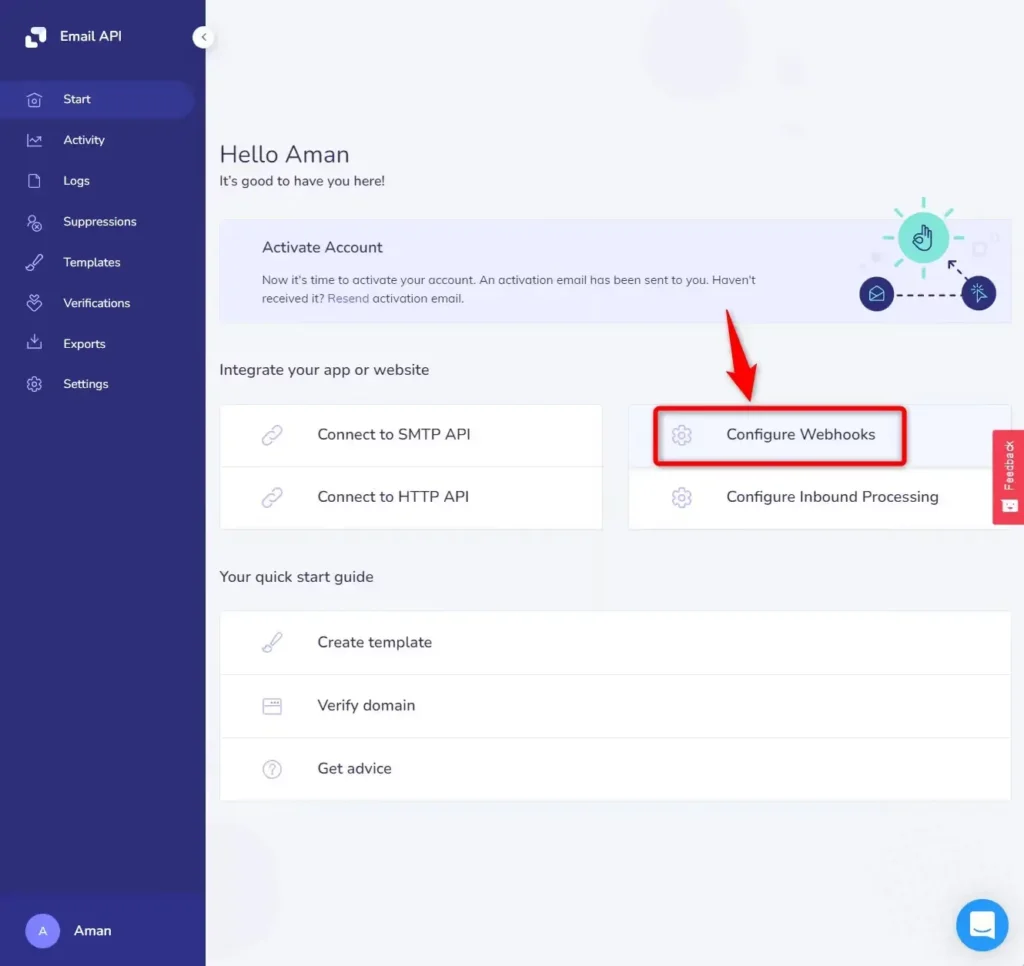
On your dashboard, click on Configure Webhooks.
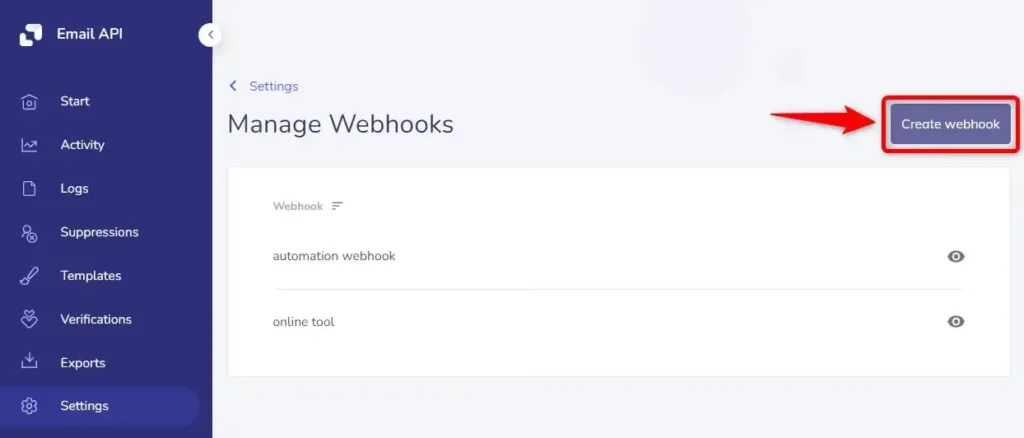
Next, click on the Create webhook button.
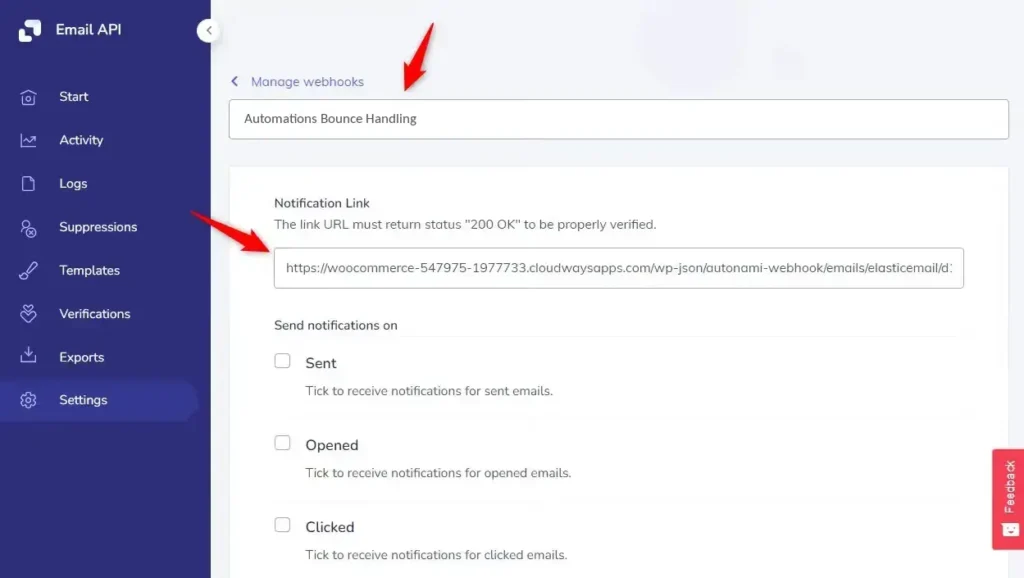
Enter the webhook name and paste the webhook URL here. The same webhook handles both bounce and spam complaint events.
Now, enable the Complaints and Bounce/Error options from here.
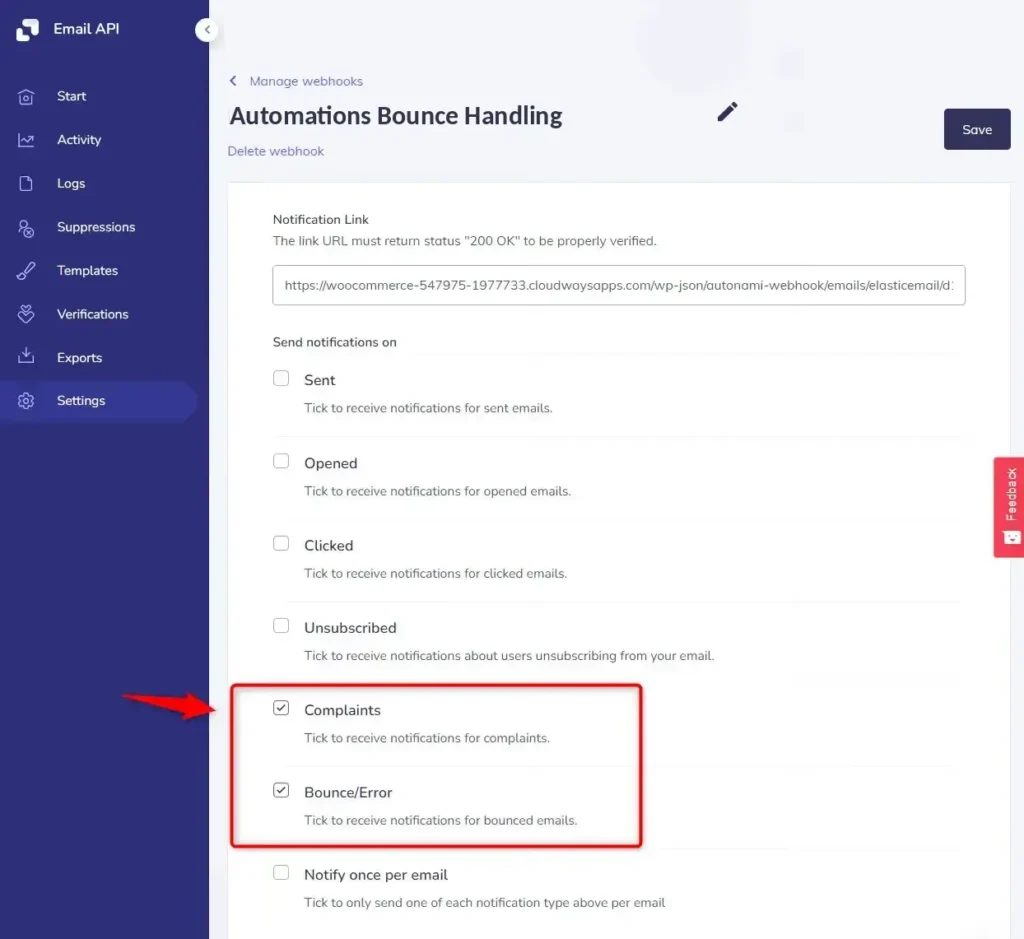
Click on Save when done.
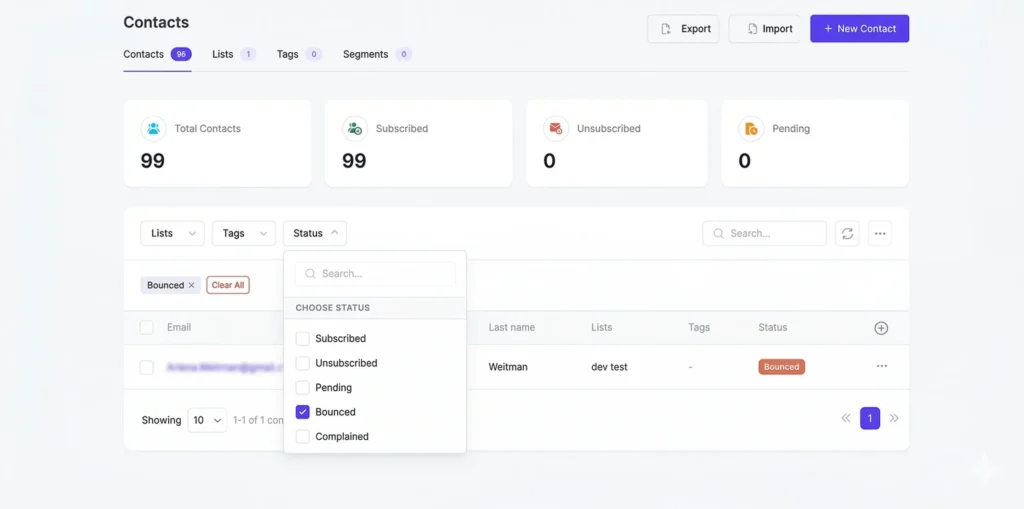
To view bounced contacts in your Mail Mint, go to Contacts. Then, click on the Status filter and check the Bounced checkbox.
You will now see all the bounced contacts.