
Email is at the heart of subscriber or customer engagement – whether you’re nurturing leads, running promotions, or re-engaging inactive subscribers. Every email sent through Mail Mint plays a role in building relationships and driving conversions.
The Email History section in Mail Mint gives you a complete log of every email sent from your WordPress site – including campaign broadcasts, automation sequences, transactional messages, and direct one-off sends.
How to Open Email History
Navigate to Mail Mint → Emails, then click the Email History tab.
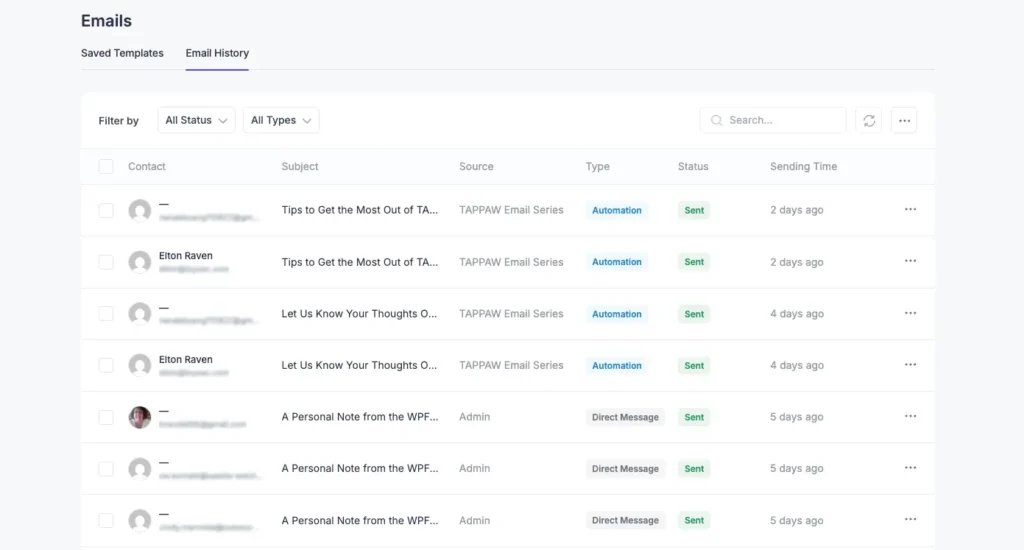
Each row in the table represents a single sent email. Here’s what each column tells you:
- Contact – The recipient’s name and email address. If the contact is not saved in your list, only the email address is shown.
- Subject – The subject line of the sent email. Shows (No Subject) if the email was sent without one.
- Source – Where the send was initiated. For example, Admin means it was sent manually, and Added To List means it was triggered by a list subscription.
- Type – The category of email. Direct Message means it was a one-off send, and Automation means it was sent via an automation sequence.
- Status – The delivery status of the email. Shows Sent for successfully delivered emails.
- Sending Time – How long ago the email was sent (e.g., 4 hours ago, 1 day ago).
Filtering and Searching
If you have a large history, use these controls to find what you need:
- All Status – Filter by delivery result (Sent, Failed, etc.)
- All Types – Filter by Direct Message or Automation
- Search bar – Search by contact name, email address, or subject
- Refresh (↻) – Pull in the latest sent emails
What You Can Do With an Email
Preview
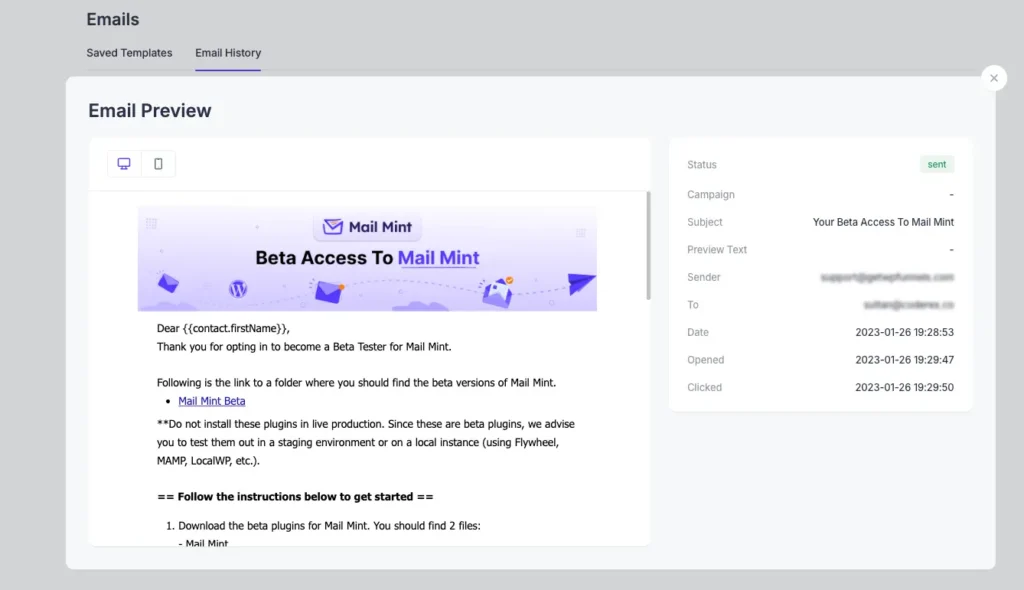
See the rendered email exactly as the recipient received it, plus all its metadata. The preview opens in a modal with two sections:
Email Body – The actual email content, rendered as HTML. Use the toggle at the top to switch between desktop and mobile view.
Email Details – This panel shows all the metadata for the selected email. You can see the delivery Status, the Campaign it belongs to (if any), the Subject line, and the Preview Text that appeared in the recipient’s inbox. It also shows the Sender address used, the To address it was delivered to, and the exact Date and time it was sent. Finally, the Opened and Clicked fields tell you whether the recipient opened the email or clicked any link inside it.
Resend
Sends the exact same email to the same recipient again. Helpful if the original didn’t reach them or they asked for it again.
Delete
Removes this email record from your history. This cannot be undone.
This is all about the email history feature in Mail Mint.
