
How To Integrate With Mail Mint – Eventin
The Mail Mint integration for Eventin sends purchaser and attendee data to a Mail Mint webhook the moment an order is created. This lets you instantly add ticket buyers (and optional individual attendees) to your Mail Mint lists, automations, and funnels.
Prerequisites
Before you begin, make sure you have the following:
- Eventin — installed and active on your WordPress site
- Mail Mint — installed and active on the same WordPress site
Step 1 — Enable the Mail Mint Integration in Eventin
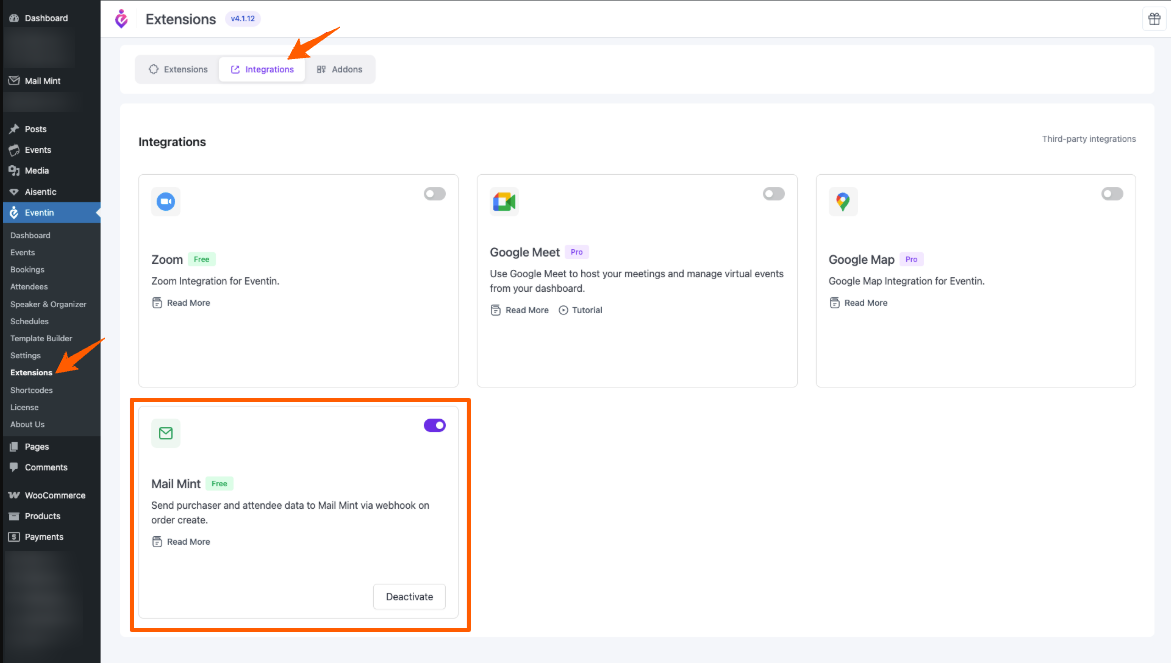
- In your WordPress admin, go to Eventin → Extensions
- Click on the Integrations tab
- Find the Mail Mint card and toggle it ON
Step 2 — Configure Mail Mint on Each Event
The webhook and recipient settings are configured per event, so different events can feed different Mail Mint lists or automations.
- Open the event you want to configure in Eventin
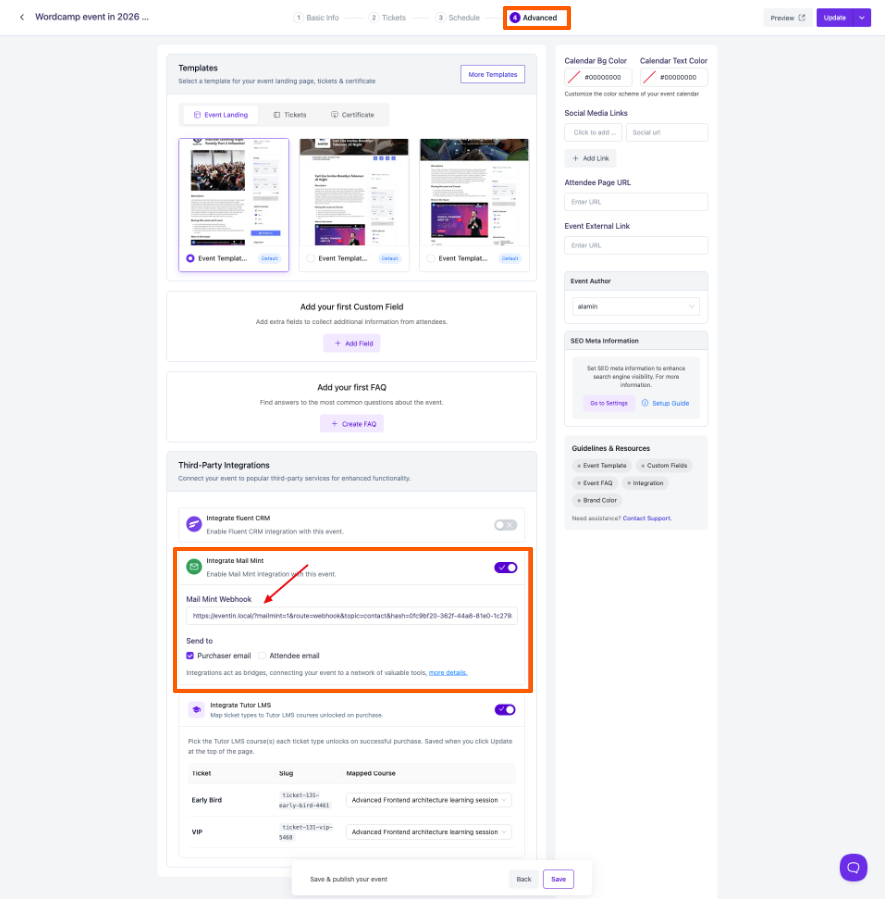
- Switch to the Advanced tab
- Scroll down to the Third-Party Integrations section
- Toggle “Integrate Mail Mint” ON — the panel will expand
- Paste your Mail Mint Webhook URL into the Mail Mint Webhook field
- Under Send to, choose who gets sent to Mail Mint:
- Purchaser email — the buyer who completed the order
- Attendee email — each individual attendee on the order (only available if Attendee Registration is enabled for the event)
- You can select one or both options
- Click Update at the top of the event page to save your settings
Tip: If you don’t see the “Integrate Mail Mint” option on the Advanced tab, it means the global toggle in Step 1 is still off. Go back to Eventin → Extensions → Integrations and enable it, then refresh the event page.
How It Works After Purchase
Once an order is placed for a Mail Mint-enabled event, Eventin immediately sends the contact data to your webhook:
- Purchaser selected — one POST is sent with the buyer’s email and first name
- Attendees selected — one POST per attendee, with each attendee’s email and first name
- The contact(s) appear in the Mail Mint list or automation tied to that webhook, ready for any follow-up email sequence you’ve set up
To verify everything is working, place a test order and then check Mail Mint → Contacts to confirm the buyer (and any attendees) have been added as new contacts.
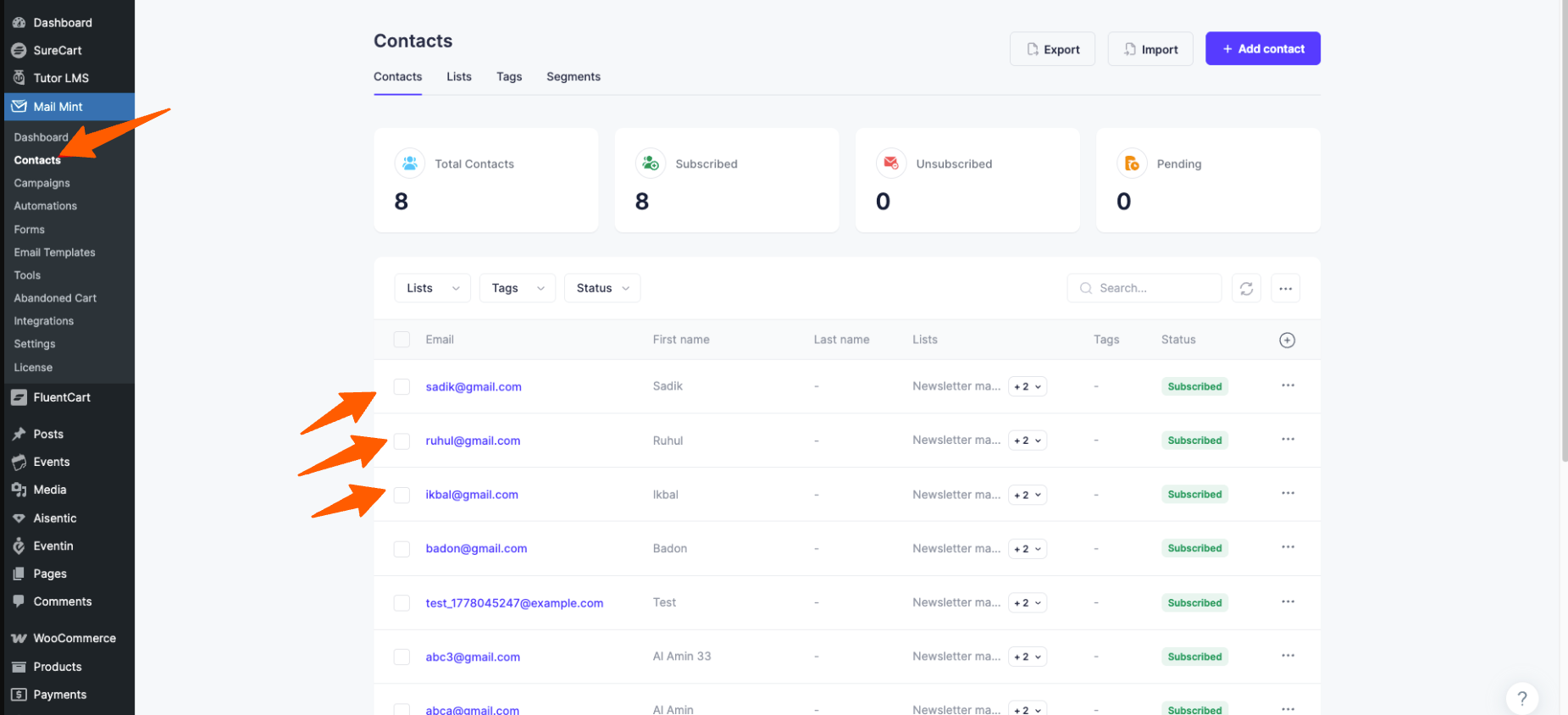
Once Mail Mint is enabled under Eventin’s Extensions and a webhook URL is added to an event’s Advanced tab, every order for that event will automatically push contact data into your Mail Mint lists and automations no manual imports required.
Configure different webhooks per event to route buyers into the right lists and follow-up sequences from day one.
