

This is a field-by-field reference for every setting on Mail Mint → Settings → Abandoned Cart. Use it when you’re fine-tuning behavior after the feature is already on.
New to the feature? Start with How to Enable the Abandoned Cart Feature in Mail Mint — this doc only covers what each setting does.
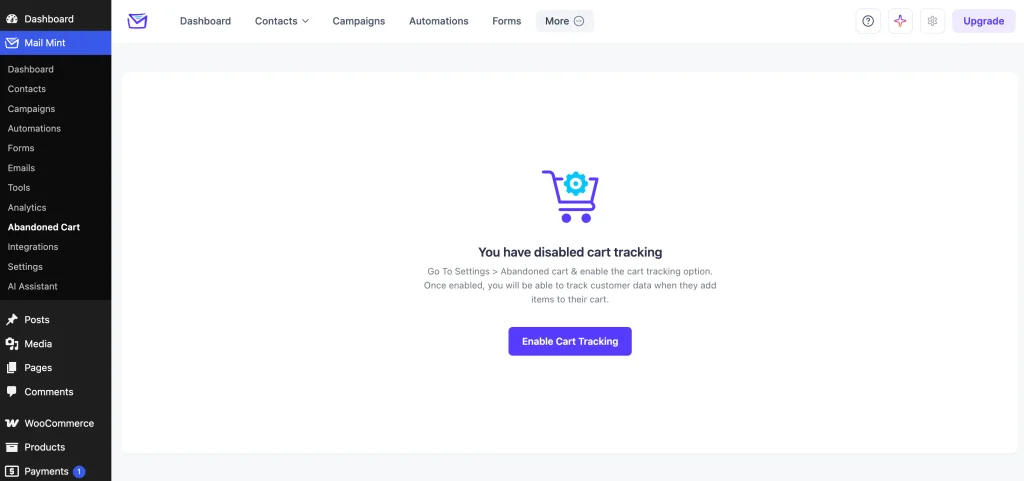
Enable Cart Tracking
The master toggle for the whole feature. When off, Mail Mint records no cart activity and the rest of this page is hidden. When on, every add-to-cart event on your WooCommerce store starts being logged.
Timing Configuration
Controls the lifecycle of a tracked cart — when it’s considered abandoned, when it’s given up on, and how new contacts from it are handled.
| Setting | Default | Details |
|---|---|---|
| Wait Period (minutes) | 15 | How long a cart sits idle (no further activity) before Mail Mint flips its status from Pending to Abandoned. Shorter windows catch shoppers sooner but risk flagging people who are just mid-checkout; longer windows are safer but delay your first recovery touchpoint. |
| Mark as Lost after (days) | 7 | If no matching order is placed within this many days of abandonment, the cart is marked Lost and excluded from active recovery reporting. Doesn’t stop any automations already running — just changes the cart’s status label. |
| Cool-Off Period (days) | 10 | After a customer completes an order, Mail Mint won’t treat a new cart from them as “abandoned” for this many days. Prevents someone browsing again shortly after checkout (e.g., adding a second item) from re-triggering recovery emails. |
| Status for New Contacts | Transactional | The Mail Mint contact status assigned to shoppers who abandon a cart and don’t already exist in your database. |
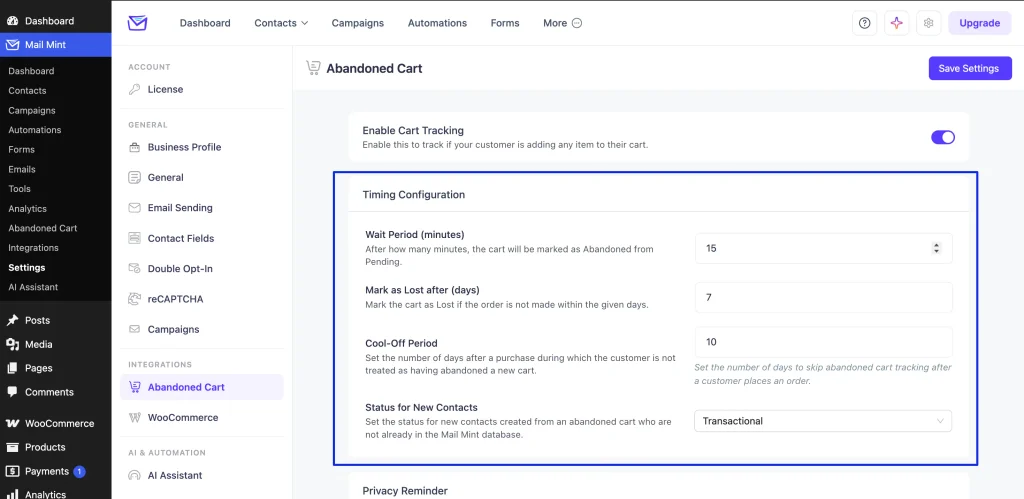
Why “Status for New Contacts” matters: if your account has global double opt-in enabled, contacts created with a Pending status can’t receive automation emails until they confirm — which silently breaks abandoned cart recovery for anyone new. Setting this field to Transactional lets recovery automations fire immediately while keeping your marketing lists’ opt-in integrity intact, since abandoned cart reminders are tied to an in-progress transaction rather than a marketing send.
Privacy Reminder
Governs the consent notice shown to shoppers whose carts are tracked.
- Require Consent — displays the message you write in the text box (default: “Your email and cart are saved so we can send you email reminders about this order.”) along with an opt-out link generated by the
{{no_thanks label="No Thanks"}}merge tag. Recommended if you operate in a region covered by GDPR or similar consent laws. - Do Not Require Consent — no notice is shown; tracking happens silently.
If you edit the message text, keep the {{no_thanks}} merge tag somewhere in it — removing it removes the shopper’s opt-out link.
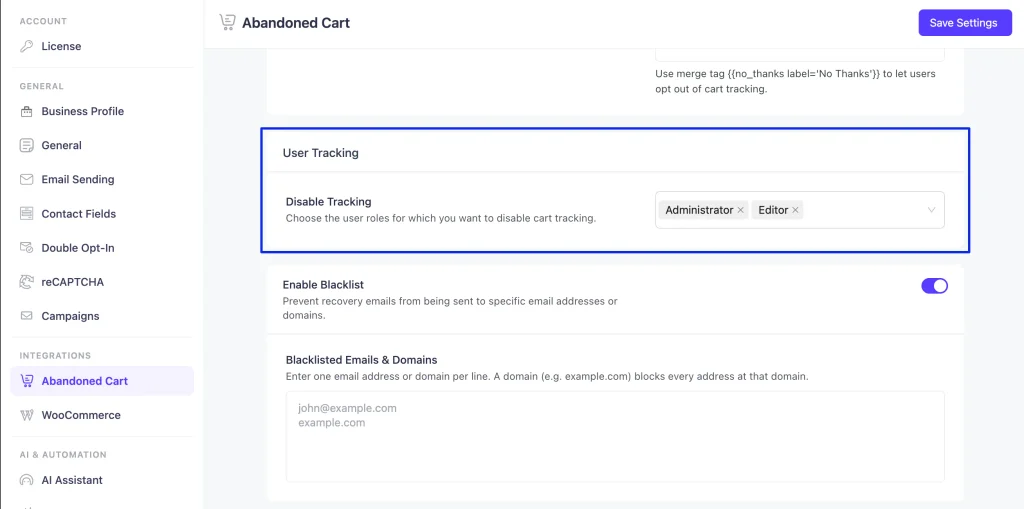
User Tracking
Controls whose activity gets tracked.
- Disable Tracking — a multi-select of WordPress user roles (Administrator, Editor, etc.) to exclude from cart tracking. Add your own staff/testing roles here so internal orders don’t pollute your abandoned cart data.
Blacklist
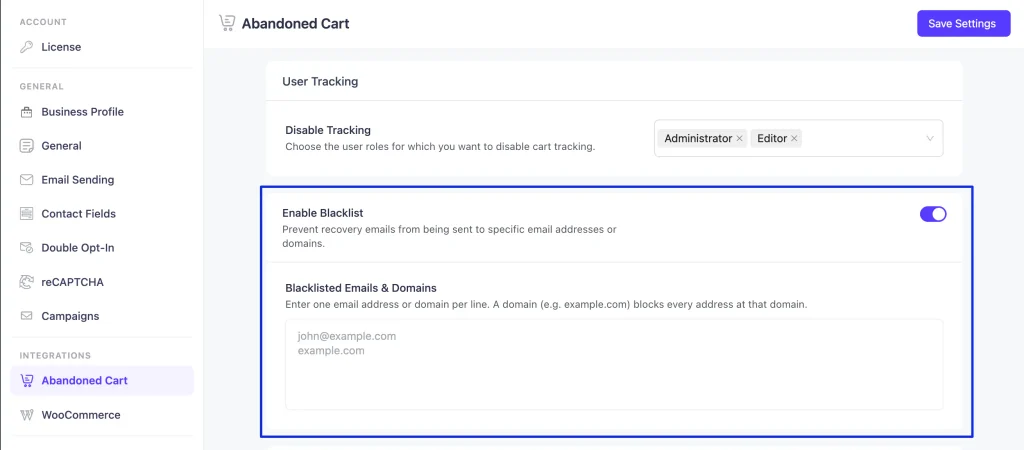
- Enable Blacklist — once turned on, reveals a Blacklisted Emails & Domains field where recovery emails are blocked from being sent.
- Blacklisted Emails & Domains — a free-text box, one entry per line. Enter a full email address (e.g.
john@example.com) to block just that address, or a bare domain (e.g.example.com) to block every address at that domain. Useful for excluding known test accounts, competitors, or contacts who’ve separately asked not to be emailed.
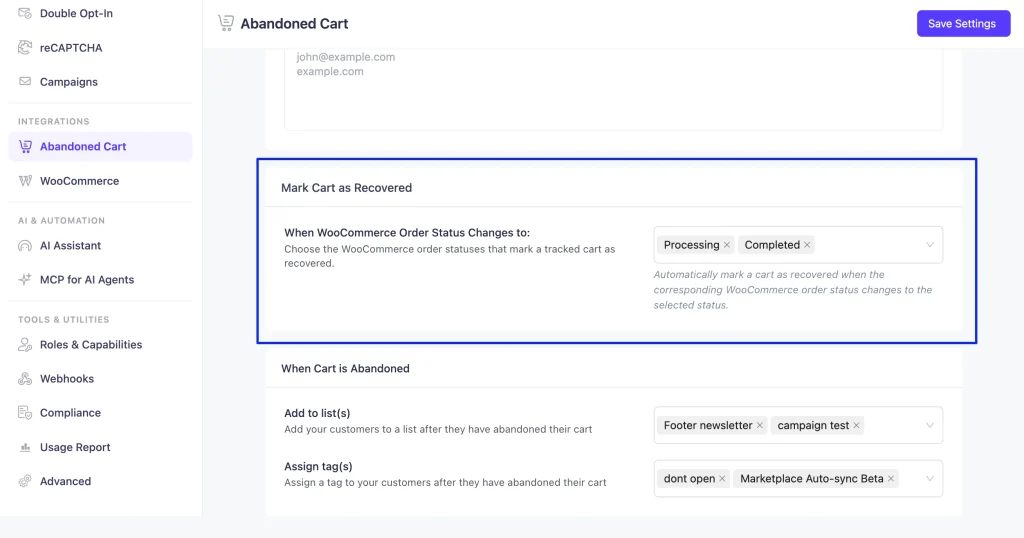
Mark Cart as Recovered
When WooCommerce Order Status Changes to: — a multi-select of WooCommerce order statuses (default: Processing, Completed) that, when reached, automatically flip a tracked cart’s status to Recovered.
Add or remove statuses based on your fulfillment flow — for example, if you use a custom “Payment Confirmed” status before Processing, add it here so recovery is credited as soon as payment clears rather than waiting for order processing to begin.
When Cart is Abandoned
Actions Mail Mint takes automatically the moment a cart’s status becomes Abandoned.
- Add to list(s) — auto-enrolls the shopper into one or more Mail Mint lists.
- Assign tag(s) — auto-tags the shopper’s contact record.
Both are optional and empty by default. They’re most useful if you want to segment abandoned-cart shoppers separately from your general list, or trigger a dedicated automation off a tag rather than the built-in abandoned cart trigger.
