
The Mail Mint Dashboard is the central hub of your email marketing activities within WordPress. It gives you a bird’s-eye view of your contacts, campaigns, and overall email performance – all in one place.
What is the Mail Mint Dashboard?
When you open Mail Mint, the Dashboard is the first screen you see. It serves two purposes depending on where you are in your journey:
- For new users, it acts as a guided setup assistant, walking you through the essential steps to get started.
- For active users, it becomes a live analytics hub showing your email marketing performance at a glance.
The New User Experience (Getting Started)
If you have just installed Mail Mint and haven’t set anything up yet, the Dashboard will greet you with a setup checklist. This helps you quickly get your email marketing up and running.
The checklist includes five key steps:
- Add your contacts – Import or manually add the people you want to email.
- Create your first email – Design an email using the built-in editor or a template.
- Send your first campaign – Set up and send your first campaign to your contacts.
- Create a form – Build a signup form to start collecting new leads.
- Set up automation – Create automated email sequences to engage contacts automatically.
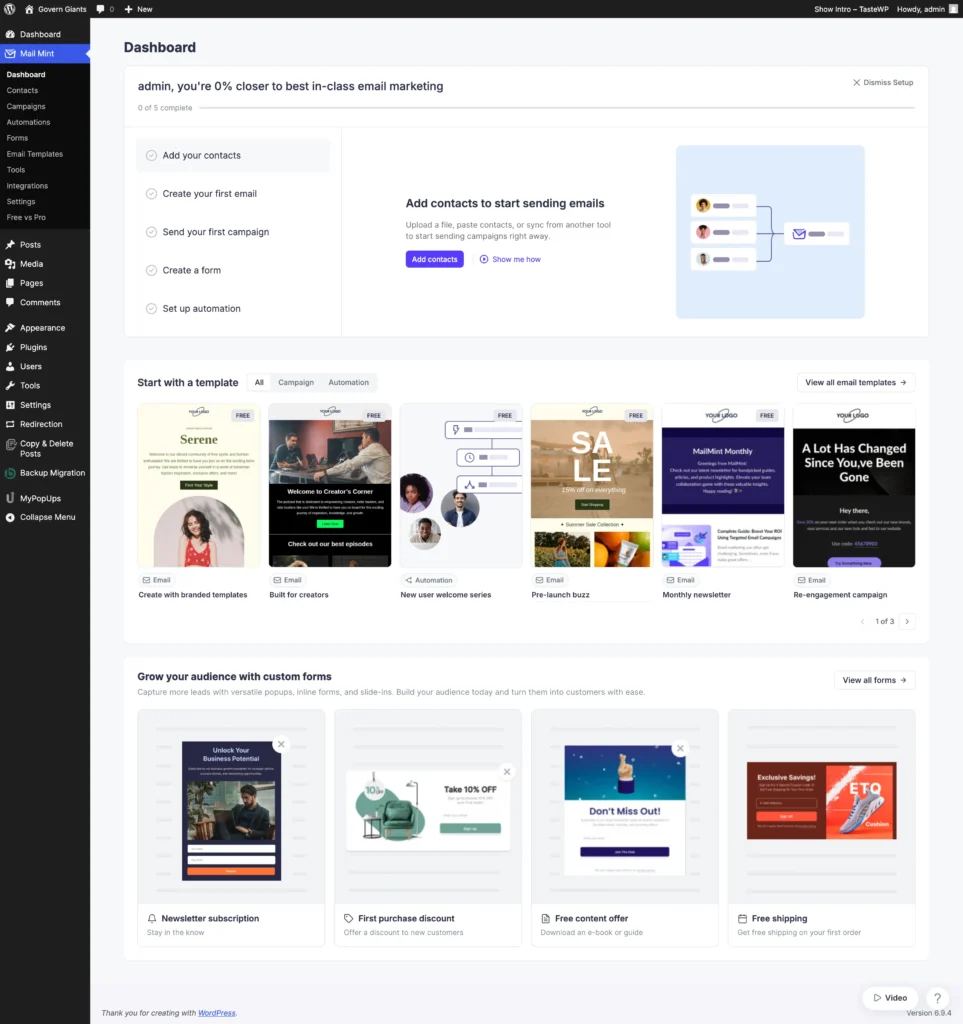
Below the checklist, you will also find two quick-start sections:
Start with a template – Browse ready-made email and automation templates such as branded emails, welcome series, newsletter layouts, re-engagement campaigns, and more. You can filter between Campaign and Automation types.
Grow your audience with custom forms – Explore pre-built form types including newsletter subscription forms, first purchase discount pop-ups, free content offers, and free shipping promotions.
The Active User Dashboard
Once you start using Mail Mint and have contacts, campaigns, and emails in place, the Dashboard transforms into a live performance overview packed with real data.
Date Range & Quick Actions
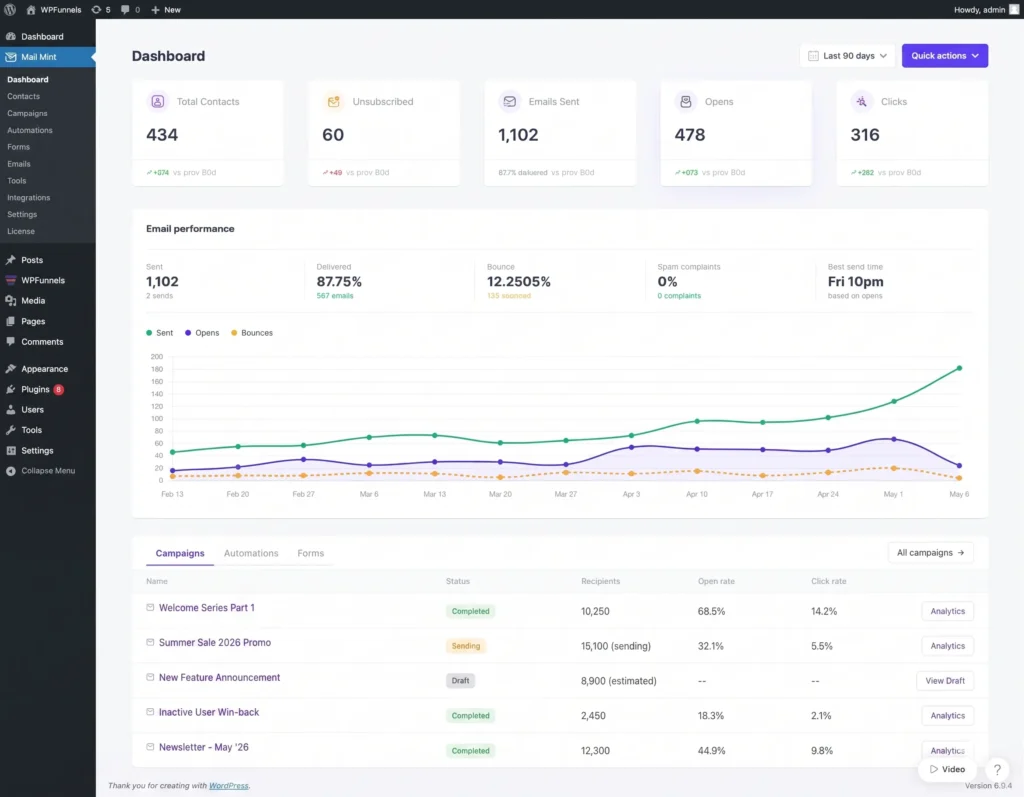
Date range selector: Filters all the stats and charts on the Dashboard to reflect your chosen time period. By default, it is set to the Last 30 days.
Quick actions: Gives you instant access to four common tasks — adding a single contact, importing contacts, creating a campaign, and setting up an automation — without navigating away from the Dashboard.
Summary Stat Cards
At the top of the Dashboard, five metric cards give you an instant snapshot of your account’s health over the selected time period:
- Total Contacts: The total number of contacts currently in your Mail Mint list, regardless of their status. This includes subscribed, unsubscribed, and all other contact statuses.
- Unsubscribed: The number of contacts who have opted out of your emails during the selected period.
- Emails Sent: The total number of emails sent through Mail Mint during the selected period. This includes emails sent from Campaigns, Automations, and any other sending activity.
- Opens: The total number of times your emails were opened by recipients during the selected period.
- Clicks: The total number of times recipients clicked on links inside your emails during the selected period.
Each card also displays a comparison with the previous period so you can immediately see whether your numbers are trending up or down.
Email Performance Section
Email Performance: Shows key delivery metrics like sent, delivered, bounce rate, spam complaints, and best send time, along with a chart visualizing your Sent, Opens, and Bounces over time.
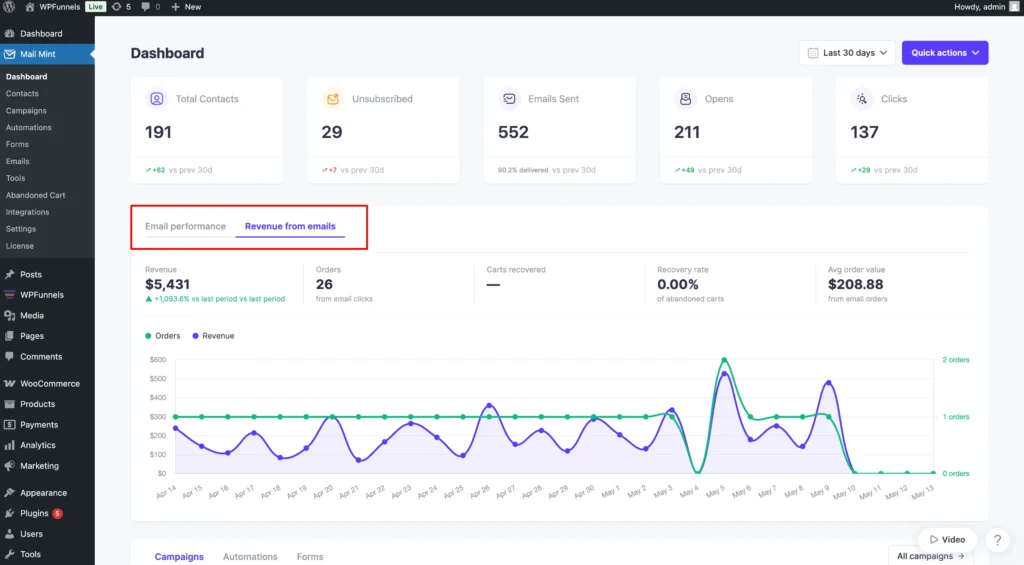
Revenue from emails: Available exclusively for WooCommerce users. Tracks revenue, orders, carts recovered, recovery rate, and average order value generated directly from your email campaigns.
Recent Campaigns, Automations & Forms
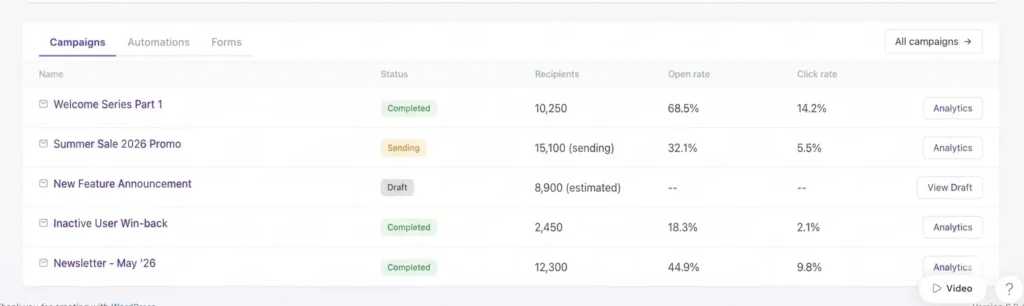
Campaigns: Shows your most recent campaigns with the name, status, recipients, open rate, and click rate, along with a direct link to its analytics.
Automations: Shows your recently active automation workflows with a quick link to view details.
Forms: Shows your most recently created forms with a quick link to view details.