Follow the step-by-step instructions below to set up bounce handling with Mailgun.
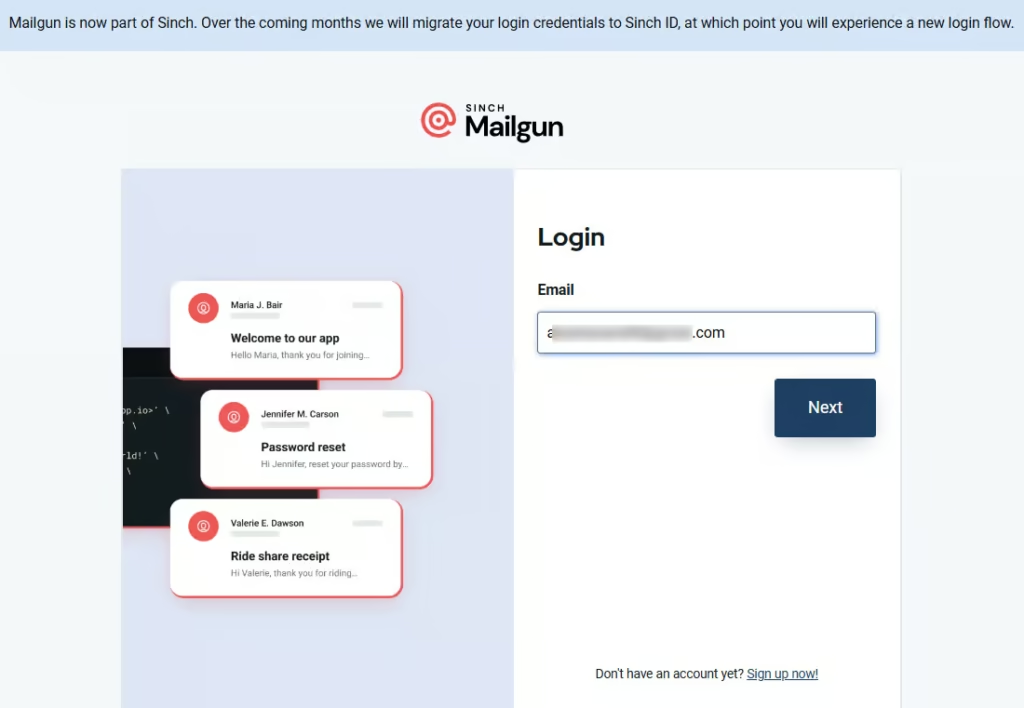
Step 1: Log in to your Mailgun account
Go to your Mailgun account and enter the login credentials.
Step 2: Add the Webhook
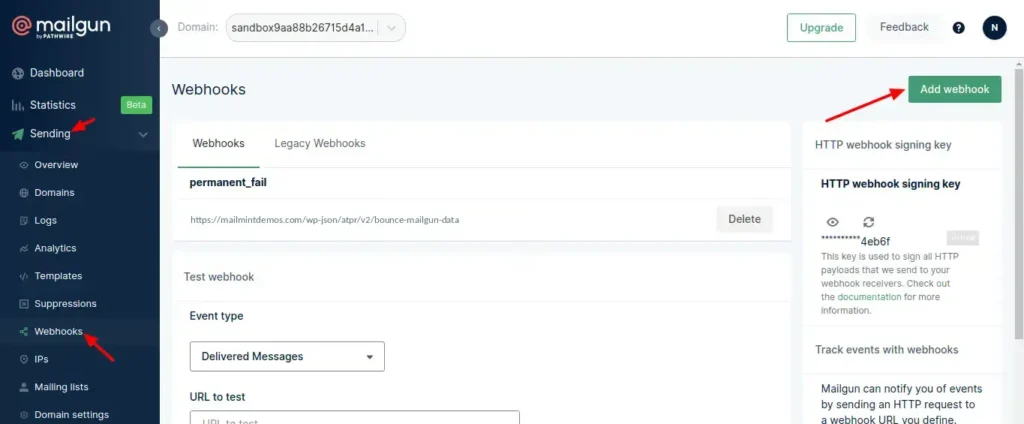
Go to Sending ⇨ Webhooks.
Now, click on Add webhook.
Step 3: Enter the HTTP Webhook URL
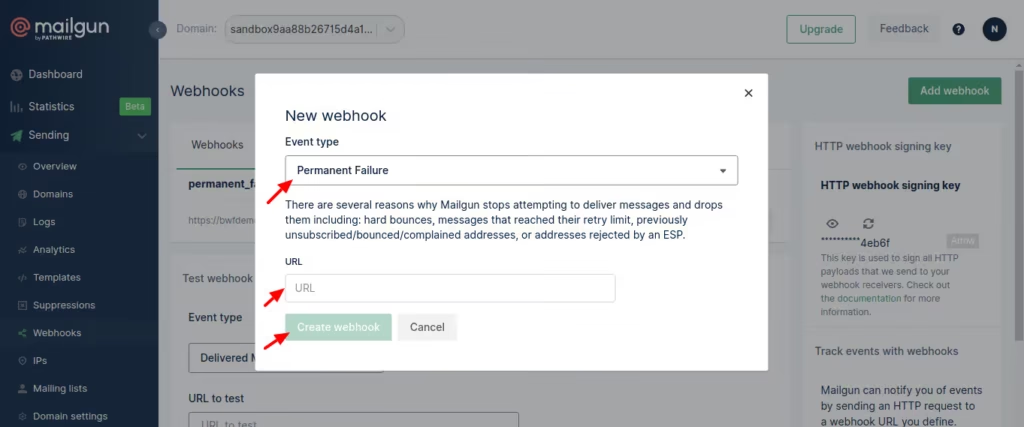
Select Permanent Failure as the event type and enter the bounce handling webhook URL here.
To find this URL, go to the next step.
Step 4: Copy and Paste the Webhook URL
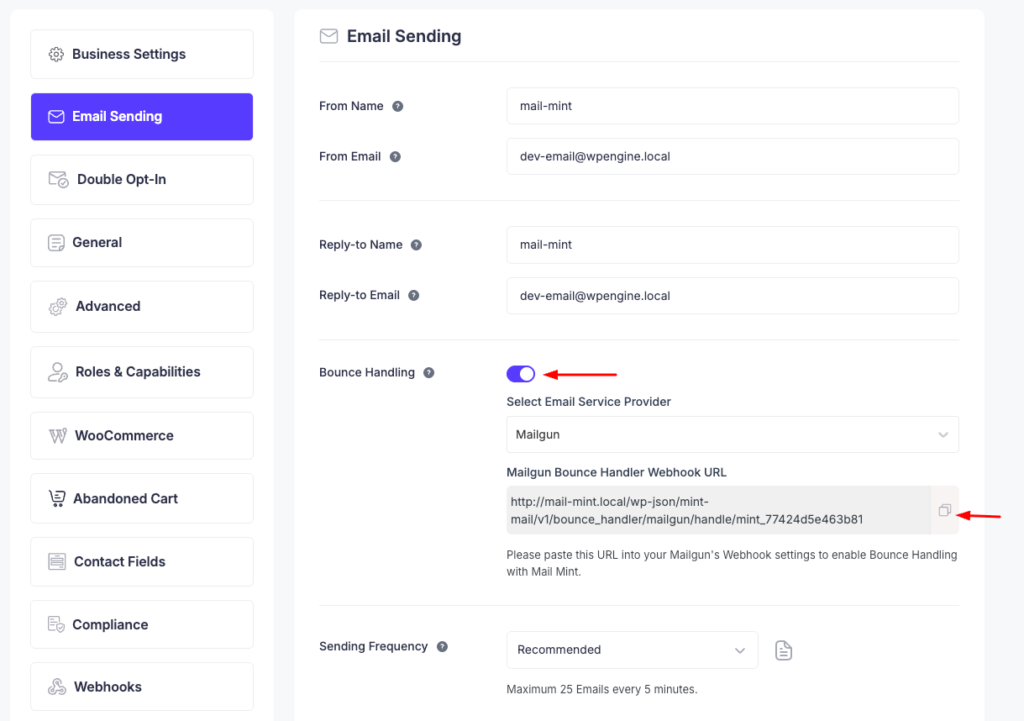
Go to Mail Mint -> Settings -> Email Sending
Scroll down below and enable Bounce Handling.
Select Mailgun from the dropdown and copy the bounce tracking Webhook URL.
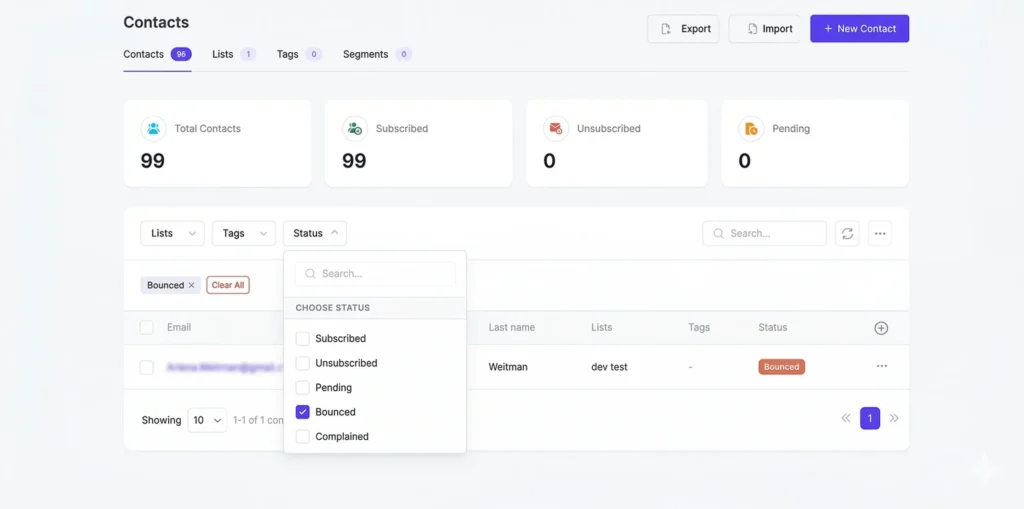
To view bounced contacts in your Mail Mint, go to Contacts. Then, click on the Status filter and check the Bounced checkbox.
You will now see all the bounced contacts.