
The Email Templates Hub in Mail Mint lets you design reusable email layouts once and use them across any campaign or automation – without rebuilding from scratch every time. Whether you’re sending a welcome series, a promotional emails, or an abandoned cart recovery sequence, saved templates keep your emails consistent and your workflow fast.
How to Open Email Templates Hub
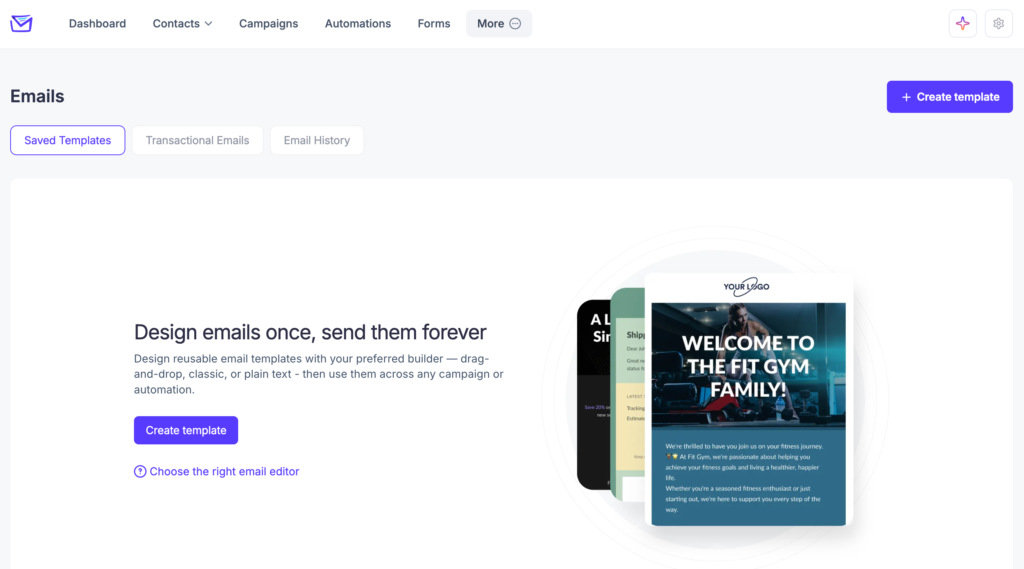
Navigate to Mail Mint → Emails, then click the Saved Templates tab.
Creating a New Template
Step 1: Open the Template Creator
From the Emails page, click the + Create template button in the top-right corner.
The Design email modal will appear, giving you two ways to get started:
- Branded templates — Choose from 20+ professionally designed, pre-built templates.
- My templates — Select a template you’ve previously saved.
You can also click Start from scratch to open a blank canvas.
Step 2: Choose a Starting Point
Option A: Use a Branded Template
- In the Design email modal, make sure the Branded templates tab is selected.
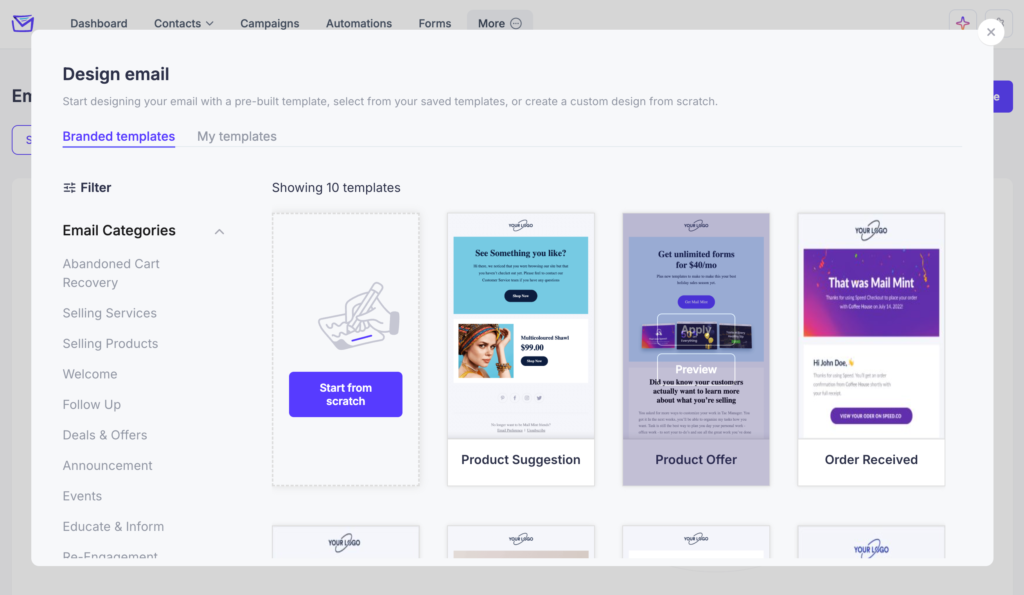
- Browse the template grid or use the Filter panel on the left to narrow by category.
- Click any template thumbnail to preview it, then select it to open it in the email builder.
Option B: Use One of Your Saved Templates
- Click the My templates tab in the modal.
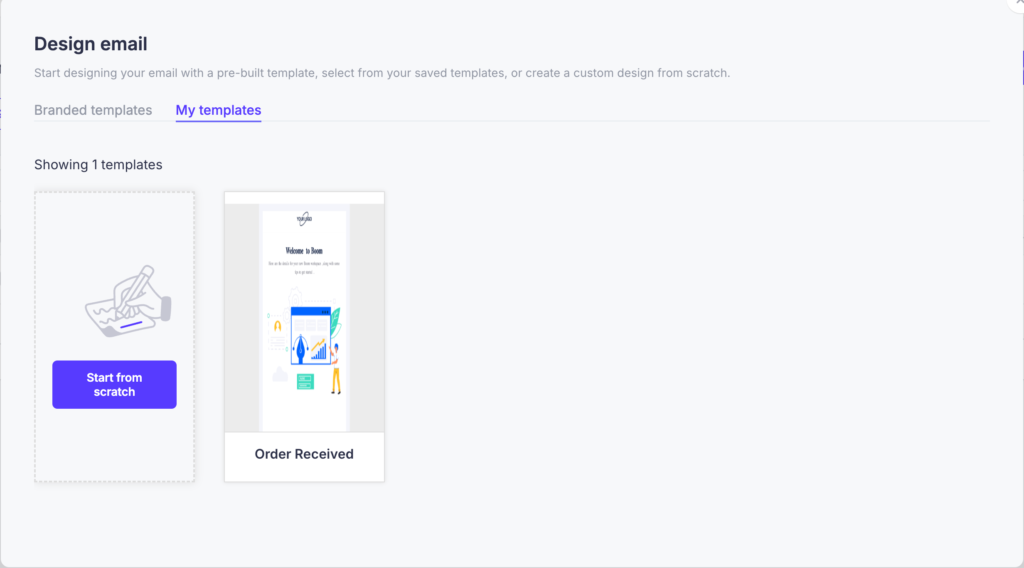
- Your previously saved templates will appear as thumbnail cards.
- Click a template to open it in the builder.
Option C: Start from Scratch
Click Start from scratch to open a blank canvas in the email builder.
Step 3: Design Your Email
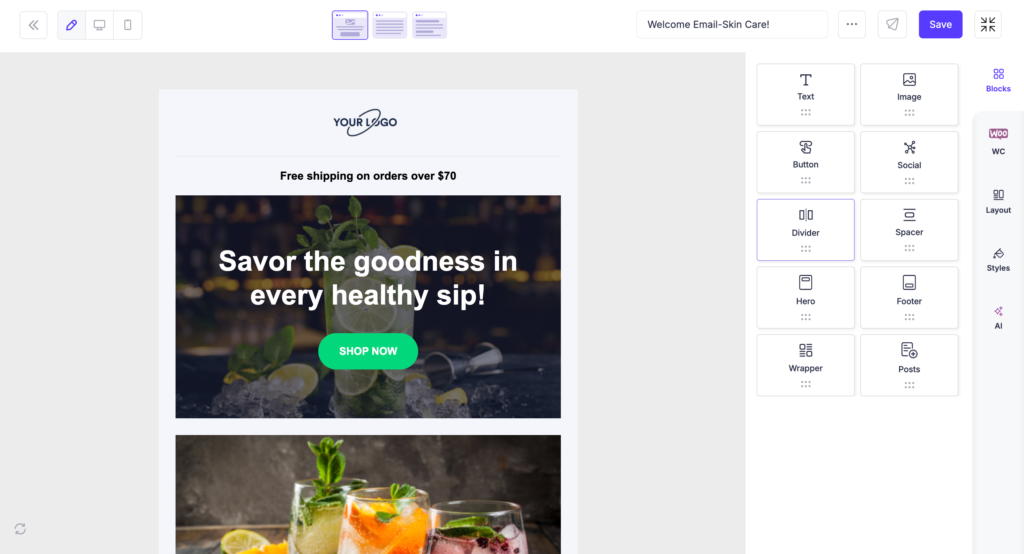
The email builder opens with a live canvas in the center and a block panel on the right.
Step 4: Name and Save Your Template
- Click the template name field at the top center of the builder (defaults to something like “Untitled”).
- Type a descriptive name — for example, Fitness Gym Membership or Welcome Email – Free Plan.
- Click Save to store the template. It will immediately appear in your Saved Templates list.
Using a Saved Template in a Campaign or Automation
When creating or editing a campaign or automation email, the Design email modal will appear. Switch to the My templates tab to see all your saved templates and select the one you want to use.

Any edits made during campaign setup will apply only to that specific send — your saved template remains unchanged.
