
Writing effective email copy takes time – getting the tone right, structuring the content, and making sure the call-to-action lands. Mail Mint’s AI Assistant helps you get there faster by letting you generate, refine, and polish your email body directly inside the email builder.
Opening the AI Assistant in the Email Builder
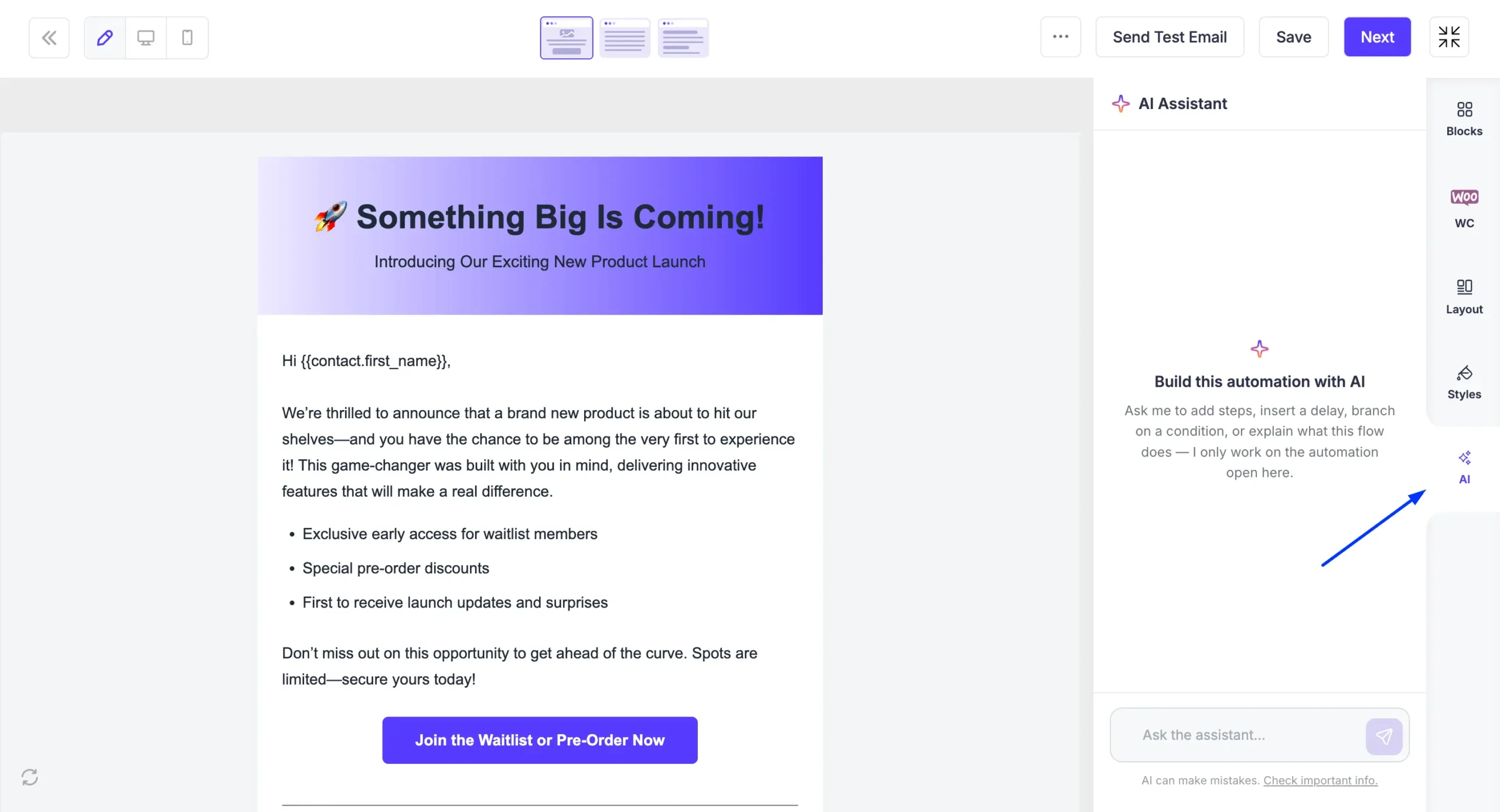
When editing your email design, click the AI tab in the right sidebar of the email builder to open the AI Assistant panel.
Writing the Email Body with a Prompt
To generate or rewrite the email body, type your instruction into the Ask the assistant… field and press send. The AI updates the email canvas live and confirms what it changed.
Be as specific as possible for the best results. Include:
- The goal of the email
- The tone you want
- Any key points or content to include
Editing a Specific Text Block with AI
For more targeted edits — changing just one paragraph or section — click the text block you want to edit on the canvas. In the formatting toolbar that appears, click the AI button to open the inline Mail Mint AI popover for that block.
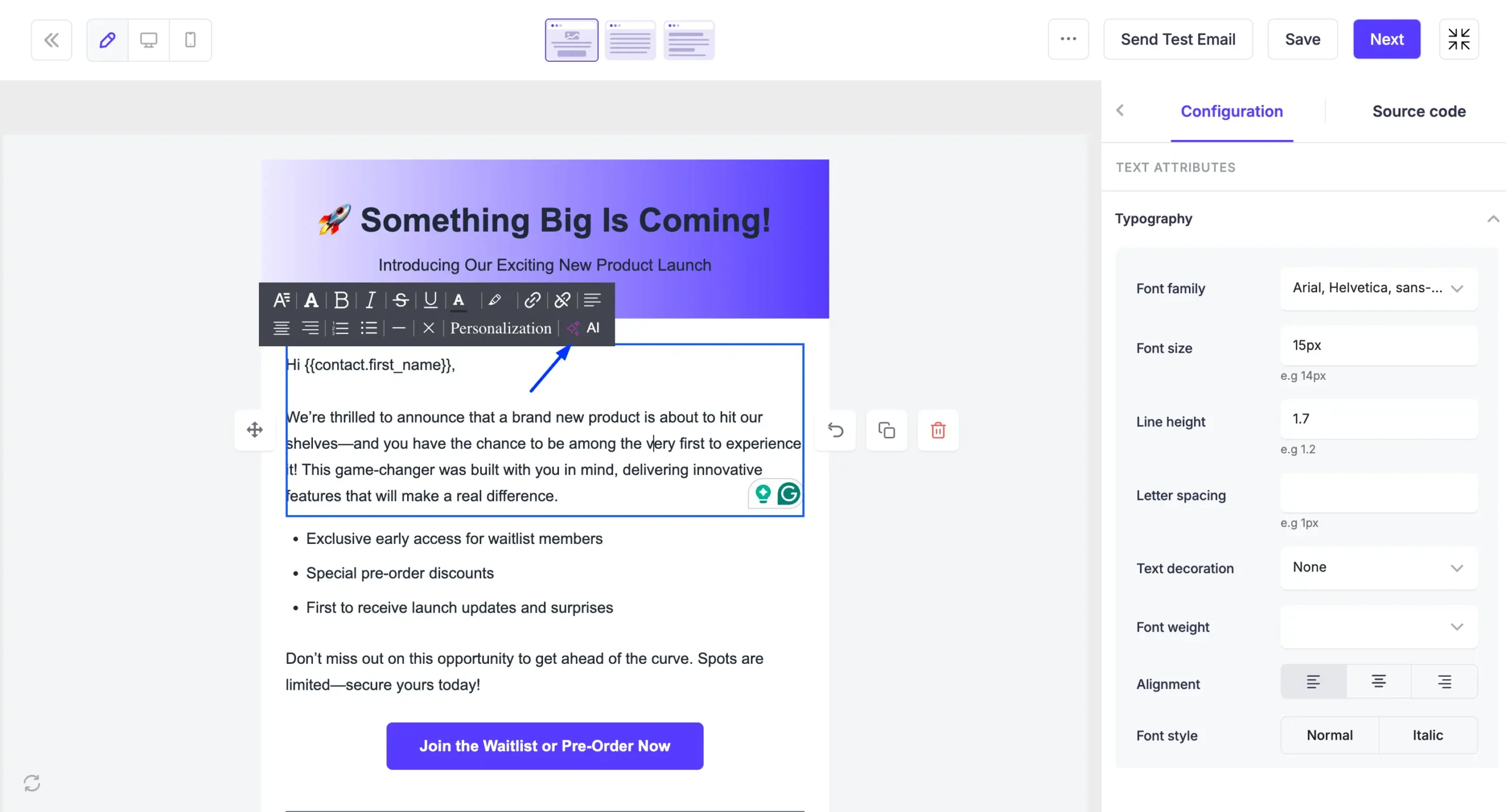
You can apply any of these actions to the selected block:
- Adjusts the tone of just this block
- Translates the block into another language
- Improves clarity, flow, and overall quality
- Makes the block more concise
- Adds more detail and depth to the block
- Corrects any errors in the block
Then you can go ahead and refine your emails as you go.
