
AI integration with Mail Mint will now help you to create catchy subject lines as well as preview texts that align with your email campaign goal.
Opening the AI Popover
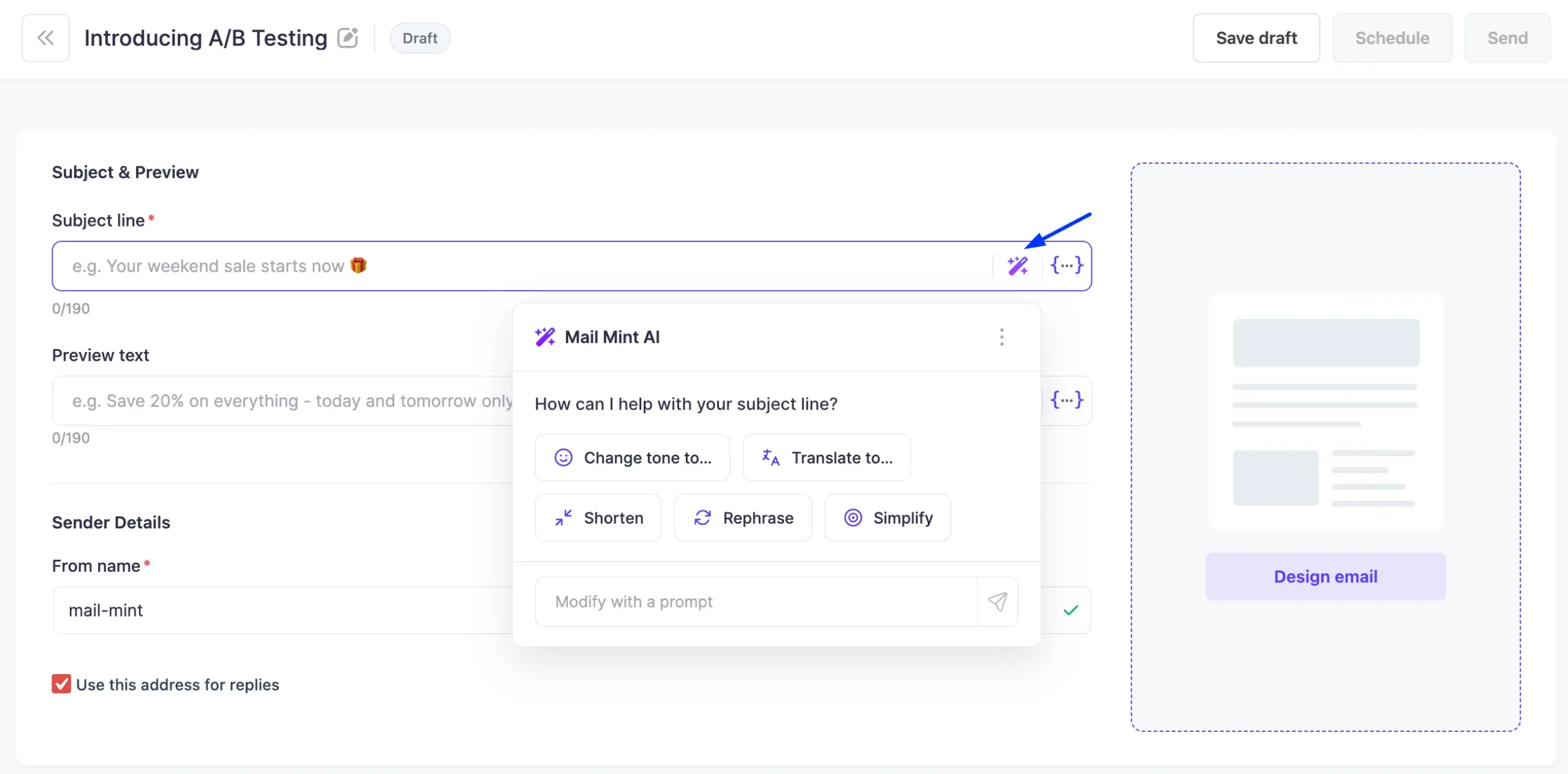
When creating or editing a campaign, go to the Subject & Preview section. Click the AI icon on the right side of either the Subject line or Preview text field to open the Mail Mint AI popover.
Quick Actions
When the popover opens, you’ll see a set of one-click actions you can apply to the field:
- Adjusts the tone — e.g., professional, casual, urgent
- Translates the text into another language
- Makes the text more concise
- Rewrites while keeping the same meaning
- Reduces complexity and makes it easier to read
These actions work on whatever is currently typed in the field. If the field is empty, use the prompt input first to generate a suggestion.
Generate with a Prompt
If you want the AI to write from scratch or based on a specific idea, type your request into the Modify with a prompt field at the bottom of the popover and press send.
Example prompt:
“Write a subject on new feature A/B testing release on the mail mint”
The AI will return 3 suggestions to choose from. Click any suggestion to apply it directly to the field.
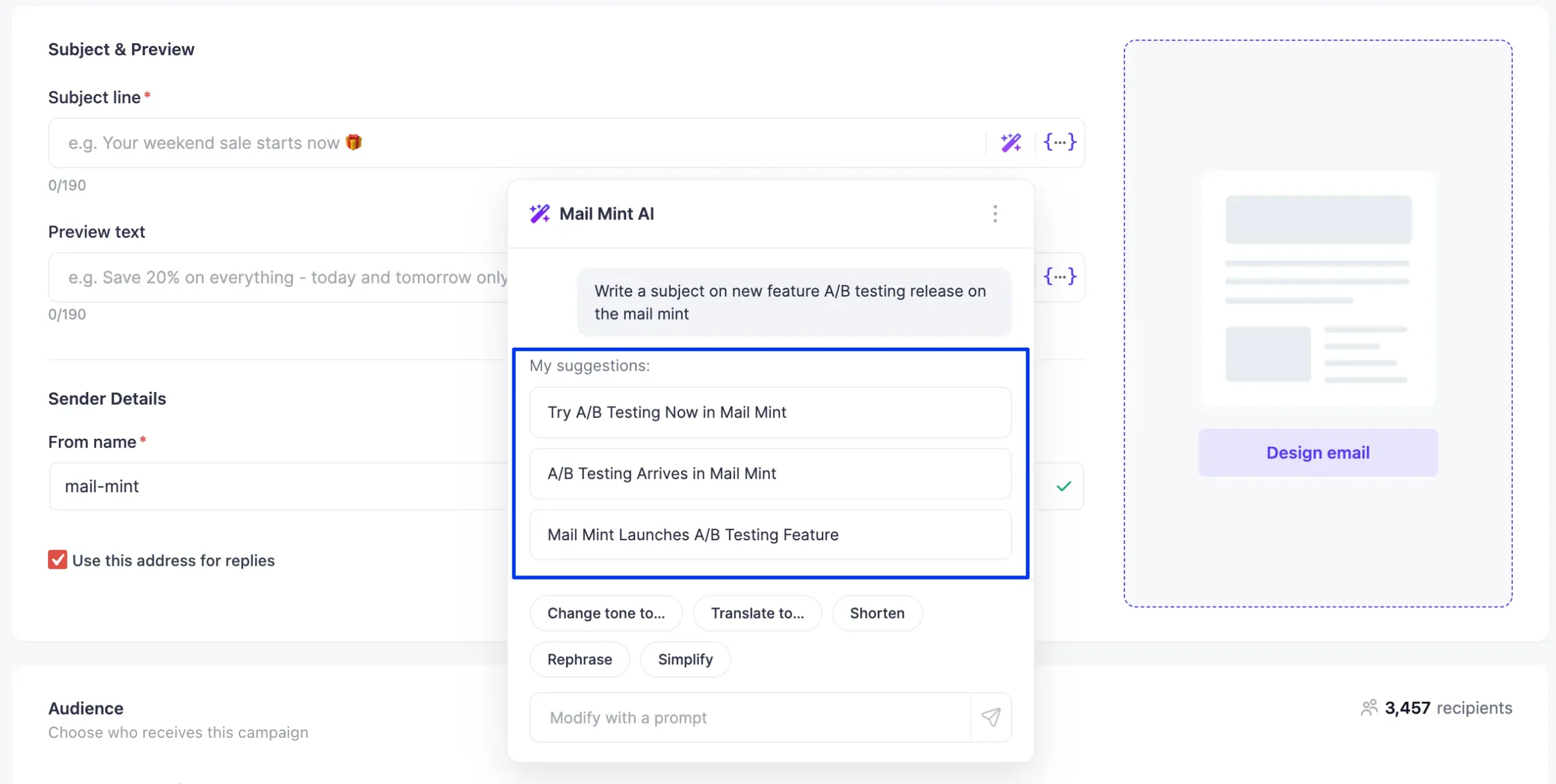
Once a suggestion is applied, the quick action chips remain available so you can continue refining the text further.
Field Validation
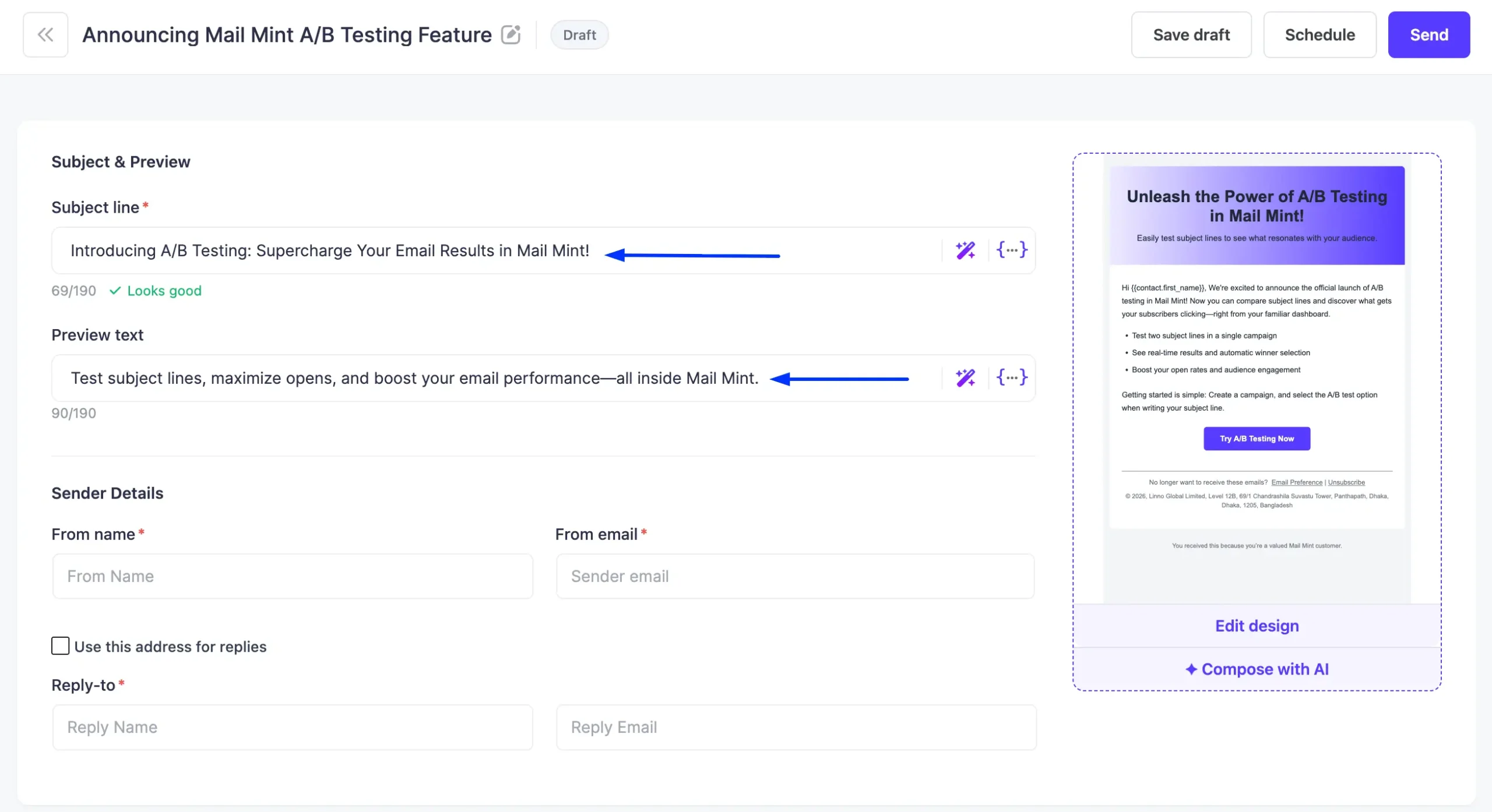
After applying a subject line or preview text, Mail Mint checks the character count against the 190-character limit and shows a ✓ Looks good indicator when the length is within a good range.
Tips
- Be specific in your prompt — “Write a subject line announcing our summer sale with a sense of urgency” gives better results than “write a subject line”.
- Generate first, refine after — Use the prompt to get a starting point, then apply Shorten or Change tone to dial it in.
- Keep subject lines between 40–60 characters — The character counter below the field updates in real time to help you stay in range.
- Use preview text to complement the subject — The preview text should add context, not repeat the subject line. Use Rephrase on your subject line copy as a starting point and adjust from there.
- Translate for multilingual lists — Use Translate to… if you’re sending to contacts in multiple languages and need a quick localized version.
