
In this guide, you’ll learn how to use the Order Bump Replace feature to swap the main order with an Order Bump or replace the main product—with or without an Order Bump—using your Upsell/Downsell steps, allowing your users to upgrade their order to a better offer.
Prerequisite: Before starting, make sure you have installed both WPFunnels and WPFunnels Pro on your WordPress site.
Step 1: Set Up the Main Product
1. First, choose a funnel that includes an Upsell or Downsell, then set up the main product for your funnel.
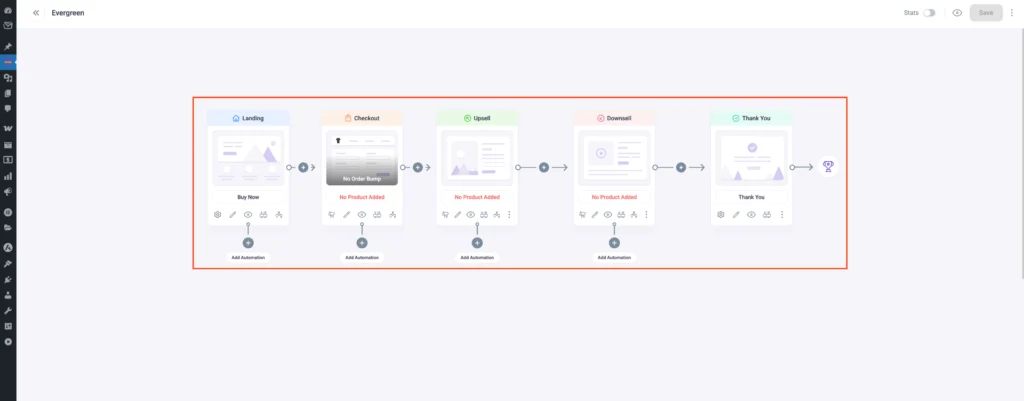
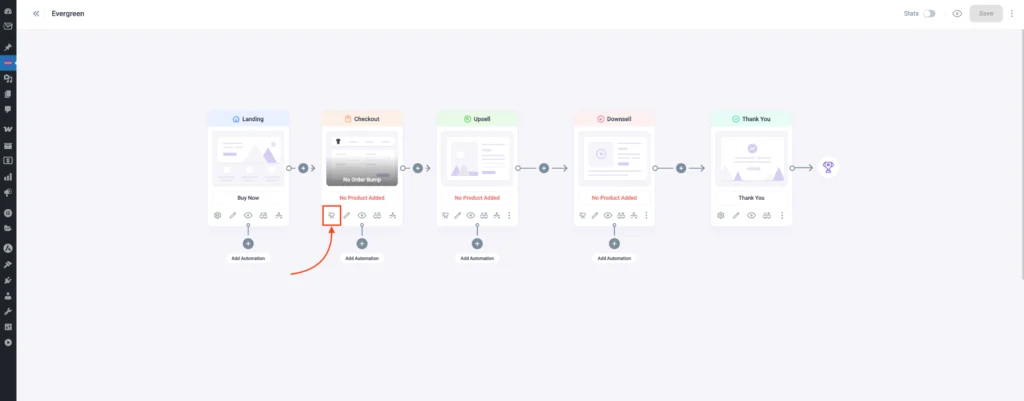
2. Now, add the main product by clicking the cart icon. A Checkout settings drawer will then appear.
3. Go to the Products tab, add your main product to the funnel, and then click Save Changes.
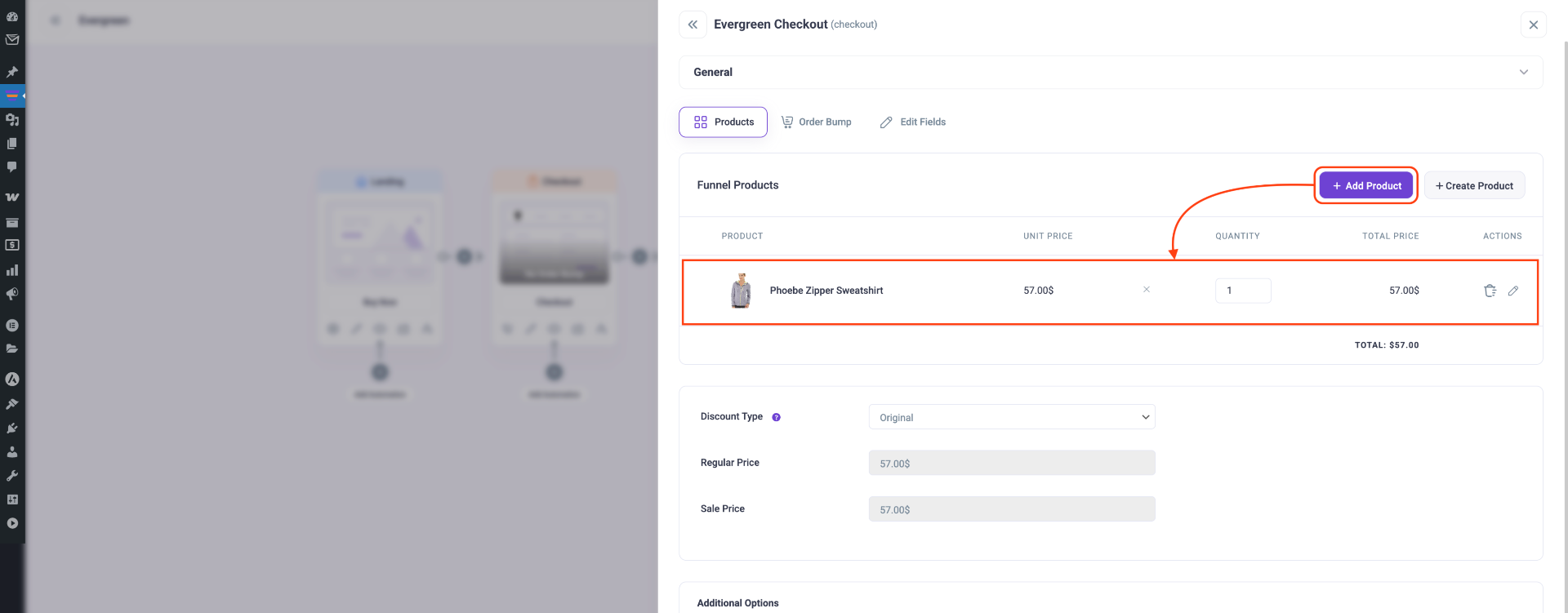
Now you can set Order Bump, Upsell/Downsell offers and replace the main product with any of these offer products.
Step 2: Replace First Product with Order Bump Offer
On the Checkout settings drawer, go to the Order Bump tab.
1. In the Checkout settings drawer, go to the Order Bump tab.
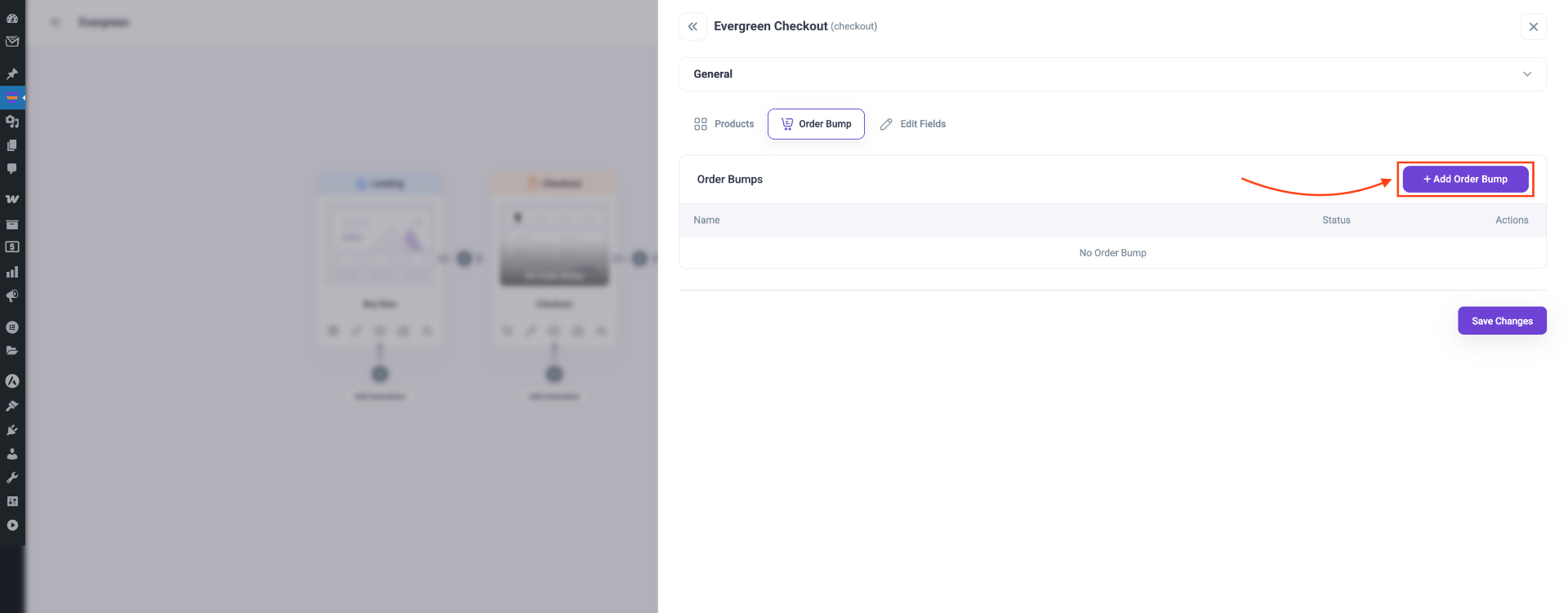
2. Click on the Order Bump tab, then add a product to the order bump.
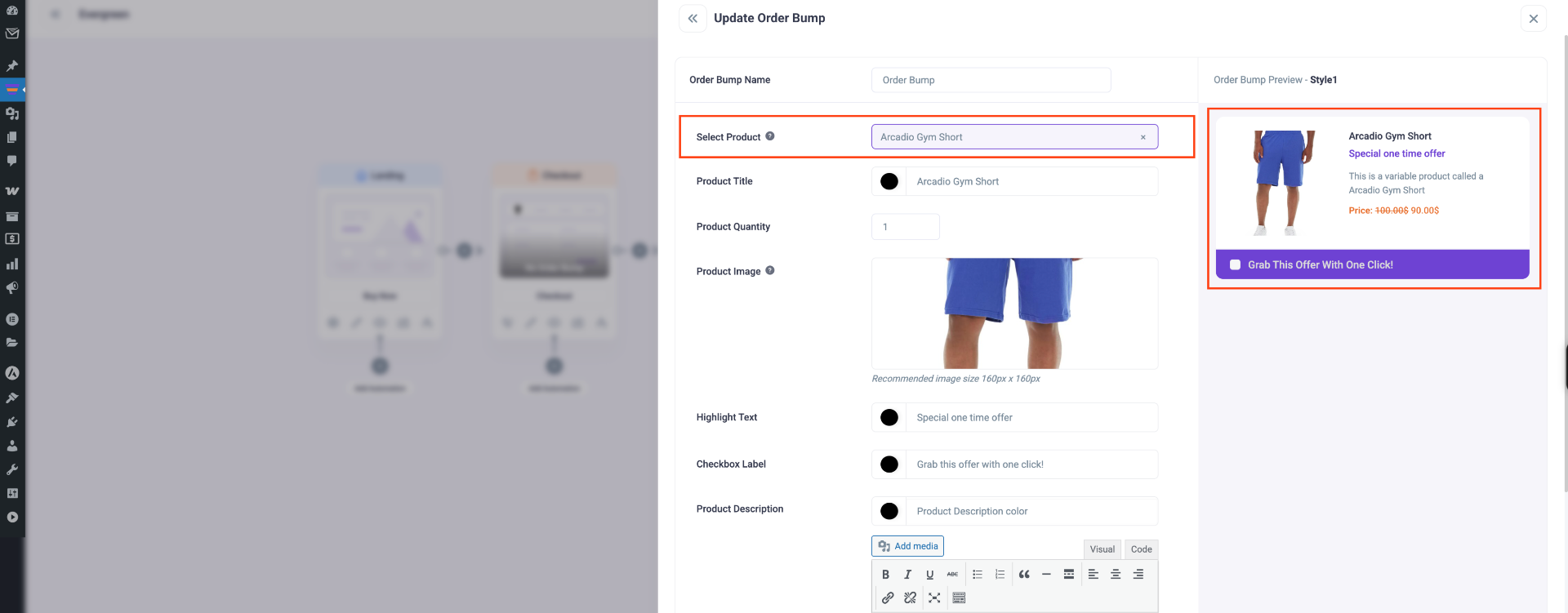
3. Scroll down to the “Replace Product” section. You will see two options:
- Replace Selected Products – Replace only the products you select.
- Replace All – Replace all products at once.
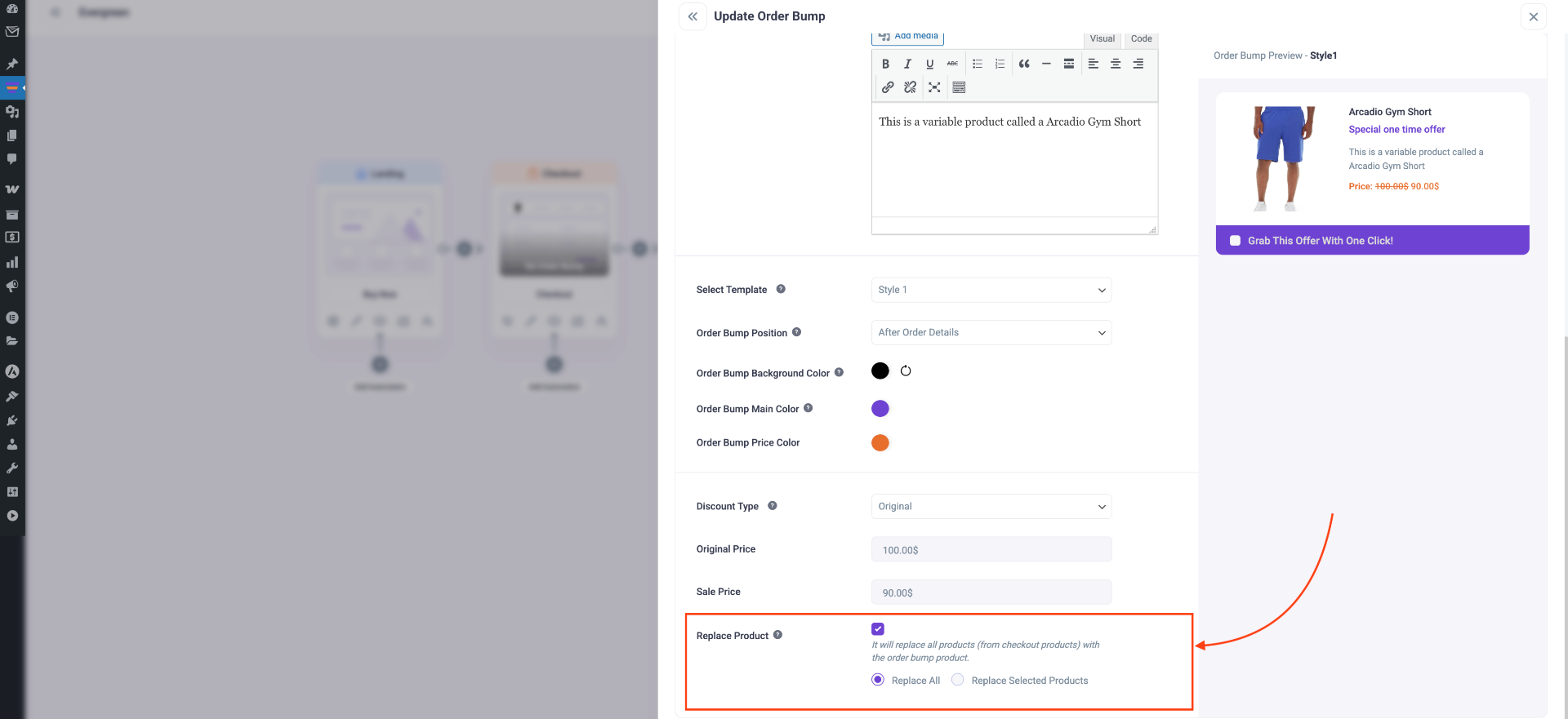
Finally, Click Save Changes.
Step 3: Replace Main Product with Upsell/Downsell Offer
You can replace the main product with an Upsell or Downsell offer. Below is how to replace it with an Upsell offer:
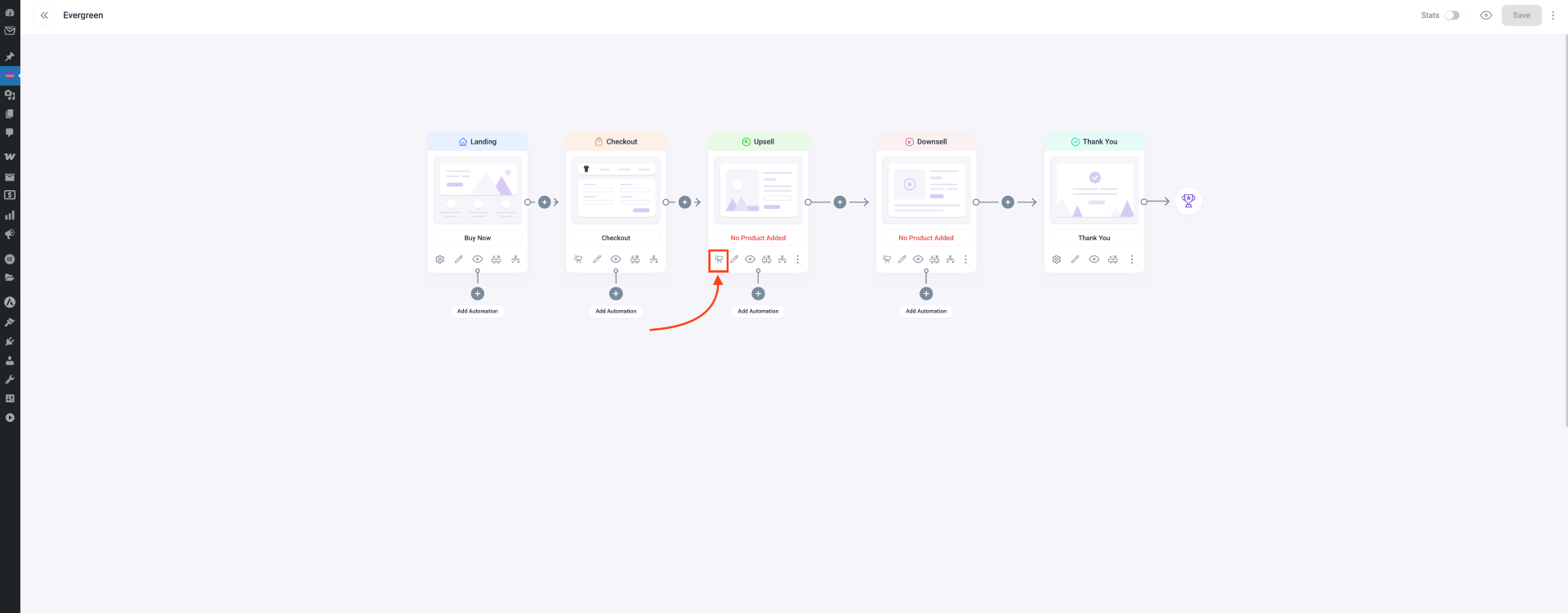
1. Navigate to the Upsell step and click on the Cart icon to open the Upsell settings drawer.
2. On Upsell settings drawer, add a product for your Upsell offer.
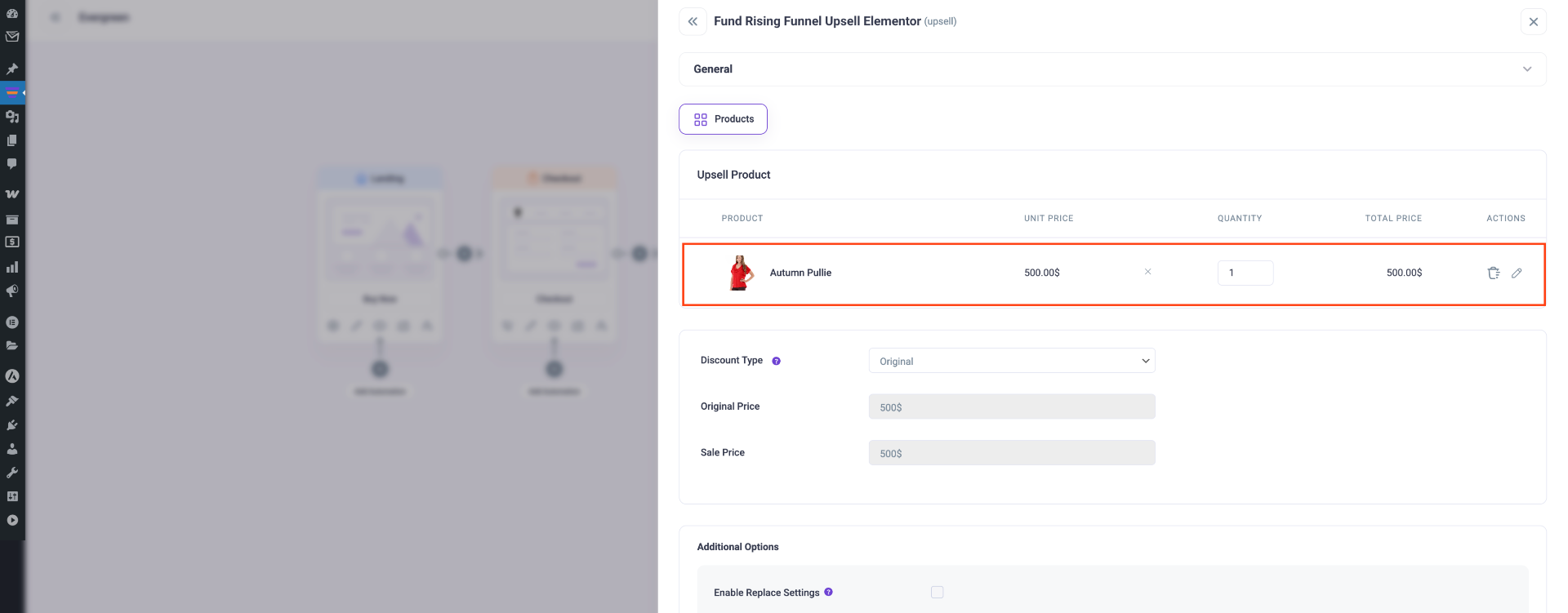
3. Scroll down and enable the “Replace Settings” option. Once enabled, the following options will appear:
- Replace All Prior Orders – Replace all previous orders.
- Replace Main Order Including Order Bump – Replace the main order along with any associated order bumps.
- Replace Main Order Excluding Order Bump – Replace only the main order, leaving order bumps unchanged.
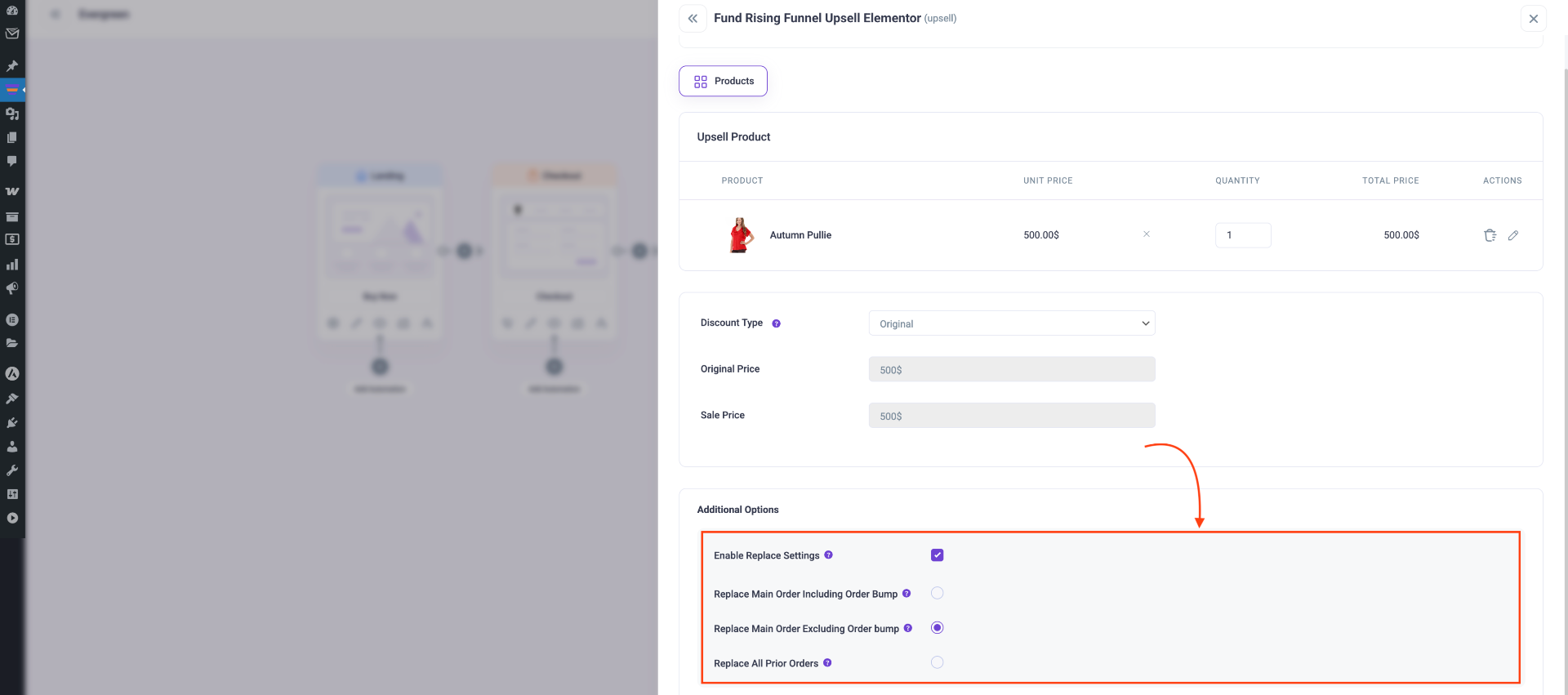
Choose the option you want, then click the Save Changes button to apply it.
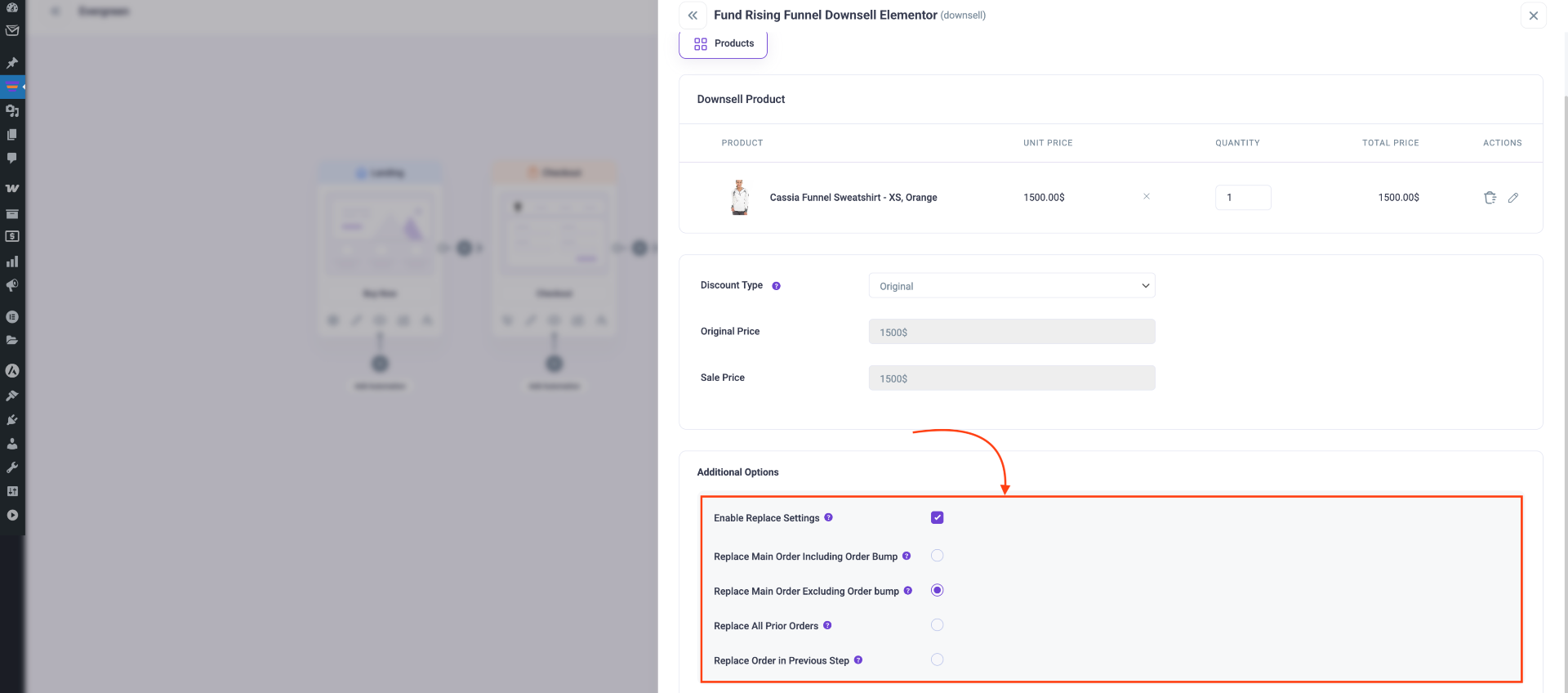
Note: In the Downsell section, scroll down and enable the “Replace Settings” option. Once enabled, the following options will appear:
- Replace Order in Previous Step – Replace the order from the step immediately before the current downsell.
- Replace Main Order Including Order Bump – Replace the main downsell order along with any associated order bumps.
- Replace Main Order Excluding Order Bump – Replace only the main downsell order, leaving order bumps unchanged.
- Replace All Prior Orders – Replace all previous orders in the funnel.
Step 4: Confirm Replacement
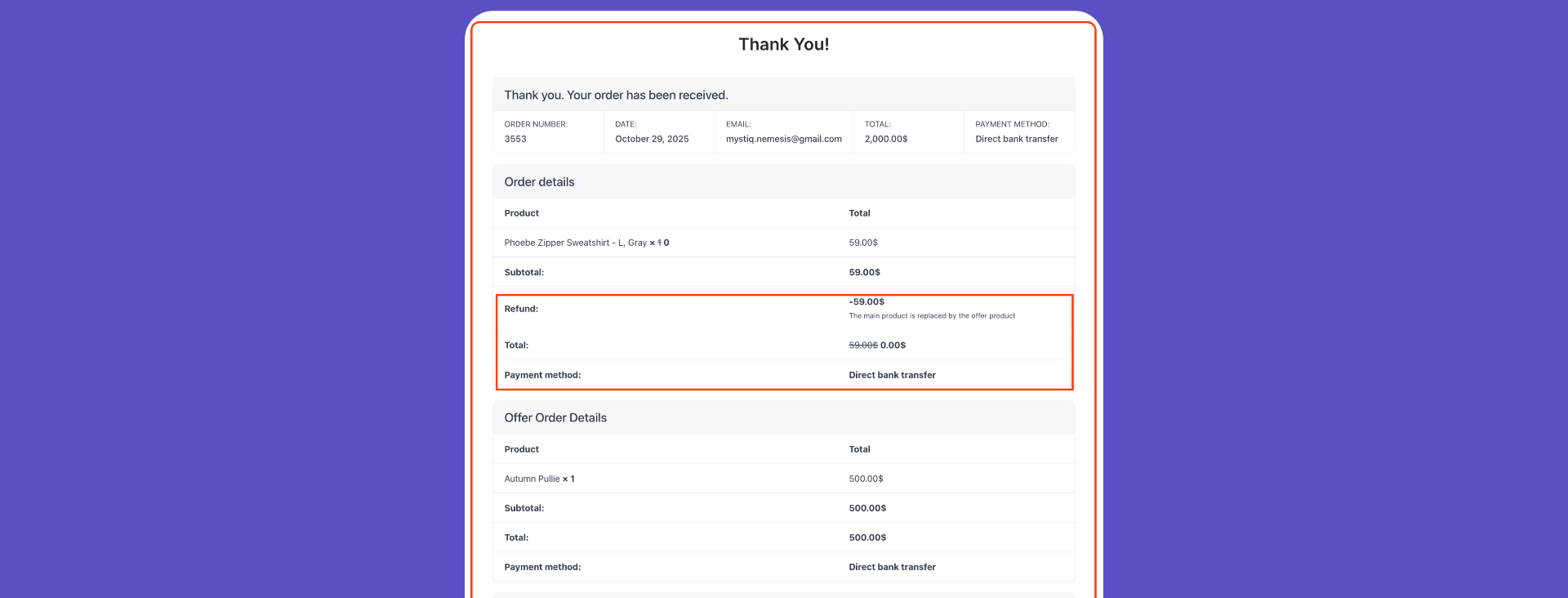
Once the product is purchased using the replacement option, the user will see a message confirming that their main product has been replaced with the offer product.
That’s it! You can now easily replace the main product in your funnel with any Order Bump, Upsell, or Downsell offer.
